Planning inside remarketing
Every place the Sell and Buy plans show up outside Planning, side by side: the Seller Hub, the Fleet panel and Leads for sellers; the Marketplace, the vehicle page, the Buyer Hub and notices for dealers. What each shows, where the number comes from, what you can do, and where it leads.
TL;DRAI summary
This chapter explains how your buy or sell plan appears across Cypress to help you achieve your goals. You will see how your planning data integrates with other features like the Seller Hub or Marketplace.
For: Sellers · Dealers · Cypress Managers
Planning is where a fleet decides what to sell and when, and where a dealer decides what to buy. Remarketing is where the vehicles are listed, found, bid on and bought. The two meet there, so each plan shows up in the pages you already work in: a seller sees what dealers plan to buy beside the vehicles they are selling, and a dealer sees what its targets match beside the listings it browses.
This chapter lists those places, seller side first and dealer side second, and says the same four things about each: what it shows, where the number comes from, what you can do from there, and which Planning tab it leads to. Everything here only reads the plan. The one thing a card can do beyond opening Planning is record your answer to a Sequoia suggestion, which then appears in the plan's Decisions tab.
The loop in one picture
Two things cross between the sides, and both cross without names:
- Planned demand goes from dealers to sellers. It is a count: how many companies plan to buy vehicles like one of yours, and how many vehicles they still need, shown only when at least two companies do. It never carries a name, a price or a maximum.
- Planned supply goes from sellers to dealers. It is a range of vehicles, never an exact number, and it never carries a name, a price, a VIN or a date. The forecast and Coming to market show it only when at least two sellers plan the same kind of vehicle; the Market tab shows a range when at least three do, and otherwise only the word Planned.
The rest of this chapter is where those two, and each plan's own numbers, show up.
At a glance
| Where | Who sees it | What it shows | Leads to |
|---|---|---|---|
| Seller Hub, toolbar | Every seller | A Sell plan link | Planning |
| Seller Hub, plan chip and In a plan | Fleets with a live plan | The window a vehicle is expected to sell in, its track | The vehicle in Planning |
| Seller Hub, the sell plan card | Planning on | Goal meter, the window open now, missed windows, Sequoia's demand card | Plan tab; the lot or window on the Schedule |
| Seller Hub and Fleet panel, Planned demand | Every seller | Dealers planning to buy vehicles like this one | Nothing to open: it is a count |
| Fleet panel, Plan tab | Fleets with a live plan | What the plan says about the vehicle | Vehicles tab, with the vehicle open |
| Leads tab, Planned demand | Every seller | The same count, beside the leads | Nothing to open |
| Marketplace, Your Q4 plan strip | Buy planning on | Bought against the goal, in closing, listings that fit | Buy plan; the Marketplace narrowed to your fits |
| Marketplace, fit badge and plan line | Buy planning on | The target a listing fits, and how well | The target on the Targets tab |
| Vehicle page, Buy analysis | Buy planning on | Market position, price to your need-by, buy now or wait, fit and budget | The target |
| Buyer Hub, the buy plan card | Buy planning on | Units and Budget meters, Due soon, Sequoia's top card | Buy plan; a target; the Buy plan acting on the card |
| Buyer Hub, the offer chip | Buy planning on | The target an offer counts toward | Progress tab |
| Notices | Buy planning on | Instant alerts and the Daily summary email | The vehicle; the Targets tab |
For a seller
Seller Hub
- Sell plan link. A quiet link in the toolbar, for every seller, that opens Planning. With Planning off for your fleet it is the only part of the plan the hub shows.
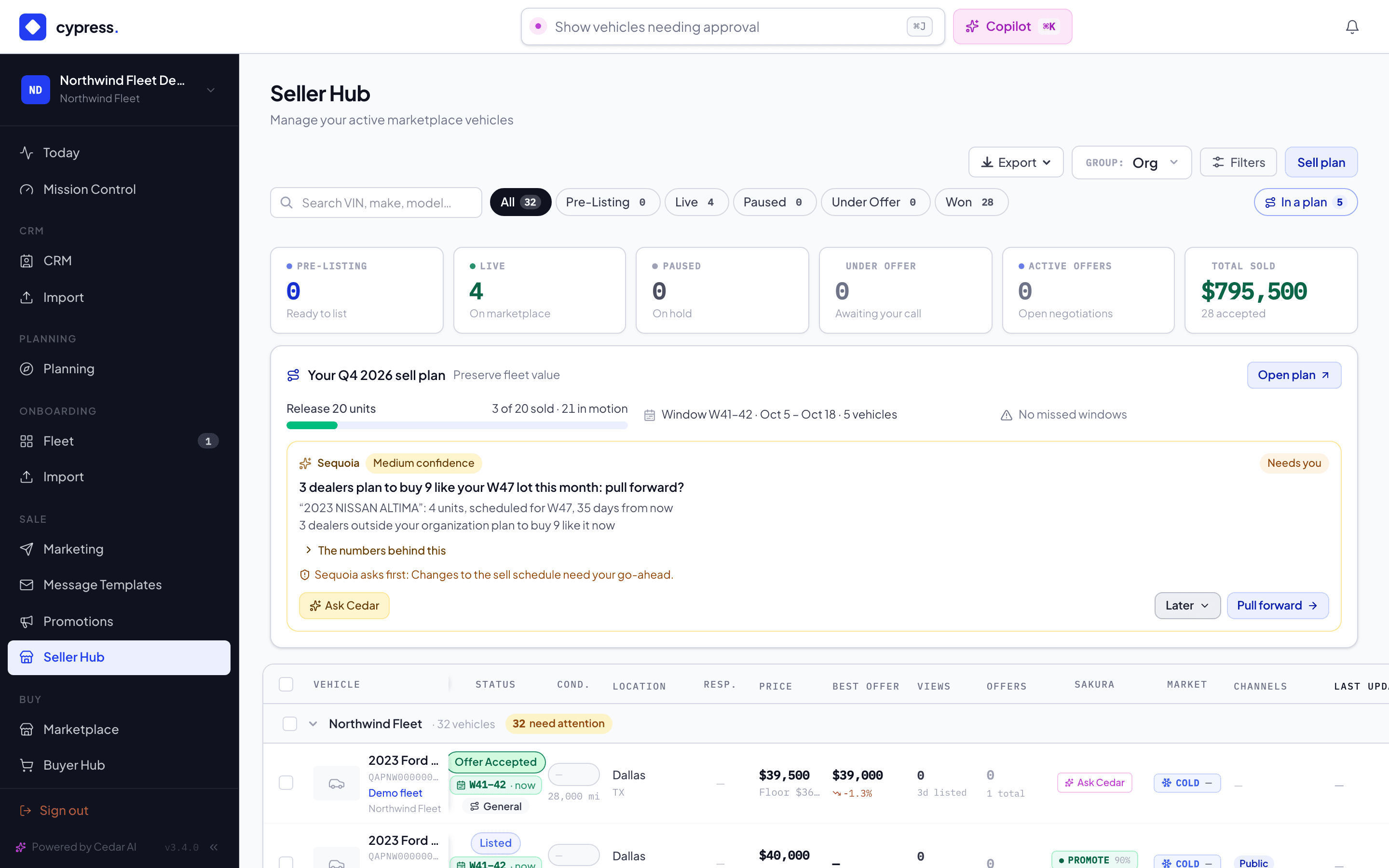
- Plan chip and In a plan. In a fleet with a live plan, each vehicle carries a small chip under its status with the sale window it is expected to sell in, and its track when that track asks Sell for something other than the default. In a plan at the right of the status slices shows only planned vehicles. The numbers come from the plan's schedule, read with up to a minute's delay. Hover the chip to read the track and window, and open the vehicle's Plan tab for the rest. It leads to the vehicle in Planning. See The plan in Sell.
- The sell plan card. With Planning on, a card under the KPI strip is titled for the quarter, for example Your Q4 2026 sell plan. It shows the quarter goal's meter (12 of 30 sold · 4 in motion), the sale window open now (Window W47 · Oct 19 – Nov 1 · 5 vehicles, or No sale window open now), and how many vehicles missed their window (No missed windows, or 3 vehicles missed their window). The goal is the one you set on the Plan tab, measured against what Sell records as sold or realized; the window is the one open now in your live plan; a missed vehicle is one that was handed over and passed a window unsold. Open plan leads to Planning.
- Sequoia's demand card. Under the meters, the card shows the one suggestion a seller acts on from here, for example 4 dealers plan to buy 11 like your W47 lot this month: pull forward? Sequoia raises it when at least two dealers plan to buy vehicles like one of your lots now and the lot's window starts more than two weeks away. It has Ask Cedar, a Later menu (Remind me next week, Not this quarter) and its action, Pull forward, which opens the lot or the window it names in Planning and records that you took it. Moving the lot is still your decision, made in Planning, and Sequoia asks first.
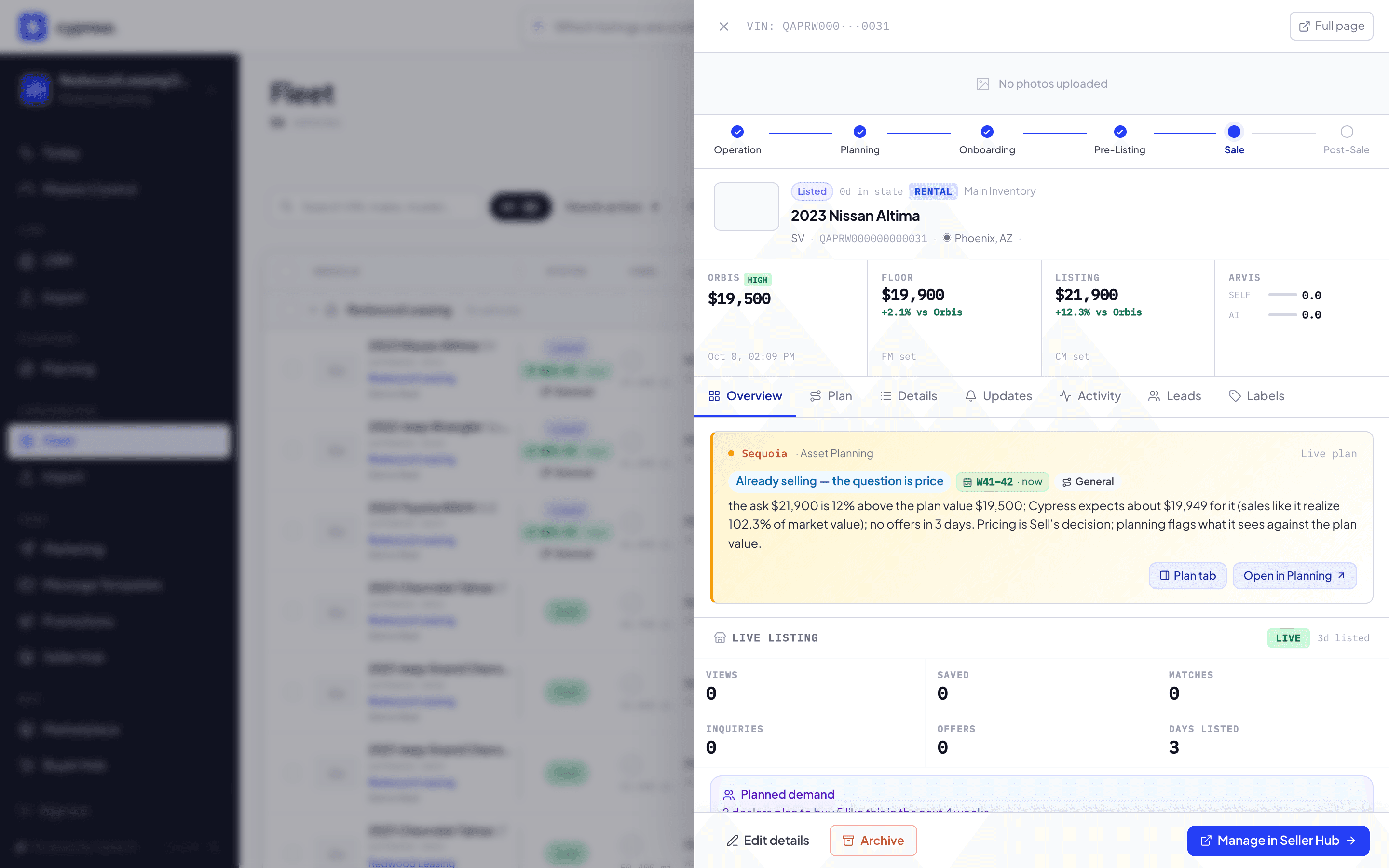
- Planned demand on a vehicle. In a listed vehicle's panel, under the listing numbers, a violet Planned demand card reads 2 dealers plan to buy 5 like this in the next 4 weeks. It comes from the open targets of dealers that still need vehicles and fit this one, whose need runs into the next four weeks. It needs at least two companies, never names one, and shows with Planning off too. There is nothing to open: it is information for pricing and timing.
Fleet panel
- Planned demand. The Fleet panel's listing section carries the same violet card, from the same count, under the inquiries, offers and days listed.
- Plan tab. When the fleet has a live plan, the Fleet panel (and the Seller Hub panel) has a Plan tab next to Overview: the plan's verdict for the vehicle, its track, window and plan value, and Open in Planning, which leads to the Vehicles tab with that vehicle's panel open.
Leads
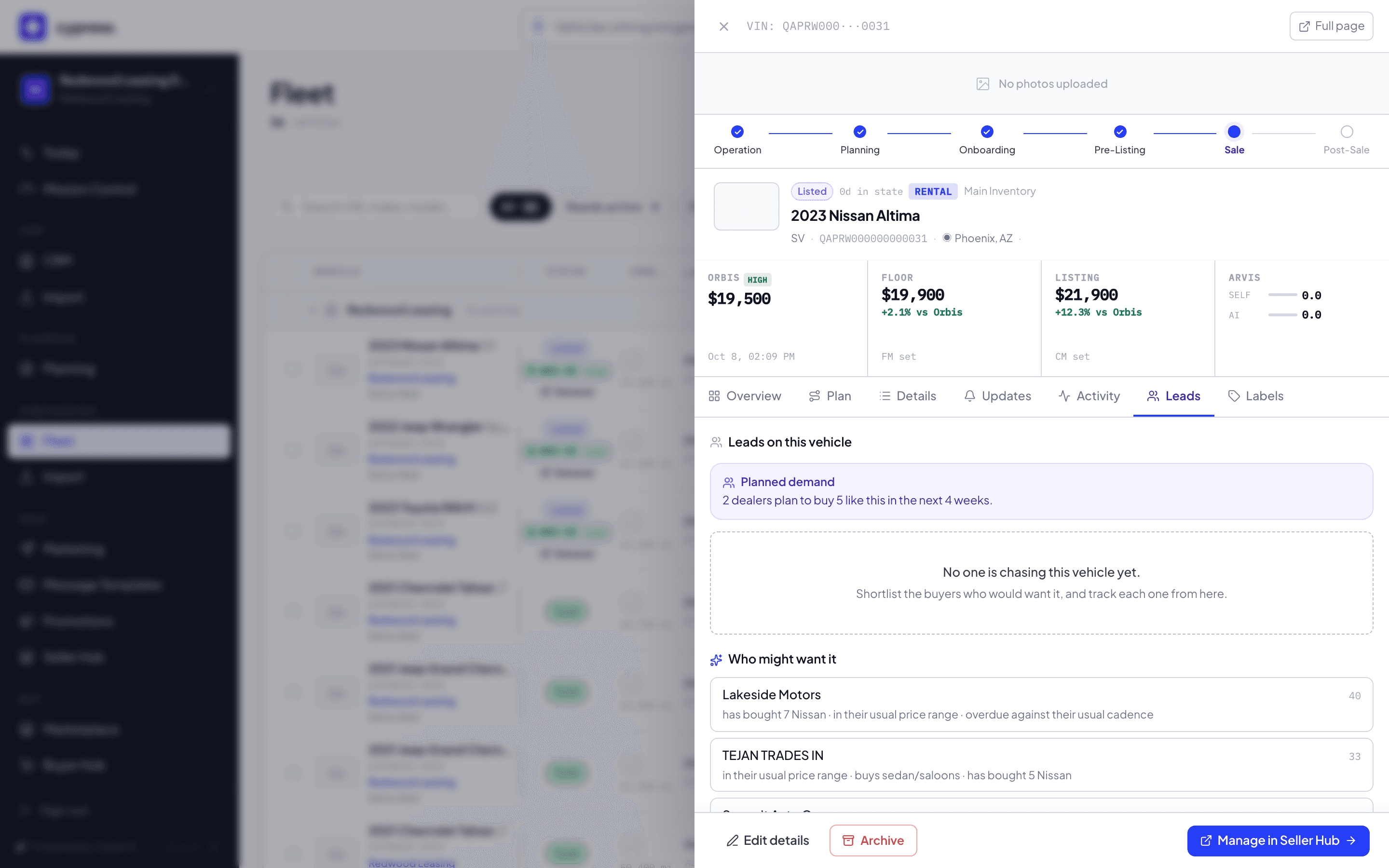
The Leads tab on a vehicle lists who is chasing it, in your CRM. Above its roll-up, the same violet Planned demand card shows the count of dealers, so you can see whether the market beyond your book wants the vehicle too. The count comes from dealers' buy plans, not from your leads, and never touches the list of accounts under Who might want it. See Deals & pipeline.
For a dealer
Marketplace
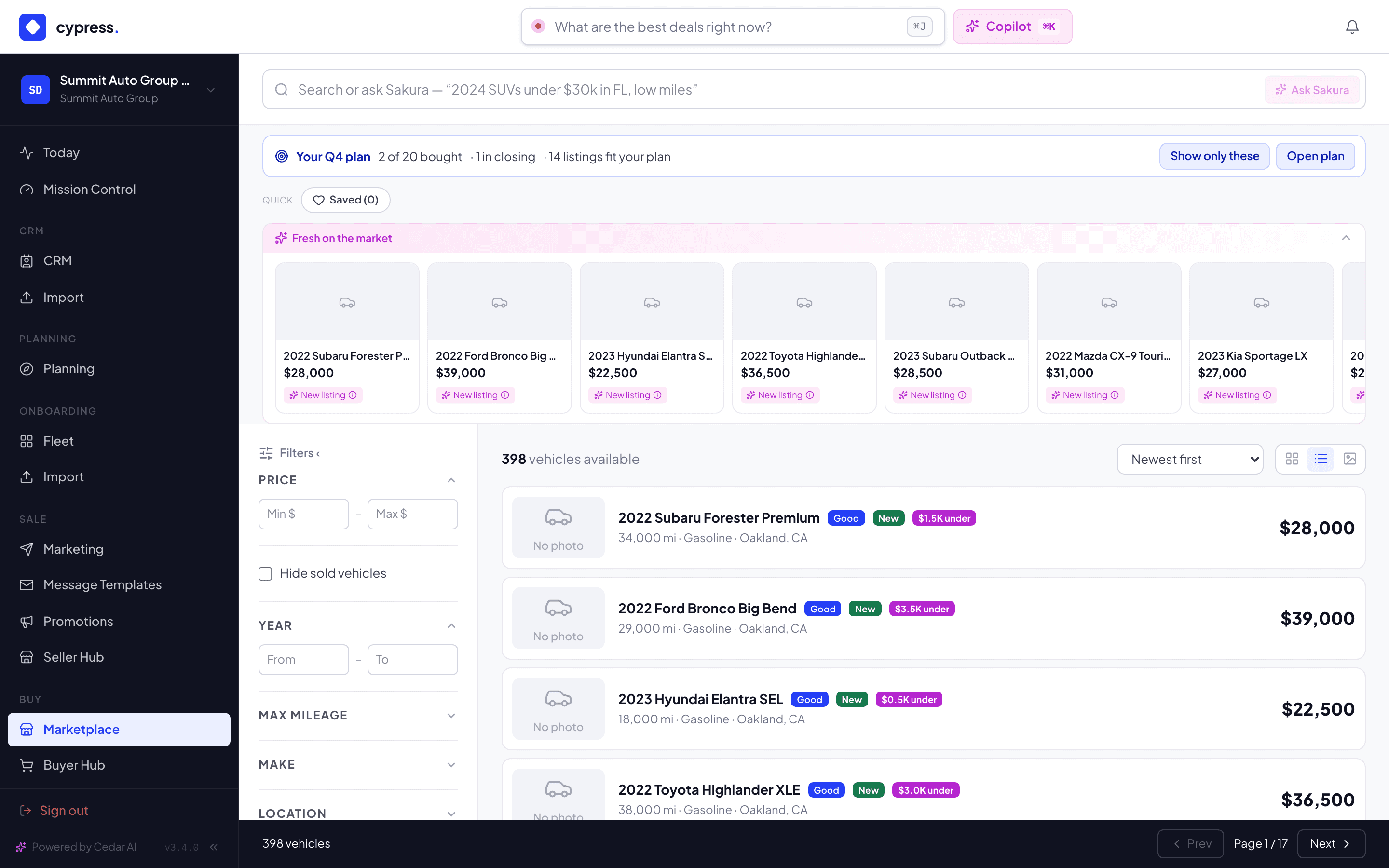
- The plan strip. With Buy planning on, Your Q4 plan sits above the results: 4 of 20 bought · 1 in closing · 3 listings fit your plan, or no listings fit your plan right now. Bought and in closing count the purchases that fill your targets; the fit count is every live listing that fits any open target at its track's level, from Cypress's hourly match run, whatever the quarter. Show only these narrows the results to your fits (best 150, and the strip says showing the best 150); Show all brings everything back; Open plan leads to the Buy plan. With Buy planning off, the only addition is a Plan your buying link.
- Fit badges. A listing that fits one of your targets wears an amber badge with the score and the target, for example 92% · Midsize SUVs, in the grid, list and gallery. The score says how closely the listing fits the target, and the target's track sets how near a match must be to show. The badge says only your own target's name and the score.
- On the vehicle page. A fitting listing shows a line: Fits your target Midsize SUVs (92%) · 4 still needed by W48, with Open target, which leads to that target's panel on the Targets tab. Under it: the target's price guide from Cypress sales, and what Sequoia would offer for this listing on the target's track. An offer is never more than the listing asks, so a listing that asks less than Sequoia would pay reads Buy at the ask. Sequoia never sends an offer; you make it.
- Buy analysis. Under the specifications, a card answers buy this one now, or wait? in four blocks: market position, price to your need-by, buy now or wait, and fit and budget. It reads your own targets, prices, purchases and budget, and what every buyer can see of the listing. See Buy analysis.
- One target's matches. See all in Marketplace on a target's panel (and See matches on the Cypress desk) opens the Marketplace with only that target's live listings, under the banner Matches for “Buy plan · RAV4 XLE, low miles”. The link carries
?buyTarget=and the target's id, and the banner's close button clears it.
Buyer Hub
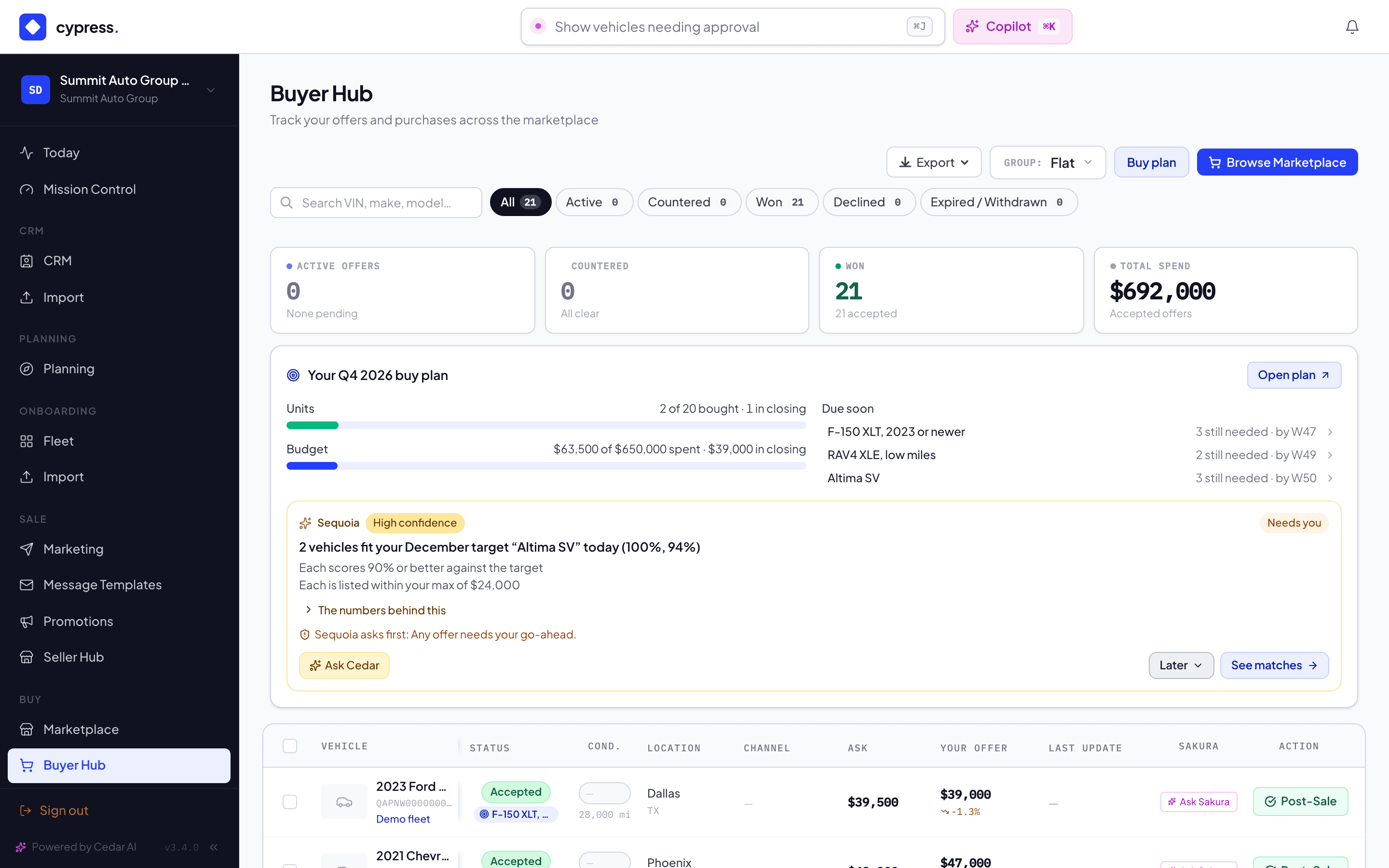
- The buy plan card. Under the KPI strip, Your Q4 2026 buy plan shows Units (12 of 40 bought · 3 in closing) and Budget ($65,000 of $600,000 spent · $26,000 in closing), from the goal and budget you set and the purchases counted toward your targets; Due soon, the three open targets needed soonest (4 still needed · by W48), each of which opens in the Buy plan; and Open plan.
- Sequoia's top card. The most pressing of Sequoia's live suggestions for your plan, with its reasons and its action. The hub only sends you on: the link carries
?decision=and the suggestion's id, and the Buy plan does what the card promised, once. It opens the target the card names, or the target editor filled in from the card, or the quarter goal, and records the suggestion as accepted there. If the suggestion was answered or retired in the meantime, the Buy plan opens on the Plan tab and says That suggestion is no longer open. Later answers the card in place. - The offer chip. An offer that counts toward a target carries a chip with the target's name; select it to open the Progress tab.
- Links. The toolbar's Buy plan link, and Set up a buy plan → on an empty hub, lead to the Buy plan. With Buy planning off, they are all the hub shows of it.
Notices
Two notices tell you about matches without opening anything. Both are set under Markets and notices in the Buy plan.
- Instant alerts. When a listing matches an Aggressive target, or a Balanced target marked high priority, your admins and fleet managers get a Cypress notification and an email within the hour: New match for “RAV4 XLE, low miles”, with the vehicle and how many are still needed by when. It leads to the vehicle in the Marketplace.
- Daily summary email. Every morning around 8 AM Eastern, when there is something new, one email and Cypress notification list the new matches you were not already alerted about, for every open target: 3 new matches for your buy plan. It leads to the Targets tab.
Both stop for a target that is filled, or whose quarter is over. See Tracks and near matches for which track alerts at once.
Cypress staff have a third, for the dealers they manage: each account manager gets one line a day, Buy plans: N new matches, with the dealers that have the most, which leads to the Cypress desk. A dealer never sees it.
What each side never sees
- Dealer demand is counted by company. A dealer with several stores is one company, your own company and its stores never count toward what you see, and a seller sees a count only when at least two companies plan the same kind of vehicle.
- Sellers never see a dealer's name, target price or maximum, or which dealer's plan a vehicle fits. They see a count of dealers and of the vehicles those dealers still need, for their own vehicles, lots and sale windows. The Market tab's What dealers want is told apart on purpose: it names models and never says how many.
- Dealers never see a seller's name, floor or limits. What sellers plan to bring reaches a dealer as a range of vehicles when enough sellers plan the same kind of vehicle, and otherwise, on the Market tab, as the word Planned with no number.
- Your plan is yours. The strip, the badges, the Buy analysis and the hub cards read only your own targets, prices, purchases and budget, and each listing's public details. A seller never learns that a listing fits your plan or that you opened its analysis.
- Cypress staff see both sides on the Cypress desk, and use it to find a price that works for both. Sellers and dealers never see that tab.
Automations that work on the plan
Cypress managers can also build automations on the plan: an automation can start from the plan's decisions (a vehicle benched, scheduled into a window, its hand-to-Sell date arriving, a window missed, a blocker added or resolved, a cohort handed to Sell) and can work on planning stock. A seller's or dealer's own automations, once Cypress has switched the product on for the organization, are drafted through the API and run only after Cypress publishes them (see An organization's own automations). What an automation may do there, and the rule that a plan event runs only the automations that name it, are in Automations and Planning.
The work behind the plan
Each plan has a Tasks tab, on the Sell plan and the Buy plan: every task behind the quarter on the bar, grouped by what it is about (the quarter's plan as a whole first; then the Sell plan's goals, windows and lots, or the Buy plan's targets), with the same quick filters as the CRM (Open, Overdue, Mine, Done, All, Made by agents). New task asks what it is about, the quarter's plan unless you pick a goal, window, lot or target; Open on a group opens it. Like Targets and Decisions it follows the quarter bar, with an All quarters switch; on the current quarter an open task from an earlier one stays, marked "from Q3 2026", until it is done. A task counts in the quarter of what it is about: a goal's quarter, a window's, a target's needed-by week; a lot is the same cars every quarter, so its task counts where it is due. Under the goal cards, a row holds the tasks about the quarter's plan as a whole.
A plan says what should happen; tasks are who is doing it. A task can be about a sell goal, a sale window, a lot or a buy target, as well as a contact, a company, a deal or a vehicle, and the plan shows it there with its state:
- a sale window's panel and a lot's panel list their tasks, overdue first, then open by due date, then done, each with who holds it (an agent is marked as one);
- a goal card shows its count ("2 open tasks · 1 overdue"), which opens the list;
- a buy target's panel lists its tasks under its matches.
Work them where they are shown: Add a task puts a new one on that goal, window, lot or target (yours unless you name someone, a person or an agent); the box beside a task marks it done or opens it again; the pencil changes its title, date or who holds it; the bin deletes it, after asking. A task on a window stays with the window when the plan moves to a new version. The same tasks are in the CRM's Tasks tab, where each names the window, lot, goal or target it belongs to and opens it.
If you do not see it
Each side is a product your organization switches on. With Planning off, the Seller Hub keeps its Sell plan link and the planned-demand line, and nothing else. With Buy planning off, the Marketplace keeps Plan your buying and the Buyer Hub keeps Buy plan. Ask your Cypress manager, or request it from the Planning page. Cypress staff: see Switch Planning on for a customer.
Related
The quarter bar and closed quarters
The strip above the tabs of both plans that says which quarter you are looking at, how it moves between quarters, and what a quarter whose last day has passed shows and refuses.
The Cypress desk
The staff-only tab where Cypress sees a seller's coming lots and dealers' targets side by side, how well each pair fits, and what to do about it. Customers never see it.