Switch Planning on for a customer
Turn the Planning product, and its Buy planning side, on or off for an organization — nothing is ever deleted.
TL;DRAI summary
This chapter explains how to turn planning features on or off for a customer organization. You can enable a sell plan for sellers and a buy plan for dealers, independently. Switching these off simply hides and freezes the data, it doesn't delete anything.
For: Cypress Managers
Before you start
- Planning is an entitlement, not a delegation — it's a separate product each organization is sold. An organization created since 1.9.0 starts with both Planning and Buy planning on; one created before keeps what it had (off unless someone switched it on).
- Planning has two sides, and each is its own switch: Planning, the Sell plan for a fleet that sells, and Buy planning, the Buy plan for a dealer that buys. They are independent. A seller can have one, a dealer the other, and a company that does both can have both. The sections below cover each.
- Only Cypress staff can flip it; an organization's own Settings never show the switch.
- Switching it off freezes and hides the organization's plans, windows, blockers and planning-only vehicles — nothing is deleted, and switching it back on restores everything exactly as it was.
Steps for Planning (the Sell plan)
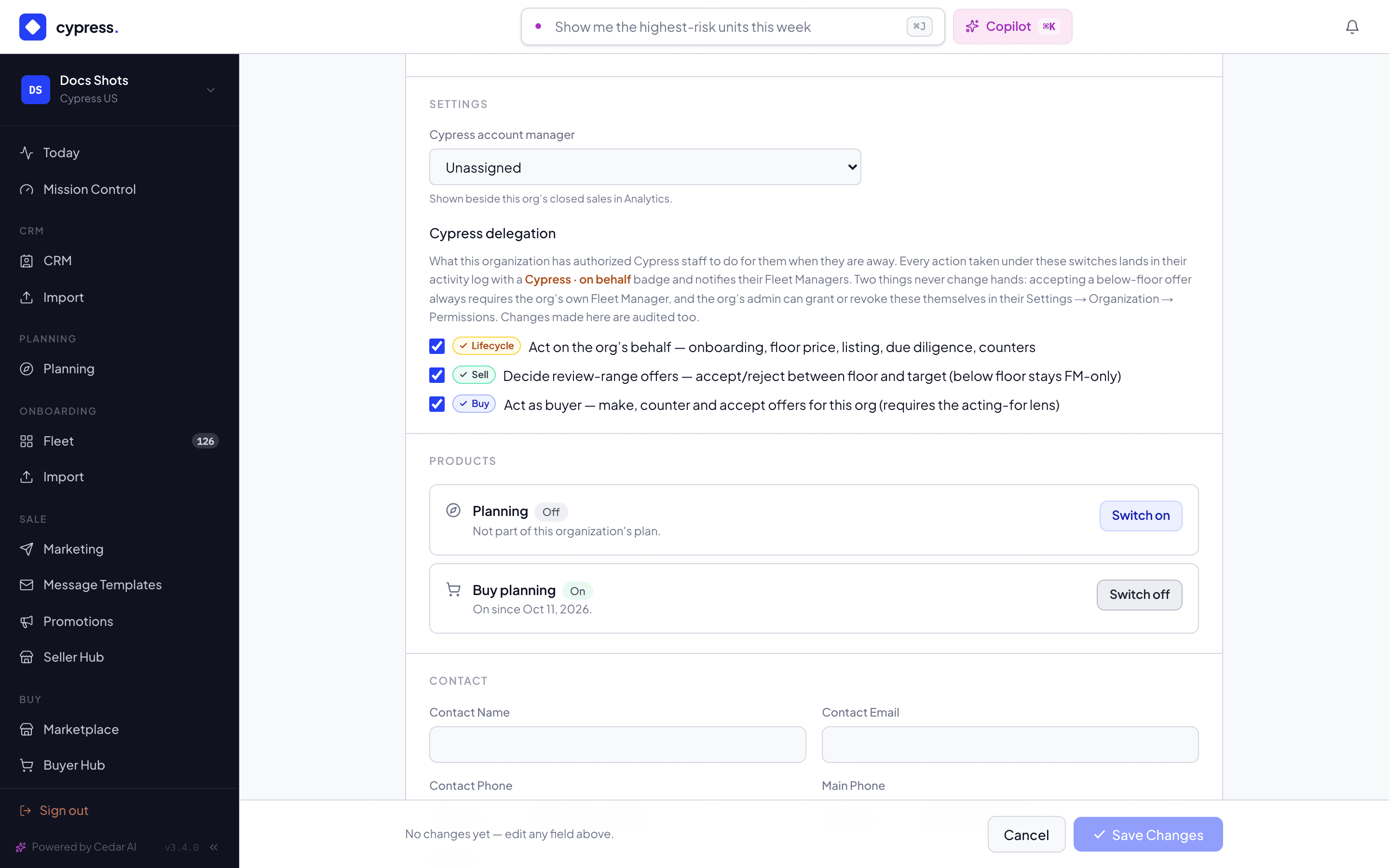
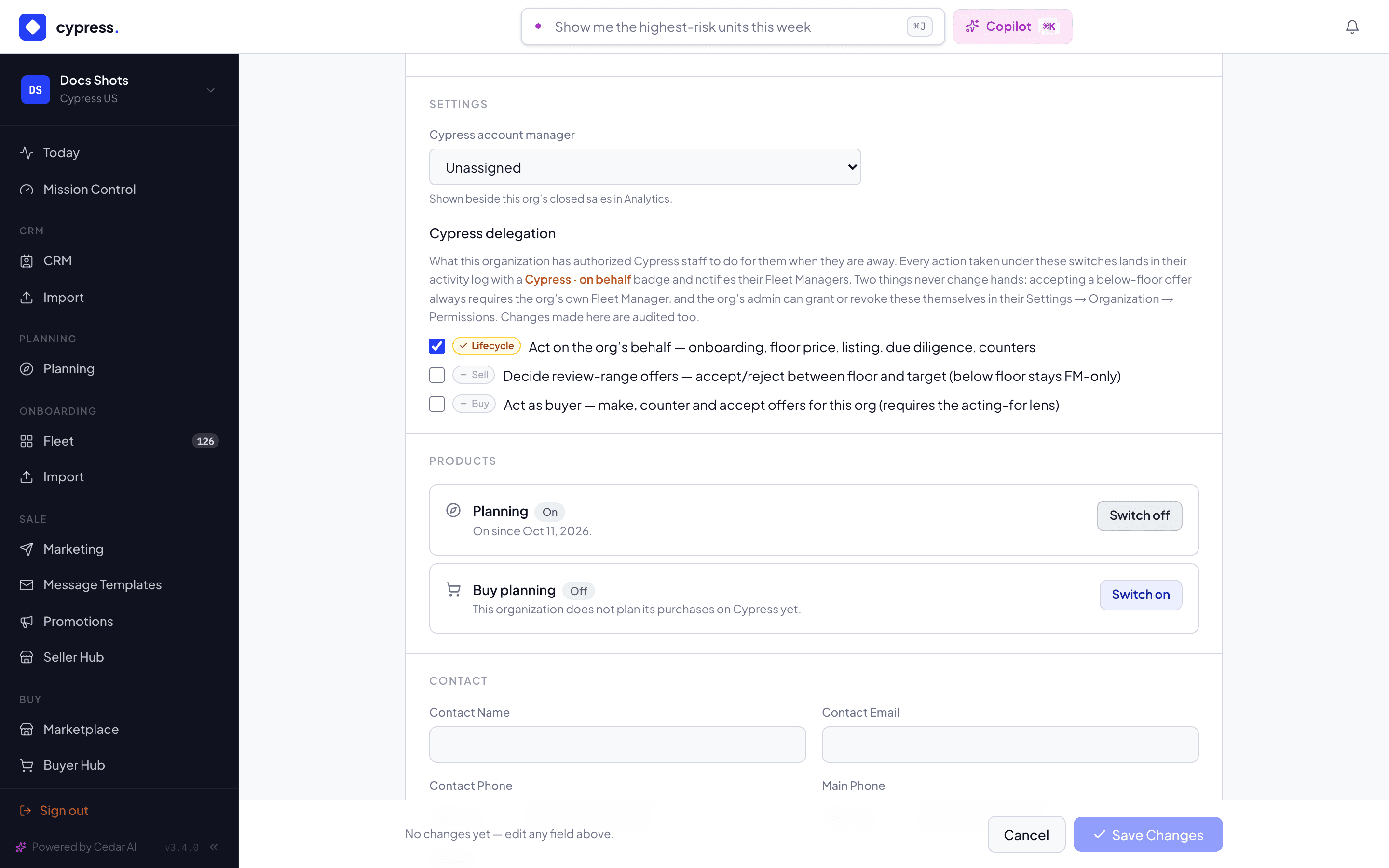
Open Admin → Business Orgs, click into the organization, and stay on the Overview tab. Scroll to the Products section.
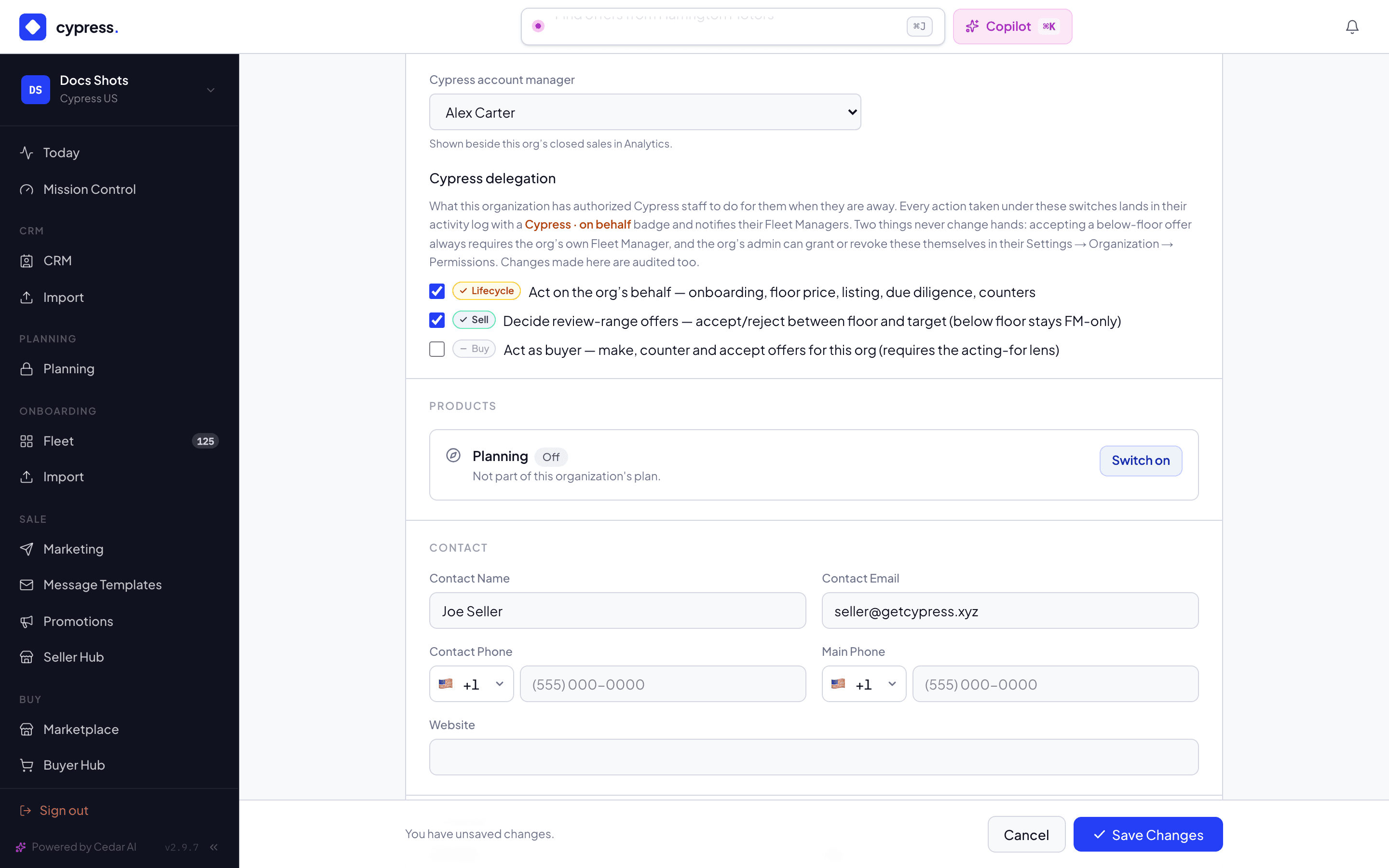
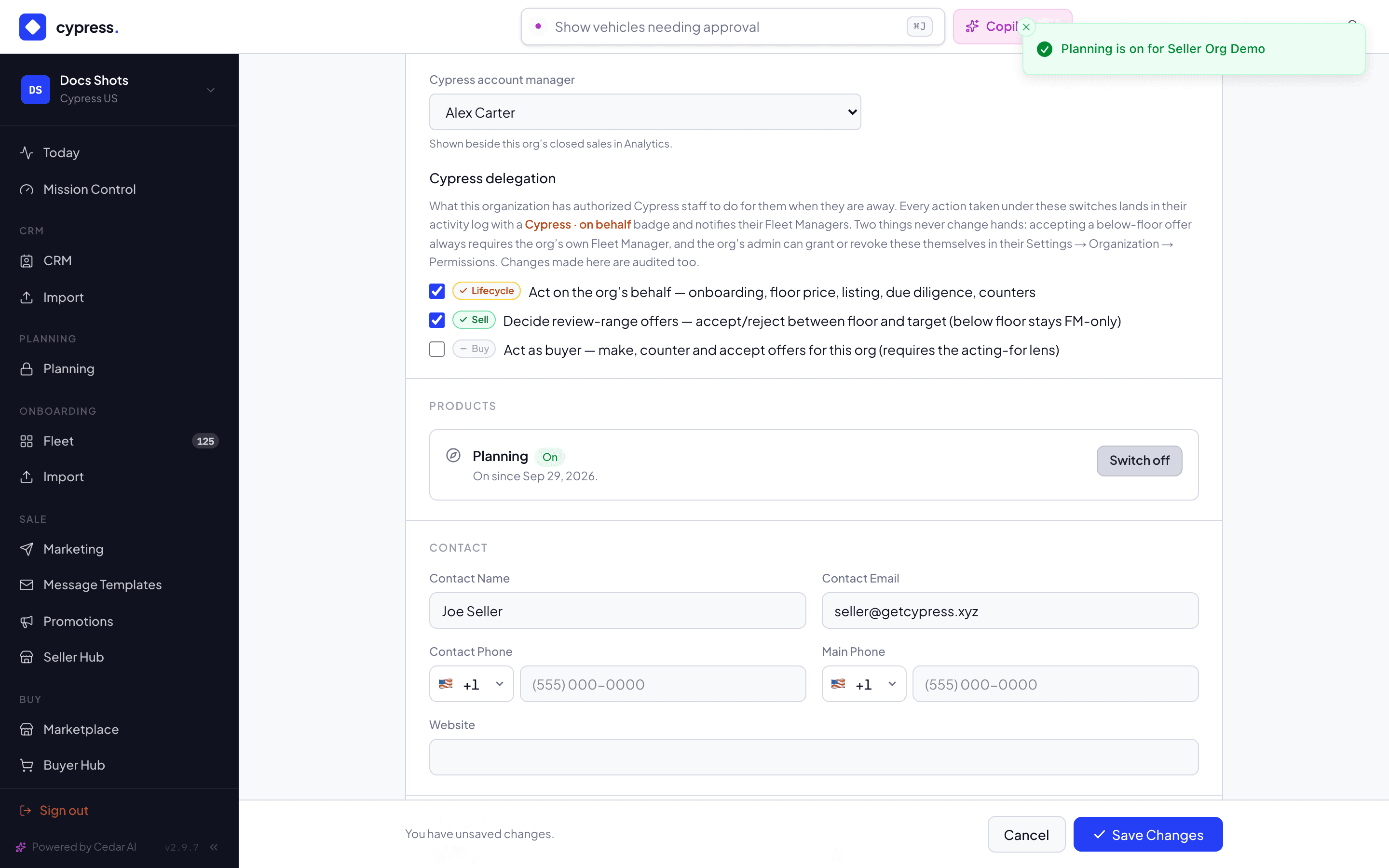
Click Switch on. Planning turns on immediately — no confirmation is needed to turn it on, since nothing is at risk.
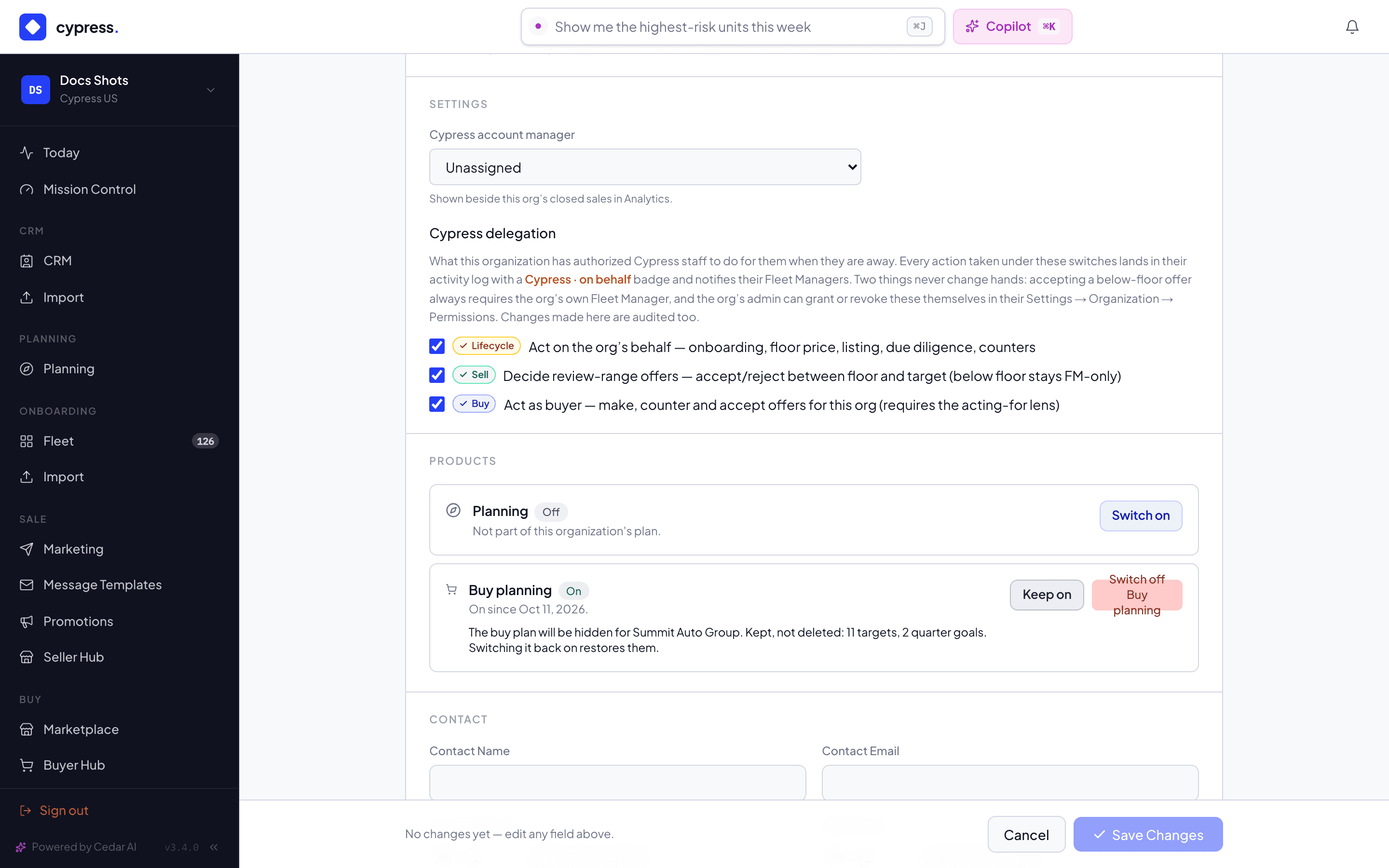
To turn it back off, click Switch off, review what's kept in the confirmation — "Planning will be hidden for [organization]. Kept, not deleted: N plans, N planning-only vehicles, N sale windows. Switching it back on restores them." — and click Switch off Planning, or Keep on to back out.
Steps for Buy planning (the Buy plan)
Buy planning is for customer organizations only. Switching it on for any other kind of organization is refused with Buy planning is for customer organizations only.
Open Admin → Business Orgs, click into the organization, and stay on the Overview tab. In the Products section, find the Buy planning row, under Planning. It shows On or Off, and says when it was switched on, or This organization does not plan its purchases on Cypress yet.
Click Switch on. Buy planning turns on immediately. A toast confirms it: "Buy planning is on for [organization]". The organization's Planning page gains the Buy plan side of the switch beside the title, and its Buyer Hub and Marketplace start showing its plan.
To turn it back off, click Switch off, read what is kept in the confirmation ("The buy plan will be hidden for [organization]. Kept, not deleted: N targets, N quarter goals. Switching it back on restores them.") and click Switch off Buy planning, or Keep on to back out. A toast says "Buy planning is off for [organization] — its buy plan is kept".
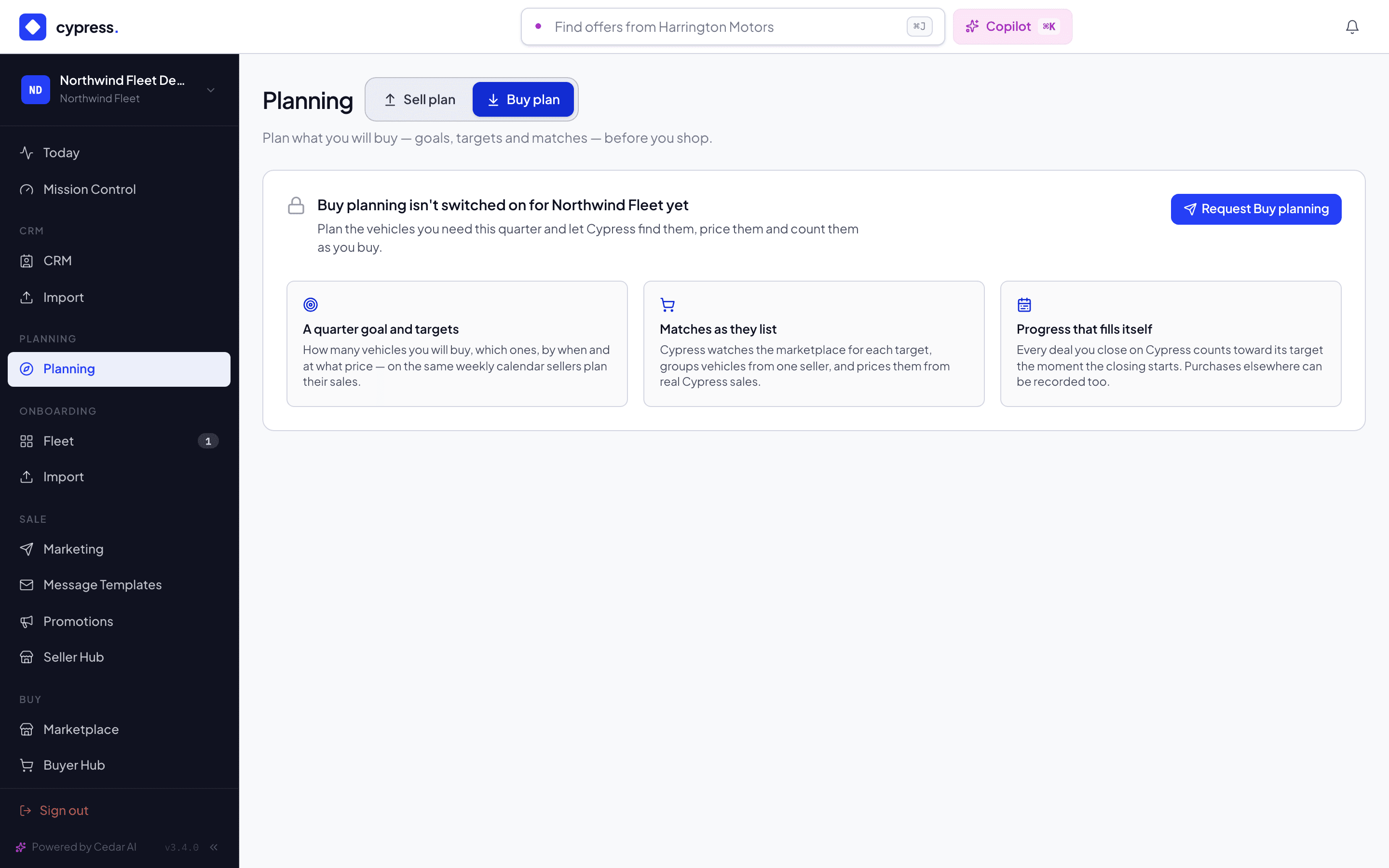
A dealer that wants the product can ask for it from the Buy plan page itself. Until it is on, that page says Buy planning isn't switched on for [organization] yet and offers Request Buy planning. Sending the request answers Request sent to Cypress, and the page then reads Requested on Oct 8, 2026 — your Cypress manager will be in touch. On the organization's Products row it appears as Requested Oct 8, 2026 by [name]. Switching Buy planning on clears the request. Cypress staff looking at that page see Switch on Buy planning for this org instead, which does the same thing.
What happens next
A toast confirms the change: "Planning is on for [organization]" or "Planning is off for [organization] — its data is kept". The organization's nav gains the Planning entry immediately; no one needs to log out or refresh. If the organization had a pending request from the Planning teaser, switching it on clears the request.
Switching either side off keeps everything and hides the plan. With Buy planning off, the Marketplace and the Buyer Hub keep only a quiet Plan your buying or Buy plan link, and with Planning off the Seller Hub keeps only its Sell plan link. See Planning inside remarketing.
What a switch opens for the organization's systems
Each side also opens its own door for the organization's systems, so what you switch on here changes what the organization's admin sees on Organization → Integrations:
- Planning lets the organization's API keys hold the Sell planning
scopes, and its endpoints receive the plan's events (
PLAN.*). - Buy planning lets the organization's keys hold the Buy planning
scopes (
buy-planning:readandbuy-planning:write), reach the routes under/api/v1/buy-planning, and its endpoints receive the Buy plan's events (BUY.TARGET.MATCHED,BUY.TARGET.FILLEDandBUY.TARGET.ENDED). - The two are independent: Buy planning on does not open the Sell planning API, nor the other way round. Nobody gets a scope they did not tick, so switching a side on changes nothing for a key until its admin gives the key the scope.
- Switching a side off closes the door again. A key keeps the scopes it holds,
but its Buy planning routes answer
403 BUY_PLANNING_NOT_ENABLED(Sell planning:PLANNING_NOT_ENABLED), and no new event of that side is sent. Switching it back on restores everything.
The developers' view is in Planning API (Buy planning) and Planning API (Sell planning); the admin's is in API keys and endpoints.
If something goes wrong
- "Could not change Planning" or "Could not change Buy planning" — the toggle's request failed; check your connection and try again.
- The switch is guarded the same way as every other admin action: only a Cypress Manager can reach it, and the request is refused server-side for anyone else.
Related
Upload documents
Upload your W-9 and one or more dealer licenses — plus any other document Cypress requests — each its own reviewable card, yourself or on an organization's behalf.
Ask Cedar well
How to phrase a request so Cedar reads the right screen, proposes the right change, and you can approve it with confidence.