Automations
Build, test, and govern automations on the automation canvas.
TL;DRAI summary
Automations let you automatically manage vehicles, deals, or contacts using triggers, conditions, and actions. This helps you streamline repetitive tasks, freeing up your time for more important work.
For: Cypress Managers
Anything you do on the platform more than twice deserves an automation. The Automation Hub (Admin → Automation) is where repeatable operations become canvas diagrams that run themselves — with dry runs before, audit trails after, and guardrails throughout.
Anatomy of an automation
Three node families and that's the whole grammar. Triggers start a run — a vehicle created or updated, time spent in a status, a schedule (cron), an offer received or accepted, a valuation completing, a manual run, or another automation calling this one. Conditions filter — attributes, labels, time-in-status, open offers, valuation presence, offer value, the channel an offer came through, the channels a vehicle is reachable on. Actions do — labels on/off, status changes, listing/floor prices, applying a pricing rule, setting sales channels, notifications, tasks, waits, valuations, delisting, fleet assignment, calling another automation, and the aggregate pair (export a file, send an email).
There is no "due diligence started" trigger. Nothing in the platform fires one, so it is not offered. To react when a vehicle enters due diligence, use Record Updated watching Status, then a Branch on Status = Due Diligence.
What an automation is about
An automation fires on one kind of record. The Record Created and Record Updated triggers carry a record-type selector: a vehicle, a contact, a business or a deal. Everything downstream follows that choice.
- Watch fields offer that record's own vocabulary. A deal automation watching
stagefires on pipeline movement — whether a person dragged the card or the system derived the move from an offer, since both go through the same door. - The palette offers only what fits. A contact automation is not shown Apply Label or Set Floor Price; those act on vehicles. Publish refuses them too, because a trigger's record type can be changed after nodes are on the canvas.
- Three actions are CRM-only: Add CRM Tag and Remove CRM Tag (a
deal-triggered automation tags the deal's company — deals carry no tags of their
own), and Create CRM Task, whose title and notes render
{{contact.email}}-style tokens from the record that fired the automation. Tagging from an automation does not count as activity, for the same reason bulk tagging does not. - Notify works on any record type: on a CRM record it reaches the record's owner. With no owner, and whenever it is addressed to Cypress managers, it reaches the organization's account manager, or every Cypress manager when the organization has none.
Conditions, branches and switches read CRM fields through the generic Record Field condition — pick the field from the record's catalogue.
One limitation worth knowing: Dry-run and Run pick vehicles, so both are disabled on a CRM automation. A CRM automation is exercised by its real events.
Trigger sources — who may set it off
Entity triggers know where a change came from: a person in the app, a CSV import, or the integrations API. Each trigger's Fires from picker lets an automation opt out of sources — all three fire by default, and an automation that shouldn't react to bulk imports (or to partner pushes) simply unchecks one. The import and developer docs describe the same switch from their sides.
The offer triggers
Two triggers start from an offer, and each runs on the vehicle the offer is on.
- Offer Received runs when a buyer places an offer. A Buy Now purchase and an express offer count.
- Offer Accepted runs for every accepted deal, however it was accepted: the Fleet Manager (or Cypress for them) accepts the offer, the vehicle's auction rules accept it as it arrives, a buyer uses Buy Now, a buyer accepts a counter, or a Cypress Manager approves a price change that accepts an offer that now qualifies. A Buy Now is received and accepted in one step, so both triggers run for it.
Offer Accepted runs once per offer, however many of those paths report it.
It carries the amount the deal was accepted at, the channel the offer came
through and, for a Buy Now, that it was one; it does not carry the buyer's name
or contact details. Before release 3.4.0 only the first way ran the trigger, so
an automation built on it missed the rest. The partner webhook OFFERS.ACCEPTED is
sent for the same five. Both triggers take an optional channel list; see
The channel of an offer.
Dry runs, publish, versions
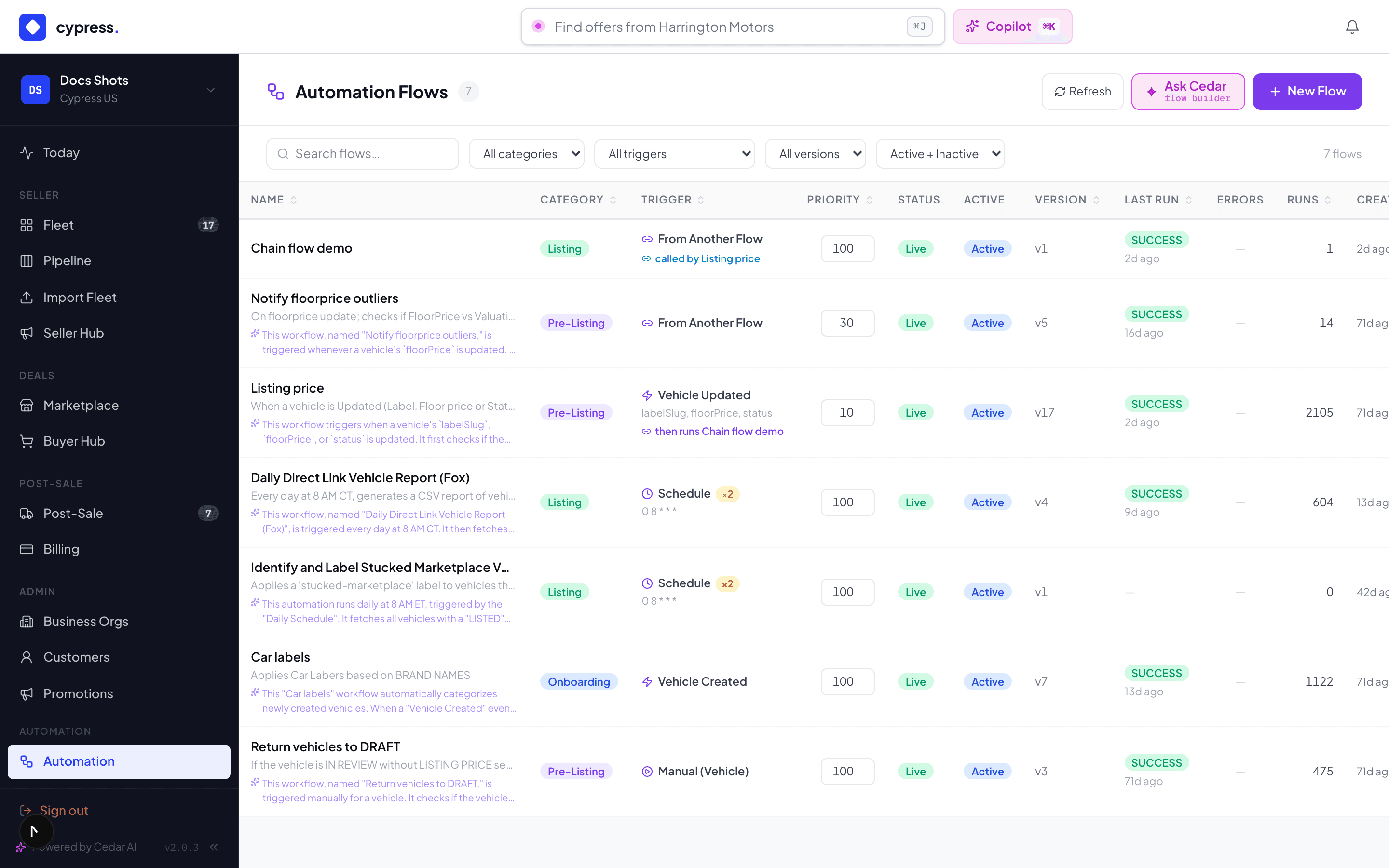
- Dry run first. Every automation runs against real vehicles with zero writes, showing exactly which matched and what each node would have done. No automation should meet production without one.
- Draft → published. Publishing freezes a version; edits build the next draft. Rollback re-publishes any prior version. Published versions are immutable — a running automation can't be edited out from under itself.
- Trigger conflicts surface at publish — if several automations share a trigger you're told, and priority (lower runs first) settles the order deterministically.
- Delete only what never ran. An automation that has run on real records keeps its history: it cannot be deleted, and its panel says so where the delete button was. Switch it off instead.
An organization's own automations
Automations are a product Cypress switches on per organization, off for every organization until then (Admin → Business Orgs → the organization → Products; switching it off keeps every automation, it only stops them). With it on, the organization's people, apps and agents can draft, dry-run and submit automations of their own through the API, and Cedar can build one for a member who asks. None of them runs until a Cypress Manager publishes it: the hub's Awaiting review filter lists the ones submitted, Publish approves one (it then acts as the organization's account admin would), and Send back returns it with a note. The organization is told either way.
An organization's automation works only on its own records and with the nodes an organization may use: it cannot take a car off the market, request a valuation, notify Cypress managers or reach another organization's stock. An agent may draft, try, submit and switch off an automation; a person switches one back on. See Build an automation and, for developers, Automations.
Automations and Planning
Planning holds vehicles that are not in Sell yet: the candidates bench, the vehicles scheduled into sale windows, the fleet you run in service. An automation can work on that stock, and it can start from the plan's own decisions. This section says how, what an automation cannot do there, and the one trigger rule that differs from the rest.
Works in
Every automation has a Works in setting on its info panel, with four stages: Operation, Planning, Remarketing and Post-sale. A new automation works in Remarketing, which is the whole Sell side: listed, under offer, in due diligence, sold, archived. That is what every automation did before stages existed.
- An automation runs only on a vehicle in a stage it names. For any other vehicle it is skipped, and the vehicle's Activity says so once: "Price watch" did not run — the automation is for Remarketing; the vehicle is in Planning.
- Operation and Planning need the Planning product. An automation for one organization that names either stage is refused until that organization has Planning, and an automation for everyone skips an organization's planning stock while Planning is off for it.
- An automation that names a plan event already works there. Watching one of the events below adds Operation and Planning to the automation, so you do not have to tick them. The exception is Handed to Sell, which fires after the hand-off, on a vehicle Sell already owns.
The seven plan events
The plan's decisions reach automations as Record Updated events on the vehicle. Pick them in the trigger's watch list, under Planning events:
| Event | Fires when |
|---|---|
| Benched as a candidate | A vehicle is benched as a candidate: a planning push, a move to the bench, or benching in the app |
| Scheduled into a window | A vehicle is scheduled into a sale window, one by one, from a proposal, from a lot's allocation or as a group |
| Hand-to-Sell date arrived | The hand-to-Sell date of the vehicle's window arrives (the daily sweep) |
| Missed its window | The vehicle's window closes without it (the daily sweep) |
| Blocker added | A blocker is added to the vehicle |
| Blocker resolved | A blocker on the vehicle is resolved |
| Handed to Sell | A cohort is handed to Sell. Remarketing automations see it, because the vehicle is Sell's by then; Planning automations do not |
The same seven events reach partners as
PLAN.* webhooks.
Plan events are opt-in
An automation runs on a plan event only if its watch list names that event. A
Record Updated automation with an empty watch list ("any field") still fires on
any field change, and it does not run on a plan event. A hand-off or
a missed window is a decision, not a field changing, and an any-field automation
should not start acting on one by surprise. The PLAN.* webhooks follow
the same rule: a subscription without a filter never receives one.
This changed in release 3.4.0. If you built an any-field automation to react to a hand-off, a blocker or a missed window, it no longer runs on those events; add the event to its watch list. The editor says it where you pick the list.
What a Planning automation cannot do
A vehicle in planning is not in Sell until its cohort is handed off. Its status, its listing and floor price and its value change then, never by an automation. So an automation that works in Operation or Planning, which includes any automation that watches a plan event:
- can notify, leave a note, apply or remove an ordinary label, call another automation, and email an internal report (the Operating sheet) to your own team;
- cannot change a status (Change Status), set a listing or floor price (Set Listing Price, Set Floor Price), apply a pricing rule, request a valuation, or email an offer sheet, the buyer-safe export without a floor price.
The three places agree. A dry run reports each of those steps as blocked, with the reason the real run would give. Publish refuses the automation and names the step. And if one slips through, the run refuses the step, closes Partial, and tells the automation's author. Switch the automation to Remarketing, or take the step out.
An automation never touches the plan- labels
At hand-off the plan gives each vehicle a label plan-<track>, such as
plan-sell-fast, and keeps it true: change the track and the label
follows, leave planning and it goes. Sell's pricing rules read it (see
The plan). An automation that applied or
removed one would leave a vehicle on two tracks, or on a track the plan
does not give it. So:
- the label picker on Apply Label and Remove Label does not list a
plan-label, or any label the platform keeps; - publish refuses an automation that names one;
- and a run refuses the step if one slips through, so the vehicle keeps the plan's label. The same step also refuses another organization's label.
A Has Label condition may still read a plan- label: that is how a
automation tells the fast track from the patient one.
Recipe: window missed, then notify the fleet manager
- Create an automation. On its Record Updated trigger, leave the record type on Vehicle, and in the watch list, under Planning events, tick Missed its window. Do not tick anything else; naming the event already makes the automation work in Operation and Planning.
- Add a Send Notification action to the Fleet Manager role, with a title such as A vehicle missed its window and a message that says what to do: Open Planning and move it into a window that is still ahead.
- Dry-run against a planning vehicle, then publish.
It runs when the daily sweep closes a window, so the notification arrives with the sweep, not at the moment the date passes. It reaches the fleet managers of the vehicle's own organization, and nothing else about the plan leaves it.
Sales channels in automations
An automation can say where a vehicle is sold, and it can tell offers and vehicles apart by the channel they came through or are reachable on. The words are the ones the rest of the product uses.
Set sales channels
The Set sales channels action has three switches: Cypress
Marketplace, Storefront and Direct Links. At least one stays on,
and the vehicle is reachable exactly on the ones that are on. It is the
same rule the Integrations API applies when a partner
sets a listing's channels, and the automation writes the same two settings:
- Cypress Marketplace on makes the vehicle public; off makes it link-only.
- Storefront on puts the vehicle on your storefront; off takes it off.
- Direct Links is the vehicle's default share link. It is not a switch on the vehicle: the link is created when the vehicle is listed, and this step neither creates nor revokes links. The step's result says when the vehicle has no default link yet.
Some things it never does. It never lists, prices or launches a vehicle: use Change Status to list. A vehicle that is not listed keeps its channels for when it is.
- A channel your company has no grant for fails the step, in the API's words: Channel not enabled for your organization: STOREFRONT — ask Cypress for the grant. The run closes Partial and the automation's author is told. Grants are the company's own, read from the vehicle's organization, and Storefront and Direct Links are opt-in grants Cypress switches on (see Sales channels & commissions).
- A vehicle still in planning is refused, like the other listing-side steps: the dry run reports it as blocked, publish refuses an automation that works in Operation or Planning, and the run refuses it too.
- It leaves a record. The vehicle's Activity says which automation set which
channels, and the Updates feed tells the seller. If the vehicle has an open
API listing, its
channelsare kept true and the partner's listing webhooks hear about it. - It tells you when a listed vehicle is left reachable nowhere, for example Storefront only on a storefront that is not published.
The channel of an offer
Every offer remembers the channel it came through, and an automation can use it three ways. The words are the ones the Offers tab shows: Public, Promotion, Direct (a share link) and Storefront. A Direct offer never shows the link, and none of this names the buyer.
- Came through, on the trigger. Offer Received and Offer Accepted have an optional Came through list. Leave it empty and the automation runs for every offer. Check channels and it runs only for an offer that arrived by one of them. An offer with no recorded channel (one made before channels existed) is in no list.
- Offer came through, a condition. It passes when the offer arrived by any of the channels you check, for an automation that must treat the channels differently. It is available only after an Offer Received or Offer Accepted trigger, and publish refuses it anywhere else, or with no channel checked. Put the list on the trigger instead when the whole automation is for some channels.
- The
{{offer.channel}}variable in a message. Send Notification (title and message) and Send Email (subject and body) write the offer's channel, for example A Storefront offer came in on the 2022 Ford F-150. On an automation that is not about an offer the token would be sent as written, so publish refuses it there.
A dry run or a manual run has no offer behind it, so Offer came through does not pass in one, and the token is left as written. Exercise these with a real offer.
Vehicle reachable on
The Vehicle reachable on condition passes when the vehicle shows any of the channels you check in the Seller Hub right now: Cypress Marketplace, Promotion, Direct Links or Storefront. It is the rule behind the Seller Hub's channel chips (and the Sales channels filter on Fetch Vehicles), so the condition and the grid cannot disagree: the marketplace channels need the marketplace to be serving the vehicle, Direct needs a usable share link, and Storefront needs a live storefront. A vehicle that is not listed is reachable on nothing.
Recipe: a Storefront offer, then notify the fleet manager
- Create an automation. On the Offer Received trigger, under Came through, check Storefront.
- Add a Send Notification action to the Fleet Manager role, with
the title
New {{offer.channel}} offerand this message:A {{offer.channel}} offer came in on the {{vehicle.year}} {{vehicle.make}} {{vehicle.model}}. - Publish, and watch the run history when the next storefront offer comes in.
The fleet manager reads New Storefront offer. Offers from the marketplace or a share link do not start this automation.
Chains and the guardrails
Automations call automations (RUN_FLOW) for composition — capped at three hops,
so cycles die by construction. Aggregate actions (export, email) operate
on a collected set — the canvas validates that a collecting fetch feeds
them, and refuses per-vehicle wiring. Labels get their own rule engine
(Admin → Automation → Labels), and label rules with time conditions power
the hourly sweep that keeps time-based automation honest. When an automation's
action would cross a governance line — archive-class changes, price moves
on deal-bearing vehicles — it lands in the same
review queues a human would.
Runs — the audit
Every run is a record: which vehicles were evaluated, which were acted on, per-node inputs and outputs, and each condition's actual decision. A partial failure says which step blocked and why. If a number changed and nobody remembers changing it, the run history answers in one click — and the vehicle's own Activity tab carries the same event.
Waits
A Wait pauses the run for a number of hours or days (up to 365), then carries on with the next step. While it waits, the run shows Waiting in the runs list, and hovering says when it carries on. When it carries on, it reads the vehicle again, so the next steps act on the vehicle as it is then, not as it was when the run started.
- A test run does not wait: it shows what would happen after the Wait at once.
- If the automation is switched off, or the vehicle leaves the stages the automation works in, the run ends at the Wait, marked partial, with the reason on the Wait's step.
- A Wait cannot come after Fetch Vehicles in collect mode: the set it gathered would be out of date by the time the run carried on. Put the Wait before the fetch.
How Cedar can help here
Every recipe below is one sentence away. Describe the automation in plain language and Cedar drafts it on the canvas — nodes, wiring, and a change diff you review like any proposal. Automations are also Cedar's own fallback: ask for something no single action does, and it offers to build the automation instead.
Recipes — five automations worth stealing
- The stale-listing sweep (the worked example below) — 21 days LISTED + zero offers → label STALE + notify the FM. The label then feeds the markdown ladder.
- The markdown ladder — trigger Time Elapsed at 14/28/42 days on
STALE vehicles →
APPLY_PRICING_RULEsteps the ask down, floor-clamped by construction. - The intake fast lane — Vehicle Created (sources: CSV + API only)
- condition ≥ 4 + valuation present → apply the org's pricing rule with approve & list: clean trade-ins go live untouched, everything else waits for review.
- The Friday digest — Schedule (cron, Fridays 4pm) →
FETCH_ENTITIESin collect mode →EXPORT_FILE+SEND_EMAIL: the week's live inventory as a spreadsheet in the sales team's inbox. - The hot-vehicle escalation — Offer Received + offer value within
5% of ask →
SEND_NOTIFICATIONto the FM flagged urgent +CREATE_TASKfor same-day review: near-ask offers never wait in a queue.
Each is a dry run away from being yours — and each is also a sentence: tell Cedar the recipe and review what it drafts.
Cedar as co-author
Describe the automation in plain language — "pause anything listed 45 days with no offers, tell the FM" — and Cedar drafts it on the canvas: nodes, wiring, and a change diff you review like any other proposal. Cedar also uses automations as its own fallback: asked for something no single action does, it offers to build the automation instead.
Worked example
Alex builds "stale listing sweep": trigger 21 days in LISTED, condition zero open offers, actions apply STALE + notify the FM. Dry run: 3 matches — two vans and the box truck, each row showing the label and notification that would fire. He publishes at priority 100. First scheduled run: 2 actioned (one van got an offer in the meantime — the condition caught it), Maria gets two notifications, and the run's audit shows every decision. The STALE label now feeds the pricing-rules chapter's markdown ladder.
Business rules
- Automations act as the platform, but never outside the platform's rules — a automation cannot cross the floor, skip a staged review, or touch what its scope excludes.
- Global automations must name their org scope to fetch across orgs — "match everything everywhere" is deliberately not expressible by accident.
- Time-based triggers de-duplicate per vehicle with a cooldown — a vehicle sitting in a status for months triggers once, not hourly.
- An automation for everyone (global) never runs for a demo organization, and never tells Cypress managers about a demo organization's vehicles. A demo organization's own automation still runs, so a demo can show automations.
Under the hood
The canvas is the UI; the engine is a queue-driven executor where every
node type carries its own documentation contract (an undocumented node
type fails the build — the docs and the palette literally cannot drift).
API-originated changes fire the same triggers tagged source: api; see
the developer docs for the integration side.