Buyer Hub: offers to keys-in-hand
The buyer's desk — track every offer and purchase to completion.
TL;DRAI summary
This chapter explains how to track and manage all your purchase offers, counteroffers, and accepted deals in one central Buyer Hub. It helps you quickly see what needs your attention, understand your progress against your buying goals, and handle the closing steps for vehicles you've purchased.
For: Buyers
Under the buy switch, your Cypress team can make, counter and accept purchase offers as your organization — always through the acting-for lens, so every offer lands unambiguously in your name, badged and notified.
Everything done under delegation is logged with a Cypress · on behalf badge and notifies your Fleet Managers. Manage the switches in Settings → Organization → Permissions — the full story is in Delegation — Cypress on your behalf.
The Buyer Hub is the mirror image of the seller's desk: every offer you've made, every counter waiting on you, and every purchase working its way through closing — one place, always current.
Your offers
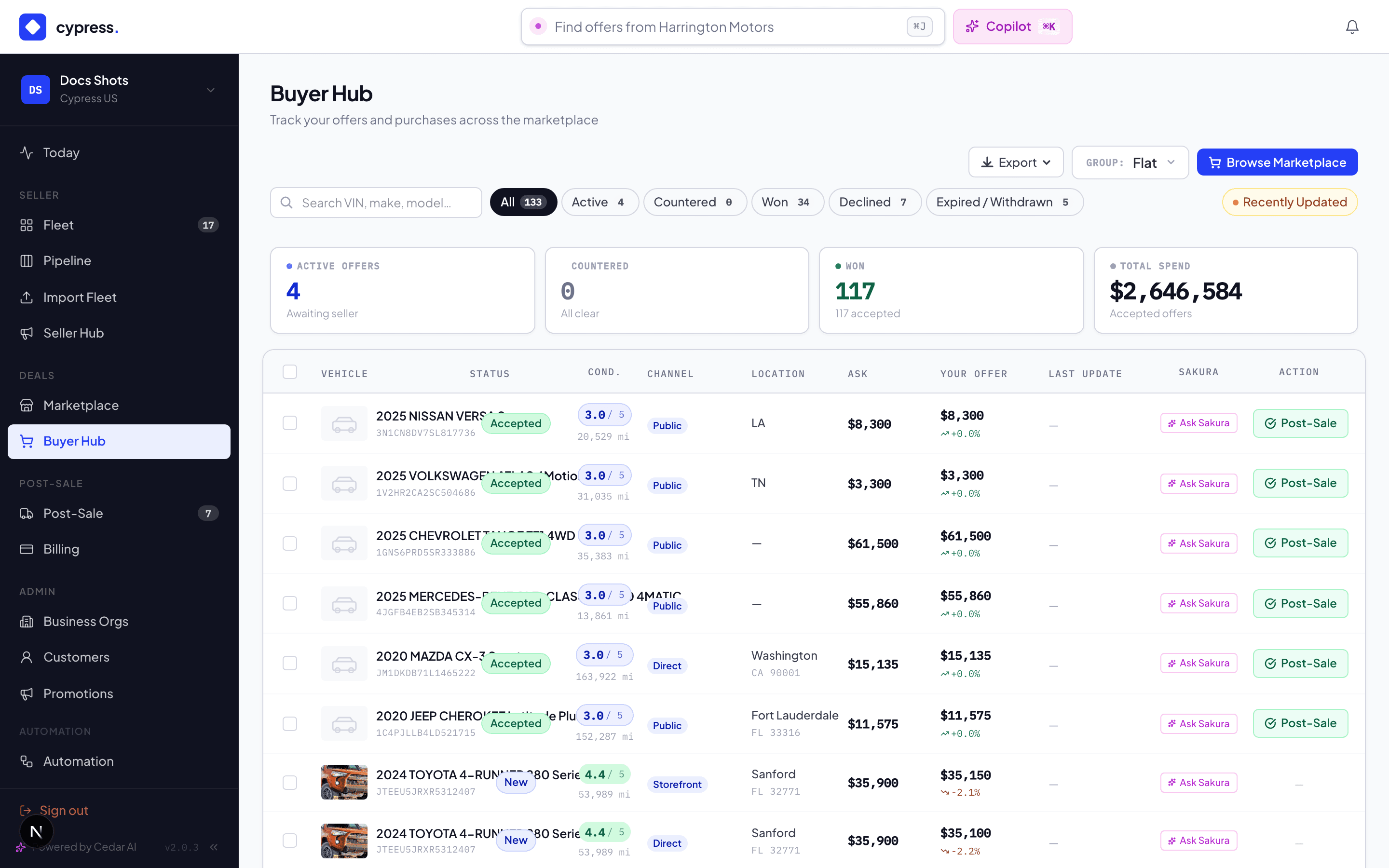
The hub's grid is offers, not vehicles — each row is one of your negotiations with its live status:
- Submitted — sent, awaiting the seller's side. If the vehicle's bands answered instantly, you already know: an instant yes reads "Offer Instantly Accepted", an instant no arrives within seconds, and anything in between is "in review".
- Countered — the seller named a number back, and the 48-hour clock is running. Accept it, counter again (which restarts the thread at your new number), or withdraw. Let it lapse and the counter expires.
- Accepted — the deal is on; the row hands off to the closing.
- Declined / expired / withdrawn — closed history, kept visible.
Your three moves on a live thread, from this seat:
- Accept the counter — done; the deal opens at that number.
- Counter back — your new amount replaces the thread; the seller decides again.
- Withdraw — out cleanly, no questions; the vehicle stays available to you later.
Your buy plan card
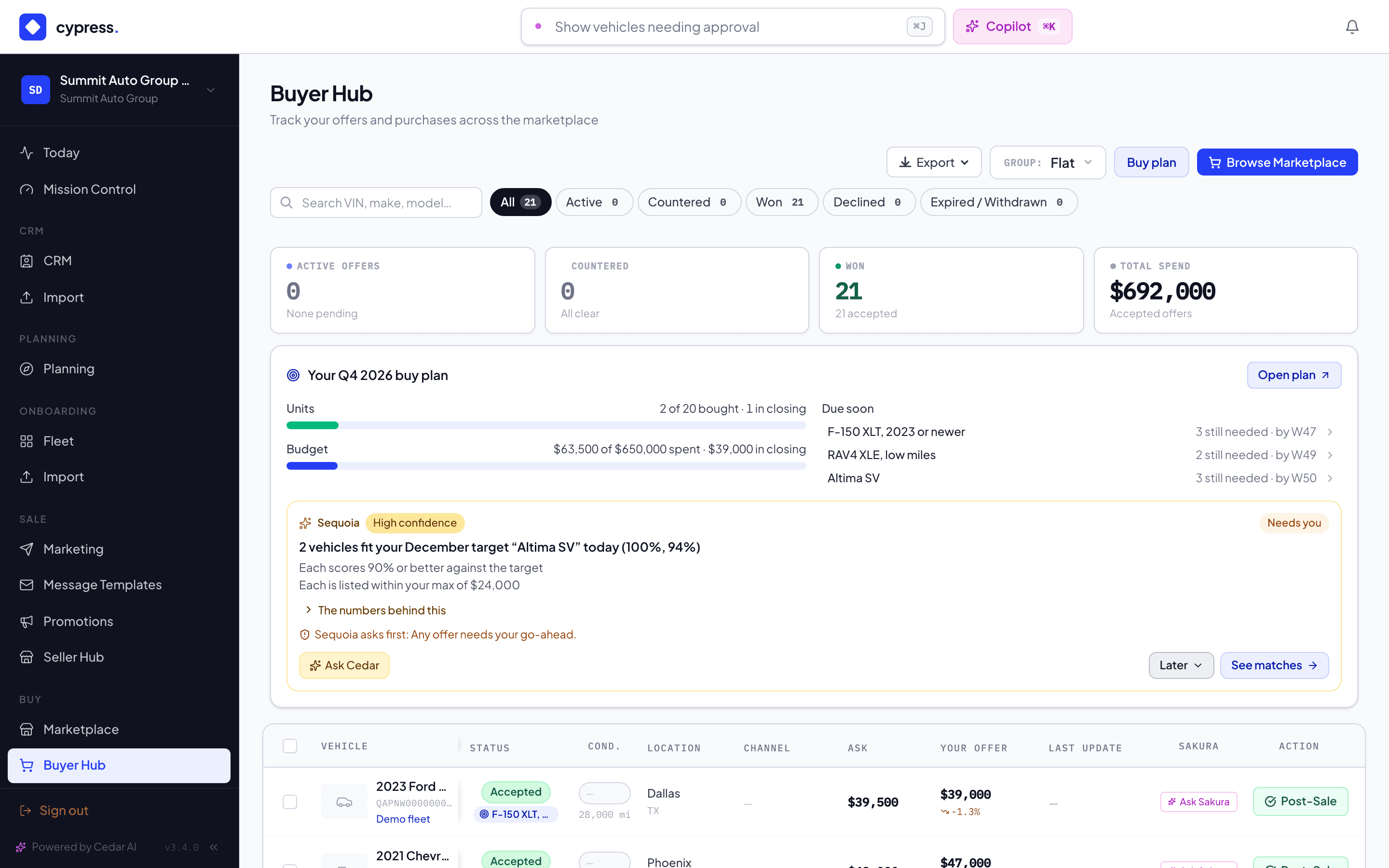
With Buy planning on for your organization, the hub shows your plan under the KPI strip, titled for the quarter, for example Your Q4 2026 buy plan:
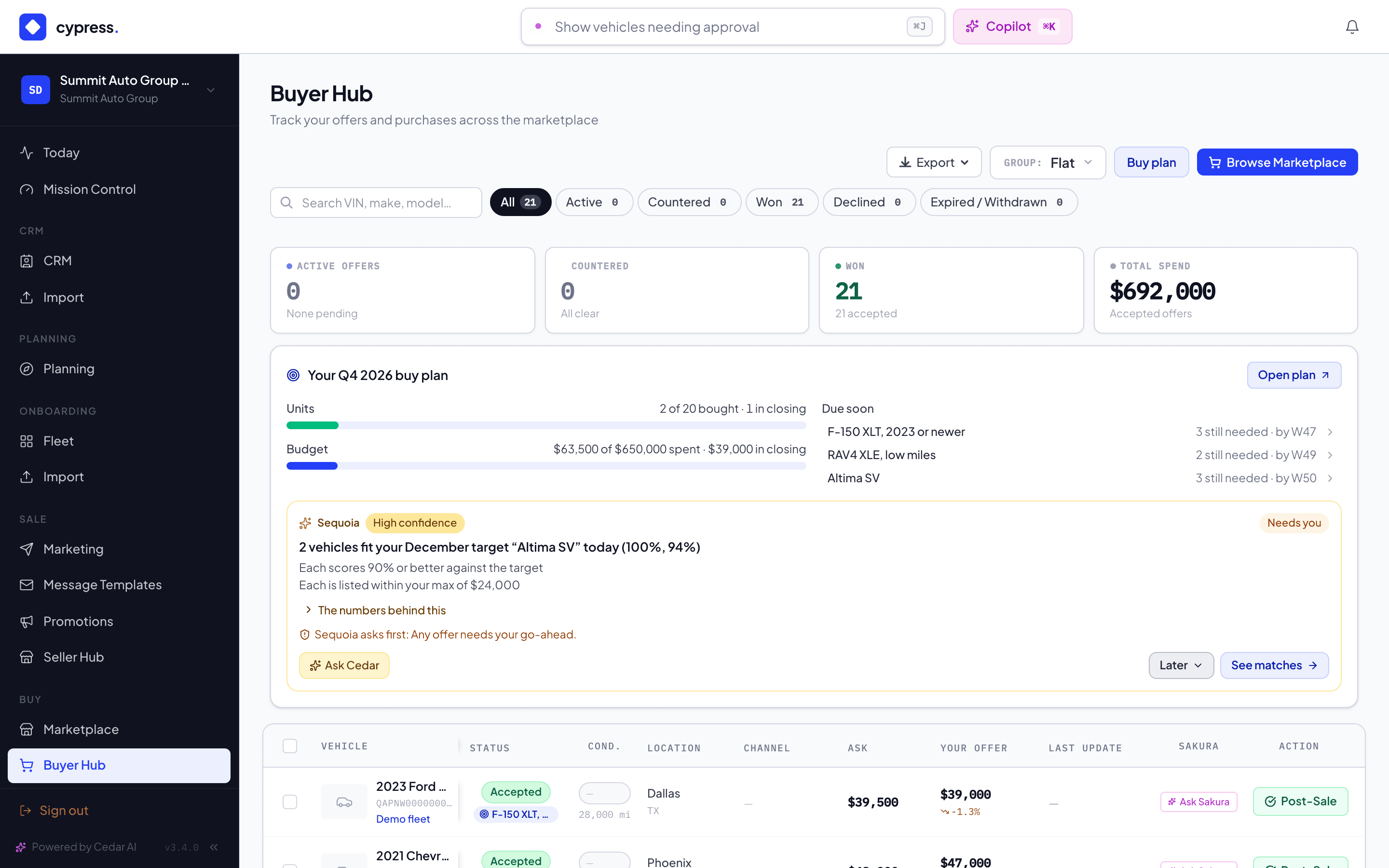
- Units and Budget meters — vehicles bought against the quarter's units goal, with what is in closing (12 of 40 bought · 3 in closing), and the money spent on bought vehicles against the budget, with the money in closing kept apart from it ($65,000 of $600,000 spent · $26,000 in closing). With no budget set there is no Budget meter.
- Due soon — the three open targets needed soonest, each with how many it still needs and by which week (4 still needed · by W48). Select one to open it in the Buy plan.
- Sequoia's top card — the most pressing of Sequoia's suggestions for your plan, with its reasons, how sure Sequoia is, and its action. See Sequoia's market rail. The card's action only sends you to the Buy plan; the plan then does what the card promised, once: it opens the target the card names, or the target editor filled in from the card, or the quarter goal, and records the suggestion as accepted there. A suggestion that was answered or retired in the meantime opens the Plan tab and says That suggestion is no longer open. Later answers the card in place.
- Open plan — straight to Planning → Buy plan.
An offer that counts toward a target carries a small chip with the target's name next to its status. Point at it to read Counts toward the buy plan target and the name; select it to open the Progress tab of the Buy plan. The toolbar keeps a Buy plan link whatever the plan's state, and a hub with no offers yet offers Set up a buy plan → under Browse Marketplace. With Buy planning off, those two links are all the hub shows of the plan. See Planning inside remarketing for the whole picture.
Your side of the closing
An accepted offer becomes a 6-step closing where two steps carry your name: countersigning the bill of sale (step 2, which you share with the seller) and picking the vehicle up (step 6). Paying — ACH or check — happens off the rail, against the instructions on the bill of sale; the seller confirms it arrived at step 3. The hub and the Post-Sale page both surface Your Turn, so you always know when the rail is waiting on you — and Deal Setup at the start asks you two questions that make the paperwork right: where the title should go, and who's hauling the vehicle.
Anything wrong mid-deal — funds questioned, title late, vehicle not as described — is an Issue you can file directly on the deal.
What Sakura recommends here
The marketplace assistant works your side too: Ask Sakura on any vehicle answers from the record — condition findings, spec, platform history — and in your hub, Cedar reads your offers: "which counters expire today?" gets a list, not a search tip.
After the purchase
Completed deals keep their record: the executed documents (bill of sale, gate pass, title receipts) stay downloadable on the deal, and the vehicle appears in your purchase history. Buying leaves a paper trail by design — a year later, the PDF is still there.
Worked example — the same deal, Dan's side
Dan's $28,200 on the Transit routes to review (he can see it sat in the review band — his offer bar showed 87% of ask). Next day: countered at $30,000, clock running, seller's note about service records attached. He counters $29,200 with 41 hours left; that afternoon the row flips to Accepted. Deal Setup asks for Birchwood's title address and hauler; he signs Wednesday, mails the check Thursday, confirms the title the following week, and his hauler collects the Transit on day 16. Total touches from Dan across sixteen days: six — the rail did the remembering.
Business rules
- One live offer per vehicle per buyer — raise your number by countering your own thread, not by stacking offers.
- A counter's expiry is real: at 48 hours the thread closes and the vehicle returns to open market if nothing else is active.
- Your identity is presented to sellers the way the channel intends — marketplace deals show your org; consumer purchases show you as the individual buyer at closing.
Under the hood
The hub reads the same offer state machine the seller sees — statuses are shared, never translated. Cedar works from this seat too: on the Buyer Hub its view is your offers, and "which of my counters expire today?" is a fair question to ask it.