Seller Hub & going live
Take an approved vehicle to market and run your selling desk.
TL;DRAI summary
This chapter explains the Seller Hub, your main selling desk for managing all your vehicles. You will learn how to launch vehicles for sale, understand what happens at launch, and how to manage your inventory.
For: Fleet Managers · Cypress Managers
Under the lifecycle switch, your Cypress team can run the whole launch for you — pre-listing, publishing, and due diligence — including the FM-lane steps, with every action badged in your activity feed.
Everything done under delegation is logged with a Cypress · on behalf badge and notifies your Fleet Managers. Manage the switches in Settings → Organization → Permissions — the full story is in Delegation — Cypress on your behalf.
The Seller Hub is the selling desk: every vehicle you have on (or headed to) the market, what each one needs from you, and the controls to act. This chapter covers the hub itself and the moment that matters most — the launch.
The hub at a glance
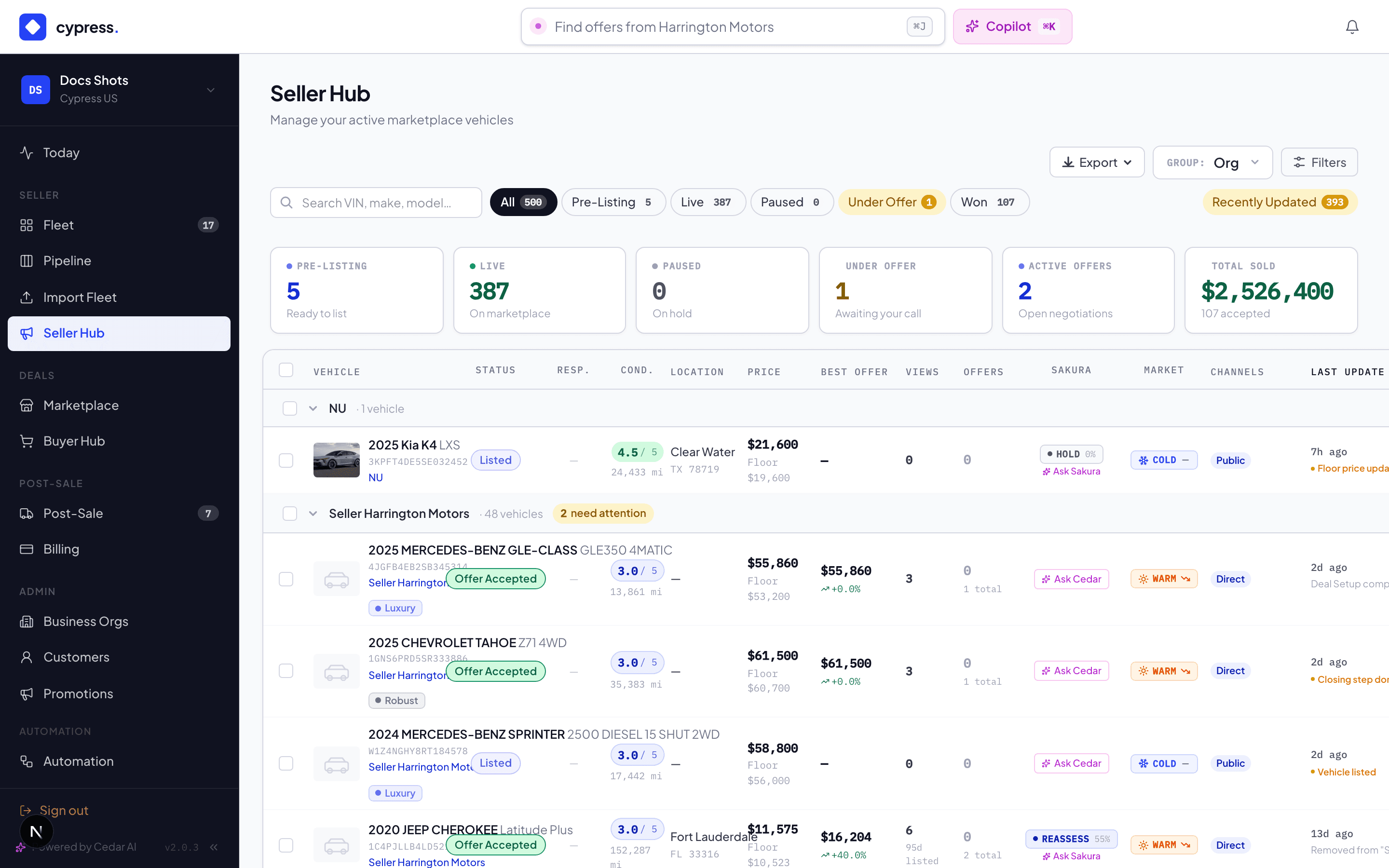
- Status tabs — All · Recently Updated · Pre-Listing · Live · Paused · Under Offer · Won. "Won" is a vehicle with an accepted offer, on its way to closing.
- The vehicle panel — click any row: Overview, Offer Rules, Offers, Channels, Activity, Updates, and Market History in one side panel.
- The KPI strip — four cells on every vehicle: the Sequoia valuation, the floor (FM set), the listing price (CM set), and the three-row condition score.
Your sell plan here
With Planning on for your fleet, the hub carries the quarter's plan:
- The sell plan card, under the KPI strip, titled for the quarter (for example Your Q4 2026 sell plan) — the quarter goal's meter (sold or realized against the goal, with what is in motion, such as 12 of 30 sold · 4 in motion), the sale window open now and how many vehicles it holds (Window W47 · Oct 19 – Nov 1 · 5 vehicles, or No sale window open now), how many vehicles missed their window (No missed windows, or 3 vehicles missed their window), and Sequoia's demand card when dealers plan to buy vehicles like one of your lots ("4 dealers plan to buy 11 like your W47 lot this month: pull forward?"). Dealer counts are anonymous and need at least two dealers; no dealer is ever named. The card's action opens the lot or window it names in Planning, and Open plan goes to Planning.
- Sell plan — a link in the toolbar for every seller. With Planning off, it is the only part of your sell plan on the hub.
- Planned demand on a vehicle — in a listed vehicle's panel, under the listing tiles, a violet Planned demand card says how many dealers plan to buy vehicles like it in the next 4 weeks, as a count: "2 dealers plan to buy 5 like this in the next 4 weeks." It is not part of the plan, so it shows with Planning off too. It needs at least two dealers and never names one. In Fleet, a planned vehicle's Overview tab shows its plan as before; see The plan in Sell.
The hub only reads the plan; every planning decision is made in Planning. Every place the plan shows up in remarketing, seller and dealer side by side, is in Planning inside remarketing.
What launch actually does
Launching is one atomic action, not a sequence you babysit:
Either it all happens or none of it does — there is no half-launched vehicle.
The launch checklist
A vehicle must be APPROVED and complete before it can go live. The gate checks: a location (state), mileage, a condition (score or tier), and a listing price. Miss one and launch tells you exactly which. The org must also be past onboarding — provisional orgs can stage inventory but not list it.
Who launches depends on how you work: a CM launches directly, the launch
dialog optionally setting the Offer Rules
bands; a pricing rule with
approve & list launches automatically; and API pushes with
listingMode: IMMEDIATE launch on arrival when the vehicle qualifies.
Pausing and resuming
Pause takes a live listing off market without losing anything — the vehicle shows Paused, buyers can't see it, and everything (photos, rules, links, history) waits. Resume puts it straight back. Pausing is not de-listing: a paused vehicle is still yours to resume; a cancelled listing is a decision with paperwork.
What Sakura recommends here
Ask Sakura — via Cedar — whether a vehicle is ready: the answer covers listing readiness (photos, condition, pricing), a buyer-pool estimate, channel advice, and timing. "Launch the three ready vans" in Copilot mode becomes one proposal card per launch — the launch gate still checks every requirement, and vehicles that aren't ready are skipped and named.
Worked example
Tuesday 09:00 — the Transit is APPROVED with photos, condition 4.5, floor $29,000, ask $32,500, and Acme holds marketplace + storefront grants. Alex clicks Launch. At 09:00:01 the Transit is live on the Cypress Marketplace and Acme's storefront, the bands are armed (accept ≥ $29,000, decline < $27,000), the default direct link exists for Maria to text to a repeat buyer, and Maria has the "your vehicle is live" notice. The first auto-declined lowball arrives at 09:47.
Exporting your inventory
The Export menu asks which sheet you want before it builds one, because the answer depends on who is going to read it.
| Sheet | What it carries | Who it is for |
|---|---|---|
| Operating | Floor price, list price, condition, days listed, activity | Your own desk. Internal only. |
| Offer sheet | What the car is, what it costs, where to click — no floor price | Safe to send a buyer. |
| Update template | The headers the import wizard recognises | Edit in Excel, re-import by VIN. |
Every sheet splits identity into Year, Make and Model columns rather than one glued "2022 Hyundai Tucson" cell. A single cell cannot be sorted by year, filtered to one make, or pivoted by model, which is the first thing a buyer's desk does with fifty cars.
Two link columns sit on the sheets that carry them — Direct Link and Marketplace — and they are separate on purpose. The door a buyer arrives through decides which sales channel the sale attributes to, and therefore which commission scheme it bills at, so a sheet that merged them would hide the fee. Tick either off before downloading; the menu says how many rows each one would actually fill, so a column that comes out sparse is explained before you send it rather than after.
A blank cell has two different meanings, and they are worth telling apart:
- No Direct Link — the vehicle has no share link yet. Generate links in bulk and the column fills.
- No Marketplace link — the vehicle has no public page. A car with an accepted offer is no longer buyable, and a URL that 404s in a buyer's spreadsheet is worse than an empty cell.
Choose Excel rather than CSV when the sheet carries links: a CSV cannot hold a hyperlink, only the text of one. In Excel the link columns are colour-coded — red for the columns that route a buyer into a sale (Direct Link, Marketplace, and the tracked View Vehicle column on a promotion's attachment), blue for the third-party Condition Report they consult on the way. The header band matches, so the clickable columns are findable from the header row alone.
Business rules
- Launch preserves an existing Offer Rules configuration — re-launching after a pause never silently wipes bands.
- Every launch writes the vehicle's Updates feed and Activity tab; an API-originated launch says so.
- Channel selection at launch is validated against the org's channel grants — asking for a surface you don't hold fails loudly, not silently.
Under the hood
Launch is a single transaction that publishes the listing, arms the
auction-rule row, provisions the default share link, and notifies — the
same launchVehicle path no matter who triggered it (UI, pricing rule,
Cedar, or the API), which is why the guarantees hold everywhere.