The Cypress desk
The staff-only tab where Cypress sees a seller's coming lots and dealers' targets side by side, how well each pair fits, and what to do about it. Customers never see it.
TL;DRAI summary
The Cypress desk helps Cypress staff match vehicles from sellers to targets from dealers without either side seeing the other's confidential pricing limits. It shows you the best matches and suggests actions to close a deal, like adjusting a price or making an offer.
For: Cypress Managers (Cypress staff only)
Planning gives every seller and every dealer a plan, and neither side is allowed to see the other's limits. The Cypress desk is where Cypress sees both. It puts the seller's lots that are coming to market on one side and the dealers' open targets on the other, reads how well each pair fits, and gives staff three actions on each row to close the gap: move the seller's schedule or price, make an offer for the dealer, or change the dealer's target. It is how Cypress brokers a fit between supply that is planned and demand that is planned.
What the desk is for
A seller plans lots into sale windows, and a dealer plans targets for weeks. When a lot and a target could meet, someone has to make the move: a call to the seller about timing or price, a call to the dealer about the target, or an offer for a dealer that has let Cypress offer. The desk finds those pairs, the Win-win ones first, and puts the buttons beside them.
Sequoia suggests and the desk shows; you act, under the company's own lens. Everything you do is written to the company's own record and badged as done by Cypress on its behalf.
Who sees it, and why customers never do
Cypress staff have one more tab, marked Cypress only, that comes last, after Review: the Cypress desk. It sits in line with the other tabs, the same size, in teal words with a shield and its Cypress only badge. Sellers and dealers never see it.
It is the one place that carries both sides' limits: a seller's floor and a dealer's maximum sit on the same screen, for staff alone. A fit shown to a seller or a dealer, even as a yes or no or as a sort order, would tell them the other side's limit. So the tab is drawn for Cypress staff alone, and the requests that fill it answer 403 Forbidden to anyone else, a customer with Planning switched on included. Every read of either desk is recorded in the audit log. Neither side ever sees the other's limits.
It is on both Planning pages: switch between the Sell plan and the Buy plan with the switch at the top of the page.
The two desks
The Sell desk
The Sell desk is about lots, with the dealers who want them. It lists every seller's lots that are coming to market in the quarter on the bar, one row for each lot in each sale window, with the dealers who want them.
| Column | What it says |
|---|---|
| Seller | The seller. Not drawn inside one company's plan. |
| Lot | The lot and its units. |
| Window | The sale window, for example W43–44, Active or Planned, Now for the window open now, and hand to Sell by with the date. |
| Ask | The lot's ask, and where it comes from: listed, plan value or mixed. For a lot of several vehicles it is the median. Under it, Seller target with the price the deal fit reads beside it. |
| Floor | The lowest floor in the lot. No floor (ask), in gray, when the seller never set one. |
| Dealers who want it | How many dealer targets want the lot, with the best fit among them as a chip, or No dealer yet. |
| Best dealer | The best dealer, with its target and maximum. |
Select a row's arrow, a plain chevron, to list every matching dealer target: the dealer, the target, how many it still needs, when, its target and maximum, and its fit (Win-win, Limits fit, No fit or No price set). Lots with a win-win come first, then the soonest hand-off date.
The Buy desk
The Buy desk is about targets, with what fits them. It lists each dealer's open targets, one row for each: what each still needs, how many live matches fit, the best deal fit for the target, and matching stock not yet listed.
| Column | What it says |
|---|---|
| Dealer | The dealer. Not drawn inside one dealer's plan. Opens that dealer's Buy plan. |
| Target | The target. Opens it in the dealer's Buy plan. |
| Needs | How many vehicles it still needs. |
| Needed by | The week, for example W47, and the date. |
| Target / max | The dealer's target price and its maximum. |
| Matches | How many live listings fit. Opens them in the Marketplace, as the dealer. |
| Win-win | How many of those matches are win-wins. |
| Best fit | The fit of the best match, as a chip, or No live match. Opens that vehicle in the Marketplace. |
| Unlisted | Matching stock that is not listed yet. |
A dealer, a target, its live matches and its best-fit vehicle each open under that dealer's lens. The Sell desk's Matching dealers button opens this one on the targets of that lot's dealers: the desk then shows a chip, Targets from one lot, that you select to see every target again.
It follows the organization in view
Both desks follow the lens. Choose a company with Act for an organization in the bar at the top of the app, and the desk narrows to that company's plan. Choose none, and the desk is the portfolio: every company. On the Sell plan the Planning page then has two tabs, Sellers and Cypress desk; on the Buy plan, Dealers and Cypress desk, where each dealer's card has Act for this dealer.
When Cypress is acting for one company, with its plan open, the desk is about that company: only its lots, and the dealers who want them. It has no Seller column and no seller search, and the sentence at its top names the company. With no company chosen it lists every seller.
When staff are acting for one dealer, with its plan open, the desk is about that dealer: only its targets, with no Dealer column and no dealer search, and the sentence at its top names the dealer. With no dealer chosen it lists every dealer.
The quarter bar follows the same rule; see The quarter bar and closed quarters.
The fit tiers
Every pair of a lot and a target gets one of four tiers. The desk shows the name, with a suggested price or how far apart the sides are when it has one, for example Win-win $25,800 or No fit · $1,000 apart. The tier is for staff: neither side sees it.
| Tier | What it means |
|---|---|
| Win-win | A price exists that suits both sides' targets. The chip carries the price the desk suggests. |
| Limits fit | The targets do not meet, but the sides' limits overlap, so a deal can still be made if one side gives. The chip carries a suggested price. |
| No fit | The sides' limits do not meet. The chip says how far apart they are. |
| No price set | There is no price to read a fit from, so the desk cannot suggest one. |
What each row lets you do
A lot, on the Sell desk
Three buttons on the right of each row, side by side, of equal width and in the same order on every row, work under the lens of the company they are about, one at a time. A button that does not apply is shown but off, and why is said in one line under the three buttons:
- Open seller's plan opens that seller's Schedule on the lot, in the quarter the desk is showing. Inside one company's plan it reads Open in the schedule.
- Adjust pricing opens the Pricing tab of a vehicle of the lot that is in Sell, in that seller's Fleet. It is off when the seller has not let Cypress act for them (Not delegated: the seller hasn't let Cypress act for them., with a link to their delegation settings in the same line) and when no vehicle of the lot has been handed to Sell yet (Not in Sell yet: a price is set once the lot is handed to Sell.), because a scheduled vehicle has no selling price to set.
- Matching dealers opens the Buy page's Cypress desk on the targets of that lot's dealers, every one of them, so it opens with no company chosen. Inside one company's plan it reads See these dealers' targets, and it leaves that company's plan for the same reason. It is off, saying No dealer wants this lot yet., when no dealer's open target fits the lot.
A target, on the Buy desk
Every row has three buttons side by side under its figures, always shown and of equal width: Offer for dealer, Open target and See matches. Offer for dealer opens the vehicle's page in the Marketplace as the dealer, with the price the desk suggests filled in; the caption beside it reads The dealer sees this amount on their offer. Adjust it before sending. Open target opens the target in that dealer's Buy plan, and See matches opens the Marketplace on the target's live matches, as the dealer's own panel does.
A button that does not apply is shown but off, and one line under the three buttons says why: Nothing fits with a price to offer yet. when no vehicle fits with a price, Not delegated: the dealer hasn't let Cypress make offers. (with a link to the dealer's delegation settings) or Still onboarding: Cypress can offer once the account is active. for the offer, and No live match yet. for See matches.
Delegation
Acting for a company only narrows what you see. What you may do for it still depends on what it delegated: see Delegation and Act on behalf of an organization. Two actions read it:
- Adjust pricing needs the seller to have let Cypress act for them. Without it the button is off: Not delegated: the seller hasn't let Cypress act for them.
- Offer for dealer needs the dealer to have let Cypress make offers, and the account to be active. Without it the button is off: Not delegated: the dealer hasn't let Cypress make offers., or Still onboarding: Cypress can offer once the account is active.
Both reasons carry a Delegation settings link to where the company's delegation is set. When a dealer has delegated offers to Cypress, staff can offer on its behalf at the suggested price, and the dealer sees that amount on its offer. The Delegated only chip narrows either desk to the companies that delegated.
Filters and the quarter bar
On the Sell desk
The desk follows the quarter bar, in both views (with a company's plan open and with no company chosen): its arrows move it. Staff can narrow it by deal fit, by window (This window, Next 2 or the whole Quarter), to sellers that delegated, or by a seller's name, and the filters stay in the address so a view can be shared.

The chips are the deal fit (All and the tiers), the window (This window, Next 2 and Quarter) and Delegated only, beside a search of sellers.
On the Buy desk
The Cypress desk follows the quarter bar: staff can narrow it by deal fit, by when the target is needed (it opens on the quarter on the quarter bar, with Overdue, This week, This month and All quarters beside it, and the bar's arrows move it), by dealers that delegated offers, or by a dealer's name, and the filters stay in the address so a view can be shared.
The chips are the deal fit, Targets from one lot when the Sell desk sent you here, the needed-by span (Overdue, This week, This month, the quarter's name and All quarters) and Delegated only, beside a search of dealers.
On both desks a chip with nothing in it is not drawn unless it is on, and when no row matches the filters the desk says so and offers Clear filters.
A worked example: Bayview Fleet and Pinecrest Auto
This walkthrough takes the desk as a Cypress Manager would, one step at a time. It uses fictional companies: Bayview Fleet is a seller, Pinecrest Auto is a dealer, and the other companies of these examples fill the picture.
Before you start
- Sign in with your own Cypress staff login: the desk is a staff tab, and you reach a company by acting for it.
- The example is dated in Q4 2026, the quarter in progress.
- Acting for a company only narrows what you see. What you may do for it still depends on its delegation. See Act on behalf of an organization.
- Nothing in the steps below changes a plan except what you choose to do in the last one.
Steps
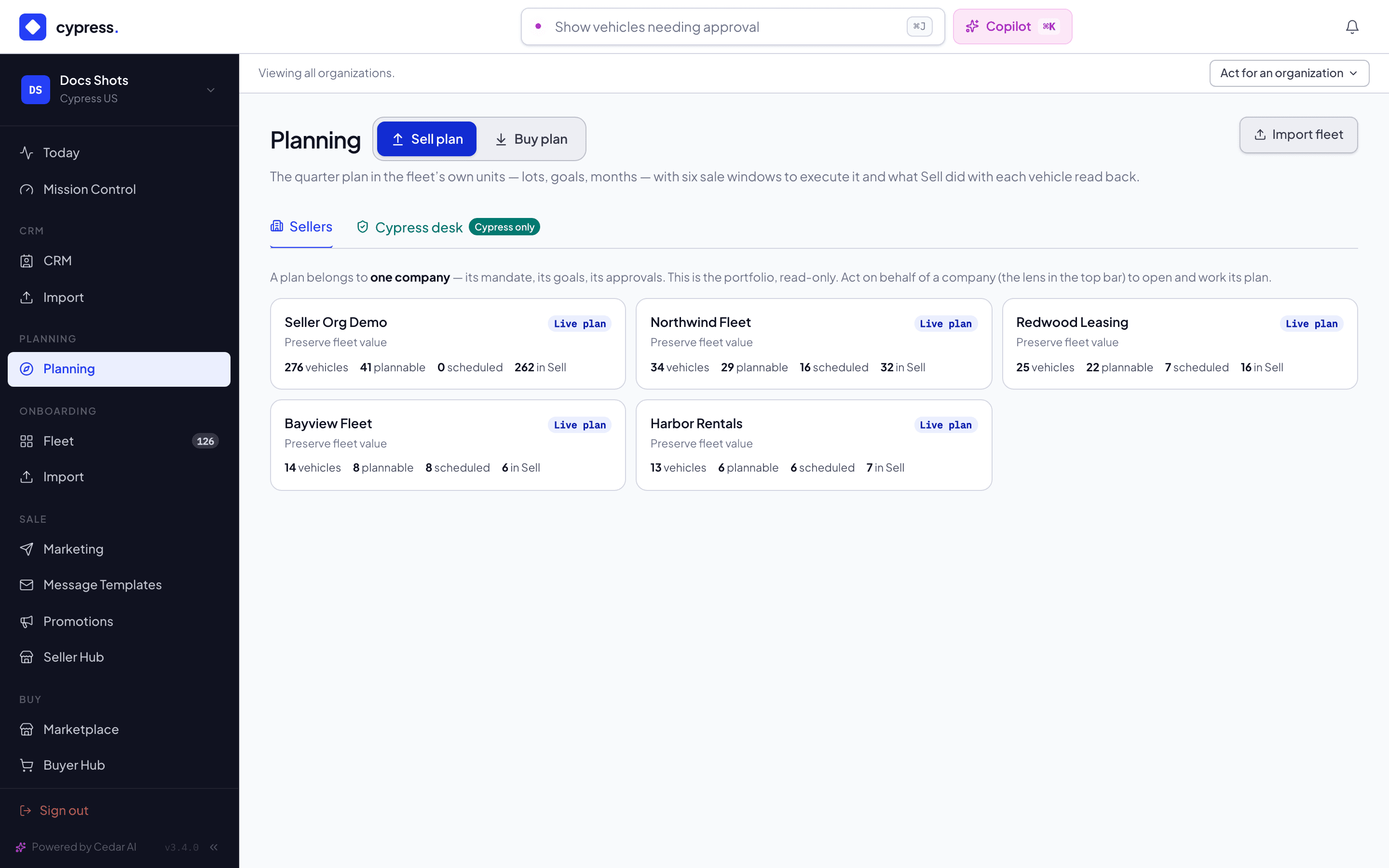
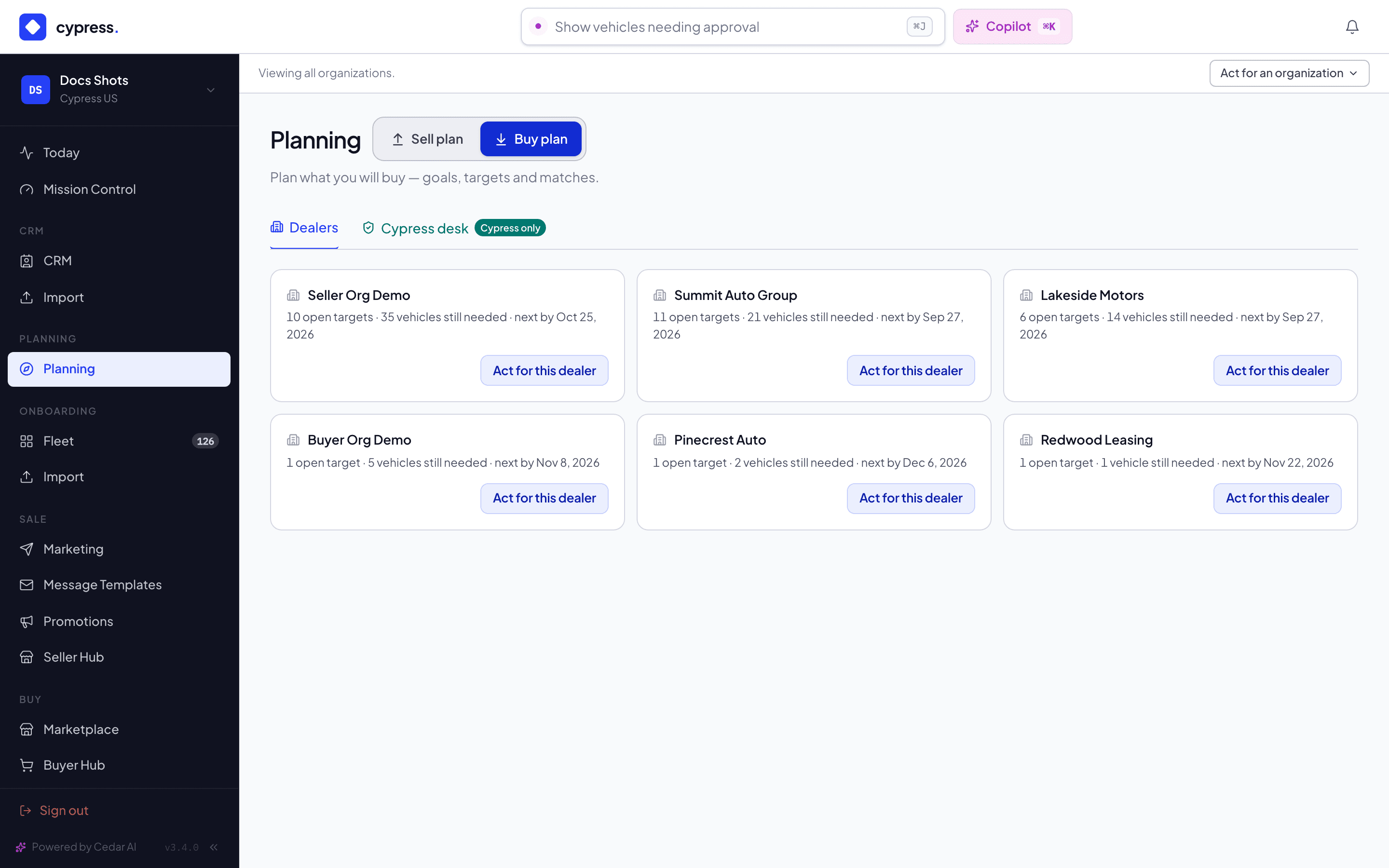
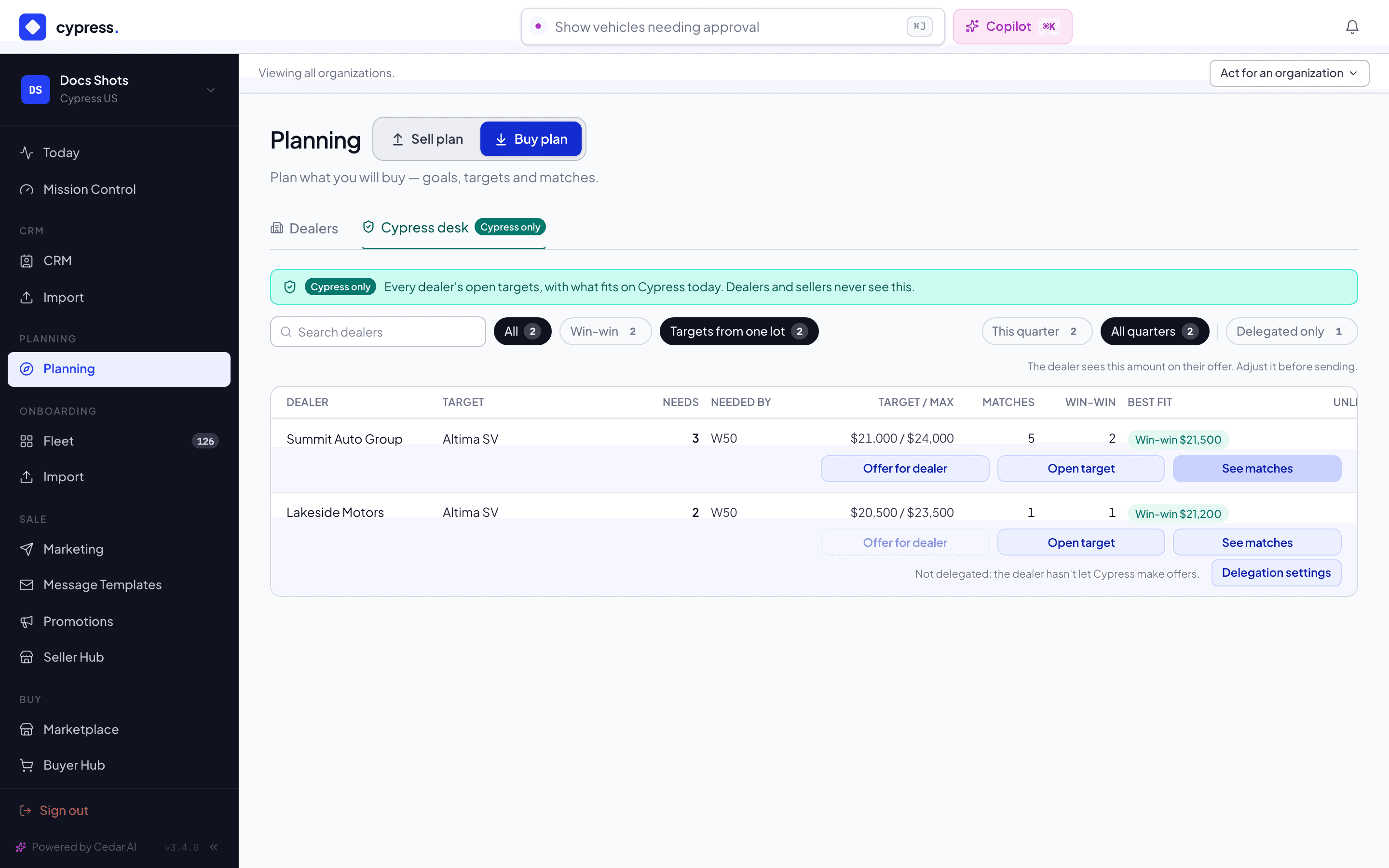
Open Planning with no company chosen: the bar at the top of the app reads Viewing all organizations. A plan belongs to one company, so there is none to show. The page has two tabs, Sellers and Cypress desk. On Sellers, one card per company with Planning on shows its name, Live plan or no plan, and its counts of vehicles, plannable, scheduled and in Sell. Switch to the Buy plan: its tabs are Dealers and Cypress desk, and each dealer's card says N open targets · N vehicles still needed · next by … with Act for this dealer.
You should see the example's sellers, Northwind Fleet, Redwood Leasing, Harbor Rentals and Bayview Fleet, and its dealers, Summit Auto Group, Lakeside Motors, Redwood Leasing and Pinecrest Auto, plus any other organizations on Cypress.
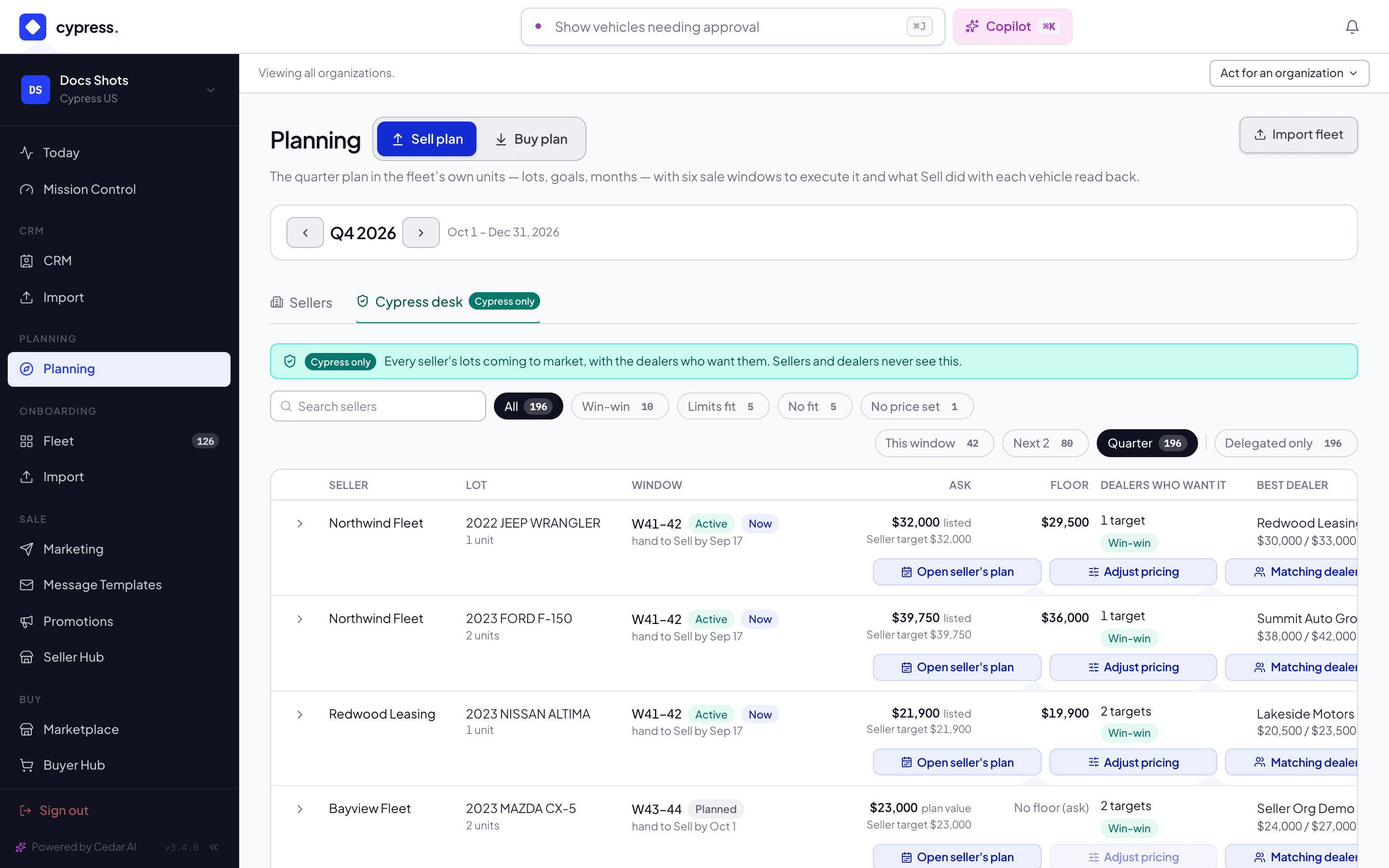
On the Sell plan, open the Cypress desk. It is in teal, with a shield and the badge Cypress only. With no company chosen, it lists every seller's lots coming to market in the quarter on the bar, one row for each lot in each sale window. A row shows the seller, the lot and its units, the window (for example W43–44, and the date to hand its vehicles to Sell by), the Ask with where it comes from (listed, plan value or mixed), the Seller target, the Floor (No floor (ask) in gray when the seller never set one), how many dealer targets want the lot with the best fit among them, and the best dealer with its target and maximum. Select a row's arrow to list every matching dealer target, each with its fit: Win-win, Limits fit, No fit or No price set.
Find Northwind Fleet's Altima SV row. Two dealers, Summit Auto Group and Lakeside Motors, have an open target for it.
You should see lots with a win-win first, then the soonest hand-off date. The filters, by fit, by window (This window, Next 2 or the whole Quarter), to sellers that delegated, and by a seller's name, stay in the address, so you can send a view to a colleague.
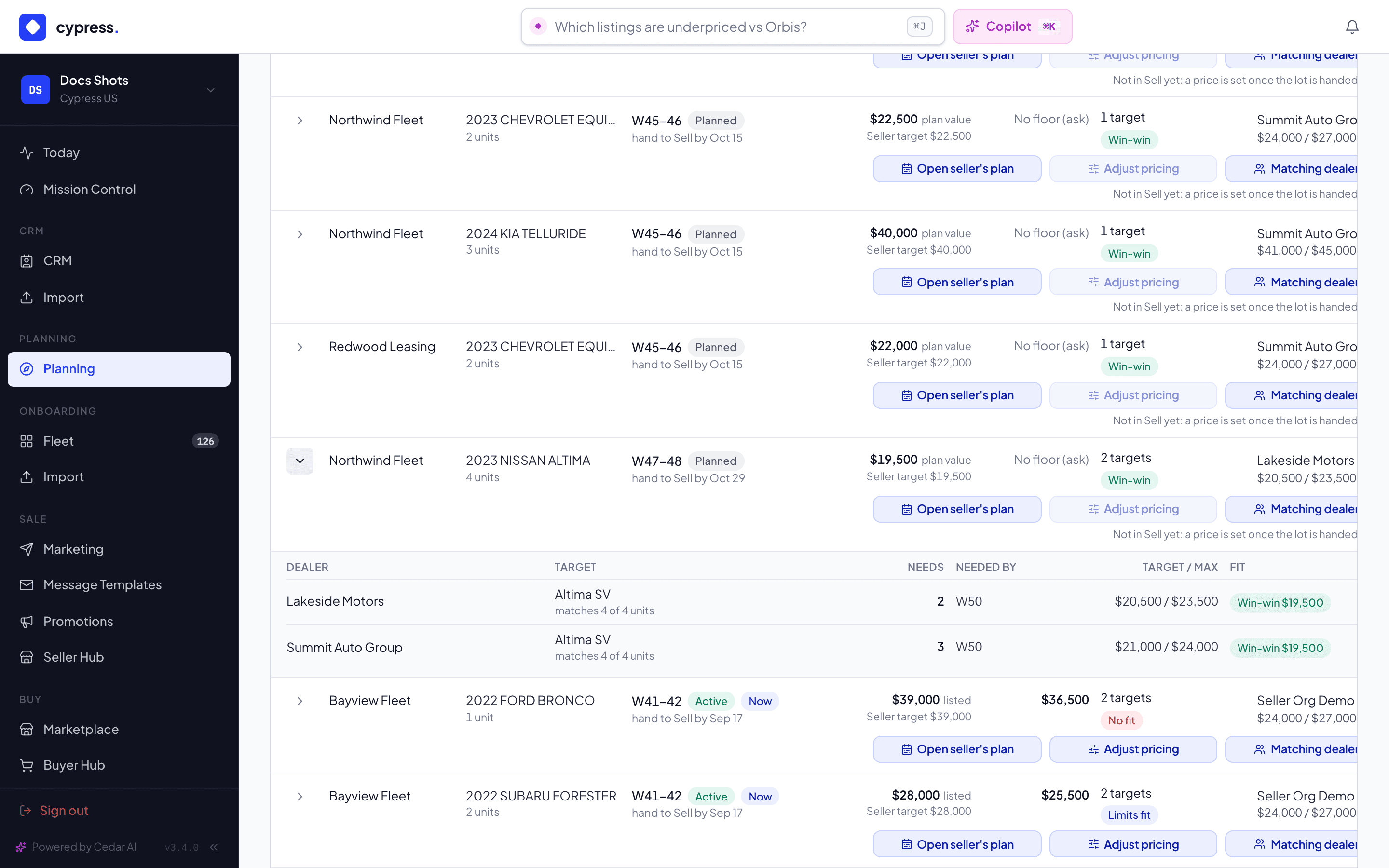
On the Altima row, select Matching dealers. It opens the Buy plan's Cypress desk with no company chosen, on the targets of that lot's dealers, with a chip, Targets from one lot. Select the chip to see every target again.
You should see two rows, Summit's and Lakeside's Altima SV targets, with the live matches that fit each, and the chip. The row's other two buttons are Open seller's plan, which opens that seller's Schedule on the lot, and Adjust pricing, which is covered in step 5.
Act for a seller. In the bar at the top of the app select Act for an organization, type Bayview Fleet in Find an organization, and select it. The bar turns amber: Acting for Bayview Fleet — everything you see and change belongs to them. Open Planning, then the Cypress desk.
You should see a desk about Bayview alone. The sentence at its top names the company: Who wants Bayview Fleet's lots in Q4 2026: the dealers whose open targets fit them. Adjust Bayview Fleet's pricing or schedule to meet them. Sellers and dealers never see this. There is no Seller column and no seller search. The first button on each row now reads Open in the schedule. In this example, no dealer's target fits Bayview's planned Santa Fe, Outback or CX-5, so Matching dealers, which reads See these dealers' targets here, is off. One line under the three buttons gives the reasons for every button that is off: No dealer wants this lot yet. for that one, and, for Adjust pricing, the reason in the next step.
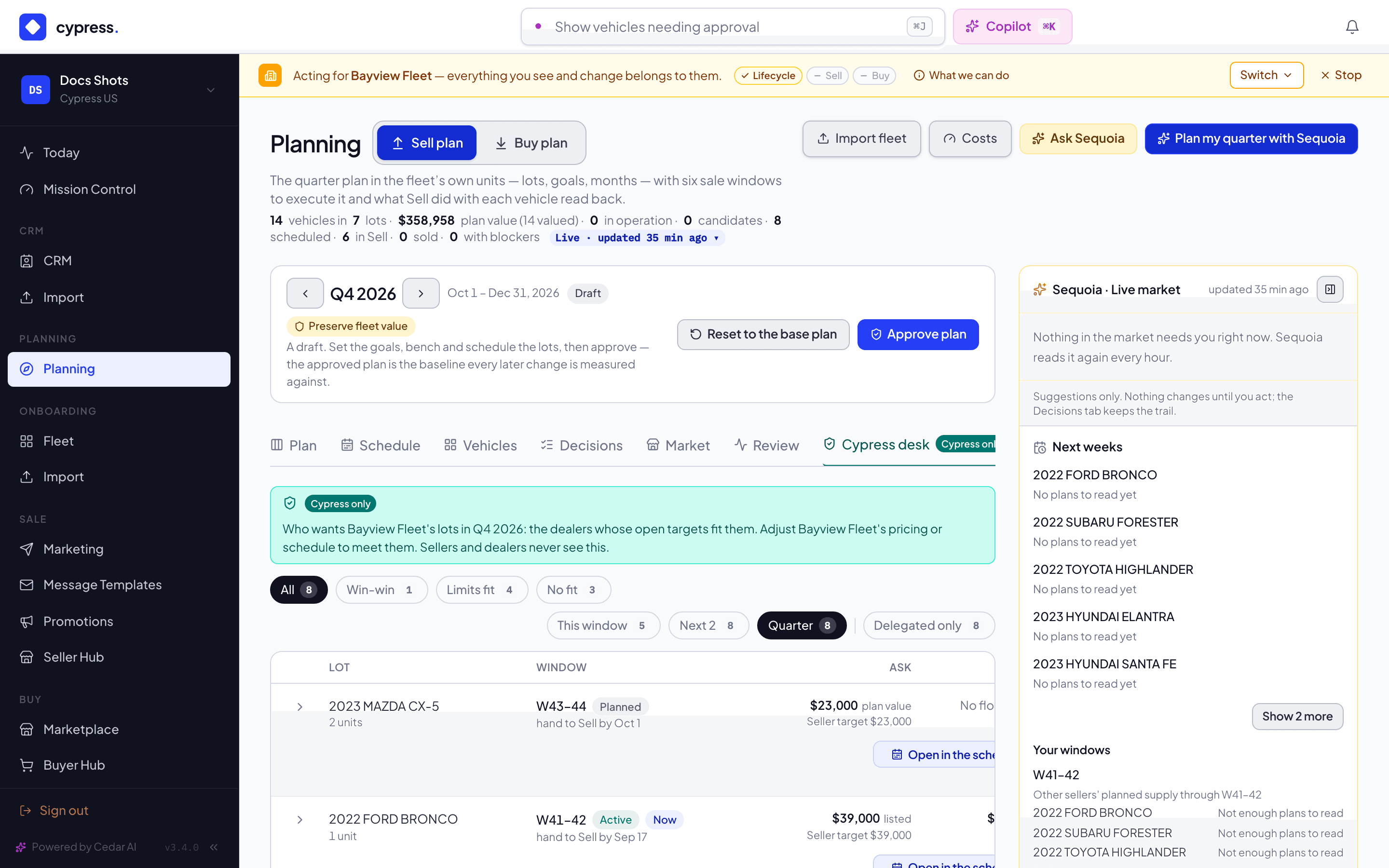
Read the reasons. On a Bayview row, Adjust pricing is off too, and its reason is in the same line: Not delegated: the seller hasn't let Cypress act for them., followed by a Delegation settings link to where the seller's delegation is set. Adjust pricing opens the Pricing tab of a vehicle of the lot that is in Sell, in that seller's Fleet, so it needs the seller's Sell switch on. For a lot whose vehicles have not been handed to Sell yet, the reason is Not in Sell yet: a price is set once the lot is handed to Sell. The bar's What we can do button shows the three lanes, Lifecycle, Sell and Buy, that this company delegated.
You should see three buttons of equal width, each shown even when it does not apply, and one reason line. Select Stop in the bar to drop the lens.
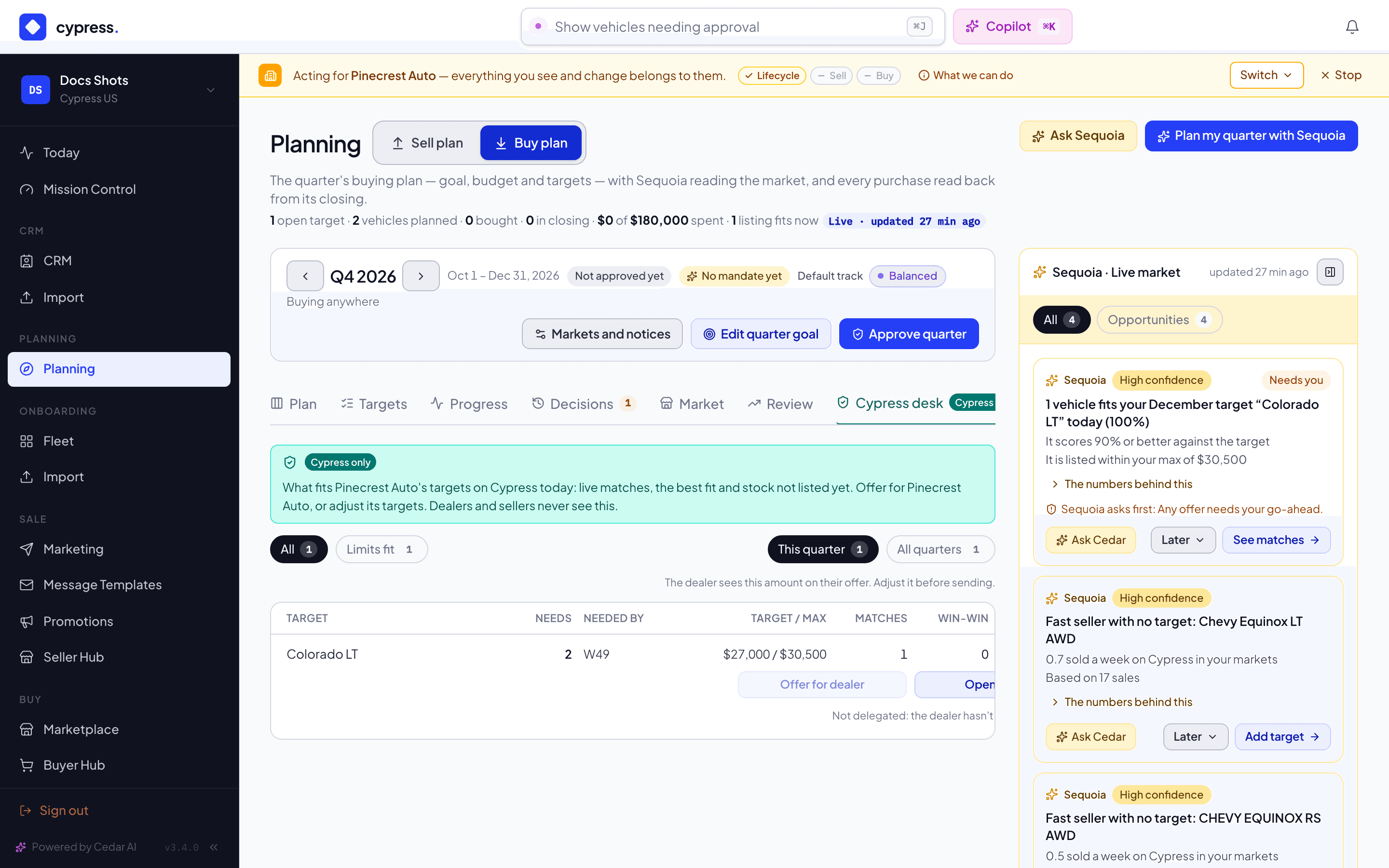
Act for a dealer: Act for an organization, then Pinecrest Auto. Switch to the Buy plan and open its Cypress desk. The sentence at the top reads What fits Pinecrest Auto's targets on Cypress today: live matches, the best fit and stock not listed yet. Offer for Pinecrest Auto, or adjust its targets. Dealers and sellers never see this. Pinecrest has one open target, Colorado LT. Its row has a figures grid, and under it three buttons: Offer for dealer, Open target and See matches.
You should see a live match from Harbor Rentals' Chevrolet Colorado. See matches opens the Marketplace on the target's matches, as the dealer's own panel does. Open target opens the target's panel in the Buy plan, under the lens. Offer for dealer is off unless Pinecrest has let Cypress make offers: the line under the buttons says Not delegated: the dealer hasn't let Cypress make offers., or Still onboarding: Cypress can offer once the account is active., or Nothing fits with a price to offer yet. when no live match has a price Cypress could suggest.
Last, see what Offer for dealer does when it is on. A dealer that has delegated offers to Cypress lets staff offer on its behalf at the price the desk suggests. The dealer sees that amount on its offer, and the offer carries the Cypress · on behalf badge. Sequoia suggests; you make the offer, as the dealer would. The Cypress account manager of each dealer also gets one line a day, Buy plans: N new matches, which opens this desk; a dealer never sees it.
You should see that the desk never shows a seller's floor to a dealer or a dealer's maximum to a seller: both sit on this screen for you alone.
What happens next
The desk is a place to work, not a report: a win-win on the Sell desk is a reason to call the seller about timing or price, and a row on the Buy desk with matches and no offer is a reason to call the dealer. Everything you do under a lens is written to the company's own record and badged as done by Cypress on its behalf.
Related
- The plan and The buy plan, for the two plans the desk reads
- The quarter bar and closed quarters
- Delegation
- Planning inside remarketing
Planning inside remarketing
Every place the Sell and Buy plans show up outside Planning, side by side: the Seller Hub, the Fleet panel and Leads for sellers; the Marketplace, the vehicle page, the Buyer Hub and notices for dealers. What each shows, where the number comes from, what you can do, and where it leads.
The closed loop: Redwood Leasing, both sides
Follow a fictional company that sells and buys: what its Sell plan sends to dealers, what its Buy plan finds in other sellers' stock, and where the loop shows up in the Market tab, the Marketplace and the notices.