Marketplace, storefronts & subscriptions
How buyers discover inventory across every surface — and what subscribing to a seller really means.
TL;DRAI summary
This chapter explains the four ways you can find vehicles to buy on Cypress: the Marketplace, Promotions, Storefronts, and Direct links. It also shows you how to use vehicle pages to make offers, track your buying plan, and subscribe to sellers for updates.
For: Buyers — dealer orgs and individuals alike
Under the buy switch, your Cypress team can buy and bid for you on the marketplace. Without it, Cypress browsing on your behalf sees the Buy Now and Make an Offer controls disabled with the reason stated.
Everything done under delegation is logged with a Cypress · on behalf badge and notifies your Fleet Managers. Manage the switches in Settings → Organization → Permissions — the full story is in Delegation — Cypress on your behalf.
Cypress inventory reaches buyers through four doors. This chapter walks them from the buyer's side: what you see, what you don't, and how following a seller actually works.
The four doors
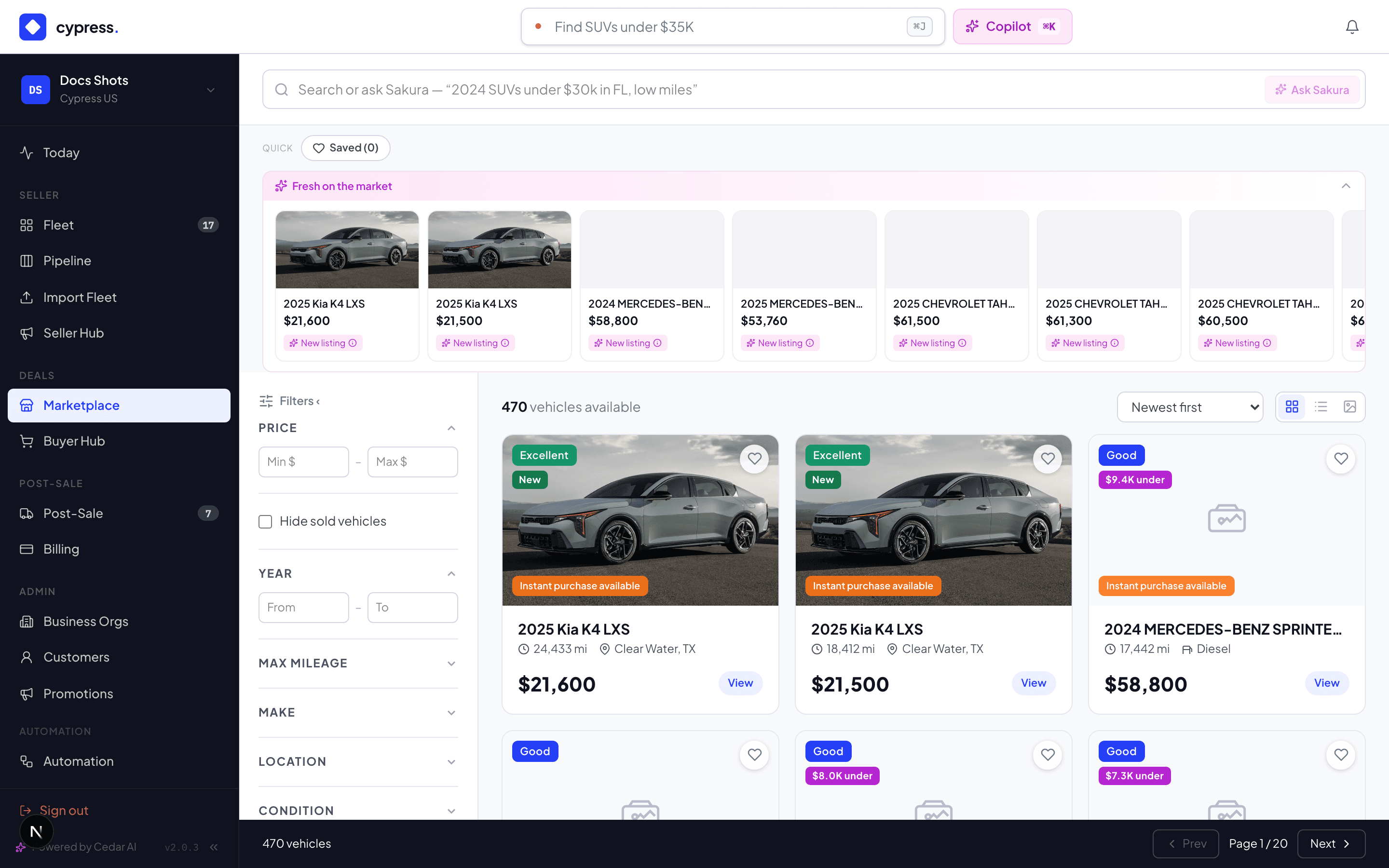
- The Cypress Marketplace — the full multi-seller catalog, in-app and public. Search and filter by make, price, mileage, condition, and location — a market region (West, Southwest, Midwest, Southeast, Northeast) or any set of states, with vehicle counts on every option.
- Promotions — curated lists ("Fleet Vans Under $35k") on the marketplace and in campaign emails.
- Storefronts — a seller's own branded catalog at its own address
(
/s/their-name): only their inventory, their branding, same deal machinery underneath. - Direct links — a private page for one vehicle, sent to you personally by a seller. Not listed, not indexed; the link is the invitation.
The vehicle page
Every door lands on the same vehicle page: photos, the spec sheet, the three-row condition score, days on market, and the ask price. Two numbers you will never see: the seller's floor and the platform's valuation — those are the seller's side of the table. What you do with the page:
- Buy Now — transact at the ask, instantly. The listing price is the seller's standing consent to sell at it.
- Make an Offer — any amount; the bands may answer instantly or route you to review. The offer bar shows your number as a % of ask, so you know how you'll read before you send.
- Ask Sakura — the marketplace assistant answers vehicle questions from the record: condition findings, spec details, history on the platform.
- Save it — saved vehicles power your alerts and tell the seller's analytics somebody's watching.
An individual (not a company) buys through a consumer account — same marketplace, same offers, with the paperwork adapted at closing time.
Your buy plan on the Marketplace
When Buy planning is switched on for your organization, the Marketplace shows your plan as you browse. With it off, the only addition is a quiet Plan your buying link above the results, which opens the Buy plan.
- The plan strip — "Your Q4 plan" sits above the results and reads, in one line, how many vehicles you have bought against the quarter's goal (4 of 20 bought), how many are in closing (· 1 in closing), and how many live listings fit your open targets (· 3 listings fit your plan, or no listings fit your plan right now). The fit count is about the whole plan, every open target, not only this quarter's. Open plan takes you to the Buy plan.
- Fits my plan — Show only these narrows the results to the listings that fit one of your open targets, under the banner "Matches for “Fits my plan”". When more fit, it shows the best 150 and the strip says so (· showing the best 150). Show all brings every listing back. The list follows Cypress's hourly match run.
- One target's matches — on a target's panel in the Buy plan, See all in Marketplace (and See matches on the Cypress desk) opens the Marketplace with only that target's live listings, under a banner that names the target, for example "Matches for “Buy plan · RAV4 XLE, low miles”". The close button on the banner clears it. If the matches cannot be read in time, you get the plain Marketplace and no error.
- Match badges — a listing that fits one of your targets carries an amber badge with its match and the target, such as "92% · Midsize SUVs", in the grid, list and gallery views. Each target's track sets how near a match must be.
- On the vehicle page — a fitting listing says which target it fits and what that target still needs ("Fits your target Midsize SUVs (92%) · 4 still needed by W48", with Open target beside it), shows the target's price guide from Cypress sales, and what Sequoia would offer for this listing on the target's track, never more than the listing asks (it says "Buy at the ask" when the listing asks less than Sequoia would pay). Sequoia never sends an offer; you do. Under the specifications, a Buy analysis card weighs the listing against your target: see Buy analysis.
The strip and the badges read only your own targets and each listing's public details. A seller never learns whose plan a vehicle fits, and you never see a seller's limits. The Buyer Hub, the notices and the seller side of the same loop are in Planning inside remarketing.
Subscribing to a seller
Storefronts have a follow button — but browsing is never consent. Subscriptions are double opt-in:
Until step ③, nothing is sent to you. Once confirmed, the seller's campaigns and new-inventory digests can reach your inbox — and Your sellers in the sidebar lists every subscription with a working unsubscribe that is honored permanently and provably.
What Sakura recommends here
Buyers get the same intelligence sellers do, pointed the other way. Ask Sakura on any vehicle page answers from the record — condition findings, spec, history on the platform — not from marketing copy. In your Buyer Hub, Cedar reads your offers: "which of my counters expire today?" and "what did I offer on vans like this last month?" are both fair questions with instant answers.
Worked example
Dan filters the marketplace to cargo vans under 25k miles in Texas and finds the Transit at $32,500. He asks Sakura about the condition spread; the answer names the bumper scrape and the curb rash from the ARVIS findings. He saves it, subscribes to Acme's storefront (confirming from his inbox), and sleeps on it. The next morning Acme's campaign email — "Fleet Vans Under $35k" — puts the Transit back in front of him, and he opens with $28,200. The negotiation chapter tells the rest from the seller's side; Buyer Hub tells it from his.
Business rules
- A hidden vehicle is hidden: a dead or revoked direct link answers plainly that the page isn't available — links can't be guessed at, and private inventory can't be probed.
- Offers from any door are equal citizens — a storefront offer and a marketplace offer on the same vehicle compete on amount, nothing else.
- Every door remembers itself: where you came from rides with your offer, which is how sellers' channel analytics stay honest.
Under the hood
All four doors resolve to one listing engine — eligibility, pricing, and band processing are identical everywhere. The door (and its commission scheme) is snapshotted onto the offer at creation; the channels chapter covers that mechanism from the seller's side.
Your selling analytics
What each listing measures, how to read hotter and colder, and how the AI turns the signals into listing, pricing, and sell-or-hold recommendations.
Who can buy: orgs & customers
The public marketplace vs the platform, and the two kinds of buyer — registered organizations and individual customers.