Install Grove and keep it up to date
Put Grove on your phone or computer so it opens from its own icon, like an app, and gets notifications; how Grove tells you a new version is ready, and how to check yourself.
TL;DRAI summary
This chapter explains how to install Grove, the app icon with three plants, on your phone or computer so you get notifications and quick access. Grove automatically updates itself, so you always have the latest features.
For: Everyone in Grove
Grove runs in the browser, and installs like an app: it gets its own icon (the three plants), opens in its own window, and receives notifications. There is no app store and nothing to download: installing takes a few seconds, and Grove updates itself.
Before you start
- On iPhone and iPad, install Grove from Safari (or any browser's Share menu). iPhone and iPad only send notifications to apps on the Home Screen.
- On Android and on a computer, use Chrome or Edge. Safari on a Mac installs it too. Firefox on a computer cannot install apps; Grove still works in it as a page.
Steps
Open Profile, and go to This device. The Grove on this device card says how this phone or computer installs Grove, or that it is installed already.
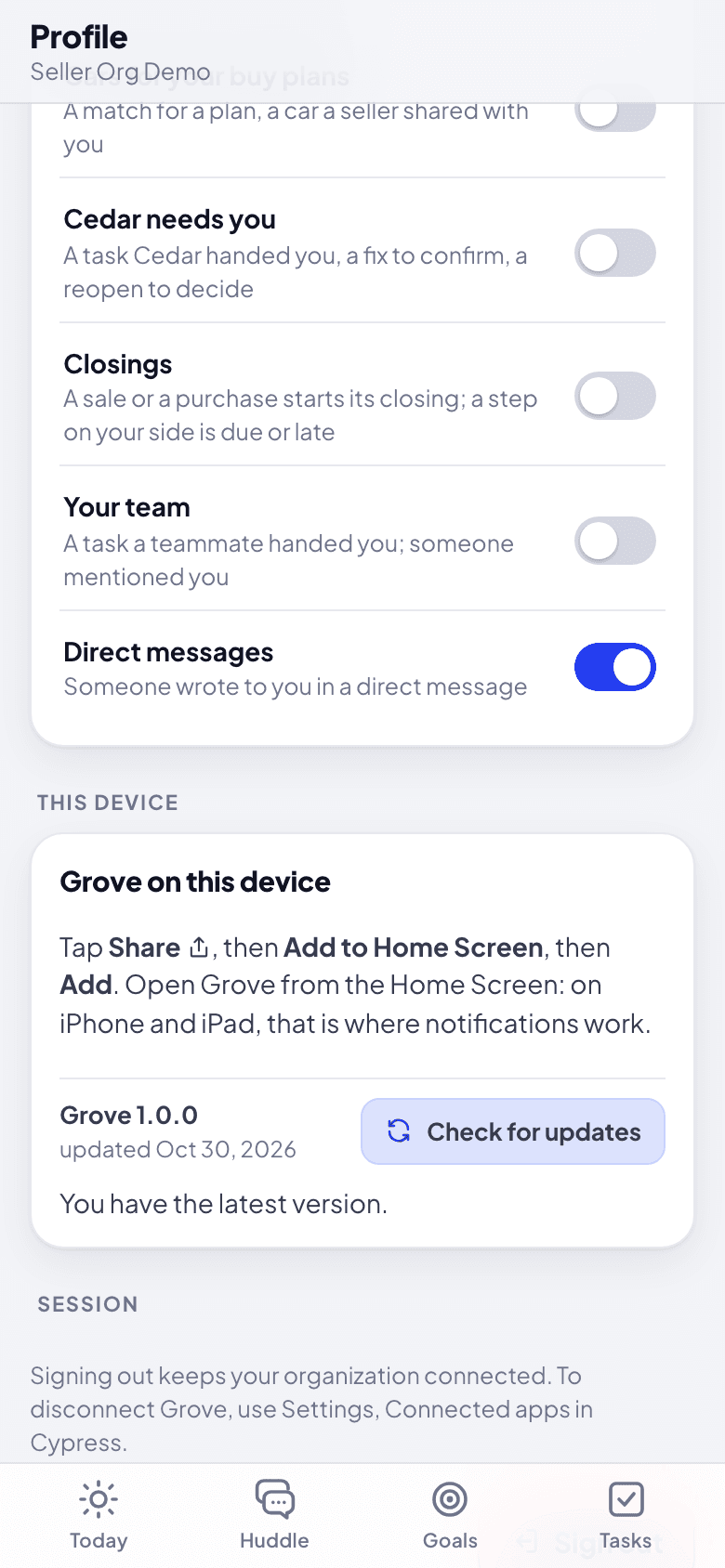
Install it the way the card says:
- Install Grove (Android, Chrome and Edge): click it, then Install in the browser's window.
- iPhone and iPad: tap Share, then Add to Home Screen, then Add.
- Android without the button: open the browser menu (the three dots), then Install app.
- A computer without the button: click the install icon at the right of the address bar, or the browser menu, then Install Grove. In Safari on a Mac: File, then Add to Dock.
Open Grove from its icon. The card now says Grove is installed here. On iPhone and iPad, sign in once more: an app on the Home Screen keeps its own sign-in. Then turn on notifications in Profile, under Notifications.
New versions
Grove updates itself: there is nothing to install again. When a new version is out while Grove is open, it says so at the top of the screen, "A new version of Grove is ready." Click Reload to use it now, or Later (the next look brings it back). Grove looks when you come back to it, and every 15 minutes while it is open.
To look yourself, open Profile, This device, and click Check for updates. The card says You have the latest version, or shows the notice to reload. The card also says which Grove this device runs (for example Grove 1.0.0, with its build and the day it was updated), which helps when you report a problem. What each version brought is in Grove's changelog.
If something goes wrong
- There is no Install Grove button. The browser shows its own way instead (the card says which), or Grove is installed already. On Android, the button comes after you have used Grove for a moment; open the browser menu instead.
- The icon is a purple ball, not the three plants. That is an older install. Remove Grove from the Home Screen (or the computer's apps) and install it again.
- No notifications on iPhone. Open Grove from the Home Screen icon, not from Safari, then turn notifications on in Profile. See Notifications and quiet hours.
- "Could not check just now." Grove could not reach its server. Check the connection and try again.
Choose Zen or Huddle
Grove's two looks: Zen, one private conversation with Cedar that holds everything, or Huddle, the full app with Today, your team's rooms, Goals and Tasks. What each shows, who sees what, and how to switch.
Answer an offer in Grove
Accept, counter or decline an offer from its card, read the gap to your floor first, and what changes when an offer is below the floor.