Import a spreadsheet of cars in Grove
Send a CSV or Excel file to Cedar, check the columns and anything Cypress flags, read every car the import adds, updates or archives, then run it.
TL;DRAI summary
You can quickly add or update many cars in Cypress by sending a spreadsheet to Cedar. Cedar will guide you through matching your columns, checking for issues like duplicate cars, and reviewing every change before you confirm.
For: Fleet managers and admins (sellers) · Cypress Managers acting for an organization
Before you start
- The file is a CSV, TSV or Excel workbook (.xlsx, .xls, .ods), up to about 6 MB and 5,000 rows. Grove reads the first sheet of a workbook.
- It needs one column with each car's VIN. Everything else is optional; mileage, floor price and the lot are the columns worth having.
- You can send it in any conversation where Cedar is: Cedar, your organization's huddle, or a conversation of your own.
Steps
Send the file with a line for Cedar. Click + in the message box, then File, pick the spreadsheet, and write something like "@Cedar please import this week's list". In Cedar's own room, Upload this week's list opens the file picker and writes the line for you. Cypress reads the file the way its Import screen does: it matches each column to a field by its name and its values, turns kilometres into miles, and reads money and dates. Then it checks every row against your fleet. Nothing is saved yet.
Read the card. Cedar answers with an Import card: the file, how many rows are new cars and how many update cars you already have, and how many things need you. If a column could not be read cleanly, the card says so under From the file: a column left out, a column in kilometres, rows without a VIN, or a column that is missing (no mileage, no floor price, no lot).
Check the columns, when the card asks. The card shows Columns first when Cypress guessed what a column is, or found no column that is clearly the VIN. On top are the fields Cypress requires, as on its Import screen: VIN, Mileage, Lot or ZIP and Floor price, each green once a column fills it. Only a missing VIN stops the import; a new car missing the others gets them while you get it ready. Each column shows its name, its first value, what it is (the required fields first in the list), and Match, Guess or Yours. Click Looks right to keep them, or Use these columns after a change: Cypress reads the file again with your columns. To change the columns later, open the three dots and click Change columns.
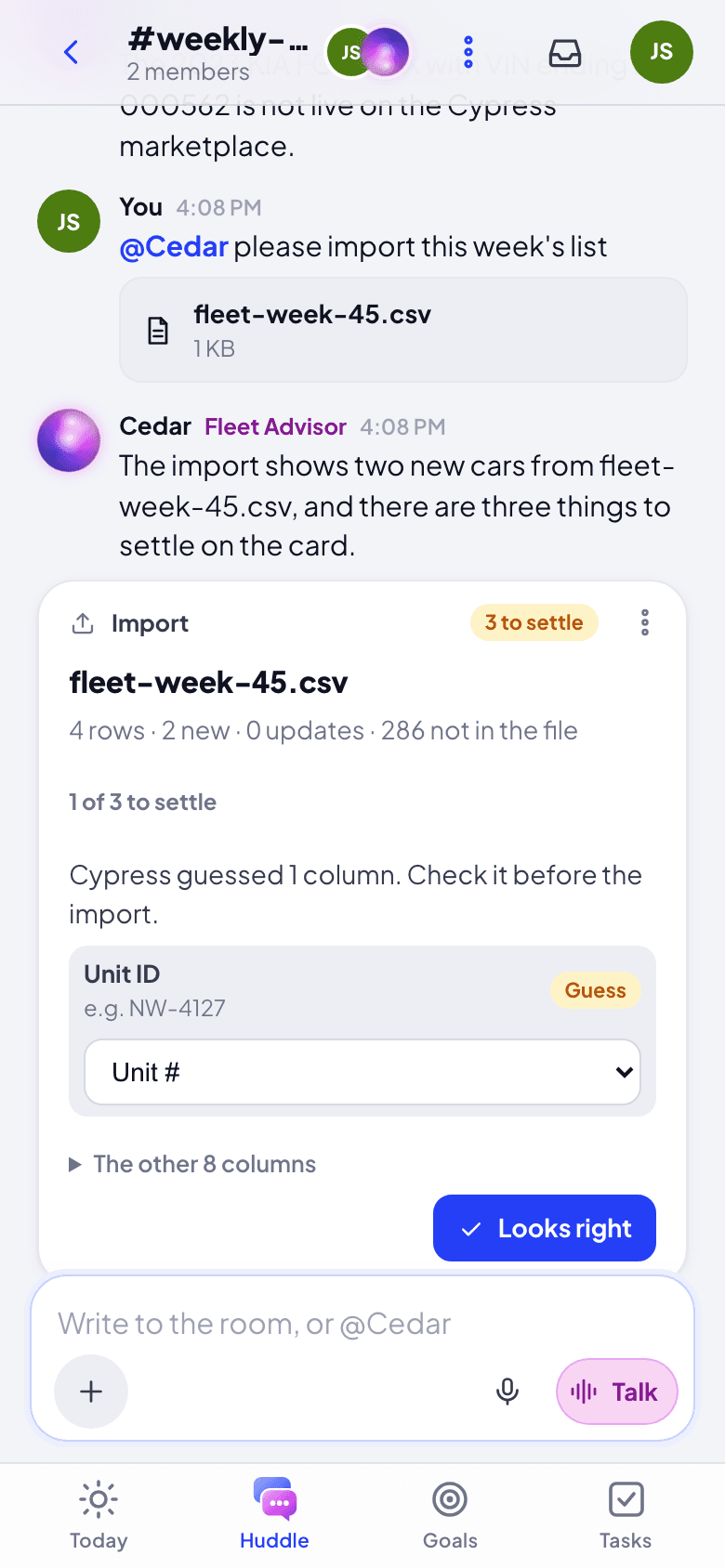
Settle what needs you, one thing at a time. The card asks only what it has to, in this order:
- The same VIN twice: which row to keep.
- A mileage lower than Cypress has: odometers do not go back, so keep Cypress's number or use the file's.
- A lot Cypress does not know: pick the saved lot it is, and tick Remember so the name matches next time, or leave those cars without a lot.
- A car already sold: leave its row out, or update it anyway.
- Rows Cypress cannot take: they are left out; fix them in the file and send it again.
A lower mileage is asked even when only the last check shows it (a VIN twice in the file, once you keep one row).
Read every car before you run it. Once nothing needs you, Cypress checks the rows again, exactly as they will be sent, and the card lists them: New cars (with their miles and lot), Updates (each field from → to, for example "Mileage 25,500 → 26,000"; a change that goes to review first says so), No change (Cypress already has it as the file does), To archive and Left out (with why), one row per car with its badge. Chips narrow the table; See all brings every car. New cars come in as drafts: none goes on the market until it is ready and you launch it. Under the table, Cars in Cypress not in the file stay as they are; open it to tick the ones to archive and click Archive (a car in a sale or with open offers goes to your Cypress Manager to archive).
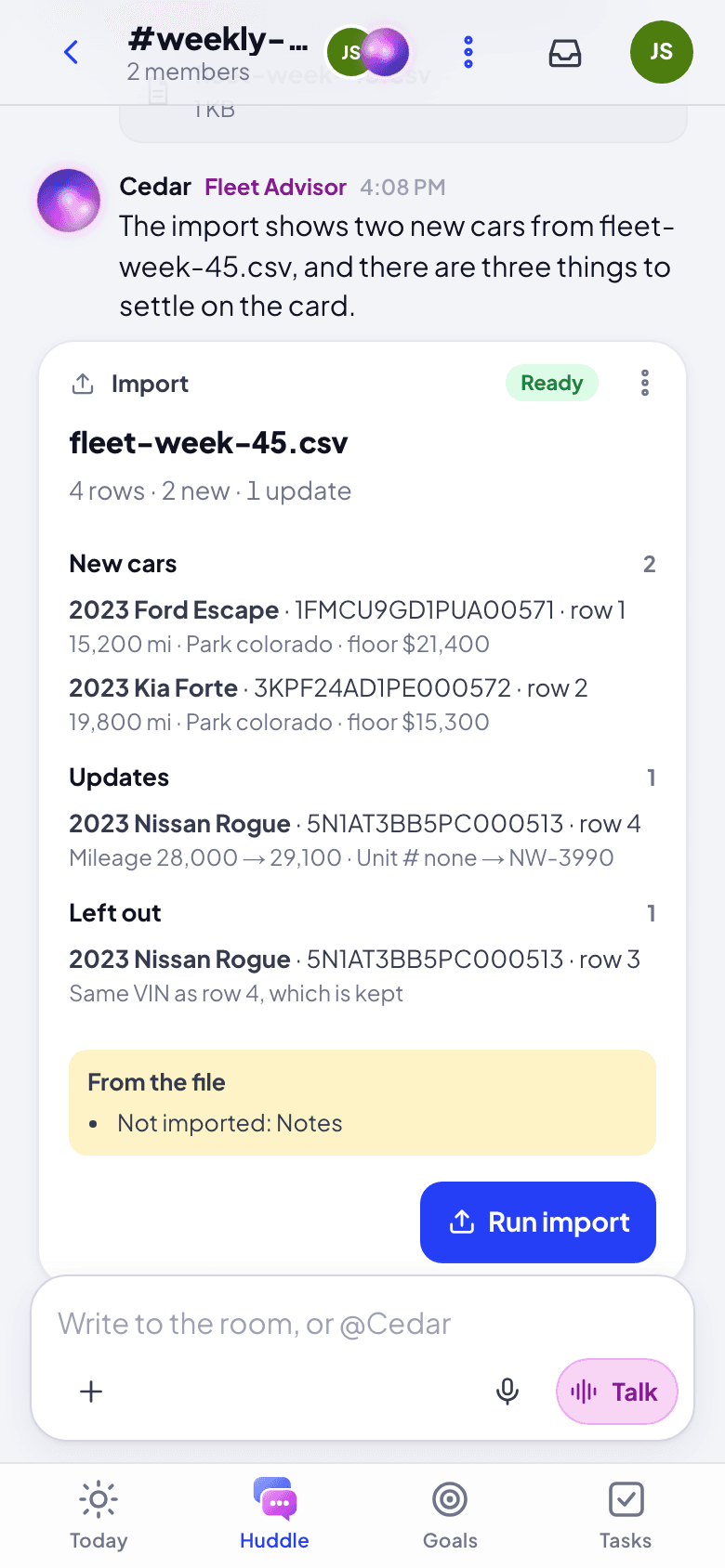
Click Run import, read the confirm, and click Import now. The card shows the cars coming in and being valued, then "Imported: 2 new cars in, 1 updated".
What happens next
- New cars come in as drafts: Cypress decodes each VIN and values the car. Updates apply at once.
- Cedar posts a Drafts card with the new cars and what each needs before it can go live. See Get drafts ready and take them live.
- The cars are in your fleet in Cypress, and Cedar knows them in every conversation.
- A lot name you asked Grove to remember is saved on that lot, so the next file matches it.
If something goes wrong
- "Nothing would change": every car in the file is already in Cypress as the file has it. There is nothing to run.
- No column is the VIN: the card asks which column holds it. If no column does, add one to the file and send it again.
- The file is over 6 MB: split it, or import it on the Import screen in Cypress (the card's three dots, Open the Import screen).
- A row is left out that you need: fix it in the file (the card says why), and send the file again. Rows already imported are updates the second time, not duplicates.
Answer an offer in Grove
Accept, counter or decline an offer from its card, read the gap to your floor first, and what changes when an offer is below the floor.
Get drafts ready and take them live
Every draft with what it still needs (a cover photo, its condition checked, mileage, a lot, a floor), fixed on one card; then Go live with the ready ones through your pricing rule, which the card previews.