The Buy plan, tab by tab
What each part of the Buy plan page shows: the header, the Plan tab, Targets, Progress, Tasks, Decisions, Market and Review, and where each is explained step by step.
TL;DRAI summary
This chapter explains the Buy plan page, which helps you track and manage vehicle purchases for your fleet. It shows what information is on each tab, like your purchase goals, current targets, and how you are progressing.
For: Dealers (org admins, fleet managers) · Cypress Managers acting for a dealer that delegates to Cypress
Your buy plan sits beside the Sell plan in Planning. Use the switch at the top of the page to move between them. If your organization does not have Buy planning yet, the page lets you request it.
This page says what each part of the page shows. The step-by-step guides are linked from each tab. The fastest start is Plan my quarter with Sequoia, which drafts the whole quarter for you to edit: see Plan your quarter with Sequoia.
The header and the quarter bar
The line under the page title counts the open targets you need in the quarter on the quarter bar (a target with nothing left to buy reads Filled, and one whose quarter has passed reads Ended, so neither is open), the vehicles planned for it, how many you have bought and have in closing, and what you have spent on vehicles you have already bought, against your budget, for example $240,000 of $900,000 spent, or $240,000 spent · no budget set when there is no budget. Closings in progress are counted apart, in in closing, and are not in the money; until your purchases have loaded the spent figure reads a dash. Once Sequoia's forecast has loaded it adds how many listings fit now. A Live · updated chip says when the plan last changed. In a quarter that is over nothing is open, so the first count says what became of the targets instead, for example 3 targets · 1 filled · 2 ended short.
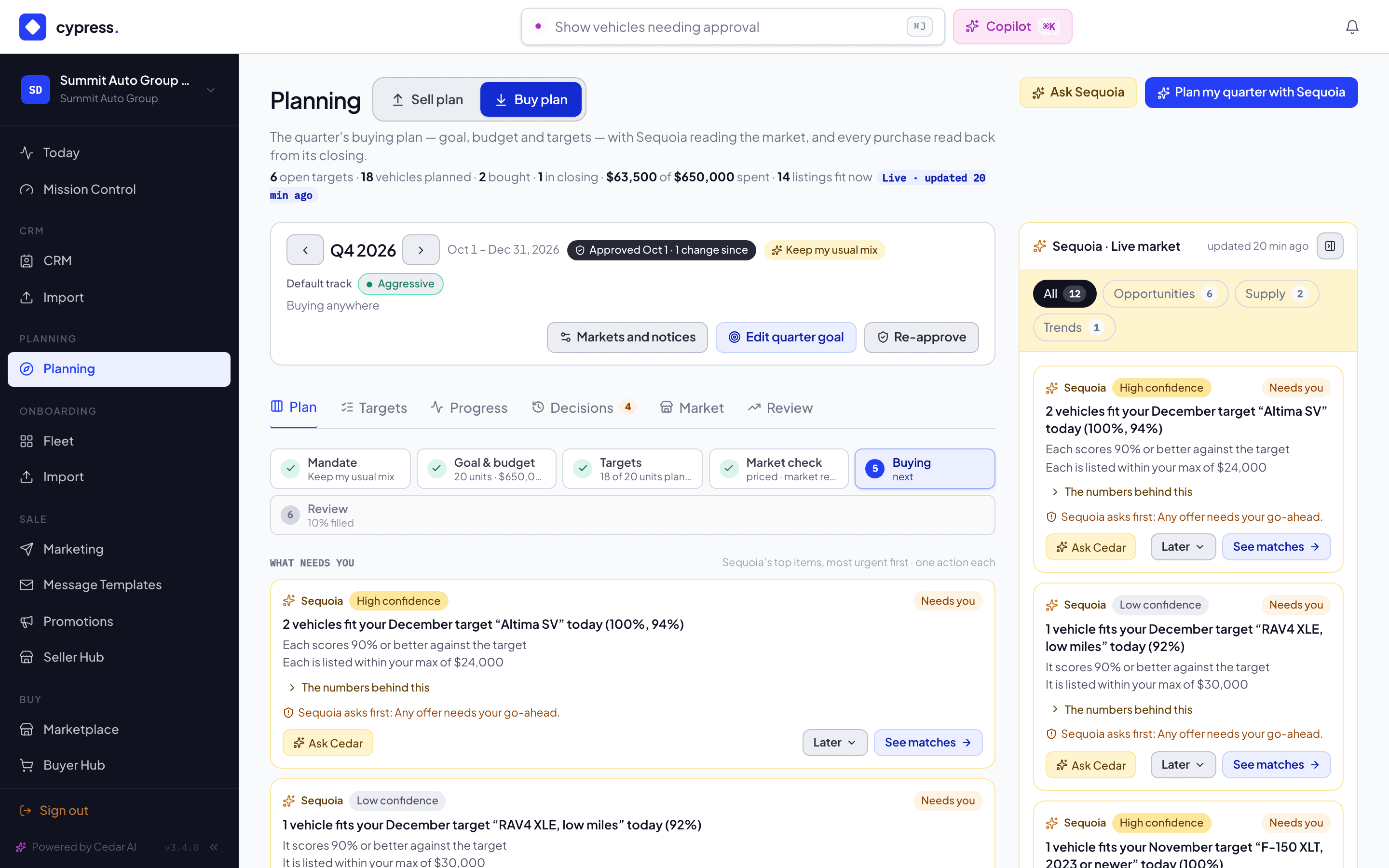
Above the tabs, on every tab, the quarter bar says which quarter you are looking at, its approval, your mandate, your Default track, where you are buying, and the buttons for the quarter: Markets and notices, Edit quarter goal and Approve quarter. It is the same bar on every tab. See The quarter bar and closed quarters.
The buttons at the top of the page are Ask Sequoia and Plan my quarter with Sequoia. Ask Sequoia, at the top of the page, hands your plan and Sequoia's live recommendations to Cedar and asks for the one thing to do this week.
The Plan tab
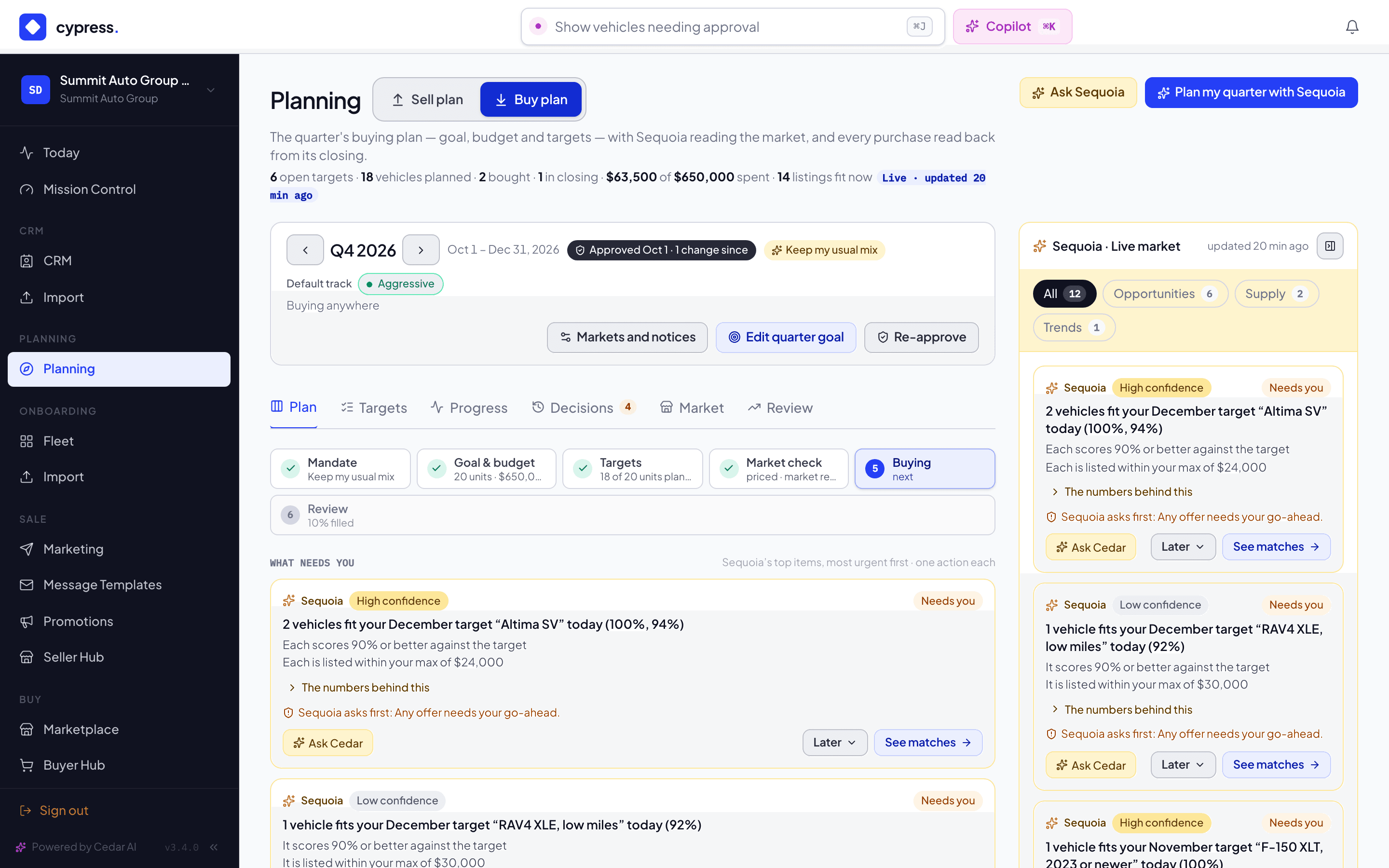
- The steps run Mandate, Goal & budget, Targets, Market check, Buying and Review. The next step to do is lit. Market check counts the targets you need in the quarter on the quarter bar, for example 1 target to finish or 2 targets without prices, the same ones the Targets tab lists.
- What needs you puts up to two of Sequoia's items first, as Sequoia cards: what it is, why, how sure Sequoia is, its action, a Later menu (Remind me next week or Not this quarter) and Ask Cedar. Below them come the plan's own asks, up to five and most urgent first, such as setting the quarter's goal or finishing a target. An ask that counts targets, such as Finish 2 targets, counts the ones you need in the quarter on the bar, and its button opens the first of them. Sequoia's items are the live market, so they are the same whichever open quarter you look at; a quarter that is over has no What needs you.
- The numbers are Bought, In closing, Spent or in closing, Live matches (exact and near) and Coming to market. Live matches and Coming to market count the targets you need in the quarter on the quarter bar, the same ones the header's open targets and the Targets tab's Open chip count, so step to another quarter and they move together. Coming to market counts the vehicles that at least two sellers plan to bring to market for the specs you buy. It is an anonymous count, and the tile always shows: with nothing to count it reads 0 and says nothing planned that we can show. Select a number to open it.
- Goals are always two cards, Units to buy and Budget, each against this quarter's progress, month by month. In each month's tile the figures are short, such as $297.5k / $166k or $1.2M, so they stay inside the card, and in a narrow card (Cedar open beside the page, say) the three months wrap onto a second row rather than squeeze; point at a tile for the whole figures. A goal you have not set is still a card: it reads No units goal set or No budget set, and its button, Set a units goal or Set a budget, opens the window that Edit quarter goal opens.
- Sequoia's market rail, on the right, lists Sequoia's live recommendations. On a narrow screen it moves above the plan. It is there on every tab, and on a quarter that is over it says in one line that it is today's market: Showing today's market — you're viewing Q3 2026. See Sequoia's market rail.
A quarter that is over shows a different Plan tab; see A closed quarter. To set the goal and the budget by hand, see Set the quarter's goal and budget.
The Targets tab
The Targets tab lists the targets you need in the quarter on the quarter bar: the quarter of the week each is needed by, as everywhere in the plan, so a target needed by Sunday Jan 3 counts in Q4, because a week belongs to the quarter of its Thursday. Use the arrows to open another quarter, or switch on All quarters, beside Add target, to see every target. A quarter with none says No targets needed in Q2 2027. Switch on All quarters to see others. Cypress remembers the switch for you in this browser. The status chips are All, Open, Filled, Paused, Closed and Ended; each counts the targets in view by what they read as, and the chip you have on stays even when it counts 0 in a quarter, so you can turn it off. A target reads Filled when nothing remains to buy (a purchase in closing counts as bought), Ended · 3 short when its quarter is over and 3 units were never bought, and otherwise the status you set: Open, Paused or Closed. A target that has ended or is filled gets no more matches or alerts. With All quarters off, a target you save with a needed-by in another quarter says where it went: Target added to Q1 2027. Switch the quarter, or turn on All quarters, to see it. (Target saved to Q1 2027. … after an edit that moves it).
To add, edit, pause or close a target, see Add and edit a target. To read what fits a target, see Read matches and the Buy analysis.
The Progress tab
The Progress tab lists the purchases of the quarter on the quarter bar, grouped by the target each counts toward. See Record a purchase made elsewhere for how to read it, how a purchase is placed, and how to record one made outside Cypress.
The Tasks tab
The Tasks tab lists the quarter's work: the tasks on its targets and on the buy plan as a whole, by people and agents, with All quarters for every quarter's. See The work behind the plan.
The Market tab
The Market tab shows which models other dealers want on Cypress, from their plans, saved searches and vehicles, and recent offers, and what sellers are planning to bring this quarter, as a range or as Planned, with the live listings and the trend of each. It shows today's board, whatever the quarter, so the tab opens with the line Today's market. On a row, Add a target like this opens the target editor with the make and model filled in, and See live listings opens the Marketplace narrowed to them. See The Market board.
Decisions
The Decisions tab lists what Sequoia suggested for the quarter on the quarter bar and what you decided. Switch on All quarters for every quarter's; an empty quarter says No decisions in Q3 2026. Switch on All quarters to see others. The rail and What needs you always show the live items, whatever the quarter. See Sequoia's decisions.
Review
The Review tab compares the quarter, week by week, with the plan you approved. See Review the quarter.
Ask Cedar
- Against the buying goal
- Targets due soon
- Next on the buy plan
- Near matches worth a look
Related
- The buy plan: what it holds, how targets fill, who sees what
- Plan your quarter with Sequoia
- Tracks and near matches
- Connect your purchasing system: the API and the notices for your quarter, targets, matches and purchases
- Sequoia's market rail
- Sequoia's decisions