Approve and review the quarter
Approve the quarter to keep a baseline, then read the Review tab to see what you achieved against the plan you approved, week by week.
TL;DRAI summary
Approving your quarter creates a baseline for your plan. This allows you to track your progress against your goals and see how your plan has changed over time. You can review your progress at any time to see what you've achieved.
For: Dealers (org admins, fleet managers) · Cypress Managers acting for a dealer that delegates to Cypress
Your buy plan is always live: you can change it at any time. Approve the quarter when the goal and the targets look right, to keep a baseline that Review compares what happens against.
Before you start
- The quarter has a goal, a budget or a target. A quarter with none cannot be approved: Set a goal or add a target first.
- The quarter is not over. A quarter whose last day has passed cannot be approved, and its Review compares what happened against the plan as it was approved; see The quarter bar and closed quarters.
Approve the quarter
In the quarter bar, select Approve quarter.
You should see Cypress ask Approve Q4 2026? and say Review will compare what happens against this plan.
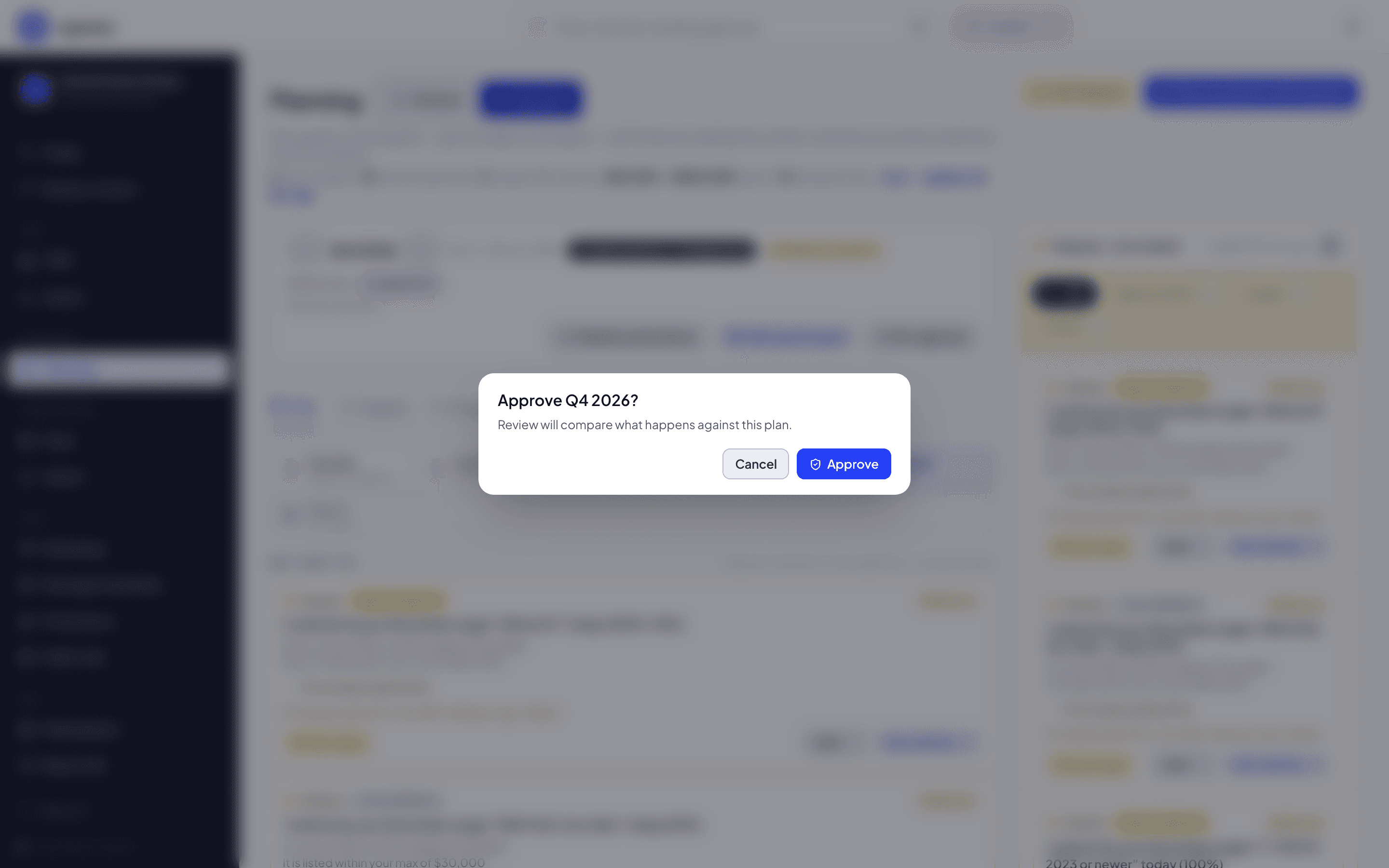
Select Approve, or Cancel.
You should see the quarter bar name the approval, for example Approved Oct 3, and its button read Approved. After you change the plan, it reads Approved Oct 3 · 4 changes since and the button reads Re-approve.
The approval binds to exactly what is on screen. If the goal, the budget or a target changed since the page loaded, Cypress says The plan changed. Refresh and approve again. and reads the plan again, so you can look it over first. The approved plan becomes the baseline; every later edit is a change shown against it, and approving again moves the baseline. The quarter bar names the approval and what has moved since: Approved Oct 3 · 4 changes since, or just Approved Oct 3 when nothing has. Select Re-approve to move the baseline to the plan as it stands; when nothing has moved, the button reads Approved and is off. Approval has no market effect.
Approving is a person's. An app acting for a person may approve through the API; an agent your organization added may draft the quarter and work its targets but is refused the approval, also when it keeps Sequoia's draft (see Apps, agents and MCP).
The baseline holds your own plan as it stood: the goal, the budget, the mandate, and each of the quarter's targets with its vehicle, how many, needed by, prices, track and priority. It holds no match, purchase or seller. A target you close or delete after approving counts as removed.
A quarter whose last day has passed cannot be approved, and neither can one with no goal, no budget and no target: Set a goal or add a target first. Plan my quarter with Sequoia can approve the quarter as it creates the plan. See Plan your quarter with Sequoia.
Review the quarter
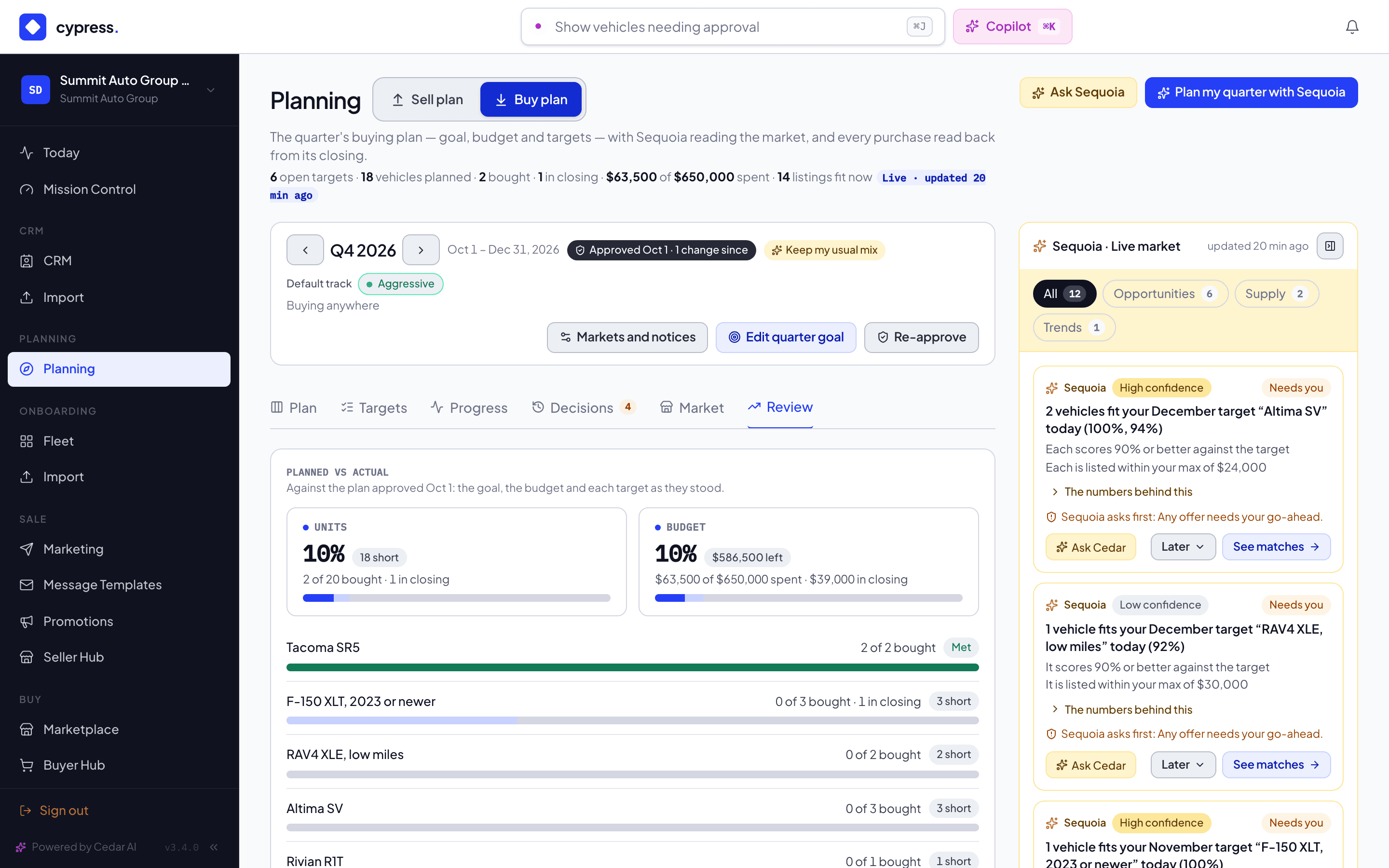
The Review tab answers "what did we achieve, and when". It opens with Planned vs actual. Once you have approved the quarter, it sets the baseline against what happened.
Open the Review tab.
You should see Planned vs actual at the top.
Read the cards for the units, the budget and each target.
- Units: a card with the percent of the goal you bought, a chip that says where it stands (25 short, Rest in closing, Met or +2 over), the sentence (12 of 40 bought · 3 in closing) and a bar. Meeting or beating the goal is green. Short counts the vehicles with no purchase and no closing behind them, the same number the Targets tab shows: 40 planned, 12 bought and 3 in closing leave 25. When everything still missing is in closing the chip reads Rest in closing: nothing is short, and it is not Met until those closings complete.
- Budget: the same card for what you spent on completed purchases, with $845,000 left or, past the budget, $153,000 over budget in amber: spending more than planned is never shown as a success.
- Each target: how many it planned against how many it filled, with the same chip. A target you removed after approving shows removed after approval.
A bar past its plan keeps a dark mark where the plan ends and draws the rest beyond it, lighter, so 20 of 18 reads as over, not as a bar that stopped at full.
You should see a chip on each card that says where it stands: 25 short, Rest in closing, Met or +2 over.
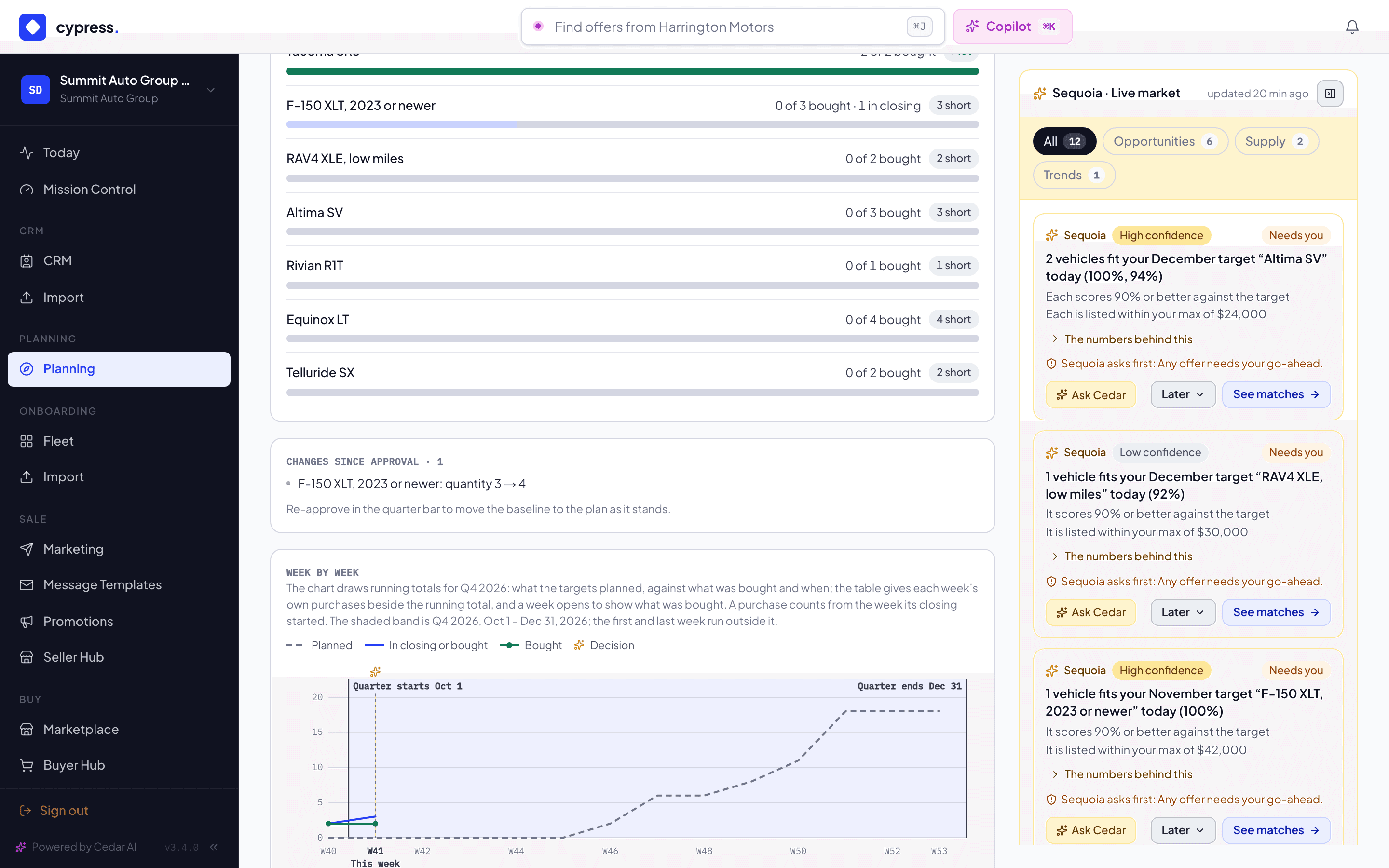
Read Changes since approval.
Changes since approval lists what moved, in plain words, such as RAV4 XLE: quantity 4 → 6, Added Chevy Malibu or Budget $600,000 → $650,000. Until the quarter is approved, the tab says Approve the quarter to compare what happens against your plan. and offers Approve quarter.
You should see each change on its own line, in the words of the plan.
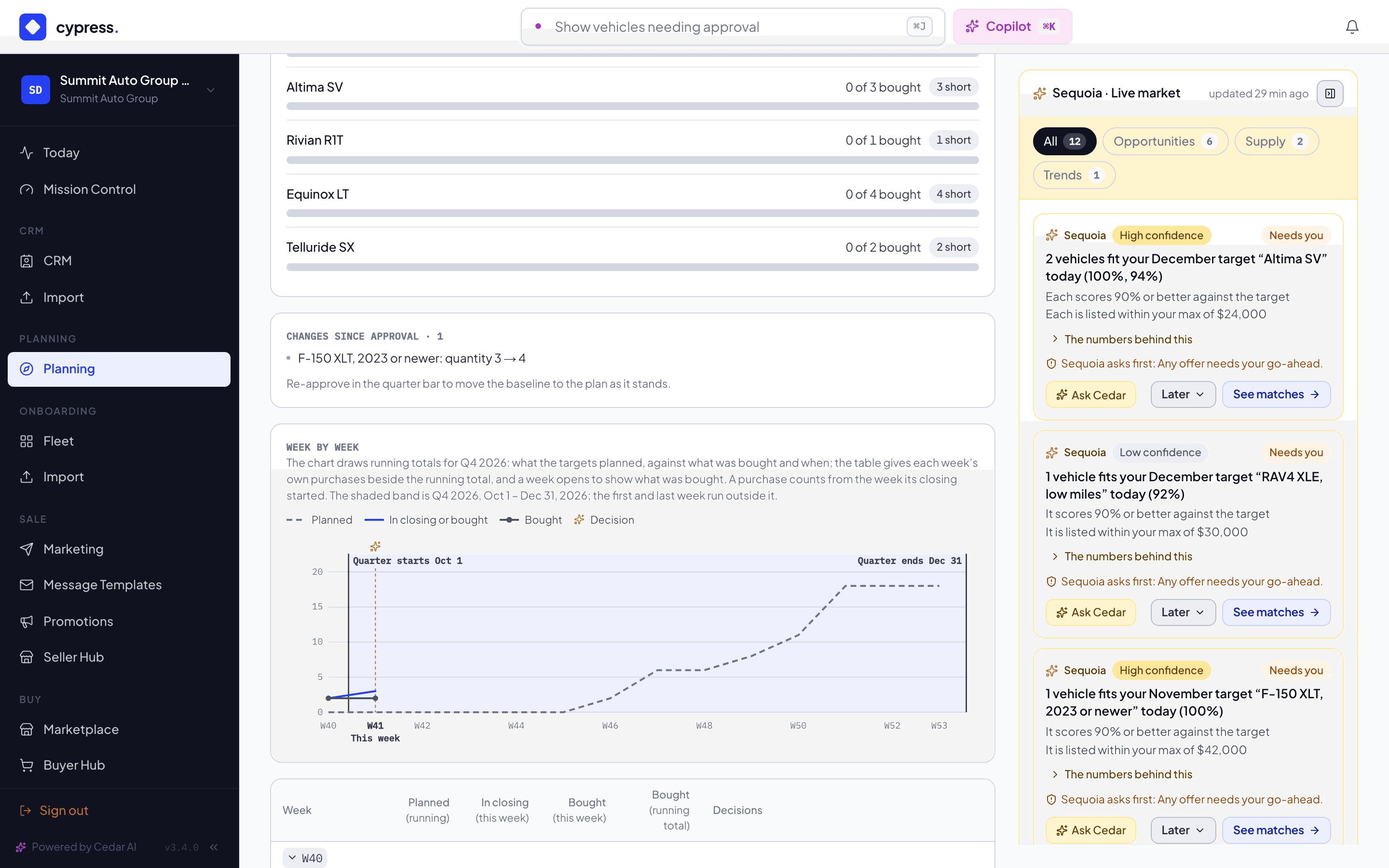
Read Week by week, and point at a week.
Under Week by week it draws running totals for the quarter on one chart:
- Planned, a dashed line: the units your targets need, by the week each is needed. It runs across the whole quarter.
- In closing or bought: every purchase counted from the week its closing started.
- Bought: only the purchases that are complete, with a dot at each week.
A dashed This week line marks where you are, and the purchase lines stop there. The quarter's own first and last day are marked with a solid line each, labelled Quarter starts Oct 1 and Quarter ends Dec 31, and the quarter between them is shaded. The chart is drawn by calendar week, so its first and last week run outside the shaded band; the table under the chart says which week holds each edge. A Sequoia mark on a week shows the Sequoia items you took up, or that were completed, that week. Point at a week to see its numbers: what was bought that week and in total, what was planned by then, and what went into closing. A table under the chart gives each week Planned (running), In closing (this week), Bought (this week) and Bought (running total), with those decisions beside them; a week with purchases opens, with the arrow beside its number, to list each one: the vehicle, its price, the target it filled (or Outside the plan), whether it is bought or in closing, and the day its closing started. A future quarter shows the plan only.
You should see the chart with its three lines and, under it, the table with a row for each week.
What happens next
Your buy plan is live, so you can keep changing it. When the goal or the targets change enough to matter, select Re-approve to move the baseline to the plan as it stands. Review then compares what happens against the new baseline.
If something goes wrong
- The plan changed. Refresh and approve again. The goal, the budget or a target changed since the page loaded. Cypress reads the plan again, so you can look it over first.
- The Approve quarter button is off. The quarter is over, or it has no goal, no budget and no target: Set a goal or add a target first.
Ask Cedar
- Against the buying goal
- Next on the buy plan
Related
Record a purchase made elsewhere
Follow the quarter's purchases on the Progress tab, record a vehicle you bought outside Cypress, and move a purchase to the target it really fills.
A buying quarter: Summit Auto Group
Follow a fictional dealer through a buying quarter: draft the plan with Sequoia, read its targets and tracks, open a match and its Buy analysis, see Buy at the ask, follow purchases, then approve and review planned against actual.