Plan your quarter with Sequoia
Let Sequoia draft the quarter's buy plan from your purchases and the market, then edit it and create it in one step.
TL;DRAI summary
This chapter shows you how to let Sequoia draft your quarter's buy plan: a mandate, a goal and budget, and targets with prices and tracks. You can change anything, then create the plan in one step.
For: Dealers (org admins, fleet managers) · Cypress Managers acting for a dealer that delegates to Cypress
Plan my quarter with Sequoia drafts a whole buy plan for the quarter:
- a mandate;
- a units goal and a budget;
- three to eight targets, each with prices and a track;
- your markets.
You can also add targets of your own and change any target before you create the plan. Nothing is saved until you select Create plan, and every number can be changed first.
Before you start
- Buy planning is switched on for your organization.
- The quarter is not over. For a quarter whose last day has passed the button is off and says why when you point at it, and to a screen reader (Q3 2026 is closed. Switch to Q4 2026 to plan the quarter.), because a closed quarter is history and its plan does not change.
- Sequoia drafts best from your last two quarters of purchases on Cypress. With no purchase history, it drafts from market signals only, and says so on the second step.
Draft the quarter
Open Planning, then Buy plan.
You should see the Buy plan, with its quarter bar above the tabs.
Select Plan my quarter with Sequoia at the top right. The window shows the quarter it plans and its four steps.
You should see a window titled with the quarter it plans, and its four steps in a row: Mandate, Goal & budget, Draft targets and Markets & notices.
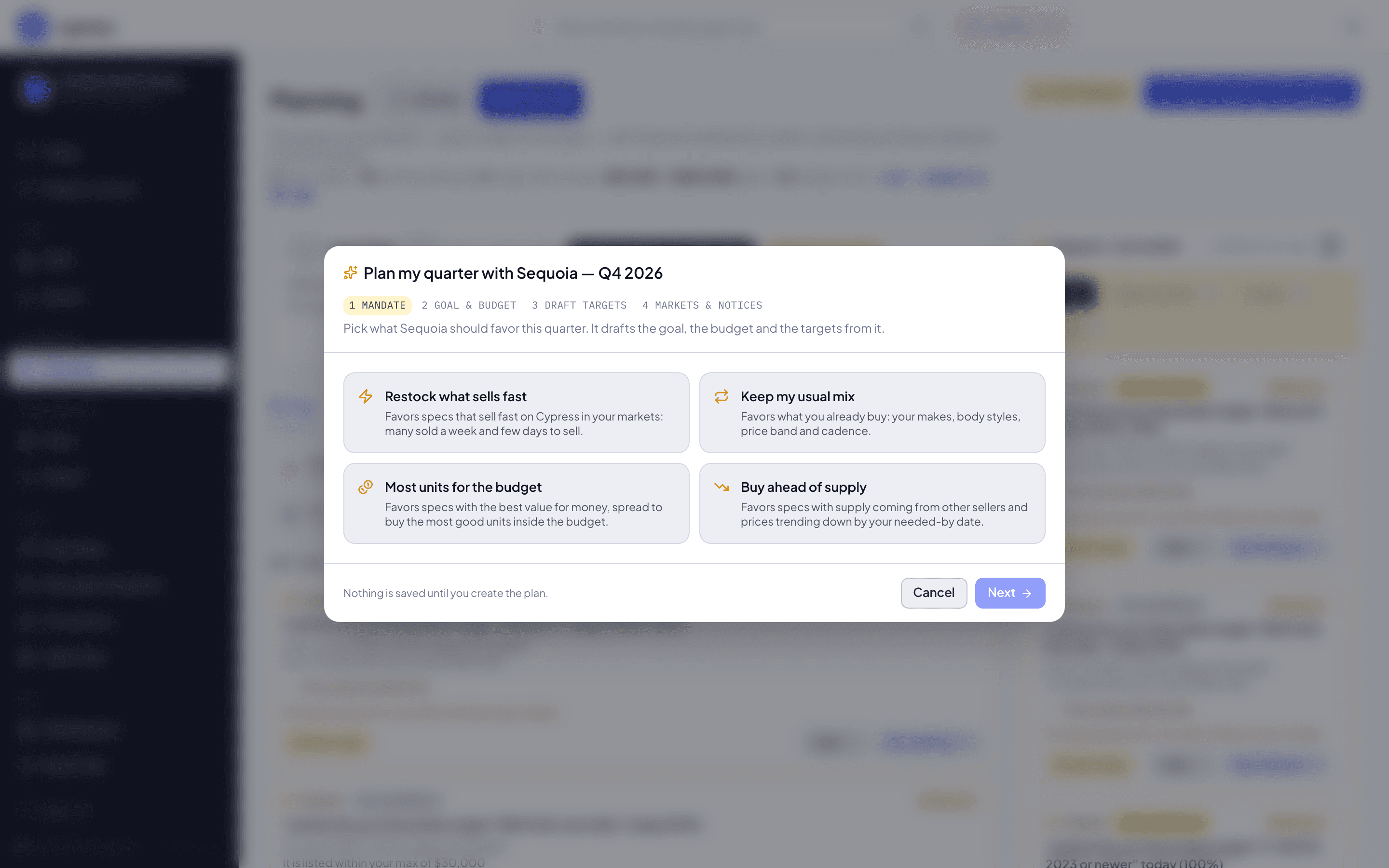
Mandate. Pick what Sequoia should favor, then select Next. The button reads Drafting… while Sequoia drafts the quarter, and the mandate cards are locked until it finishes:
- Restock what sells fast: specs that sell quickly on Cypress in your markets.
- Keep my usual mix: the makes, body styles and price band you usually buy.
- Most units for the budget: specs that stretch the budget furthest.
- Buy ahead of supply: specs that at least two other sellers plan to bring to market, and whose prices are easing by the time you need them.
If you go back and pick a different mandate, Sequoia drafts again and the targets you added stay. When you had changed or removed any of Sequoia's targets, Cypress asks first: A new mandate drafts new suggestions. Your changes to Sequoia’s targets will be replaced; targets you added stay. Keep my draft takes you back to your targets as they were, and Draft again replaces them. With the same mandate, nothing is drafted again and every target stays as it was.
You should see the four mandate cards, and, after Next, the Goal & budget step.
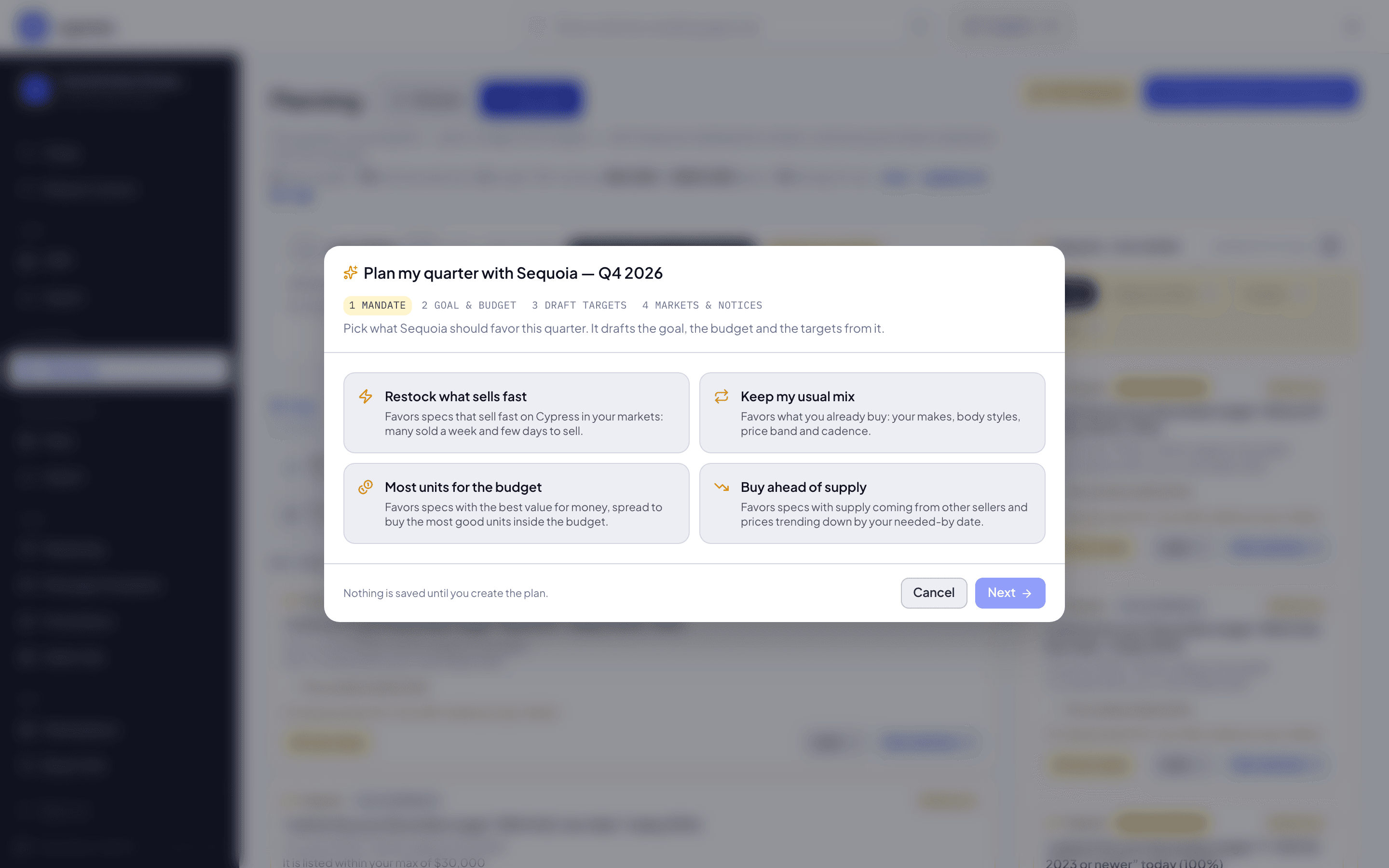
Goal & budget. Sequoia proposes how many vehicles to buy and the budget, and says what it based them on: From your purchases and the market, or From market signals only. Vehicles to buy is required, a whole number from 1. Budget is optional: leave it empty, or enter 0, for no budget. Change either, then select Next.
You should see the numbers Sequoia proposes and a line that says what they are based on.
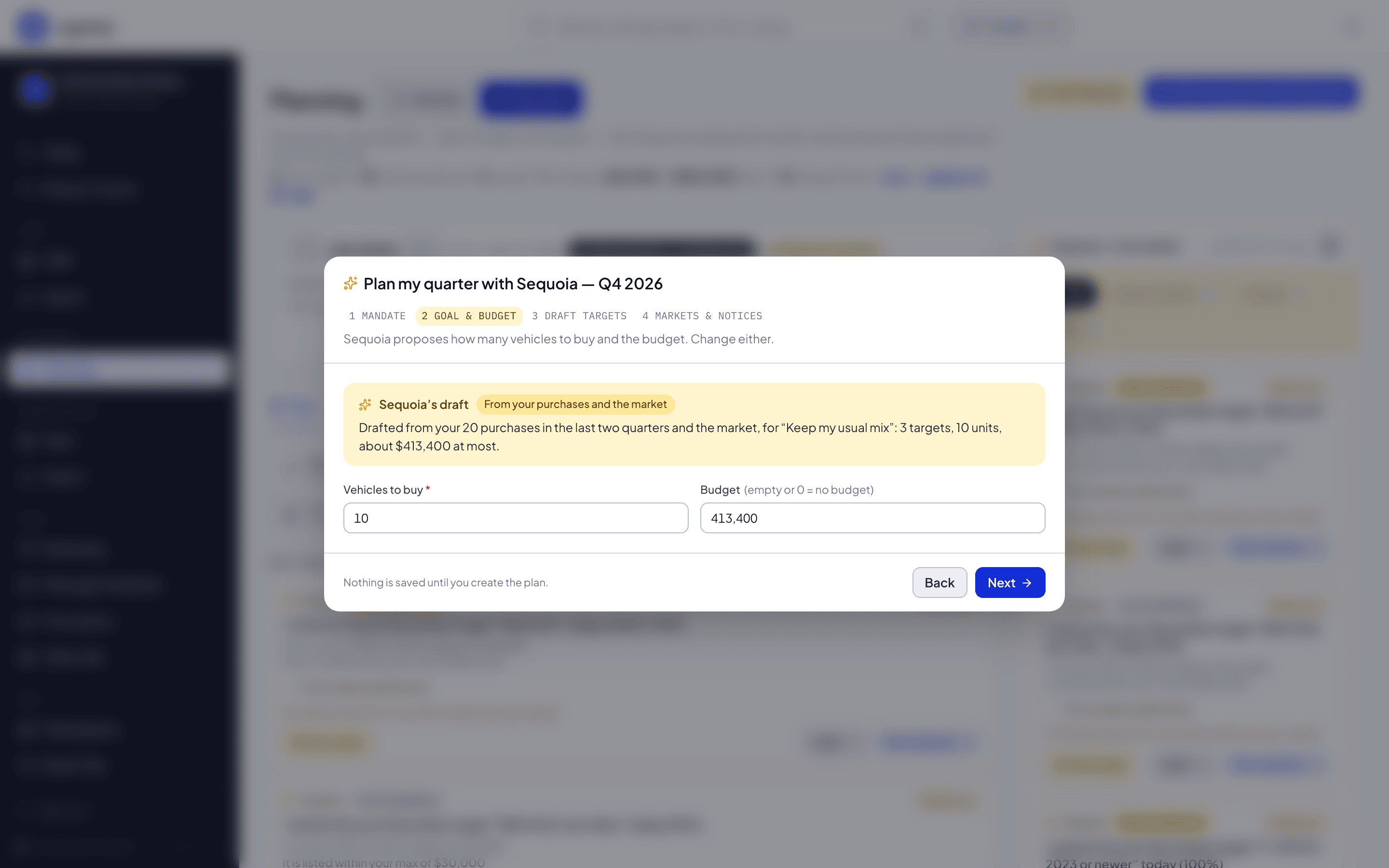
Draft targets. Sequoia drafted these from the market. Keep, change or remove any, and add your own. Each target shows How many, Needed by, Target price, Most you would pay, a Track and a High priority box. How many and Needed by are required. At the top, How tracks work sets the three tracks side by side, each with how near a match must be, where the offer sits and how you are told, and says: Pick a track per target. You can change it any time on the Buy plan. Under it, Your targets has an Add a target button on its right. Each target says where it came from: Suggested by Sequoia, with why Sequoia suggests it, or Added by you, with no reasons.
- Change any number in place.
- Pick a target's Track with its three pills: Aggressive (green), Balanced (violet) or Conservative (blue). The line under the pills says what the chosen track does.
- Turn on High priority on a target to have it alert you instantly. Its hint follows the track: Aggressive Always alerts instantly, Balanced Alerts instantly when on, Conservative Daily summary only. It is the same box as High priority in the target form under Edit, so the two always agree.
- Select Edit on any target you keep to change all of it, not only the numbers: the vehicle, the years, the markets, the prices, the track and a note. It opens the same form as the Targets tab, under Edit target, filled in from the card. Select Save changes to update the card where it is, or Cancel to go back. A Sequoia suggestion you changed still says Suggested by Sequoia and keeps its reasons.
- Select Add a target to add your own. The same form opens in the window under Add a target, starting at one vehicle, needed by the end of the quarter, on your plan's default track. It checks the same fields as the Targets tab, and says what is missing under each one. Select Add to draft to put the target on the list; Cancel or Escape goes back to the list without it. If you changed anything, Cypress asks Discard this target? first: Keep editing takes you back to the form, and Discard drops it. Escape inside an open list, such as the make or the states, only closes that list.
- Select Remove to leave a Sequoia target out. Keep brings it back. Remove on a target you added deletes it. Keep or add at least one, or the window says Keep at least one target to create the plan. A plan made only of targets you added is a plan. At the bottom, the count reads 3 of 3 Sequoia targets kept · 1 added by you once you have added one.
- A target marked Set a price is missing a price. Prices are optional here: enter your own now, or create the plan and set them later on the target. The line under the target says why. No market value to price this from yet means Sequoia has too little data on that spec to price it. Add a target and a max means one of the two prices is filled in and the other is not. Editing a target, or adding your own, asks for both prices, as the Targets tab does.
You should see Sequoia's targets as cards, each saying where it came from: Suggested by Sequoia, or Added by you. At the bottom, the count reads 3 of 3 Sequoia targets kept · 1 added by you once you have added one.
Markets & notices. Pick the regions and states you buy in under Buying markets; empty means anywhere. Every target buys in these markets, unless you set its own states. Two boxes say how you hear about matches: Instant alerts and Daily summary email, each with a sentence under it that says who is told and when. Both start from your plan's current settings, which are on for a new plan. A line under them counts the targets the plan will be created with, for example 5 targets: 2 with instant alerts, 3 in the daily summary. It changes if you go back and remove a target or change its track. See Tracks and near matches for what each notice does. Under the notices, Approve this as Q4 2026’s baseline says whether to approve the quarter with this plan:
- It starts ticked when the quarter has no baseline yet. Create plan then approves the quarter in the same step, and Review compares what happens against the plan you create. The line at the bottom reads Creates and approves Q4 2026’s mandate, goal and budget, and 5 targets.
- When the quarter was already approved, it starts off, with the hint Q4 2026 was approved Oct 3. Leave this off to keep that baseline. Tick it to replace the baseline with this plan.
- A quarter whose last day has passed cannot be approved, so it has no box.
You should see the line under the notices count the targets the plan will be created with, for example 5 targets: 2 with instant alerts, 3 in the daily summary.
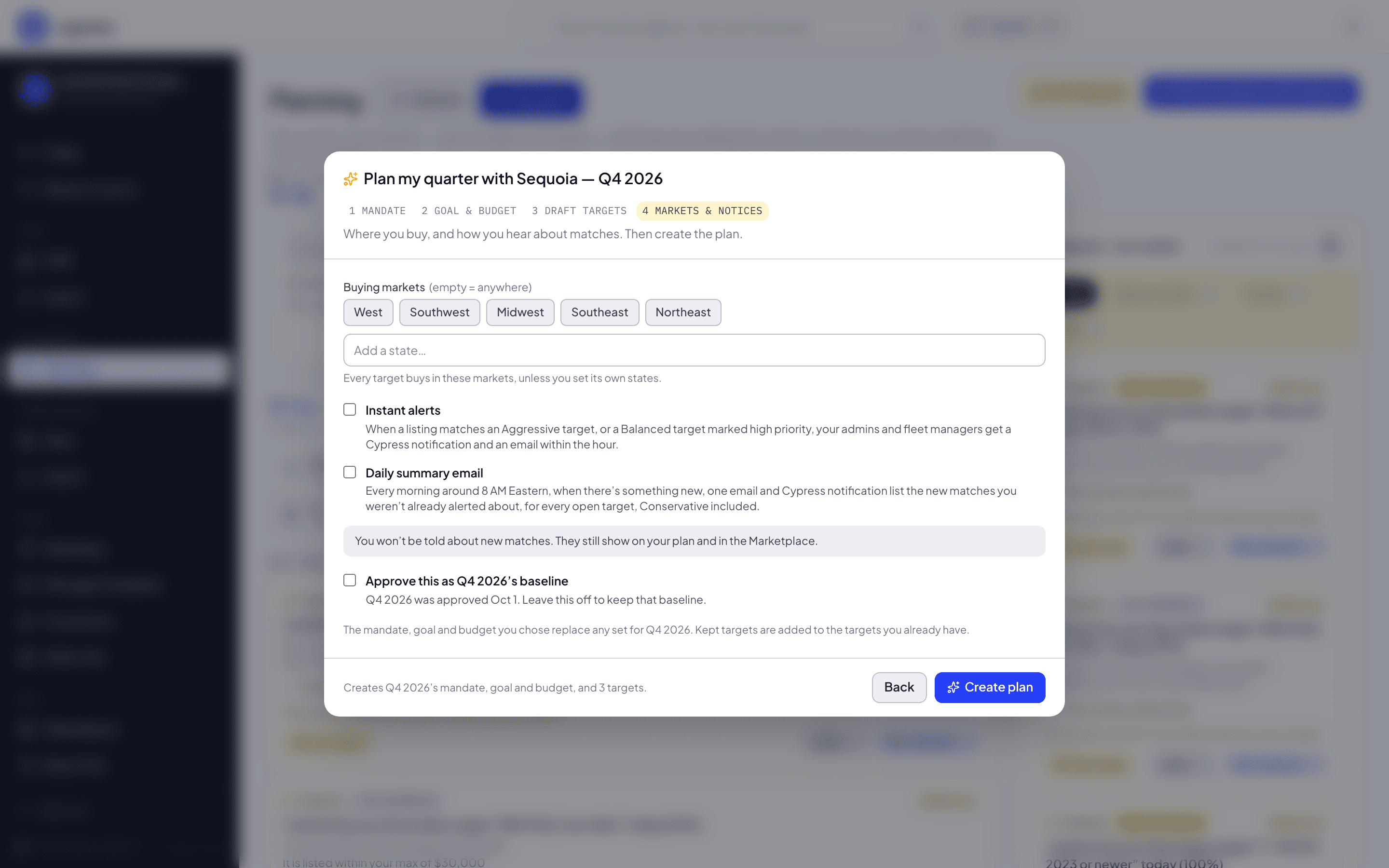
Select Create plan.
You should see the window close and the quarter's plan on the Plan tab, with your targets on the Targets tab. Each Sequoia target you kept shows on Decisions as a decision you made.
Sequoia sets the quarter's mandate, goal and budget, saves your markets and notices, and adds the targets you kept and the ones you added. With Approve this as Q4 2026’s baseline ticked, it also approves the quarter, so the plan you create is the baseline. A quarter that already had a mandate, goal or budget gets the new ones in their place; targets you already have stay, and the new targets are added to them. Each Sequoia target you kept, changed or not, shows on the Decisions tab as a decision you made. A target you added is yours: it is created the way the Targets tab creates one, and Sequoia records no decision for it.
To leave without saving, select Cancel on the first step, or press Escape or click outside the window on any step. If you changed the draft, Cypress asks Discard this draft? first: Keep editing takes you back to it, and Discard closes the window. While a target's form is open, Escape and a click outside the window only close the form, as described above; the window stays.
If Cypress cannot confirm the plan was created, for example after a lost connection, the window says We couldn’t confirm the plan was created. Check your targets before trying again. It offers one button, See targets, which closes the window and opens the Targets tab so you can check. It does not offer to create the plan a second time, because the plan may already exist.
After you create it
- The quarter bar, above the tabs, shows the mandate you picked and whether the quarter is approved.
- The Plan tab shows the quarter's steps, what needs you, the numbers and the goals.
- Sequoia's market rail starts reading the market for your new targets. Until its first read, it says Sequoia is reading the market.
- Edit any target from the Targets tab, as described in Add and edit a target.
Ask Cedar
- Plan my quarter with Sequoia
- What Sequoia sees
- What we decided