Add and edit a target
Say what you need, how many, by when and at what price, pick a track, and then pause, close, reopen or change the target as the quarter moves.
TL;DRAI summary
Create a target to tell Cypress what vehicles you need, how many, by when, at what price, and how aggressively to pursue them. This chapter explains how to add a new target or edit, pause, close, or reopen an existing one.
For: Dealers (org admins, fleet managers) · Cypress Managers acting for a dealer that delegates to Cypress
A target is a placeholder for vehicles you need: what, how many, by when, at what price, and how hard to chase them.
Before you start
- Buy planning is switched on, and the quarter on the quarter bar is not over. A closed quarter's targets are history: Add target, Edit, Pause, Close and Duplicate as alternative are shown but off, and each says why. See The quarter bar and closed quarters.
- It helps to have set the quarter first: Set the quarter's goal and budget. The editor shows what the target could cost against your budget.
Add a target
Select Add target on the Targets tab, or an Add a target item in What needs you.
You should see a window titled Add a target that says What you will buy, how many, by when, at what price, and how hard to chase it. A Live preview sits on its right.
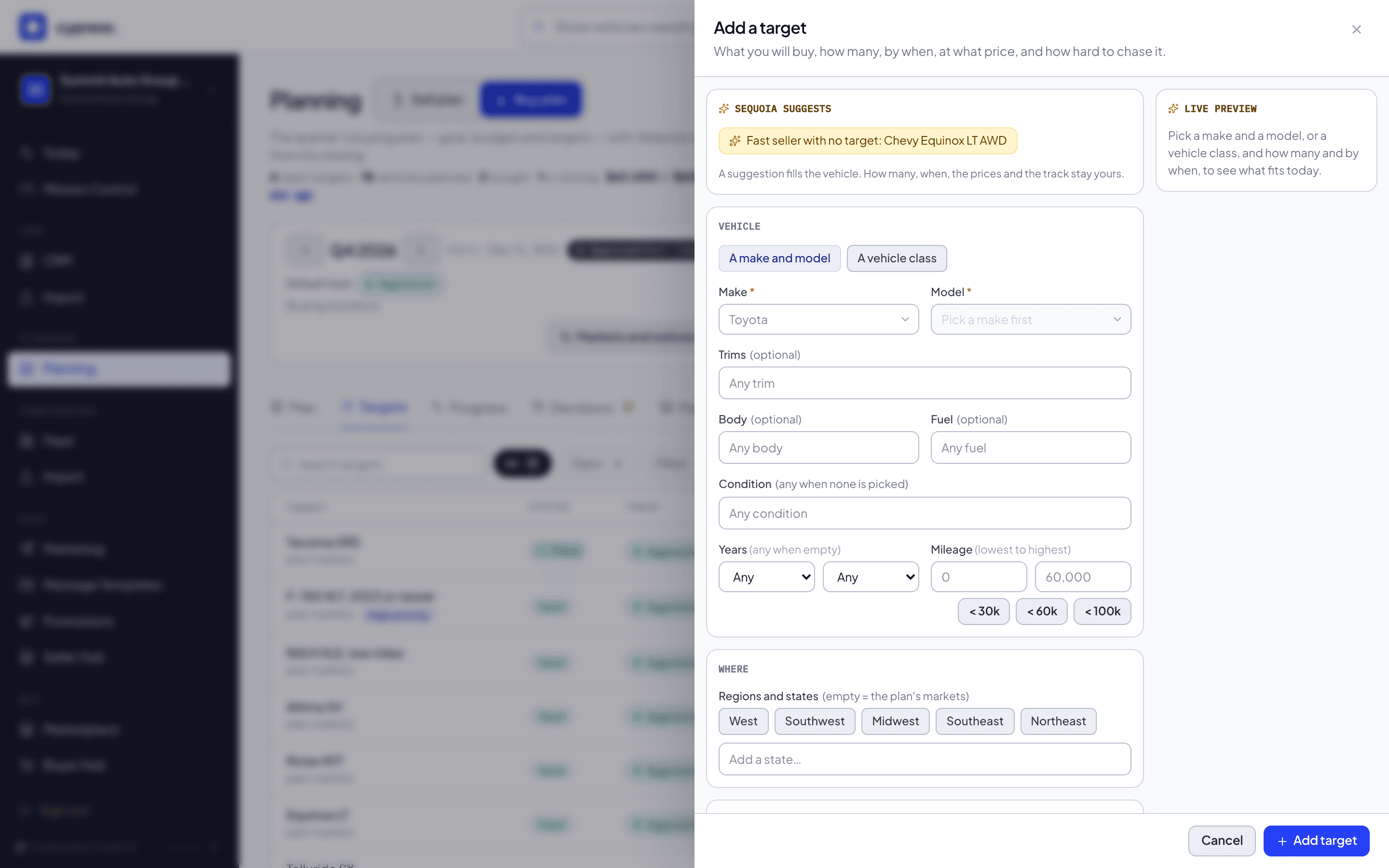
If Sequoia suggests shows, select a suggestion to fill in the vehicle: one you usually buy, one that sells fast, or one that at least two sellers plan to bring to market. How many, when, the prices and the track stay yours.
You should see the vehicle fields fill in. Sequoia suggests says that A suggestion fills the vehicle. How many, when, the prices and the track stay yours.
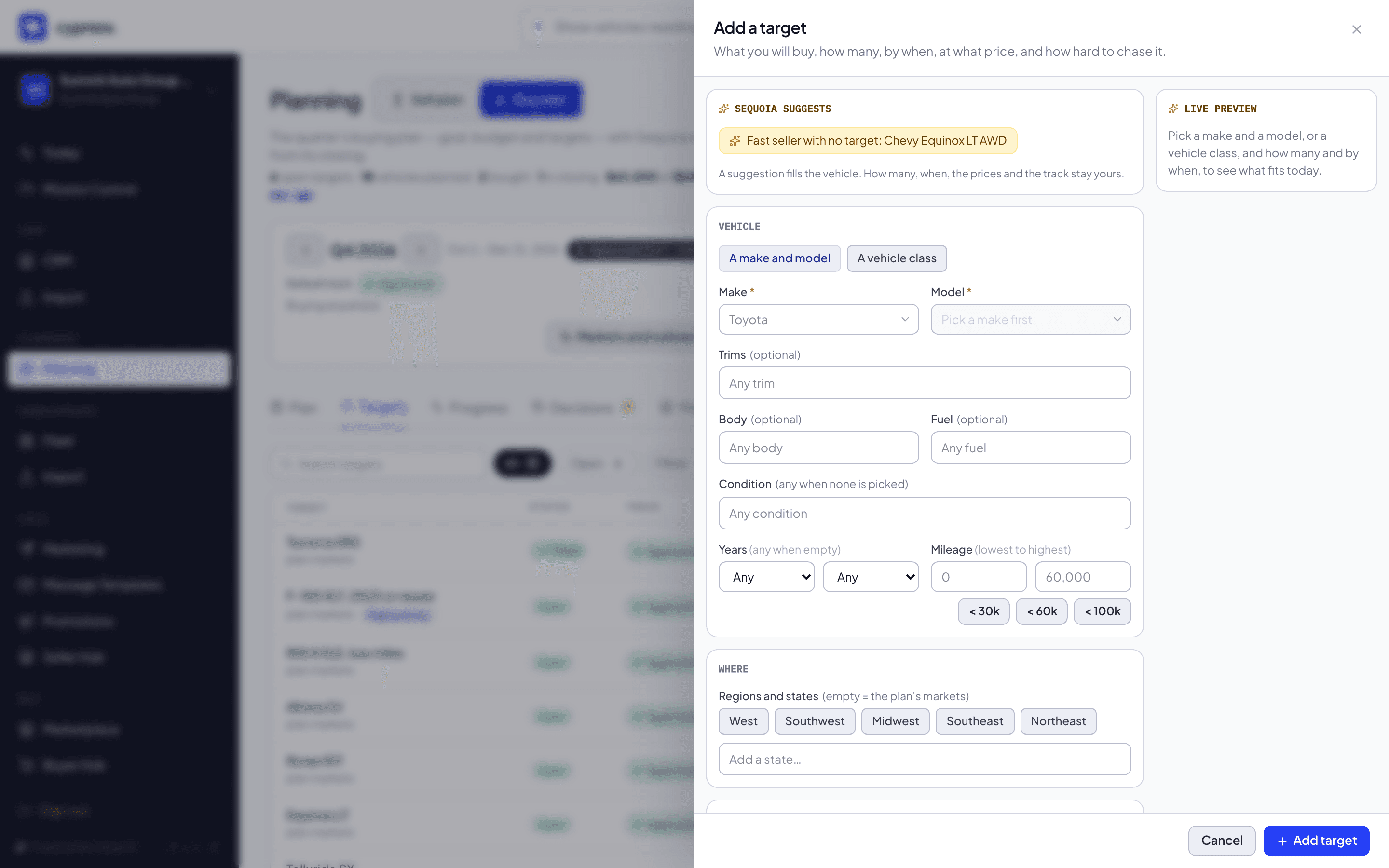
Choose A make and model or A vehicle class. Start typing in Make and Model to pick from what Cypress has seen; each shows how many are on Cypress. Pick a model too: a make alone matches nothing.
You should see each make and model with how many are on Cypress beside it, and the Live preview start to count the listings that fit.
Narrow it if you want: trims, body, fuel, condition, years and mileage. Pick regions and states under Where; leave them empty to buy in your plan's markets.
You should see the Live preview change as you narrow the target.
Enter How many and Needed by. Dates snap to calendar weeks.
You should see the date move to the calendar week it falls in. Needed from is optional.
Under Price, Sequoia shows the market value, what it is based on, and which way prices are trending. Select Use suggestion for a target about 5% under market and a maximum about 5% over, or step the target with −10%, −5%, At market or +5%. Then check Target price per vehicle and Most you would pay, which are required. The line underneath shows what the target could cost against your budget. Sellers never see your prices.
You should see a line under the two prices that shows what the target could cost against your budget. An empty required price is named under its field.
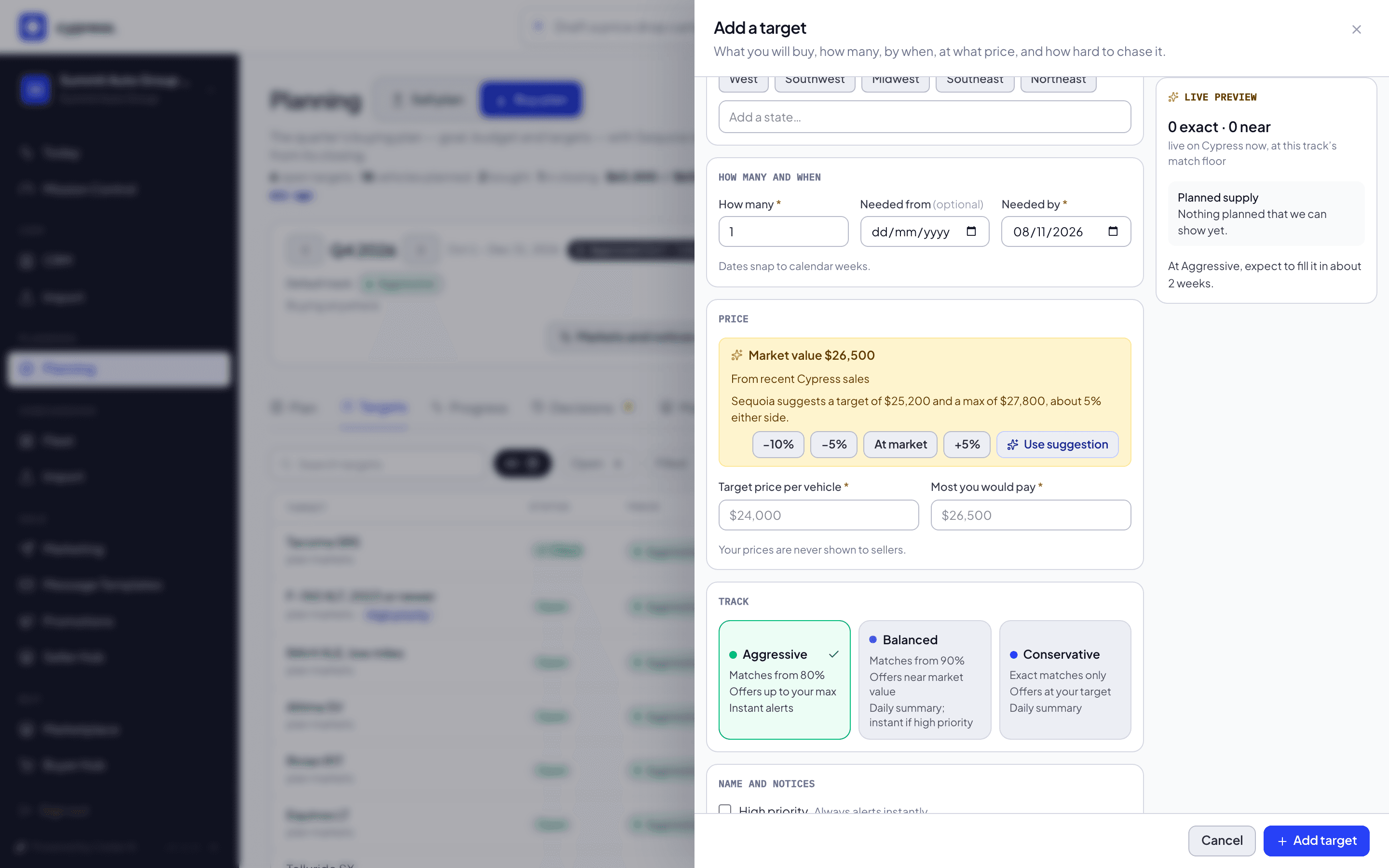
Pick a Track: Aggressive (green), Balanced (violet) or Conservative (blue). Each card lists how near a match must be, where the offer sits and how you are told. See Tracks and near matches.
You should see three cards, each saying how near a match must be, where the offer sits and how you are told, with the line under them describing the one you picked.
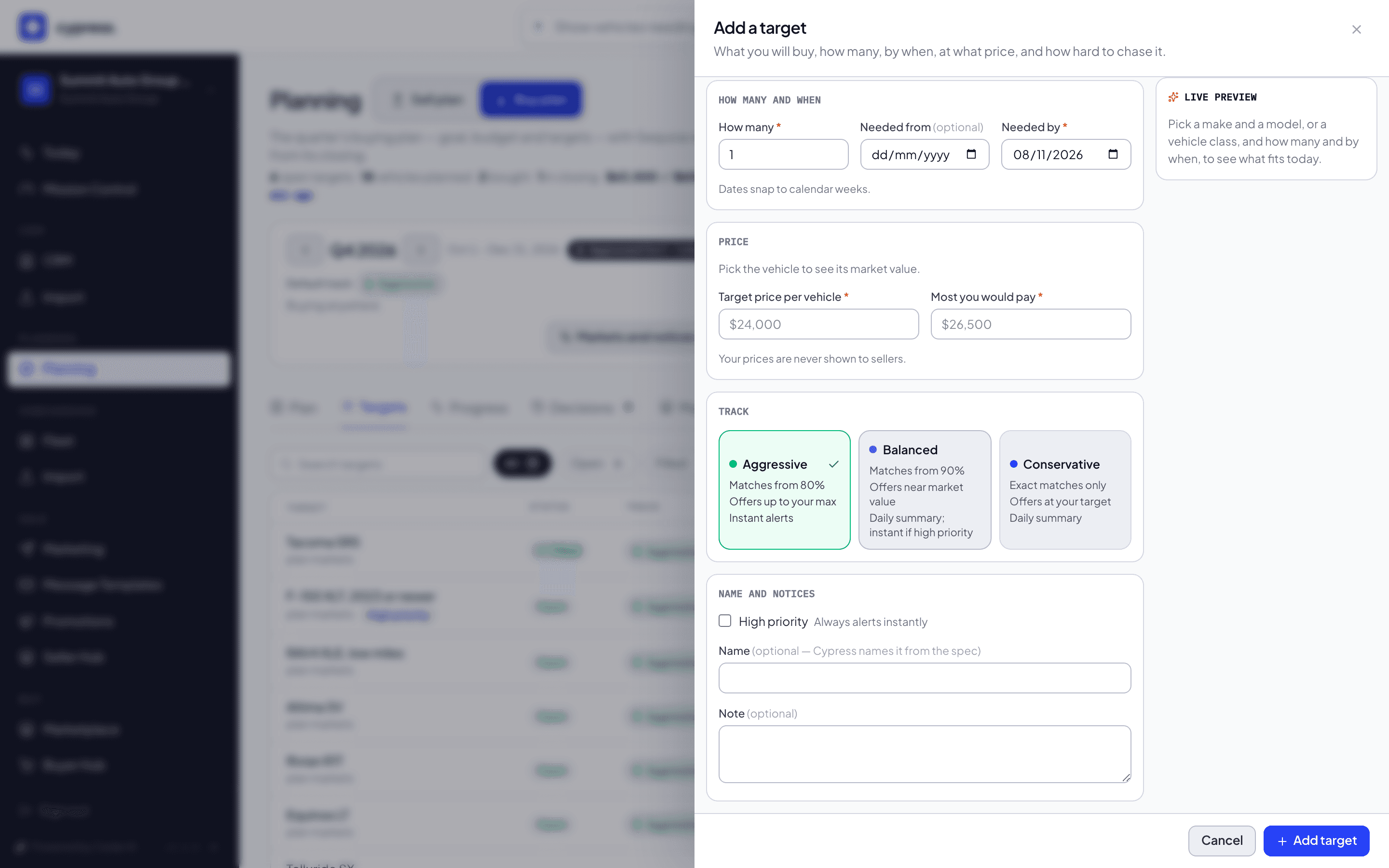
Turn on High priority if a Balanced target should send you an instant alert when a match lists. The hint beside the box follows the track: Always alerts instantly (Aggressive), Alerts instantly when on (Balanced) or Daily summary only (Conservative).
You should see the hint beside the box change when you change the track.
Select Add target.
You should see the message Target added, the window close, and the new target in the Targets tab with its status, track and what it still needs. In a quarter other than the one on the bar the message says where it went: Target added to Q1 2027. Switch the quarter, or turn on All quarters, to see it.
Fields marked with an asterisk are required. If something is missing or cannot be read, the editor says so under the field.
Read the Live preview
The Live preview on the right shows, as you edit:
- how many live listings fit exactly, and how many nearly, at the track's level;
- the closest ones, with their match and what each misses;
- a rounded range of vehicles other sellers plan to bring to market (a few, 5–9, 10–19 or 20+). It shows only when at least two sellers plan them, and never as an exact number;
- a one-line read of whether the target is likely to fill by its needed-by date.
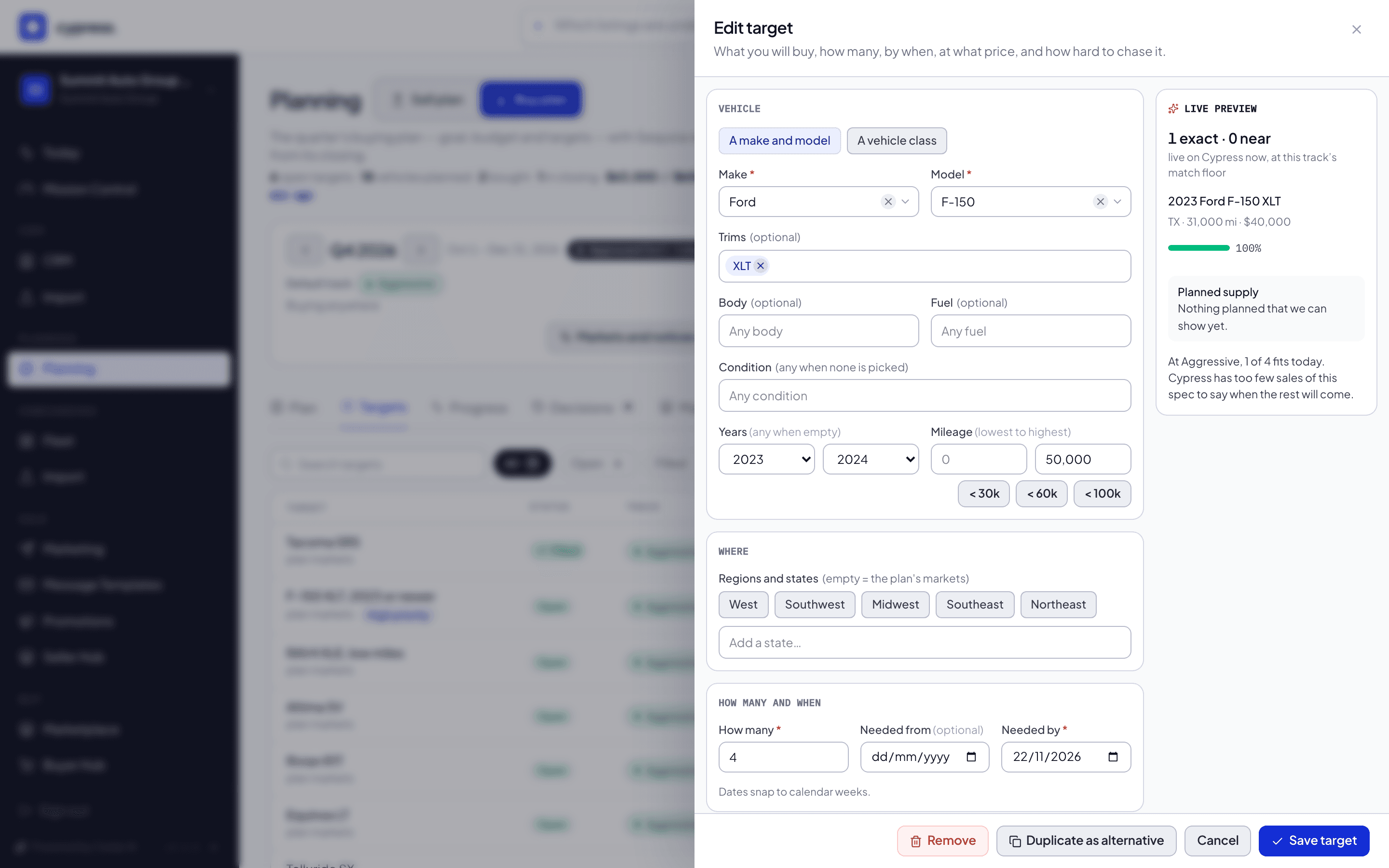
To plan "a RAV4 or a CR-V", open the first target, select Edit, then Duplicate as alternative.
Edit, pause, close or reopen a target
Open the Targets tab and select the target.
You should see its panel, titled with the target, with a line such as Needs 3 of 3 by W47 · 0 filled · 0 in closing · target $24,800 · max $26,300, then Price guidance and Live matches.
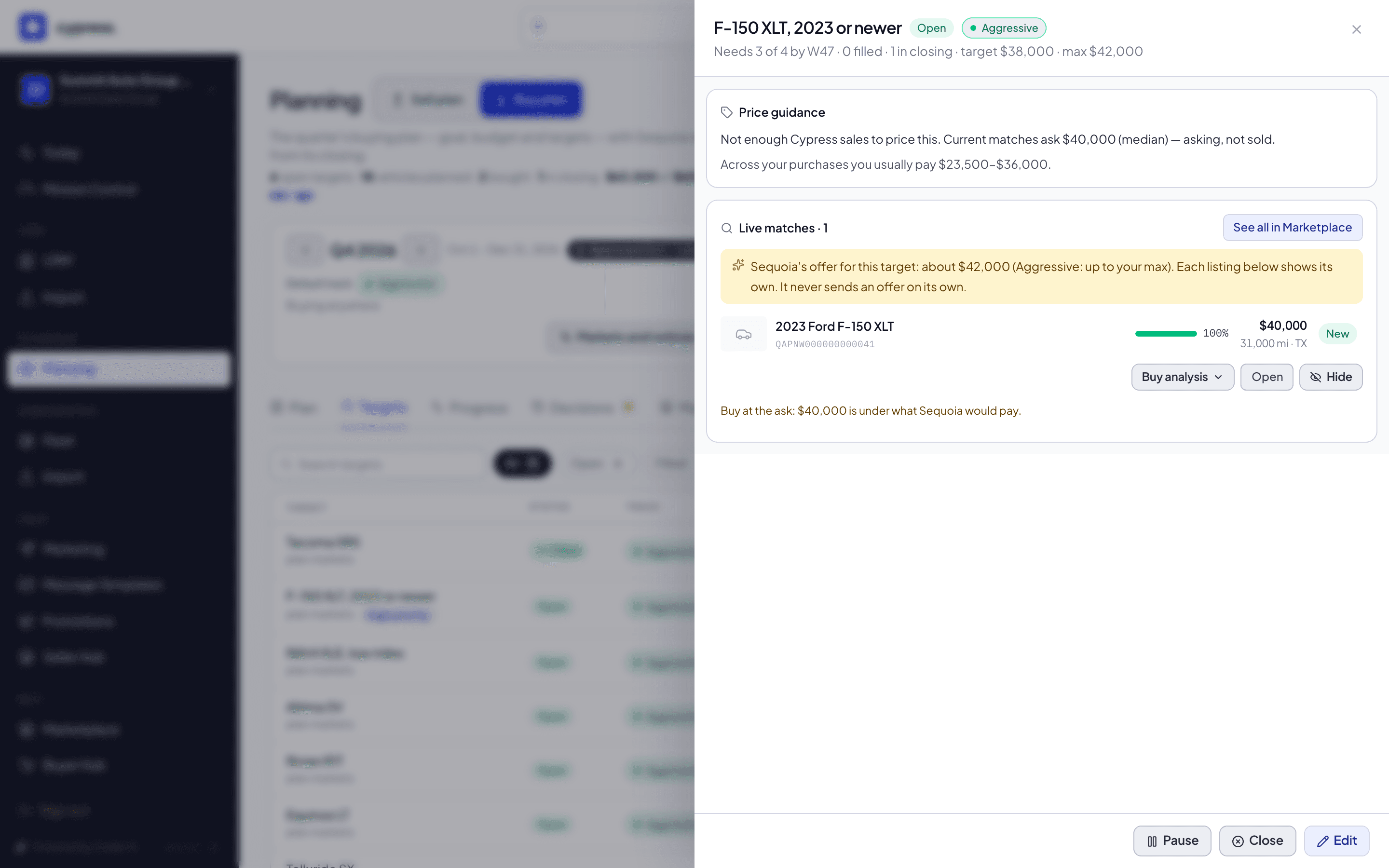
At the bottom of the panel, select the button for what you want to do:
- Pause a target you are not buying for now. A paused target stops match notices and no longer counts in the demand sellers see, but a purchase that fits it still counts toward it.
- Close a target you no longer need. It takes no more purchases, and the plan counts it only for what it already bought.
- Reopen a paused or closed target to start again.
- Edit changes what, how many, when, the prices and the track.
You should see the panel close, and the target's chip in the Targets tab change to Paused or Closed, or back to Open after Reopen.
To change the target itself, select Edit, change what you need and select Save target.
You should see the same window as when you added it, titled Edit target and filled in, and the message Target saved when you save. Duplicate as alternative copies it into a new target, for "a RAV4 or a CR-V"; Remove asks first, and Keep goes back.
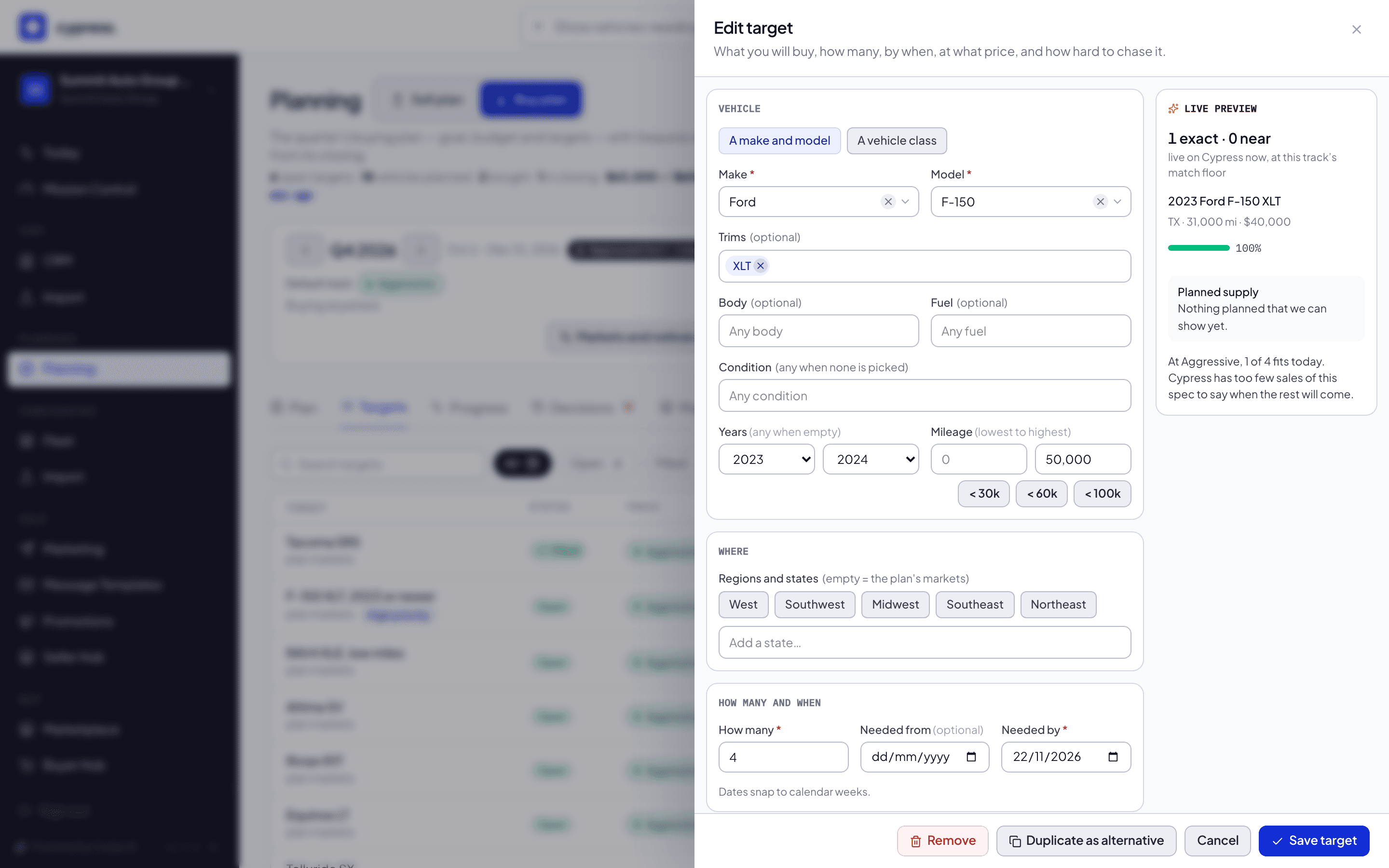
On a target of a closed quarter these buttons are off; see The quarter bar and closed quarters.
What happens next
The plan checks every open target against the live listings every hour. See Read matches and the Buy analysis. A target you close or delete after the quarter was approved counts as removed in Review, and a target reads Filled once nothing remains to buy; see The buy plan.
If something goes wrong
- A field is named under its box. The editor says what is missing or cannot be read, under the field. Target price per vehicle and Most you would pay are required, and a make alone matches nothing: pick a model too.
- The target landed in another quarter. A target belongs to the quarter of the week it is needed by. The message names the quarter; turn on All quarters, beside Add target, to see it.
Ask Cedar
- Targets due soon
- Near matches worth a look
Related
Set the quarter's goal and budget
Pick the quarter's mandate, say how many vehicles you want and what you will spend, and choose your markets and notices, by hand.
Read matches and the Buy analysis
Open a target to see the live listings that fit it, near ones included, and open the Buy analysis to decide whether to buy now or wait.