Set the quarter's goal and budget
Pick the quarter's mandate, say how many vehicles you want and what you will spend, and choose your markets and notices, by hand.
TL;DRAI summary
This chapter shows you how to manually set your quarterly buying goals in Cypress, including what kinds of vehicles to prioritize, how many to buy, and your budget. This helps Sequoia, our AI assistant, understand what you want to buy.
For: Dealers (org admins, fleet managers) · Cypress Managers acting for a dealer that delegates to Cypress
The quarter is the top of the Buy plan: a Mandate that says what Sequoia should favor, a Vehicles to buy goal, a Budget, the markets you buy in and how you hear about matches. This guide sets them by hand. The fastest start is Plan my quarter with Sequoia, which drafts the whole quarter for you to edit: see Plan your quarter with Sequoia.
Before you start
- Buy planning is switched on for your organization. If it is not, the Buy plan page says so and lets you request it.
- The quarter on the quarter bar is not over. A closed quarter's goal cannot be set at all, and nor can anything else in its plan; see The quarter bar and closed quarters.
Set the quarter
Open Planning, then Buy plan.
You should see the Buy plan: its header line, then the quarter bar above the tabs Plan, Targets, Progress, Decisions, Market and Review.
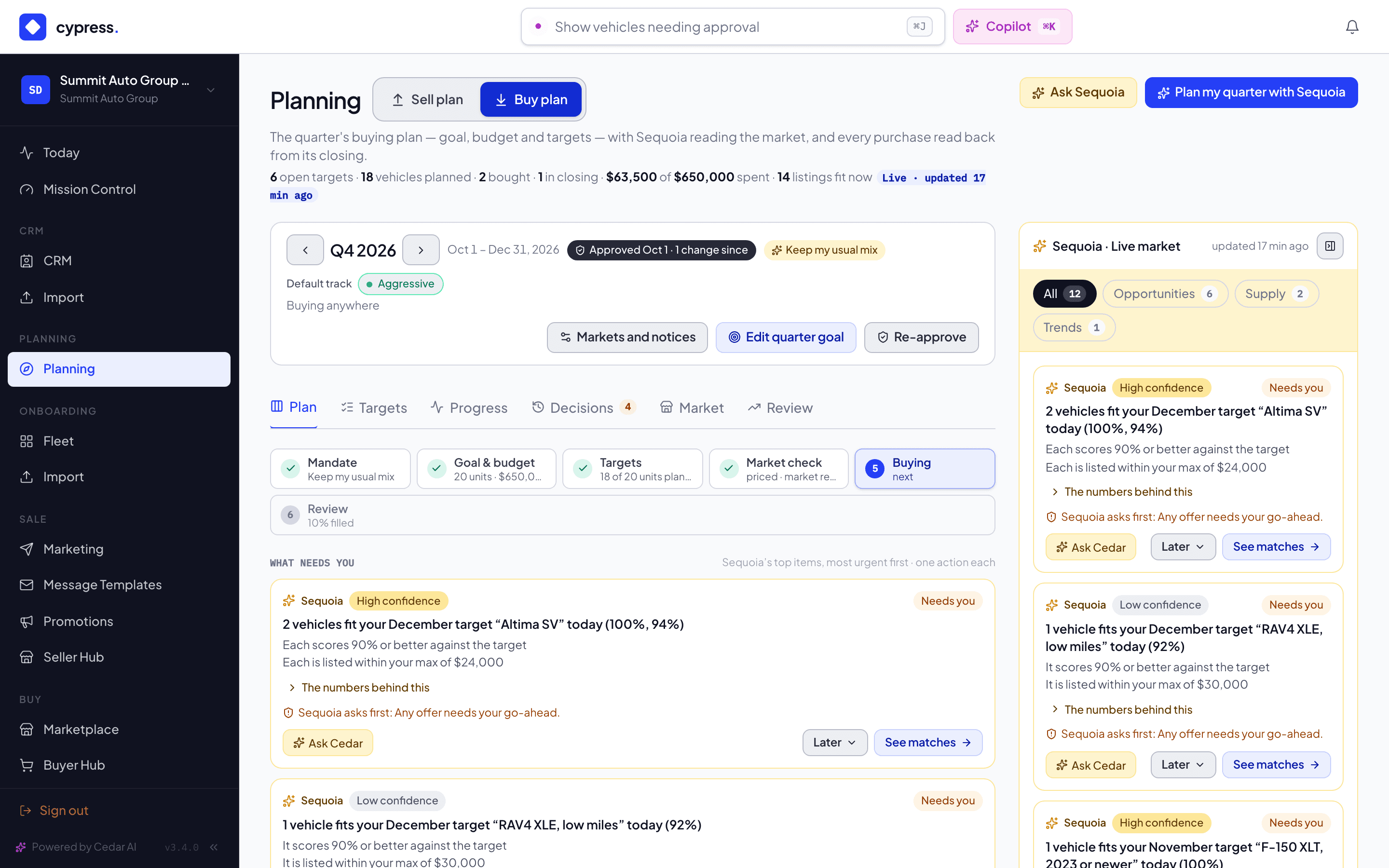
In the quarter bar, select Set quarter goal. It reads Edit quarter goal once a goal or a budget is set.
You should see a window titled with the quarter and buying goal, for example Q4 2026 buying goal, which says What Sequoia favors, how many vehicles this quarter, and what you will spend.
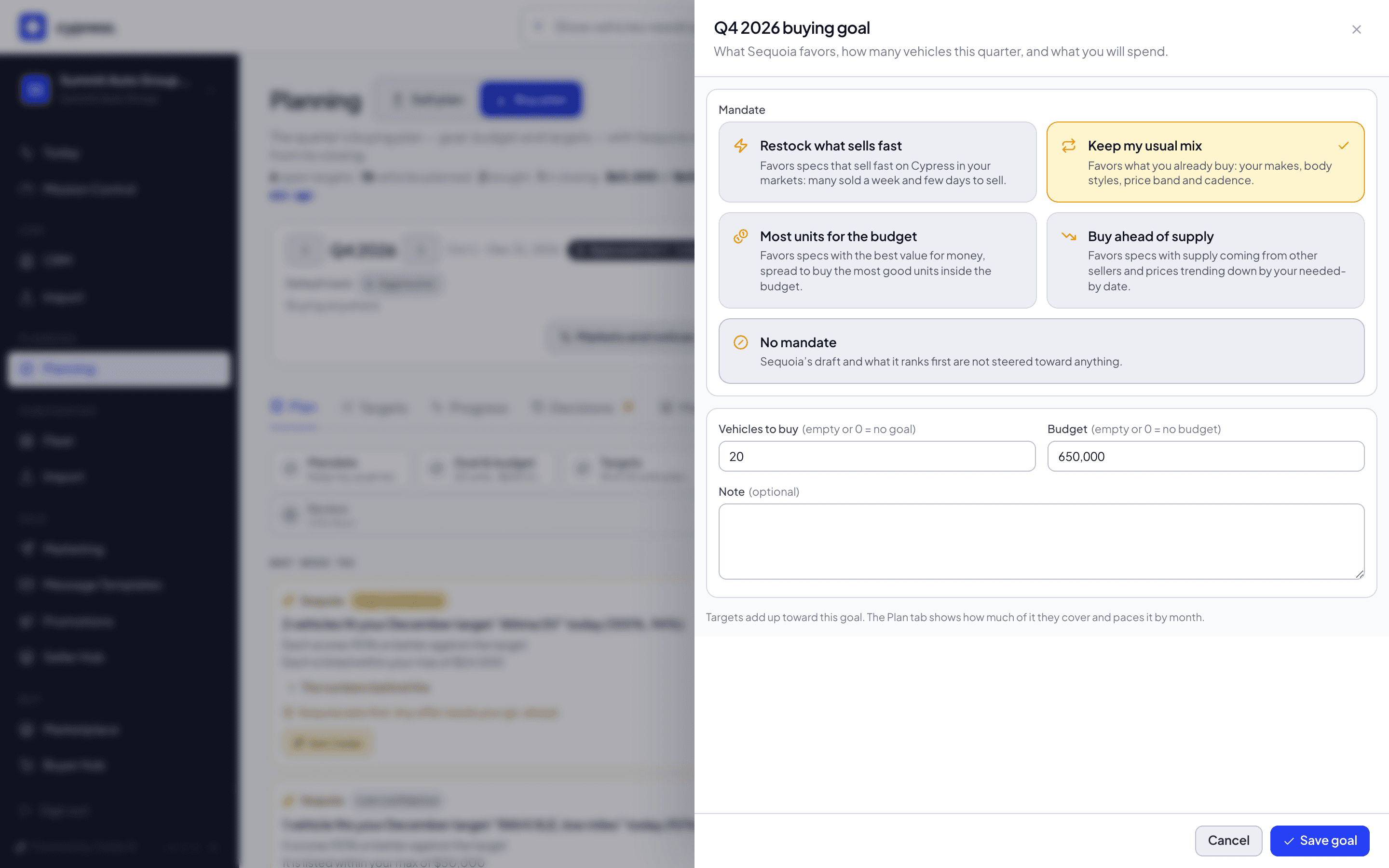
Pick a Mandate: what Sequoia should favor this quarter. The four cards are the ones Plan my quarter with Sequoia shows, with the same keys: the arrow keys move between them and choose. A fifth card, No mandate, leaves the mandate open; it is the one chosen while the quarter has none.
You should see the card you pick marked as the chosen one, under Mandate.
Enter Vehicles to buy and your Budget, then select Save goal. Leave either empty, or enter 0, for no goal or no budget.
You should see the message Q4 2026 goal saved and the window close. The quarter bar now reads Edit quarter goal, and the Plan tab's two goal cards show your numbers.
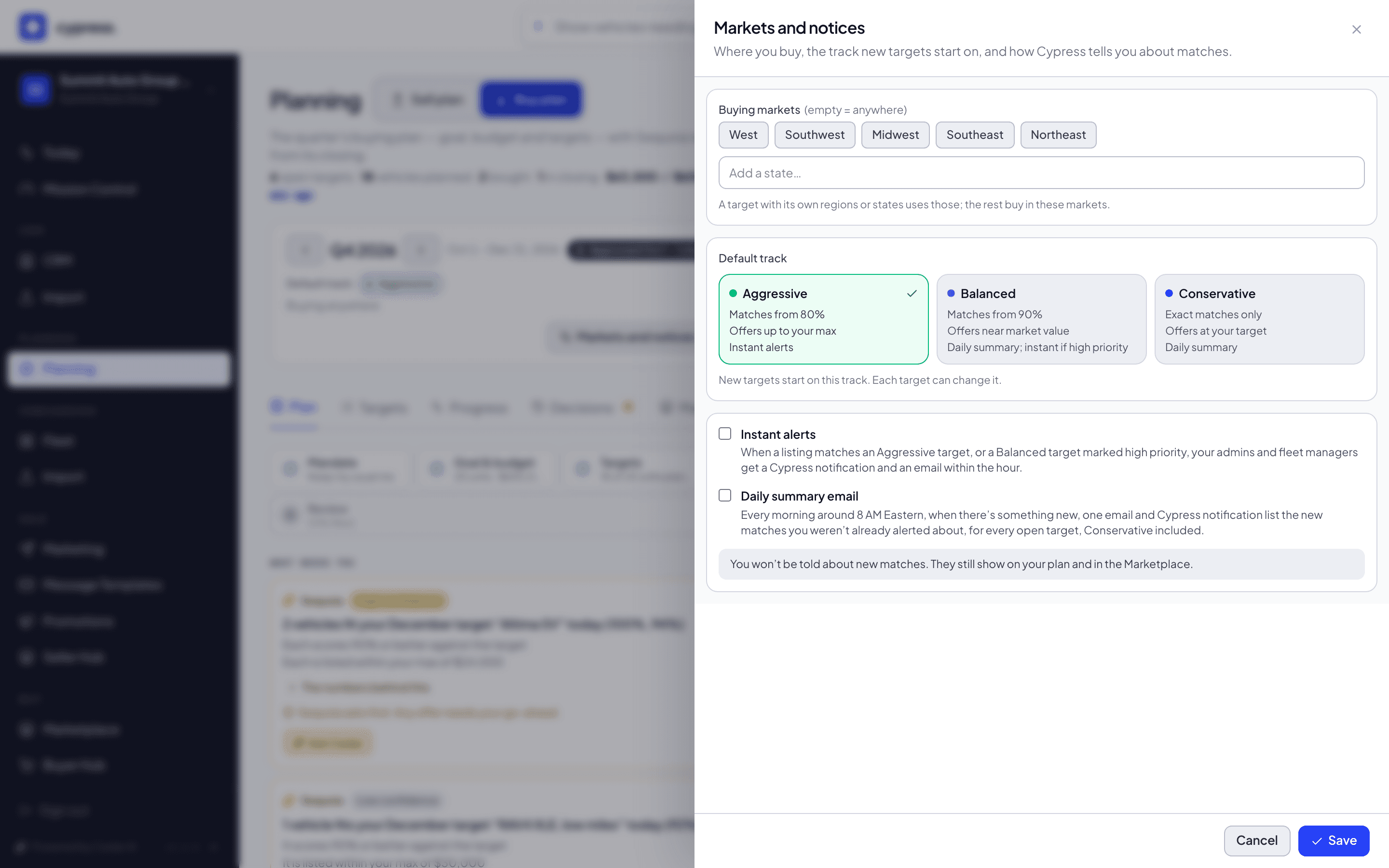
In the quarter bar, select Markets and notices to pick the regions and states you buy in, your Default track, and how you hear about matches: Instant alerts and the Daily summary email. A line under the two counts all your open targets, whatever the quarter, because the notices belong to the plan and not to a quarter, for example 5 targets: 2 with instant alerts, 3 in the daily summary. Select Save when you are done.
You should see a window titled Markets and notices, with Buying markets (empty means anywhere), your Default track and the two notices. After you save, the line under the two notices counts your open targets.
What happens next
You can set a goal or a budget from the Plan tab too: a goal you have not set is a card that says so, with a button that opens this same window (see The Buy plan, tab by tab). The goal is the plan's, and it is live: change it at any time. Approve the quarter when the goal and the targets look right, to keep a baseline: see Approve and review the quarter.
If something goes wrong
- A box says what is wrong under it. Vehicles to buy takes a whole number from 1; Budget takes a dollar amount. Leave either empty, or enter 0, for no goal or no budget.
- There is no goal button. The quarter on the bar has passed: a closed quarter's goal is what Review compares the quarter against, so it cannot change. Step to the quarter in progress with Go to Q4 2026 in the quarter bar.
Ask Cedar
- Against the buying goal
- Next on the buy plan
Related
Plan your quarter with Sequoia
Let Sequoia draft the quarter's buy plan from your purchases and the market, then edit it and create it in one step.
Add and edit a target
Say what you need, how many, by when and at what price, pick a track, and then pause, close, reopen or change the target as the quarter moves.