Record a purchase made elsewhere
Follow the quarter's purchases on the Progress tab, record a vehicle you bought outside Cypress, and move a purchase to the target it really fills.
TL;DRAI summary
This chapter explains how to record a vehicle you purchased outside Cypress, ensuring your buy plan accurately reflects all acquisitions. This helps keep your plan progress honest and allows you to move purchases to the correct targets.
For: Dealers (org admins, fleet managers) · Cypress Managers acting for a dealer that delegates to Cypress
A purchase made through a Cypress closing counts on its own. A vehicle you bought somewhere else, such as an auction, does not, until you record it, so the plan's progress is honest. This guide records one, and moves a purchase to the target it really fills.
Before you start
- Buy planning is switched on. Recording works on a closed quarter's targets too, because a purchase may be recorded late; see The quarter bar and closed quarters.
- Have the day, the price and what you bought to hand. Only the day is required.
Record a purchase
Open the Progress tab.
You should see the purchases of the quarter on the quarter bar, grouped by the target each counts toward, with a line such as 2 bought · 1 in closing at the top and, under it, A Cypress purchase counts the moment its closing starts and is bought when it completes. A cancelled closing stops counting.
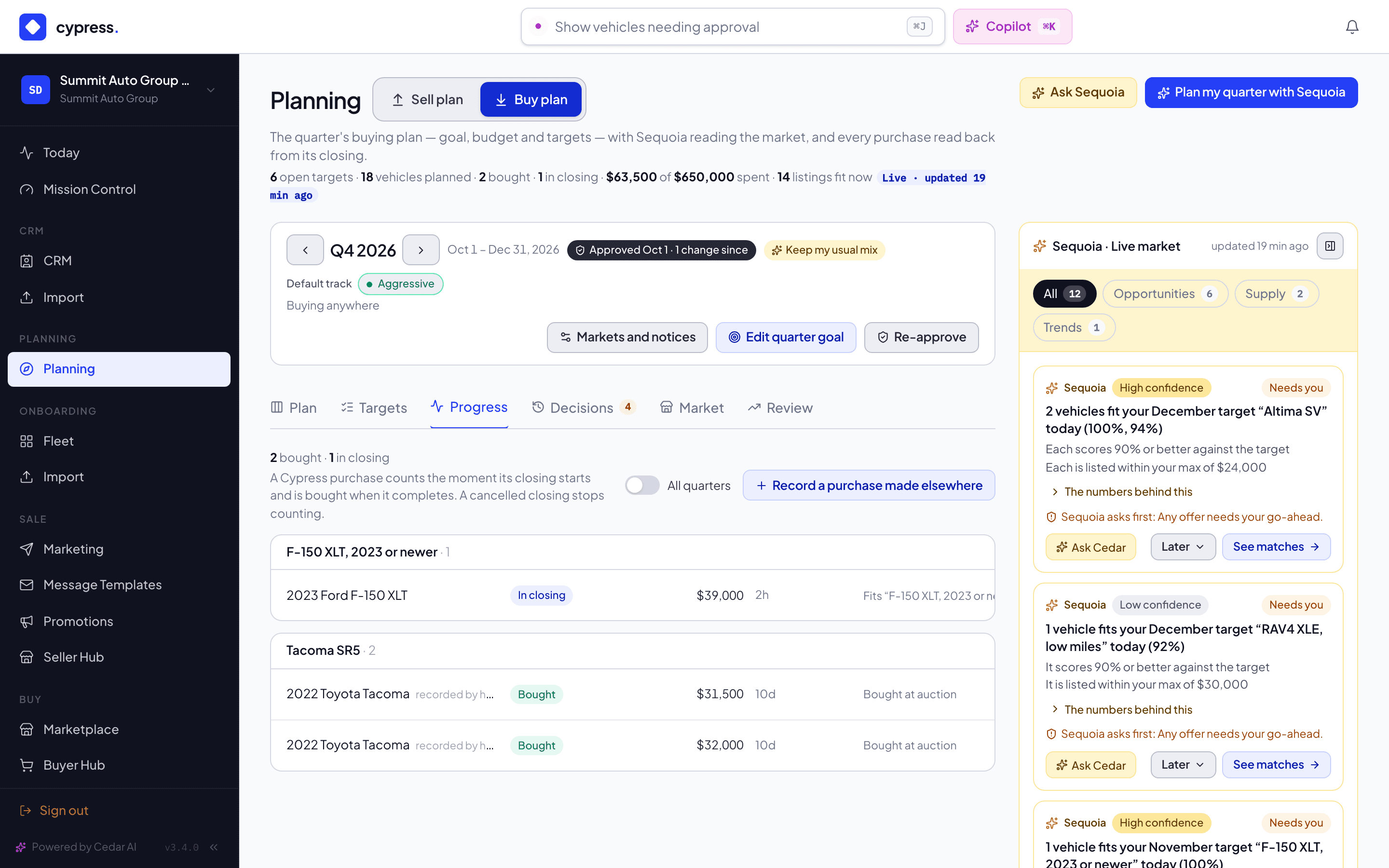
Select Record a purchase made elsewhere, on the right of the tab.
You should see a panel with that title, which says Only you and Cypress see this purchase and its price.
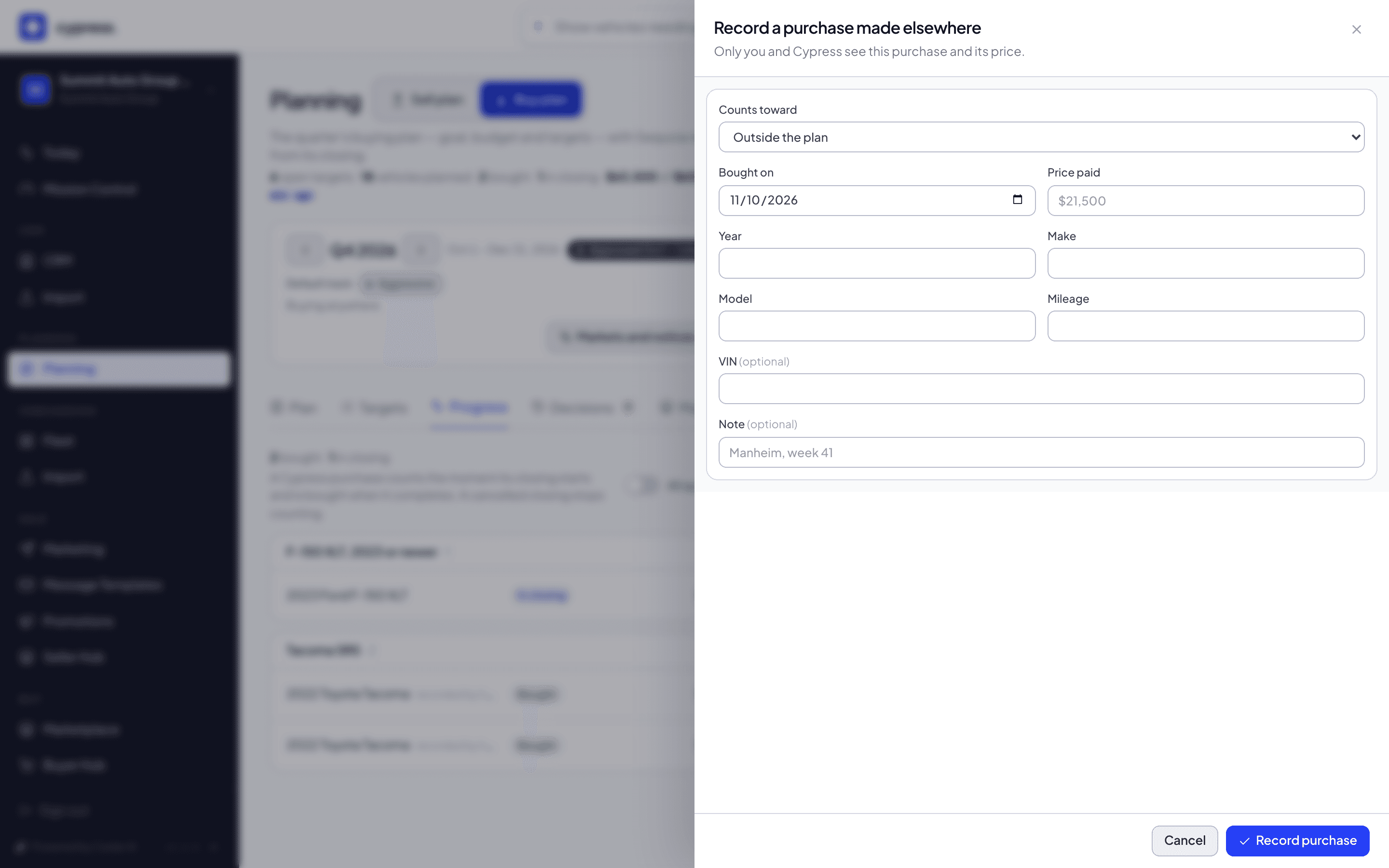
Under Counts toward, pick the target this vehicle fills, or leave it on Outside the plan.
You should see your open and paused targets in the list. A closed target is not offered.
Enter Bought on, the day you bought it, and Price paid.
You should see Bought on start at today's date. A price that is not a number is named under its box, for example Enter the price as a number, like $21,500.
Describe the vehicle: Year, Make, Model and Mileage, and, if you have them, VIN and Note. Both of those are optional.
You should see a number that cannot be read named under its box, for example Enter a year between 1980 and 2100.
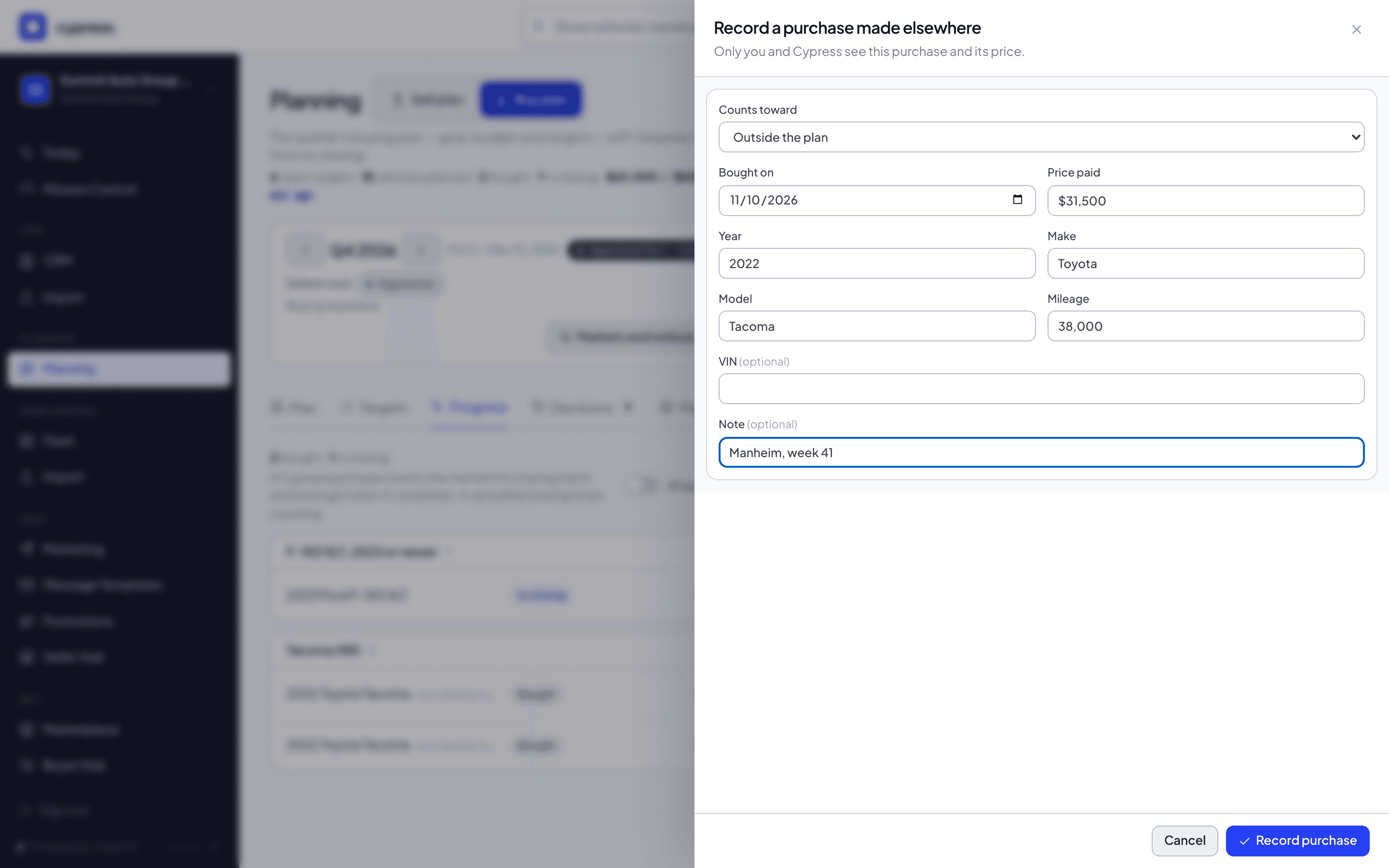
Select Record purchase.
You should see the message Purchase recorded and the panel close. The purchase is listed under its target with the tag recorded by hand, and the line at the top of the tab counts it as bought. A purchase dated in another quarter says where it went: Saved to Q1 2027. Switch to that quarter, or turn on All quarters, to see it.
Move a purchase to another target
On the purchase's row, open Counts toward.
You should see every target of the plan, and Outside the plan.
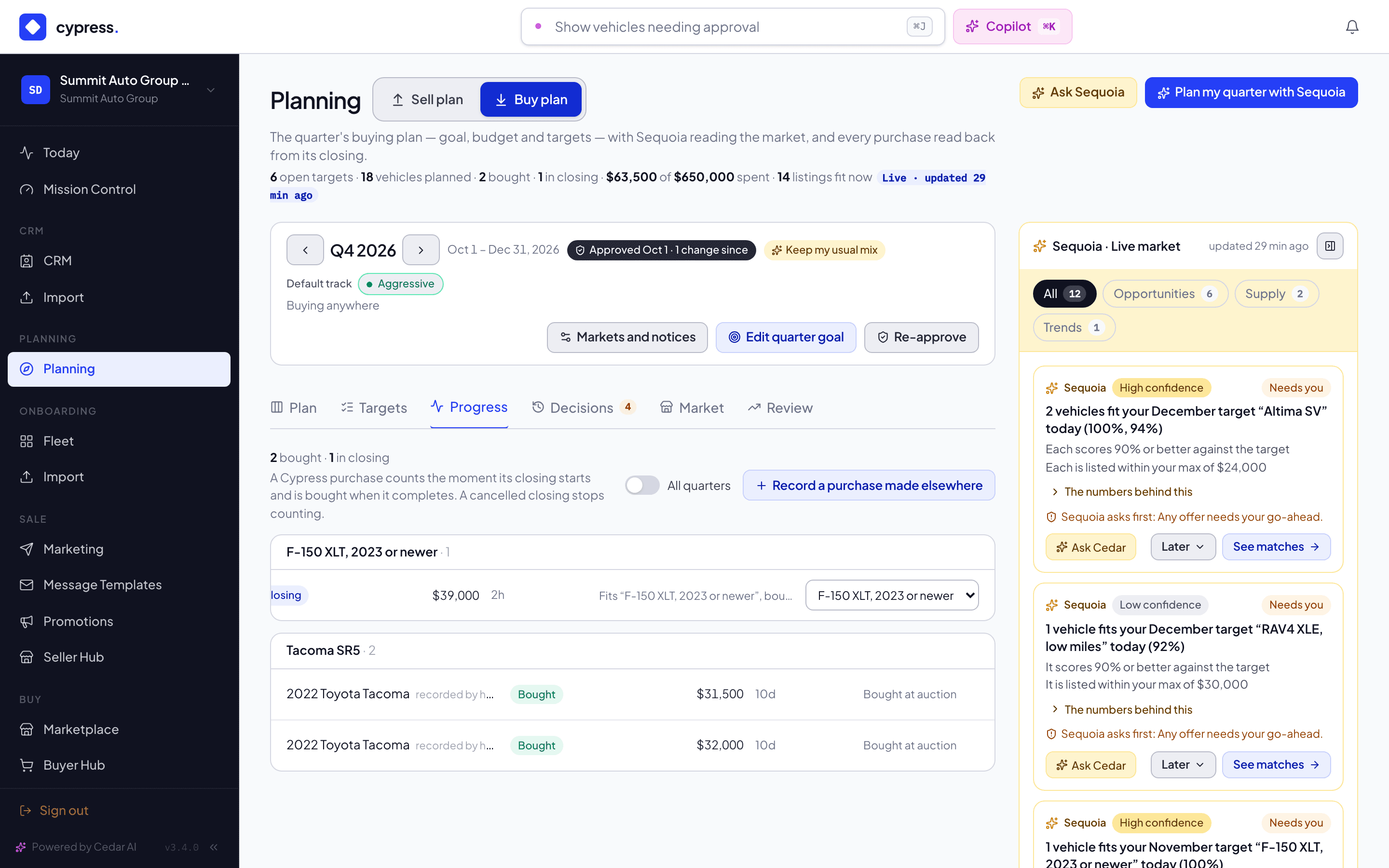
Pick the target the purchase fills, or Outside the plan.
You should see the message Purchase moved, and the purchase listed under its new group. Your choice stays: Cypress places a purchase once and never moves it again.
Follow your purchases
The Progress tab lists the purchases of the quarter on the quarter bar, grouped by the target each counts toward, with its state:
- In closing: from the moment the closing starts.
- Bought: once the vehicle is delivered.
- Cancelled: the closing was cancelled. A cancelled purchase is listed but not counted.
A purchase belongs to the quarter it was made in: the quarter its closing started in, or the day you recorded it. That is the rule the header uses, so the line at the top of the tab, for example 2 bought · 1 in closing, is the same count as the header's for the same quarter. Use the arrows in the quarter bar to open another quarter. A quarter with no purchases says so, and points you to All quarters when the others have some. Purchases that no target claimed stay in their own group, Bought outside the plan.
To see every quarter at once, switch on All quarters, on the right of the tab. The purchases are grouped under a heading for each quarter, the newest first, such as Q4 2026 · 2 bought · 1 in closing, and inside each quarter by target as before. The arrows stay, and the quarter bar reads Q4 2026 · showing all quarters. Cypress remembers the switch for you in this browser.
A purchase placed for you says why it landed where it did.
- A purchase that fits a target is placed on it for you. To move it, use Counts toward on its row: pick another target, or Outside the plan.
- For a purchase made elsewhere, such as an auction, select Record a purchase made elsewhere. Only you and Cypress see it and its price.
How a purchase is placed is set out in The buy plan.
What happens next
Recorded and Cypress purchases count the same toward the quarter: the header, the Plan tab and Review read them together. A purchase from a closing follows its closing and cannot be removed by hand; one you recorded can be moved to another target, or out of the plan. See Approve and review the quarter for how Review compares what happened with the plan you approved.
If something goes wrong
- A box is named under the field. The year, mileage and price take numbers: the year a whole number from 1980 to 2100, the price at most $10,000,000, the mileage at most 1,000,000.
- The purchase is not in the list. It was saved to another quarter. Step the quarter with the arrows, or turn on All quarters.
- The message Could not record the purchase. Try again; nothing was saved.
Ask Cedar
- Against the buying goal
- Next on the buy plan
Related
Read matches and the Buy analysis
Open a target to see the live listings that fit it, near ones included, and open the Buy analysis to decide whether to buy now or wait.
Approve and review the quarter
Approve the quarter to keep a baseline, then read the Review tab to see what you achieved against the plan you approved, week by week.