Onboard vehicles by import
Turn a spreadsheet of vehicles into priced, graded inventory — create mode for new stock, update mode for the next file.
TL;DRAI summary
This chapter explains how to add or update your vehicles in bulk using a spreadsheet. You simply upload your file, map your columns to Cypress fields, review any errors, and then import your vehicles. This saves you time by managing many vehicles at once.
For: Sellers (fleet managers, org admins) · Cypress Managers acting for a delegating org
Before you start
- A Cypress Manager importing on an org's behalf needs that org's lifecycle delegation ("Cypress operates our account") turned on — an org marked opted out is refused before a file is ever chosen.
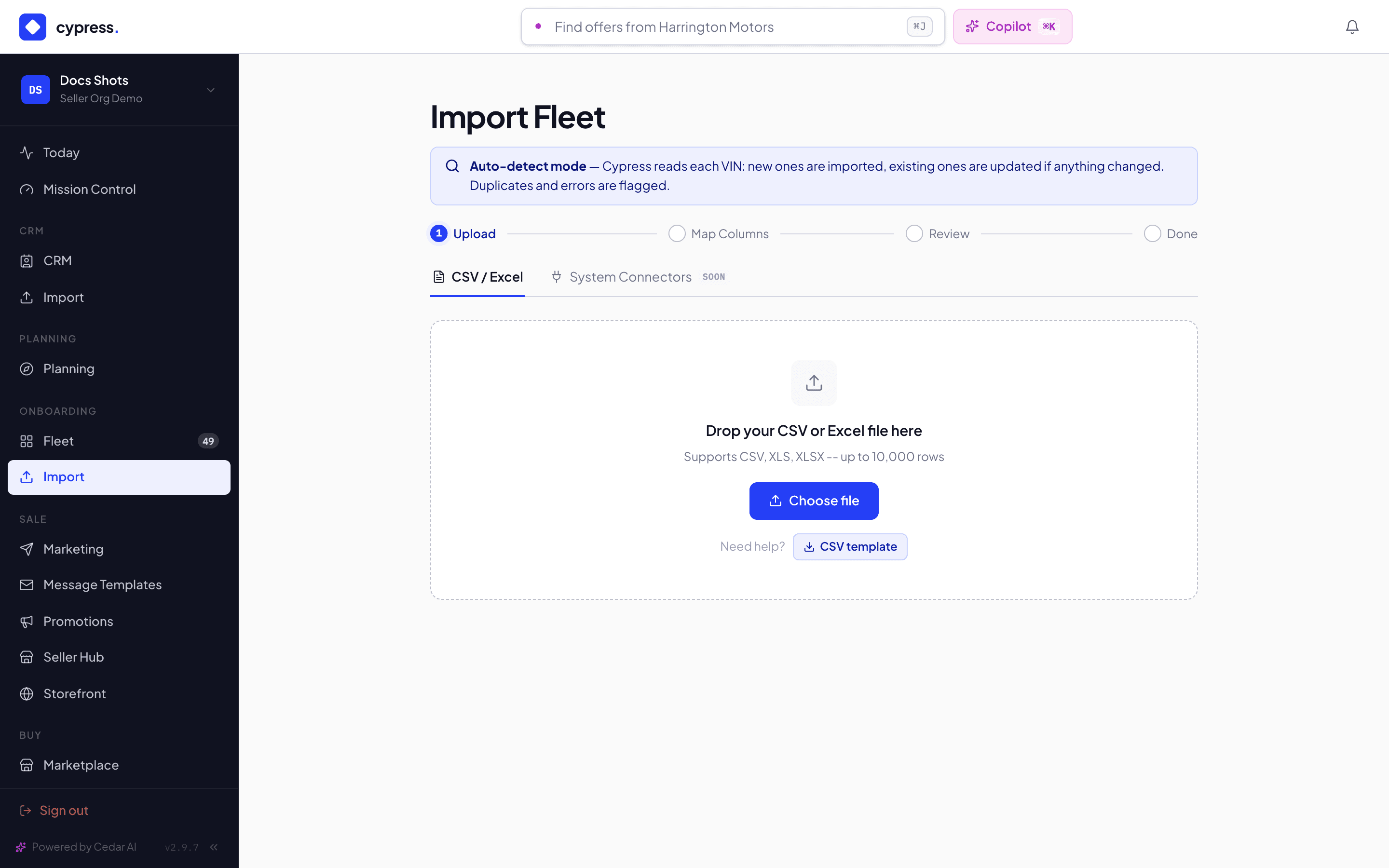
- Have your file ready as CSV, TXT, XLSX or XLS. Your column headers don't need to match Cypress's field names — the mapping step handles that.
- The same file, run again later with updated numbers, becomes an update automatically: Cypress matches by VIN and only asks about what changed.
Steps
Open Import in the sidebar (a Cypress Manager picks the org to import for first). Drag your file onto the drop zone or click Choose file.
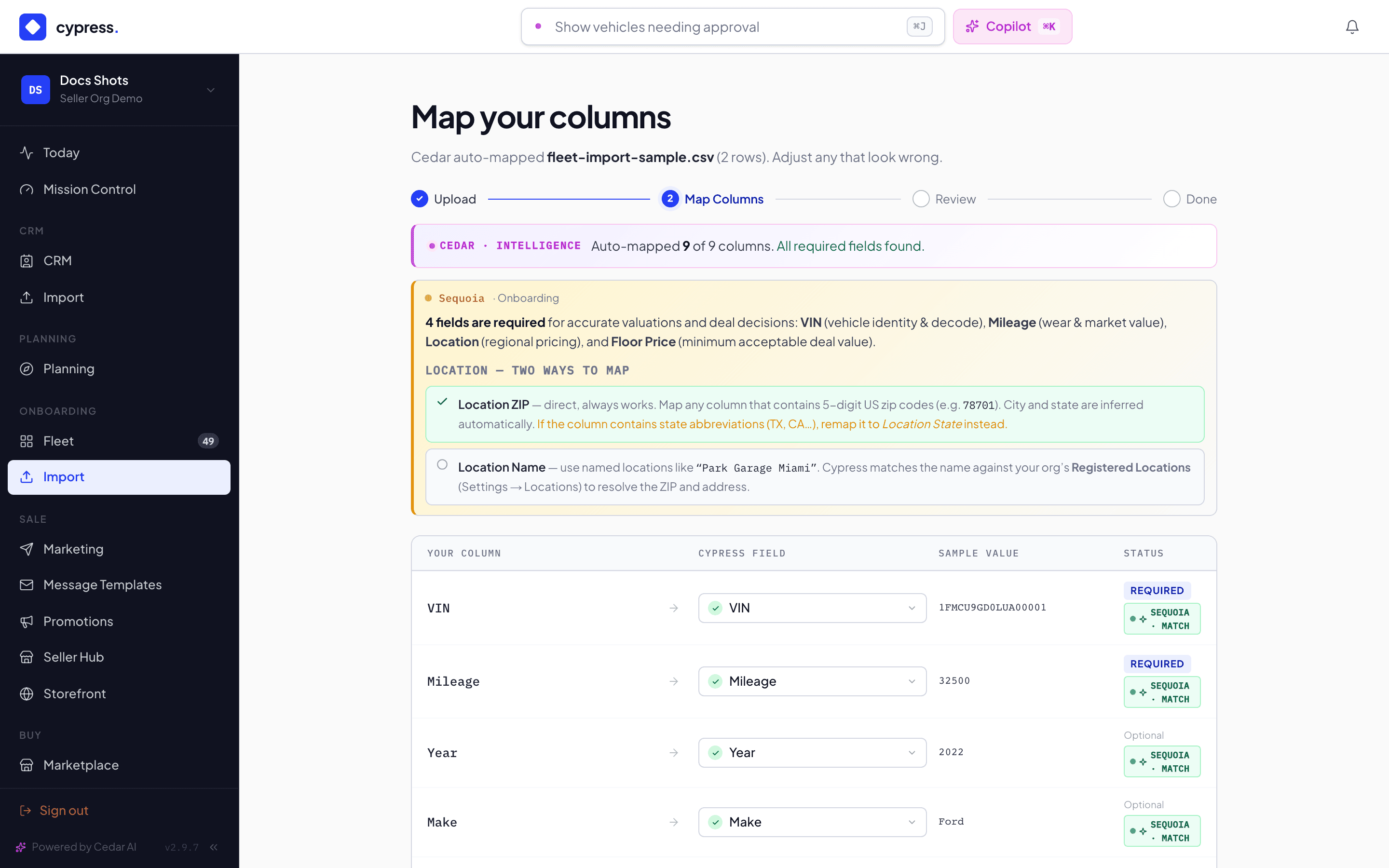
Click Continue to mapping. The auto-mapper matches your headers to Cypress fields by meaning, not spelling — fix anything it guessed wrong or left unmapped.
Click Continue to review. Cypress validates every row with nothing written yet: duplicates and missing must-haves are flagged, and each row carries a before → after diff if this is an update. Fix flagged rows or skip them.
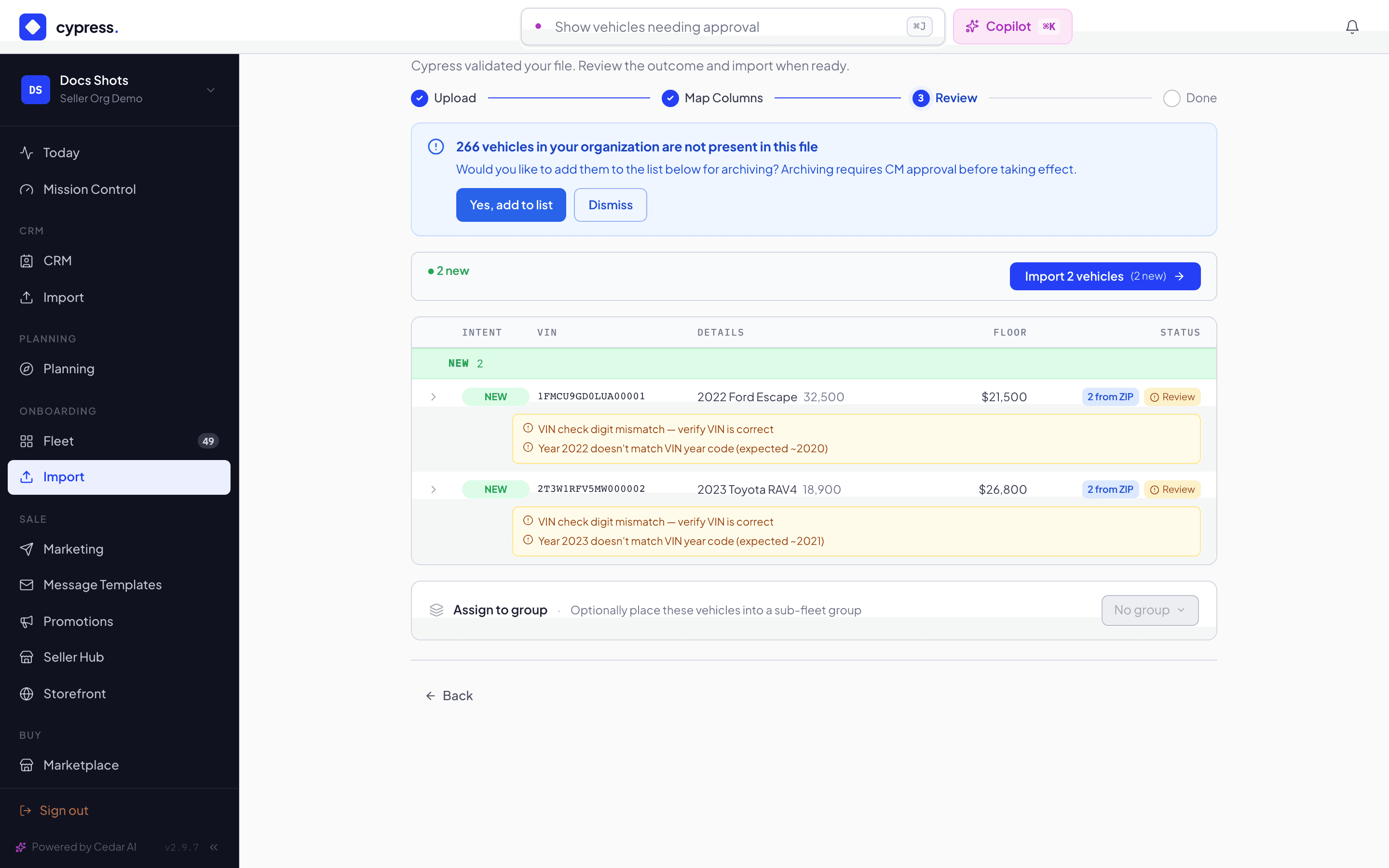
Click Import N vehicles. New rows land as DRAFT vehicles — VIN-decoded, condition mapped, and a batch valuation queued. Updated rows apply immediately if safe, or stage for review if they touch money on a live vehicle.
What happens next
Each row gets a result badge — created, skipped, or failed-with-reason — and
the batch lands in the org's import history. New vehicles auto-fetch their
condition report and
queue a valuation, so a confirmed import arrives priced and graded, not just
inserted. A floor or price change on a live vehicle stages as an
Update Request
instead of applying blind; a sold-elsewhere row always stages, no
exceptions.
If something goes wrong
- "Mileage is required for Sequoia to generate accurate valuations. Enter it here or update after import." — a required field is missing; fix it in the review grid or accept it and correct the vehicle later.
- "The ZIP column contains a 2-letter state abbreviation. Go back to Map Columns and remap this field to Location State." — a mapping mismatch; fix it on the Map Columns step, not by editing the row.
- "Floor price missing" rows block deal decisions later — the reviewer flags them, but the row can still import.
- An org marked "OPTED OUT — IMPORT WILL BE BLOCKED" in the account picker can't be selected; the org has to enable lifecycle delegation, or its own Fleet Manager imports directly.
Ask Cedar
- Explain this step — "Explain the current import step against my data — what it does and what I should check before continuing."
- Check my mapping — "Review how my CSV columns map to vehicle fields; flag anything unmapped or low-confidence and suggest fixes."
- Summarize the dry-run — "Summarize the dry-run: what will update, what is staged for approval, what is archived, and what to verify before committing."