CSV import & batch updates
Onboard or update a whole fleet from a spreadsheet — with the guardrails that keep live vehicles safe.
TL;DRAI summary
This chapter explains how to import your vehicle spreadsheets into Cypress to create new inventory or update existing vehicles. You can quickly add many vehicles and safely make changes, with Cypress guiding you through the process and flagging anything that needs your attention.
For: Fleet Managers
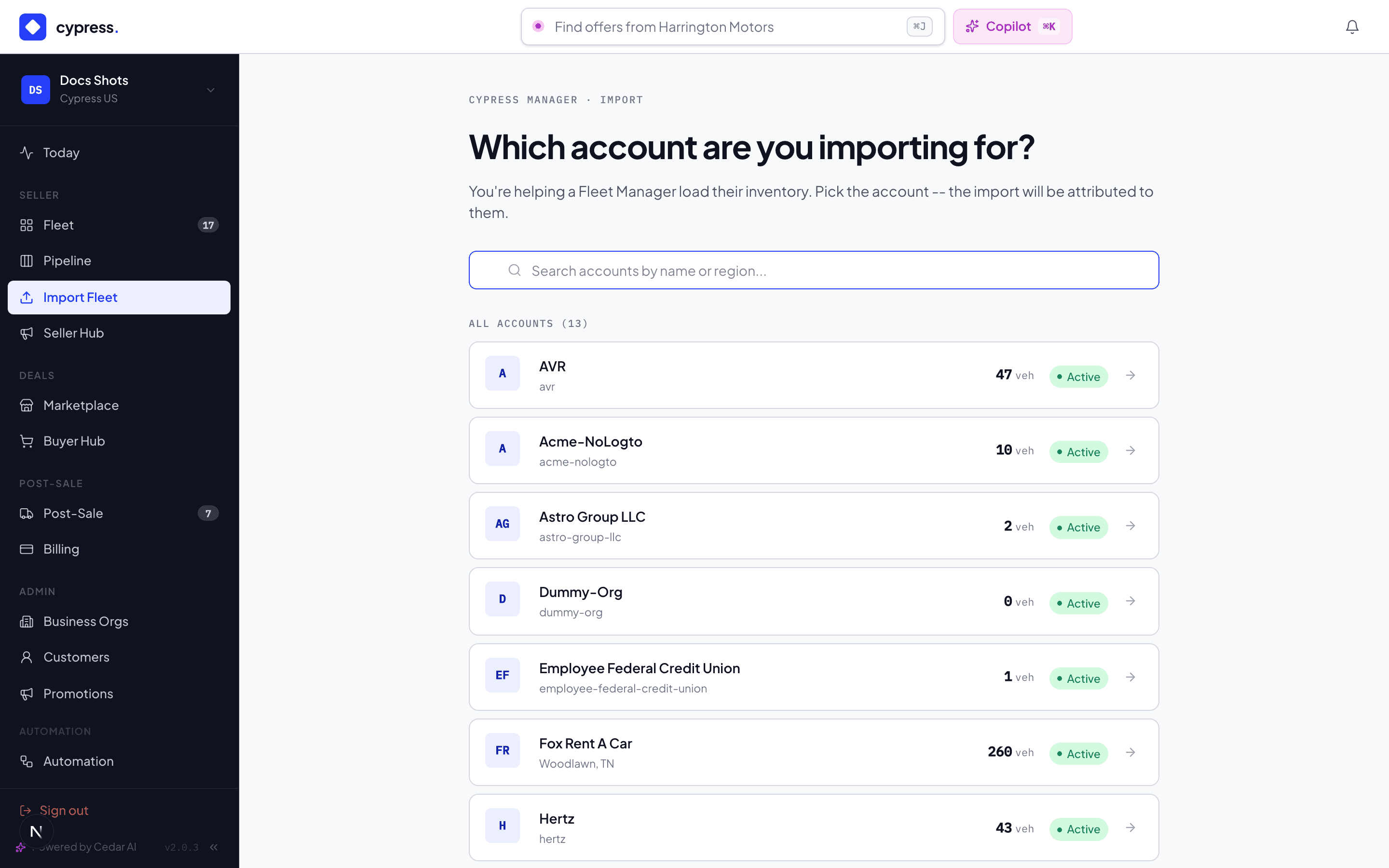
Under the lifecycle switch, your Cypress team can run bulk imports into your fleet. An organization that switched the lifecycle off is marked opted out on the import's first screen, and an import for it is refused — before a file is ever chosen.
Everything done under delegation is logged with a Cypress · on behalf badge and notifies your Fleet Managers. Manage the switches in Settings → Organization → Permissions — the full story is in Delegation — Cypress on your behalf.
Nobody types forty vans in by hand. Import Fleet takes the spreadsheet you already have and turns it into inventory — and, later, takes the next spreadsheet and safely updates what's already live.
Create mode — new inventory
-
Upload the CSV. The mapper auto-detects your columns against Cypress fields; fix any it guessed wrong. Your headers don't need to match ours — the mapping does. The auto-mapper reads your headers and matches them to Cypress fields by meaning, not just spelling — "Odometer", "Miles", "MILEAGE_KM" all land on mileage (with unit conversion flagged), "Reserve" lands on floor price. Anything ambiguous is left for you to map explicitly rather than guessed silently.
-
Dry run. Every row is validated with nothing written: duplicates (same VIN in your org) flagged, missing must-haves (a VIN, a mileage) called out per row.
-
Import. Rows become DRAFT vehicles: VIN-decoded, condition mapped from the 1–5 scale (tier words like "good" work too), trims lifted out of model columns where sellers combine them, and a batch valuation pass runs so the fleet arrives already priced-in-context.
Each row gets a per-row result badge — created, skipped, failed-with-reason — and the batch lands in the org's import history, inspectable later.
Update mode — the second spreadsheet
The same file with new numbers updates matching VINs. This is where the guardrail lives:
- Safe fields apply immediately — mileage corrections, spec details, descriptions. You see a before → after diff per row before confirming.
- Money on a live vehicle is governed — a floor or price change that could affect open offers stages as an Update Request for review instead of applying blind. (Location changes apply, but every open offer's buyer is told — the vehicle they bid on just moved.)
- The
dispositioncolumn is how spreadsheets say "this one's gone". An archive orsold-elsewhererow is archived when the import runs, unless the vehicle has an open offer or a sale in progress: then it stages the archive request a CM decides, and the vehicle stays as it is until the decision. - Vehicles not in this file follow the same rule. The review step lists your vehicles the file leaves out; any you add for archiving are archived when the import runs, or go to a CM when a buyer is involved. Since 3.9.0; before it, every archive from a file waited for a CM.
Proposed corrections, not silent writes
Update mode's diffs are proposals with reasons: each changed row shows
field-by-field before → after, why it will apply or stage, and
match-quality notes where the importer had to interpret (a color written
three ways, a trim buried in a model string). You confirm the batch with
the full picture — and imported vehicles also auto-fetch their
third-party condition reports and
queue their valuations, so a confirmed import lands priced and graded,
not just inserted.
How Cedar can help here
Import is one of Cedar's named journeys: ask it to walk the import with you and it tracks the batch, explains row failures in plain language ("row 12 skipped — no mileage"), and proposes the fixes. After the batch lands, "what did the import change?" is a question the Updates feed and Cedar can both answer.
Keeping automations in the loop
Imported vehicles fire the same automation triggers as hand-created ones — a "when a vehicle is created" automation runs for every row. Automations can opt out of specific sources (people / CSV / API) on the trigger, so an automation that shouldn't react to bulk imports can say so.
Worked example
Acme's first file: 40 vans. The dry run flags two duplicate VINs (already in Fleet) and one row with no mileage; 37 import clean, valuations attach within minutes, and the Transit is row 14. A month later the updated file lands: 31 mileage bumps apply instantly with diffs, but the Transit's floor change ($29,000 → $28,500) stages — it's LISTED with an open offer, so Alex gets the request instead, with the CSV named as the source. The governance chapter shows what he does with it.
Business rules
- Duplicates never merge silently — same VIN in your org is a flagged skip, your call to resolve.
- Import history is permanent: every batch, every row result, in the org's record and the CM's cross-org view.
- A CSV archives only where no buyer is involved. A vehicle with an open offer or a sale in progress is never archived by a file; the file stages a request and a CM decides.
Under the hood
The importer, the app, and the integrations API share one ingestion core — same validation, same condition mapping, same staging rules — so "which door did the data come in" never changes what's allowed. The import history and API activity share the platform's unified integrations log.
Your fleet: grid, pipeline & condition
Get vehicles into Cypress and manage them as a fleet — the grid, the kanban, condition scoring, and photos.
Inspections: self, AI & third-party
Every condition signal on a vehicle — your score, the ARVIS AI inspection, and uploaded reports — and how they reconcile.