Set prices and offer rules
Set the floor, set the listing price, then configure the bands that answer offers instantly — the three numbers that run a listing.
TL;DRAI summary
This chapter explains how to set the floor price for your vehicles as a Fleet Manager and the listing price and offer rules as a Cypress Manager. Setting these prices and rules automates how offers are handled, saving you time and ensuring you meet your sales goals.
For: Sellers (fleet managers, org admins), for the floor · Cypress Managers, for the listing price and offer rules
Before you start
- The three prices belong to different people: the floor is the Fleet Manager's walk-away line, the listing price is what the Cypress Manager asks, and Offer Rules are the bands the CM configures against both. See The three prices if the vocabulary is new.
- A vehicle needs a floor before it can move past DRAFT, and a listing price before it can move past REVIEW — the Fleet page's quick action names exactly which is missing.
- Offer Rules can be set at any stage — before launch or on a live listing — or left unset, in which case every offer goes to manual review.
Steps
As the Fleet Manager, open Fleet, find a DRAFT vehicle, and click Set Floor Price. Set a percentage or a dollar adjustment over the Orbis valuation — the live preview shows the resulting floor as you type.
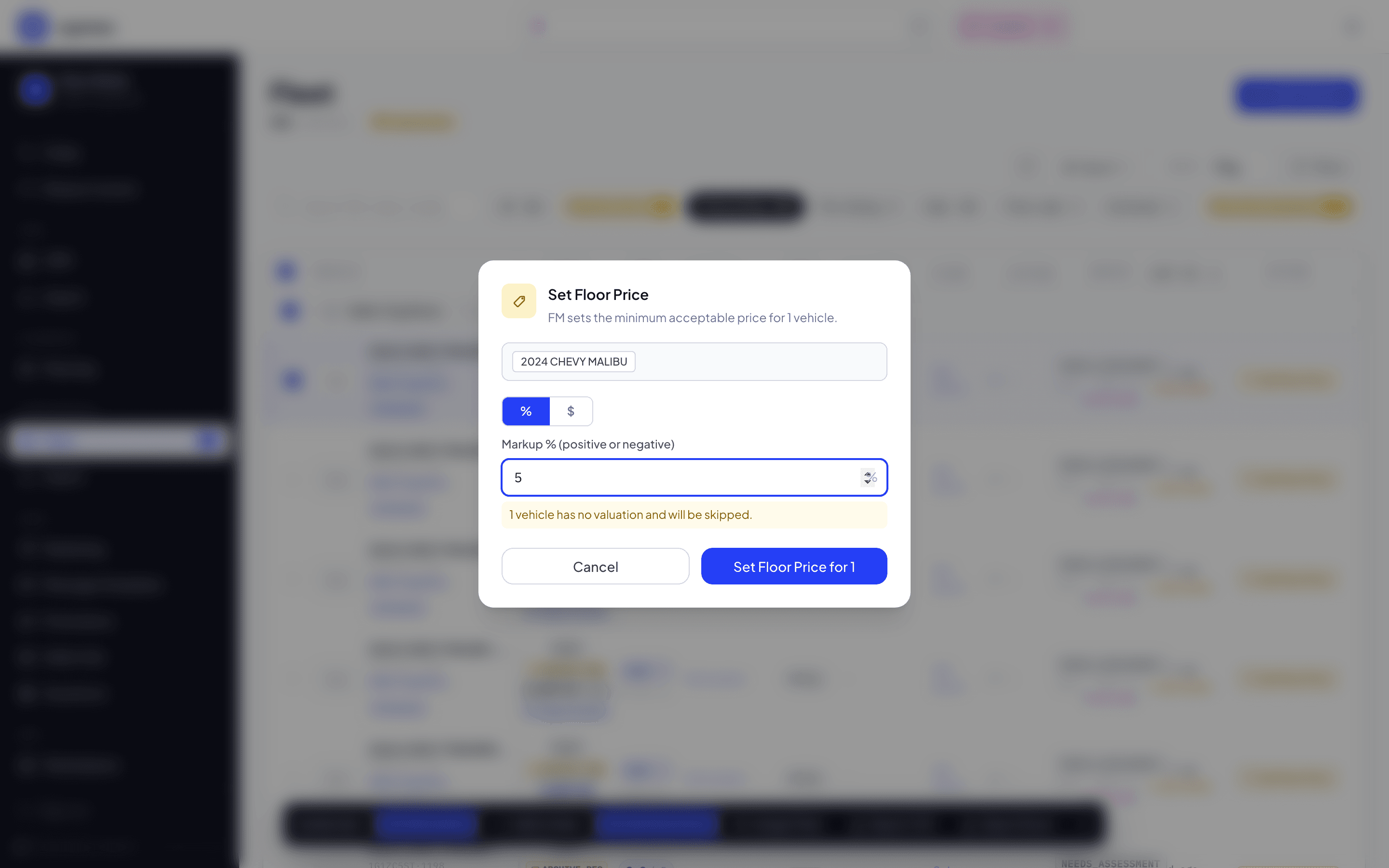
As the Cypress Manager, open Fleet, find a REVIEW vehicle (floor already set), and click Set Listing Price. The same percentage-or-dollar adjustment sets the ask over the valuation — the gap to the floor becomes the negotiation room.
Open the vehicle in Seller Hub and click the Offer Rules tab, then Configure Rules (or Edit, if bands already exist). This works at any stage — before launch or on a live listing.
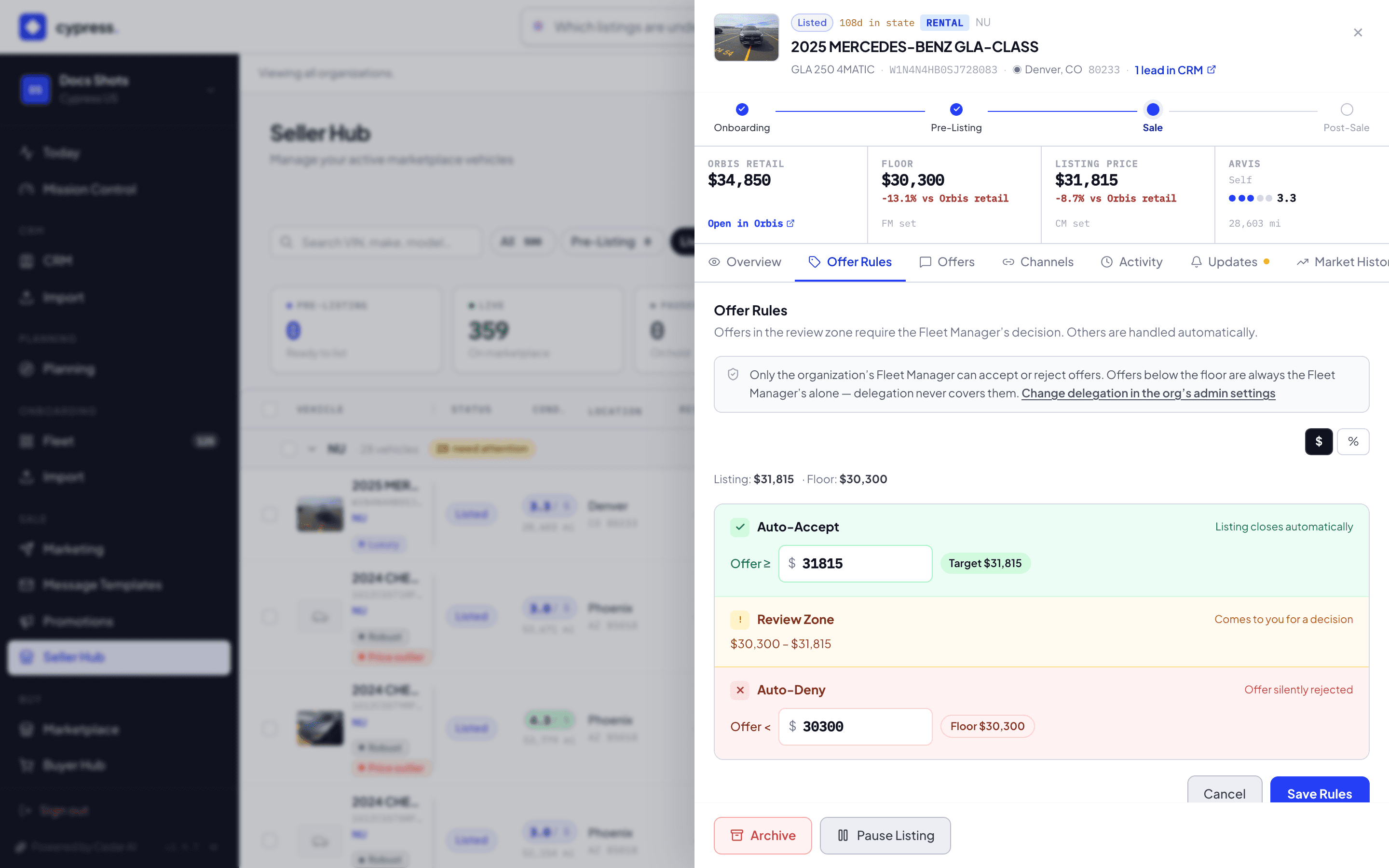
Set Auto-Accept at or above your accept line (defaults to the floor), and Auto-Deny below your decline line. Everything between is the review zone. Click Save Rules.
What happens next
Launching the vehicle arms these bands instantly: an offer at or above Auto-Accept closes the listing on the spot, one below Auto-Deny is declined before the buyer's page even reloads, and anything between waits in the Seller Hub for a person. Changing the floor or listing price later re-arms the bands to match, and the change is logged with before and after values.
If something goes wrong
- "N vehicles have no valuation and will be skipped." (singular: "1 vehicle has no valuation and will be skipped.") — the modal's percentage/dollar markup needs an Orbis valuation to compute a price; a vehicle without one is left out of that batch.
- "No rules configured" — every incoming offer requires manual review until thresholds are set. Not an error, but slower than it needs to be.
- Only a Cypress Manager can edit Offer Rules — a Fleet Manager's panel reads "View Offer Rules" instead of "Set Offer Rules", with the note "Only a Cypress Manager can edit them."
- Setting Auto-Deny below the floor shows a note that offers between that line and the floor route to the Fleet Manager for manual review instead of being auto-denied — below-floor decisions are never automatic.
Ask Cedar
- Pending listing price — "Which vehicles are pending a listing (target) price? Explain how target relates to the FM floor."
- Offering rules — "Which vehicles still need offering/auction rules set, and explain what those rules do."
- Set floor price — "Propose a floor price for this vehicle based on its valuation."