Run a promotion campaign
Curate a promotion, publish it, then turn on marketing to carry it to an audience.
TL;DRAI summary
This chapter explains how to create a promotion to showcase your vehicles, picking specific ones or using a dynamic query. You'll learn how to publish it and then link it to a marketing campaign to send it out to buyers.
For: Cypress Managers · Sellers (fleet managers, org admins) with a Storefront grant
Before you start
- A promotion is a curated list of vehicles with a public page and a hero banner — mailing it is a separate step. See Promotions, lists & campaigns.
- Sellers see only their own promotions; a Cypress Manager sees every seller's plus the platform's own, and names the owner when creating one.
- A promotion can be cherry-picked (you choose the vehicles) or a dynamic query ("everything in the Southwest") that keeps itself current as inventory arrives and sells.
Steps
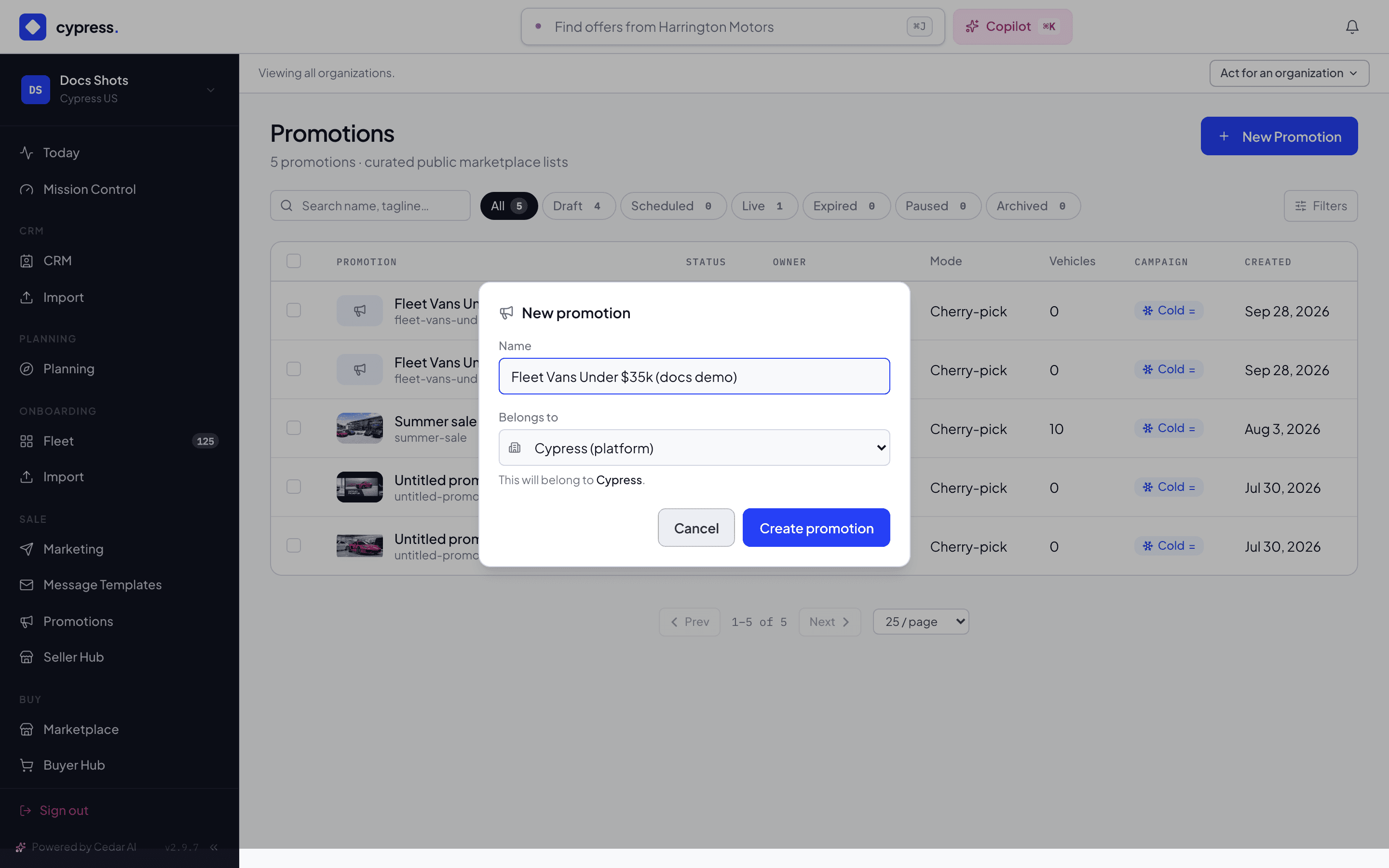
From Promotions, click New Promotion. Give it a Name and click Create promotion.
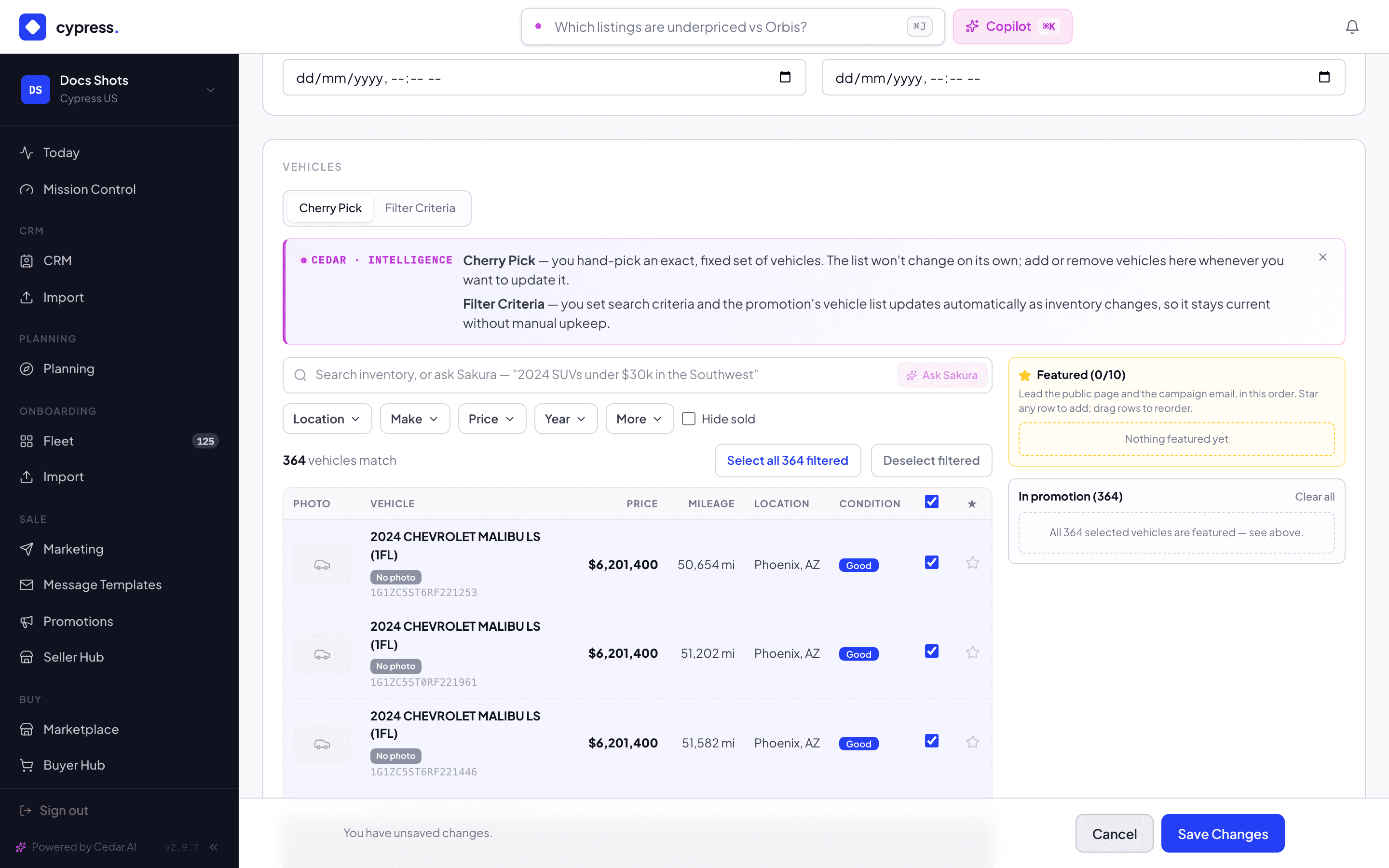
On the Details tab, upload a hero image (or generate one with AI) and write a Tagline. Then pick vehicles in the workbench — filter and Select all filtered, or cherry-pick rows — and star up to ten as Featured; the order you set there is the order every surface honors.
Click Publish. Live means active and inside the scheduled window — an expired promotion drops off the hero strip by itself.
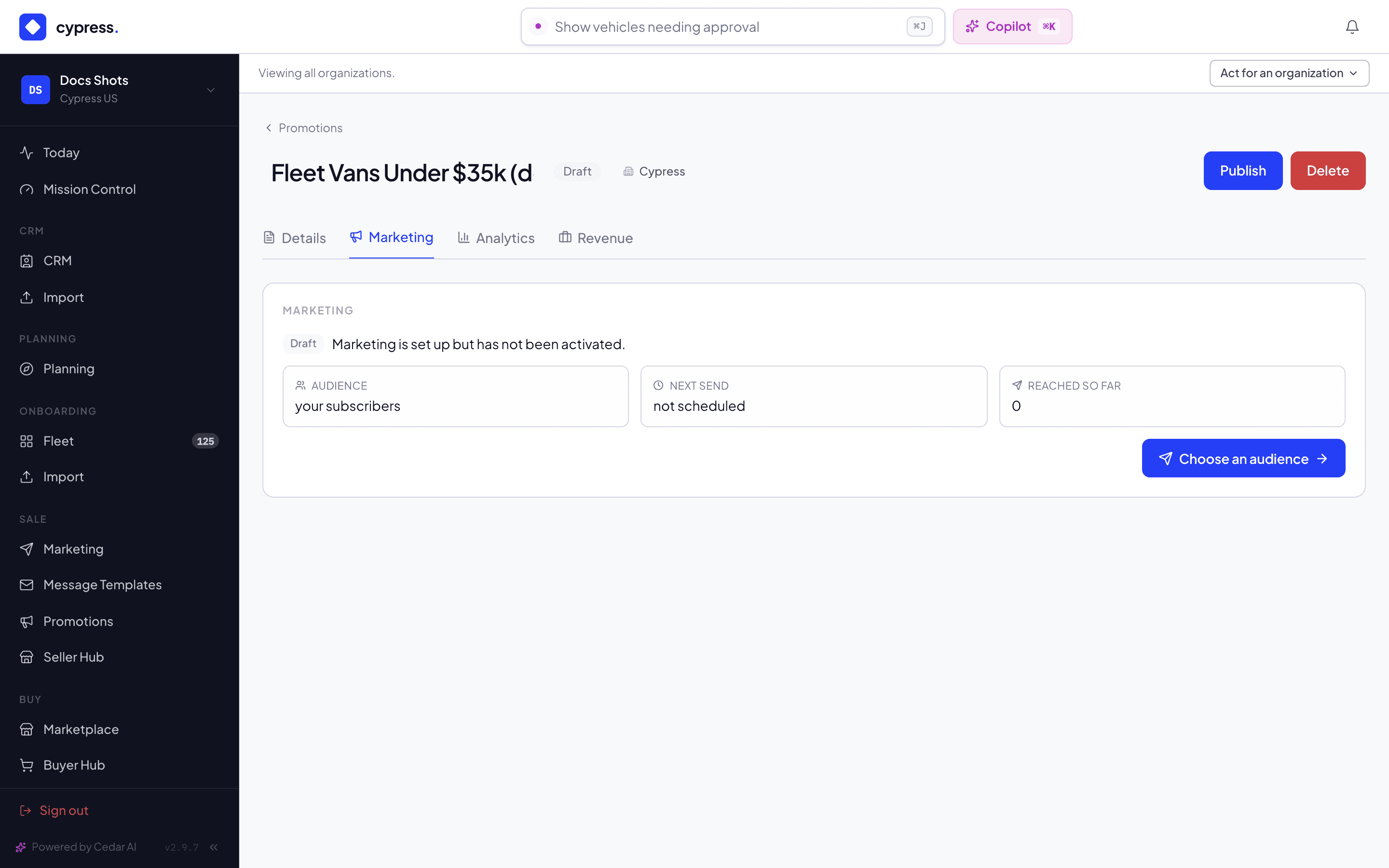
Switch to the Marketing tab and click Turn on marketing. This creates a draft campaign that carries the promotion — it sends nothing until you choose an audience and activate it.
What happens next
Click Choose an audience to open the draft in Marketing, where audience, schedule, and personalization are the same engine every other campaign uses. Every send is tracked end to end — delivered, opened, clicked, then on-site viewed / saved / offered — per recipient and per vehicle, and it flows back into each vehicle's Market History. Attaching a promotion to a campaign only works for one you own, so a seller can't point their campaign at a competitor's list.
If something goes wrong
- A promotion with no vehicles, or outside its scheduled window, shows as not live even after Publish — check the workbench and the window.
- "Could not turn marketing on" — the toast names the reason if the campaign route rejects the request; retry once the underlying issue (usually a missing audience source) is resolved.
- Sellers can't see or probe for platform promotions their vehicles appear in — that isolation is deliberate, not a bug to report.
Ask Cedar
- Live promotions — "Which promotions are live, what do they carry, and how are they performing?"
- Offers drawn — "Which offers came in through promotions, and which need a decision?"
- Underperforming — "Which promotions are underperforming and worth refreshing or retiring?"