Schedule a sale window
Bench a lot's in-operation vehicles, then allocate some of the candidates into a month or a specific two-week window.
TL;DRAI summary
This chapter explains how to schedule vehicles for sale in Cypress. You'll learn how to move vehicles from your fleet to a sales window, commit them to that window, and track their progress through the sales process. Scheduling helps you plan and prepare for future sales.
For: Sellers (fleet managers, org admins) · Cypress Managers acting for a delegating org
Before you start
- Your organization has the Planning product — see Switch Planning on for a customer.
- A vehicle must be on the bench — a candidate — before it can be scheduled; vehicles in operation aren't ranked or proposed. Benching is the first step below.
- Scheduling has no market effect — nothing is listed, priced or released. It's the hand-off (see Hand a window to Sell) that moves a vehicle into Sell's hands.
Steps
A vehicle's whole path, from the fleet to Sell's intake, and the window it rides:
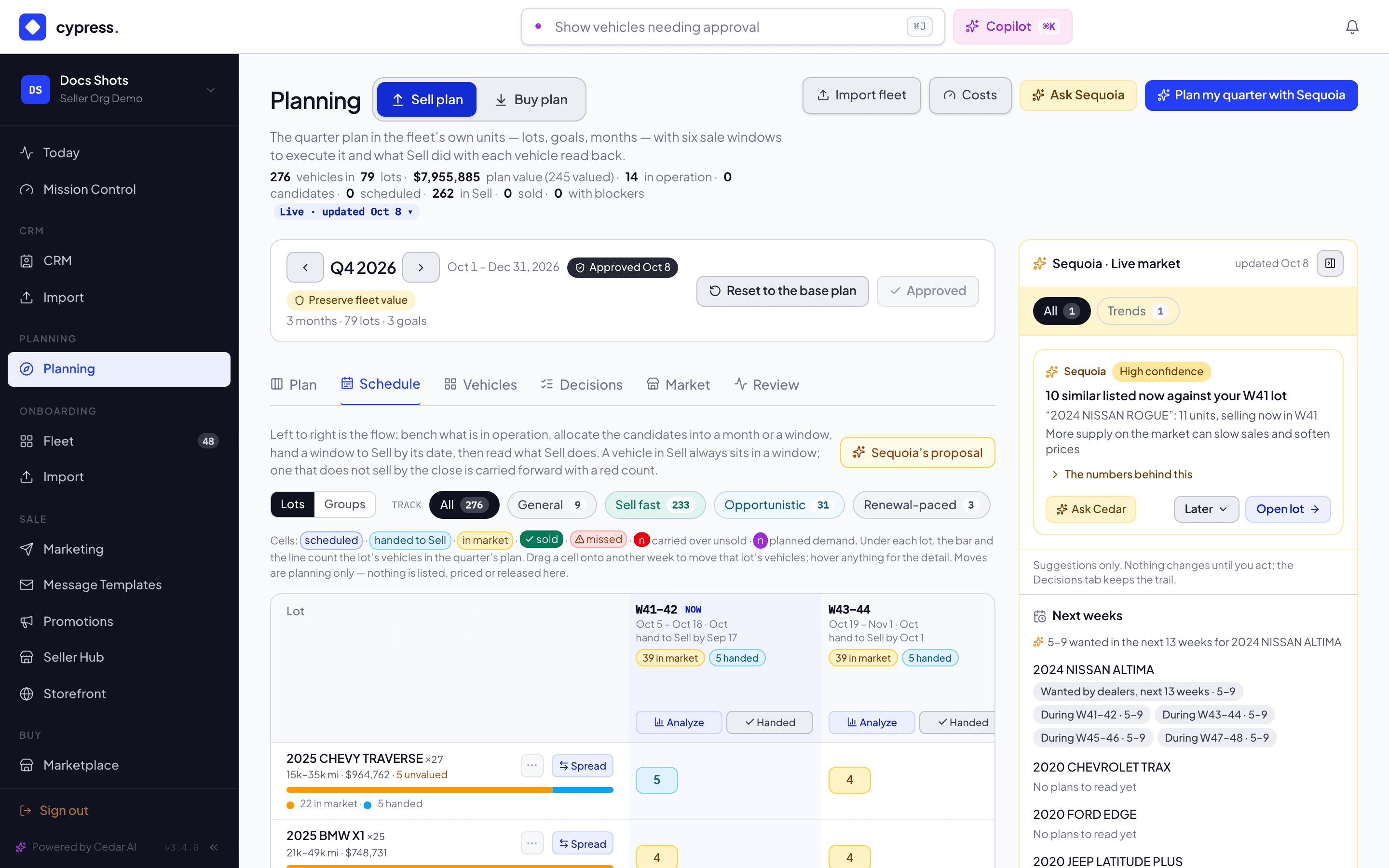
Open Planning → Schedule. The grid reads left to right as the flow: In operation, Candidates, the six sale windows, then In Sell for anything already selling outside the schedule.
You should see your lots down the side, each with its vehicles in operation, its candidates and its place in the six windows.
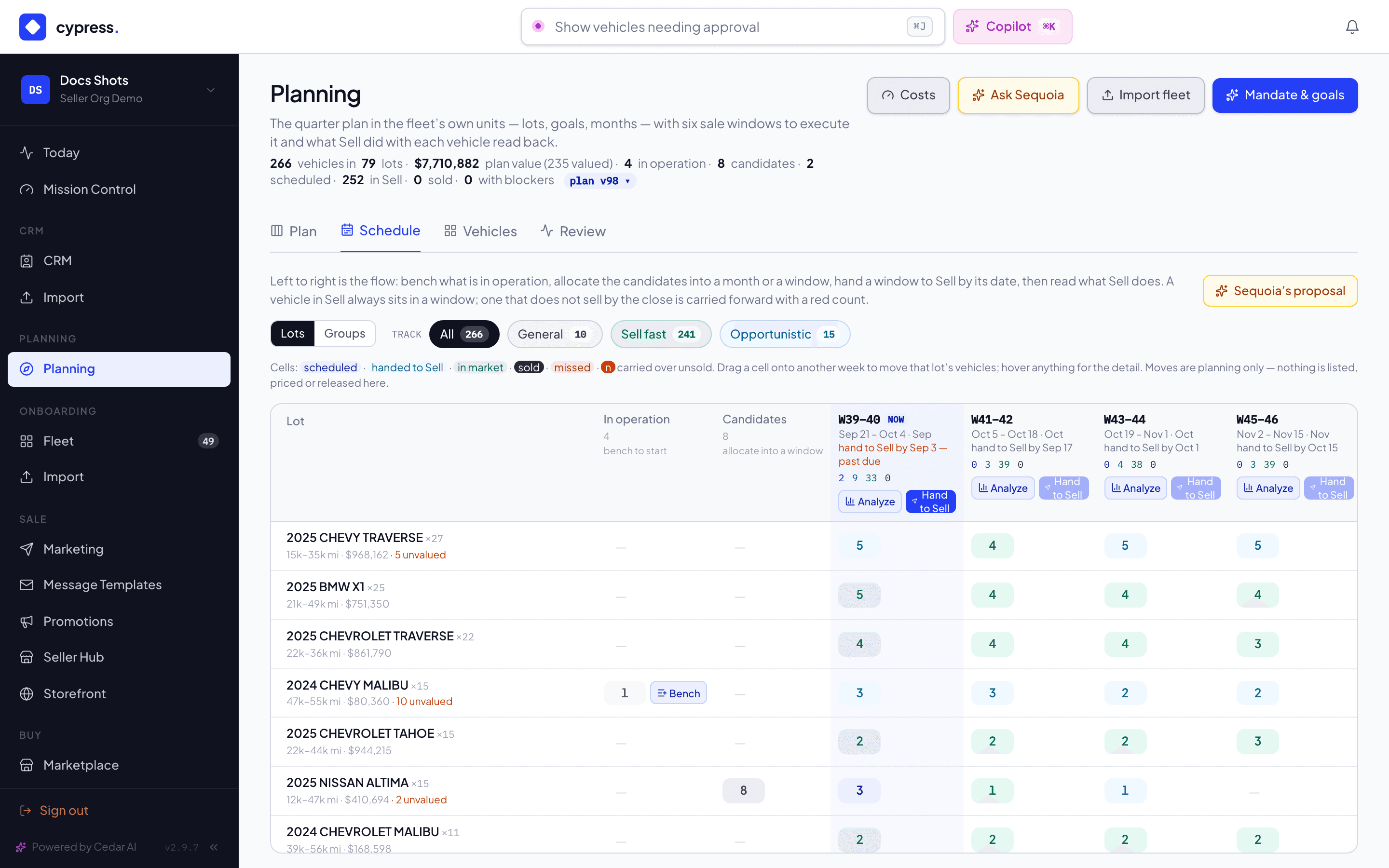
For a lot with vehicles in operation, click Bench to move them onto the candidates bench — ranked under the plan's mandate and now proposable.
You should see the lot's vehicles leave In operation and appear under Candidates.
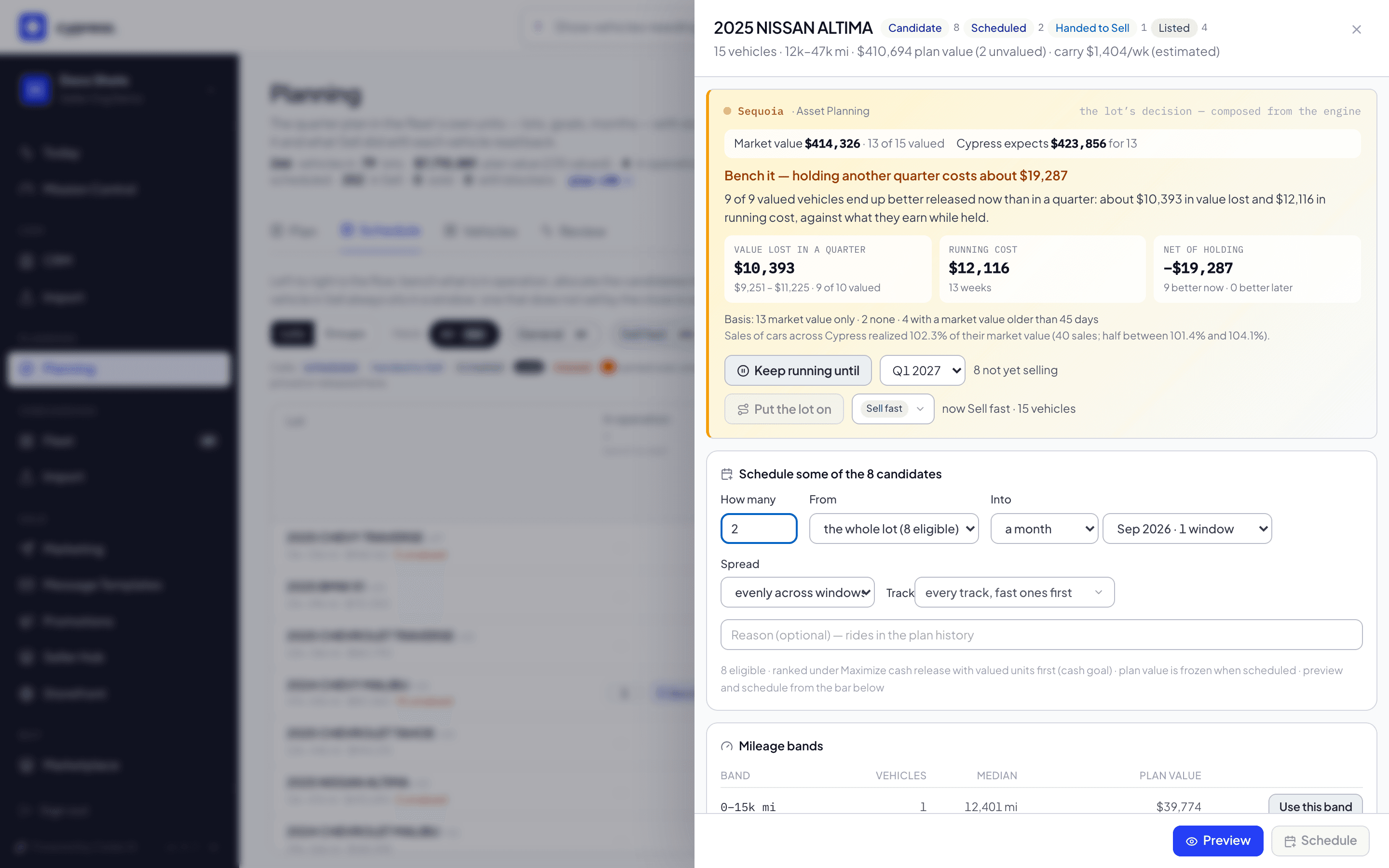
Click the lot's Candidates number to open its panel with the allocate form focused: how many, from the whole lot or one mileage band, into a month (spread evenly or as early as possible) or a single window.
You should see the lot's panel, with a form that starts Schedule some of the N candidates.
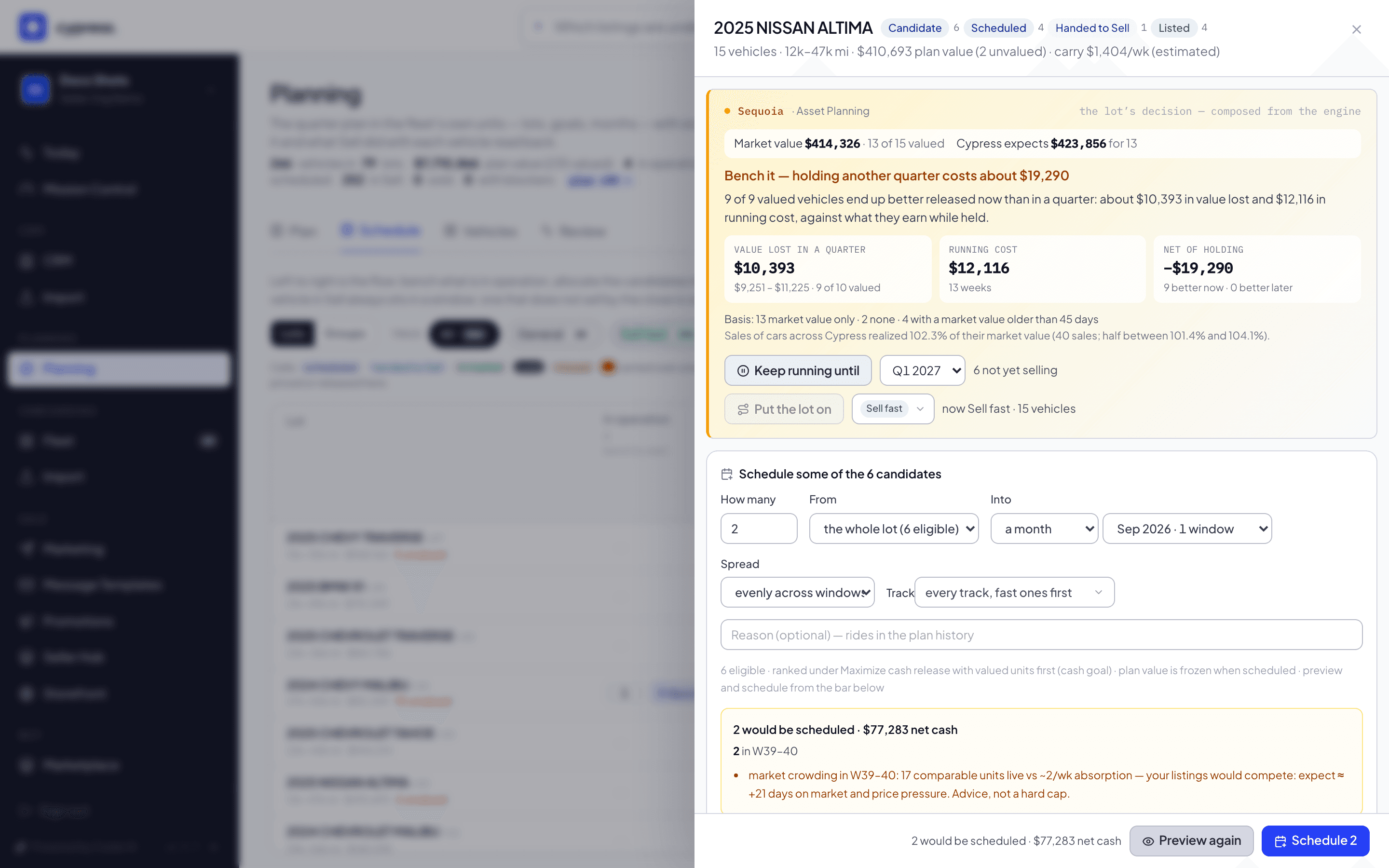
Click Preview — nothing writes yet. The preview shows exactly which vehicles, into which window, the net cash, and any warnings such as market crowding.
You should see each vehicle named with its window, the net cash, and any warning. Nothing is scheduled until the next step.
Click Schedule N to commit it in one step, freezing each vehicle's plan value on its membership.
You should see the vehicles in their window on the grid, each with its frozen plan value.
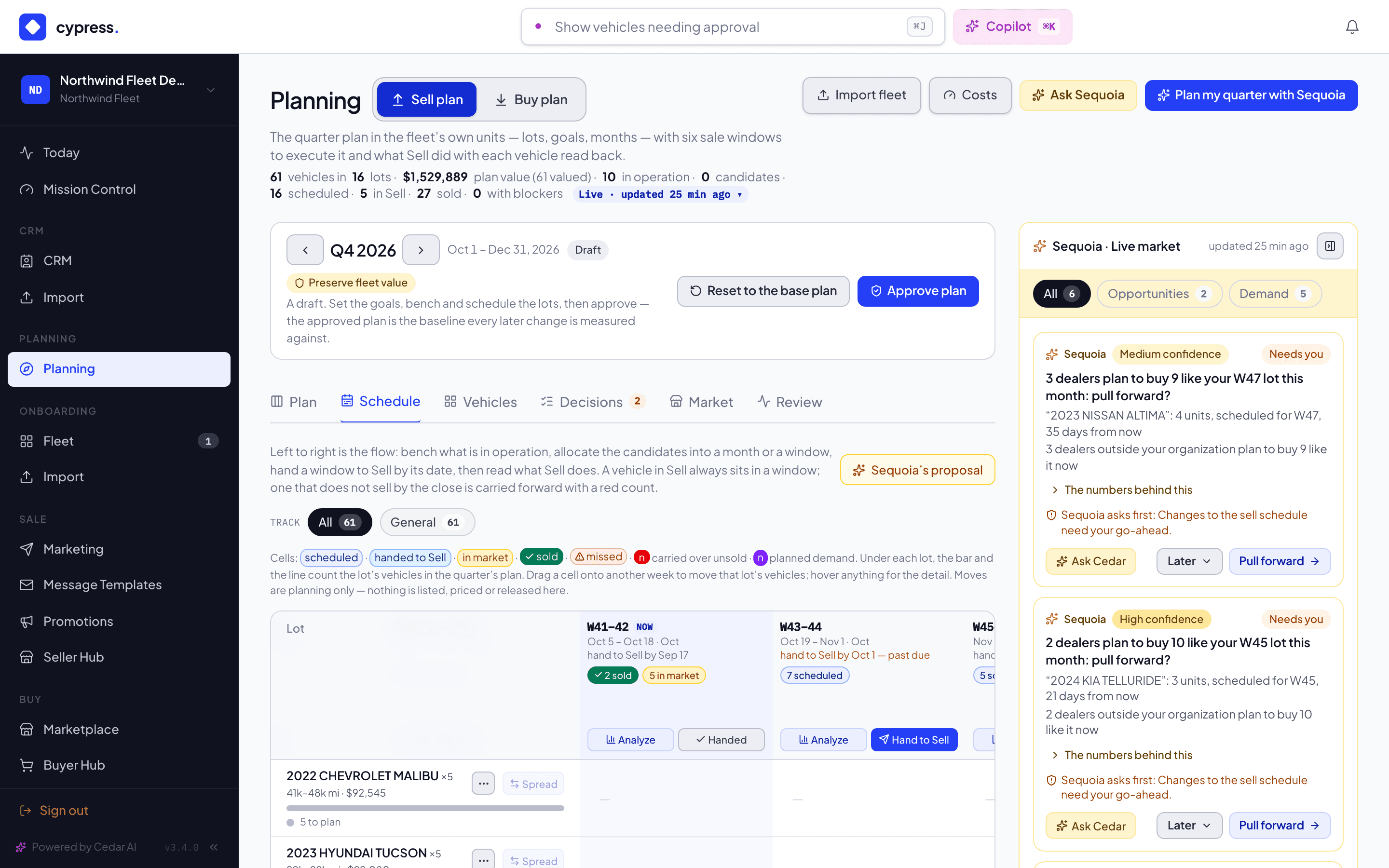
Instead of the lot panel, you can also drag a cell on the grid onto another week to move that lot's vehicles between windows, or ask for Sequoia's proposal (top right) to lay the whole quarter's targets into the windows at once — apply all of it or a selection.
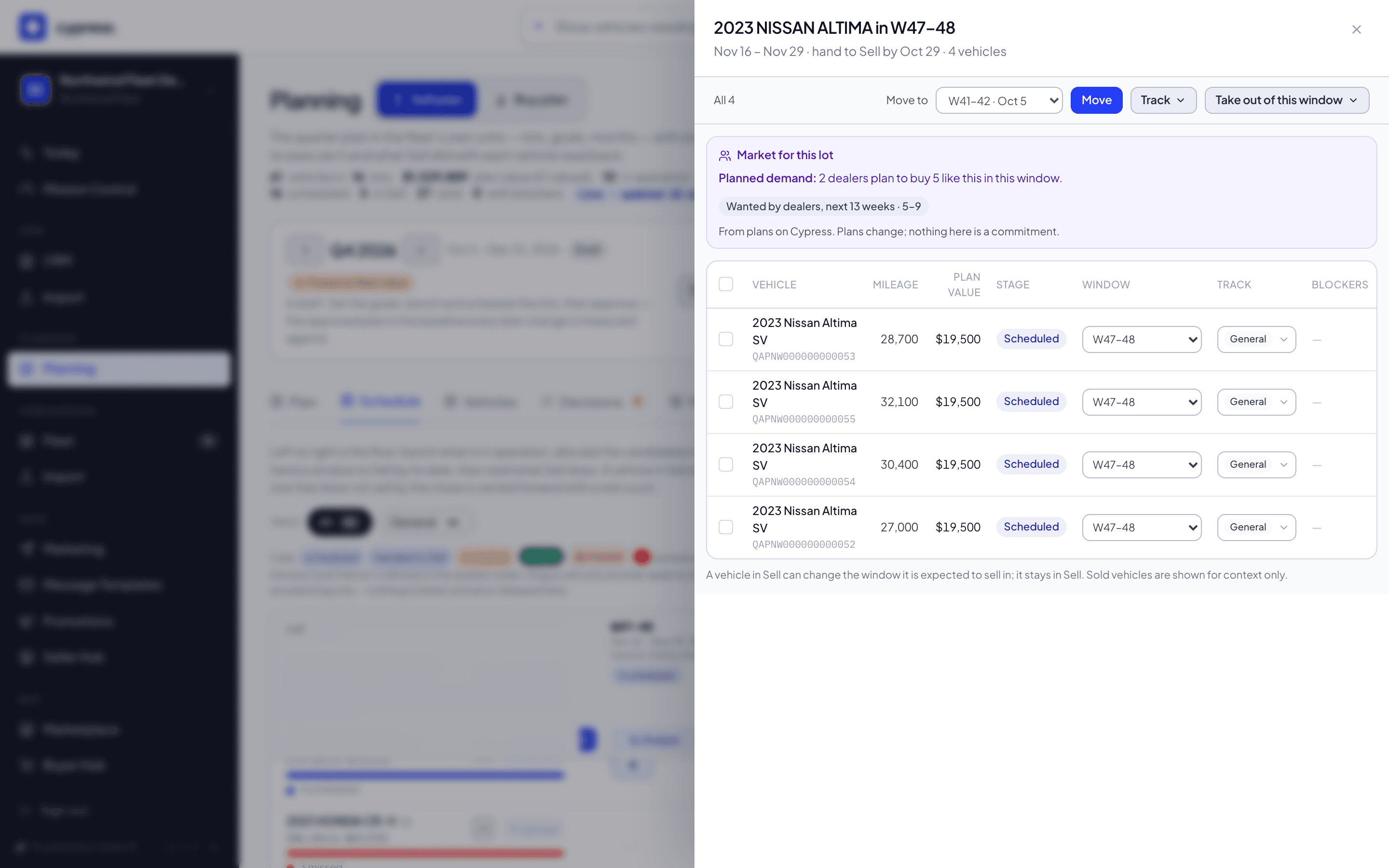
To change a window's vehicles one by one or together, click its cell. The panel shows the market for the lot, then lets you Move to another window, change the Track, or use Take out of this window (back to the bench, park until a quarter, or back to operation). A move or a track change applies at once and can be undone from the message that appears; taking vehicles out asks first.
What happens next
Under each lot's name, a thin bar and one line count the lot's vehicles in the quarter's plan ("3 sold · 2 in market · 1 handed · 1 scheduled · 2 to plan"), including the windows off screen, each state in its color from the legend above the grid (sold is solid green with a check). A lot whose vehicles are all sold shows a light green All sold badge and moves below the active lots. A violet dot on a cell, and a violet block in its tooltip, mean dealers plan to buy that lot in that window. The row's menu and Spread are always there; when one doesn't apply it is off and tells you why.
Each scheduled vehicle shows the window it's expected to sell in and its frozen plan value. Every window header carries a hand to Sell by date — when Sell needs the vehicles to prepare them (photos, condition, listing) before the window opens; a date already behind you reads past due. A vehicle that doesn't sell by its window's close is carried into the next window, counted and flagged with a red badge.
If something goes wrong
- "Someone else changed the plan at the same moment — try again." — a concurrent write landed between your preview and your commit (or your bench and someone else's); repeat the action.
- "No open sale window — the schedule only covers the next six windows." — every open window has already closed for scheduling purposes; wait for the horizon to roll or hand off an existing window first.
- "Q3 2026 is closed. Switch to Q4 2026 to move vehicles." — a quarter whose last day has passed is history. Its cells cannot be dragged and its windows take no move, take-out, track change or hand-off: Sequoia's proposal, Spread, Bench and the panel's buttons are shown but off, each saying why. Step to the quarter in progress, or select Go to Q4 2026 in the quarter bar. Cypress refuses the change if it is sent anyway.
- A warning naming market crowding ("more of one class in a window than the market clears in two weeks") or cash below the reserve is advice, not a wall — the preview still lets you schedule; read it before you do.
Ask Cedar
- Lots behind their month
- Against the targets