Clear blockers
Add, edit, resolve or remove a blocker on a vehicle — blockers gate the sale, never the planning.
TL;DRAI summary
This chapter shows you how to manage blockers on your vehicles. Blockers stop a vehicle from being sold until a specific issue is resolved, helping you keep track of what needs to happen next for each vehicle.
For: Sellers (fleet managers, org admins) · Cypress Managers acting for a delegating org
Before you start
- Your organization has the Planning product — see Switch Planning on for a customer.
- A blocker says this vehicle cannot be sold until X happens — it never stops analyzing, ranking or scheduling a vehicle. A payoff or arrivals blocker schedules the vehicle as waiting; a disputed evidence blocker takes it out of every ranking and proposal entirely.
- Know the vehicle you need to add, resolve or remove a blocker on — the Blockers card lives on its panel's Plan tab, open by default when you reach it through Planning.
Steps
From Planning → Vehicles, click a vehicle to open its panel, and find the Blockers card. Every open blocker is a row: kind, what gates the sale, and since when.
You should see the Blockers card, which says None open when the vehicle has no blocker, with an Add blocker button.
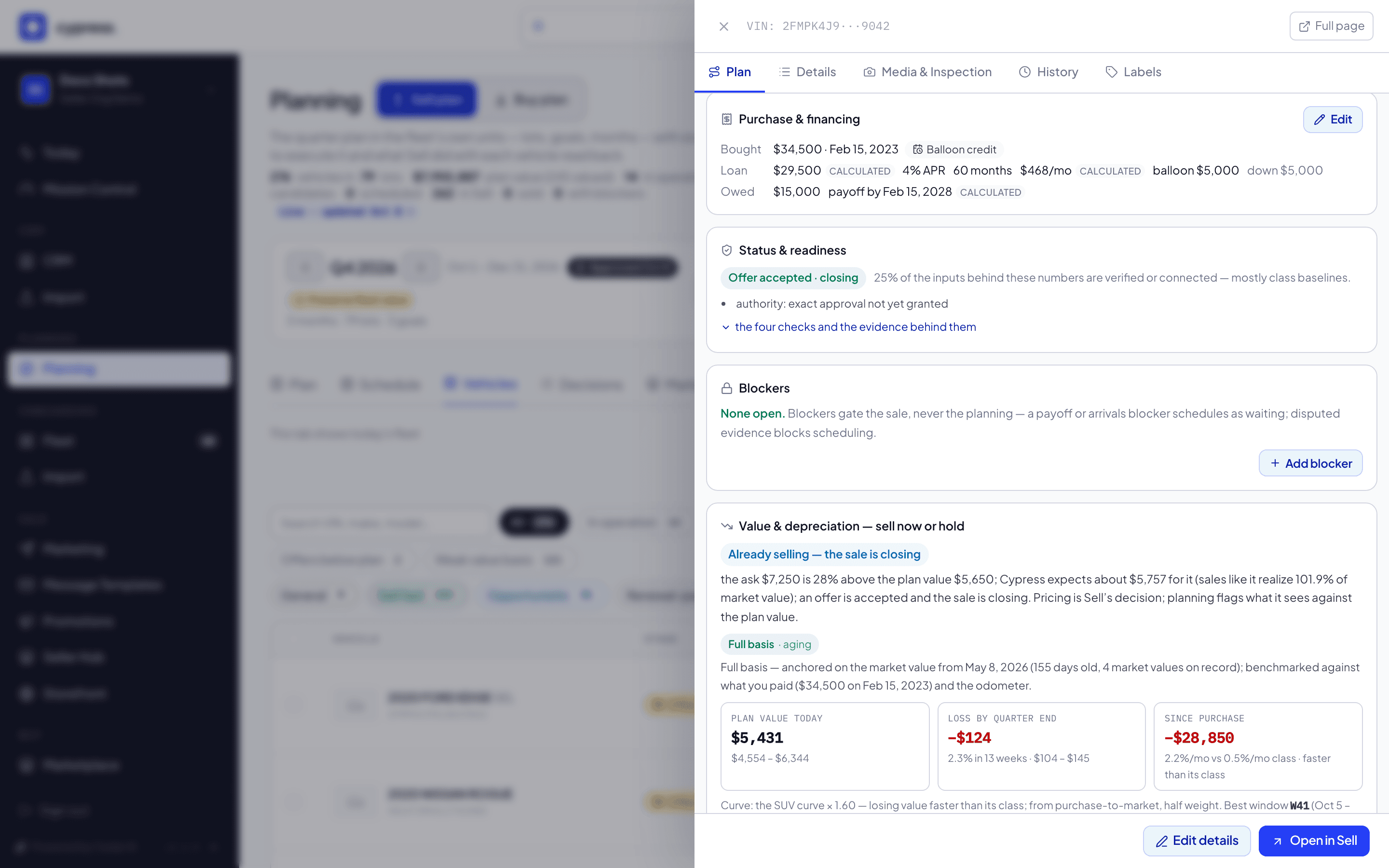
To add one, click Add blocker.
You should see a small form with the five kinds of blocker.
Pick the kind — payoff, evidence, arrivals, authority or other — and describe what gates the sale.
You should see the kind you picked and the note you typed. Nothing is saved yet.
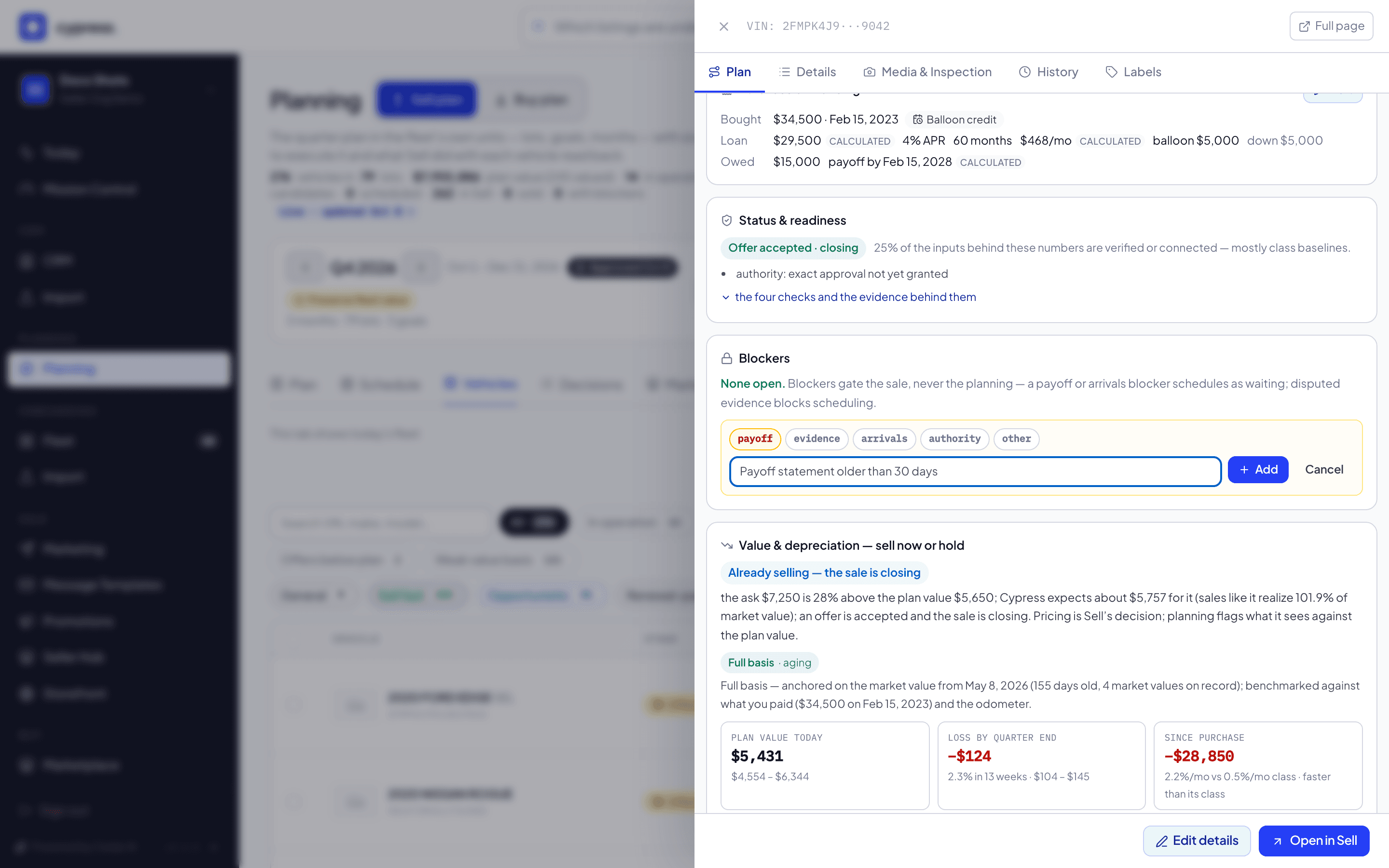
Click Add.
You should see the blocker as a new row in the card: its kind, what gates the sale, and since when. The vehicle's readiness line says what waits.
For an existing blocker, three icon actions sit on its row: the pencil edits the kind or the note, the check mark resolves it — naming the evidence that cleared it (a document, an order id, an inspection) — and the trash can removes it with a reason (added to the wrong vehicle, duplicated). Each confirms inline before it writes.
What happens next
Adding, editing, resolving or removing a blocker is recorded with its reason and re-evaluates the vehicle on the spot — resolve or remove the last open blocker and the vehicle's readiness returns from waiting to scheduled immediately, and the plan's history says why. A resolved blocker is history: it can be neither edited nor removed again.
If something goes wrong
- "Someone else changed the plan at the same moment — try again." — a concurrent write landed between your load and your save; retry the action.
- The Add button stays disabled until the note is at least 3 characters; Resolve needs at least 5 characters naming the evidence.
- A blocker you try to edit or remove after it's already resolved is refused — resolution is a one-way event; add a new blocker instead if the sale is gated again.
Ask Cedar
- Open blockers
- Hand to Sell this week
Related
Hand a window to Sell
The one hand-off from planning to the remarketing platform: preview the exact set, then confirm — nothing is listed, priced or disclosed here.
Review how the plan held
Read the quarter's goals against what happened, every window's scorecard, and what a partial sell-through would mean.