Build the quarter plan
Set the mandate, the goals, and the constraints for a quarter — then approve the baseline everything else is measured against.
TL;DRAI summary
This chapter explains how to set up your quarterly plan in Cypress. You’ll pick a main strategy for selling vehicles, add specific goals like how many units to sell or how much cash to generate, and set any limits on your fleet operations.
For: Sellers (fleet managers, org admins) · Cypress Managers acting for a delegating org
Before you start
- Your organization has the Planning product — it's switched on per organization; see Switch Planning on for a customer if you don't see the Planning nav entry yet.
- There is no empty planning page to fill in first: the moment your fleet has a vehicle, the base plan already exists — preserve fleet value as the mandate, six two-week sale windows, every vehicle in operation. This guide is for changing that mandate and setting real goals, not for starting from nothing.
- Know roughly what the quarter needs to deliver — units, cash by a date, a fleet-shape ceiling, or a renewal pace — before you open the wizard; you can always add or edit goals afterward from the Plan tab.
Steps
Open Planning and click Plan my quarter with Sequoia, the last button in the top-right of the page. It opens the Mandate & goals window.
You should see the window on its first step, with the four mandates and Preserve fleet value selected.
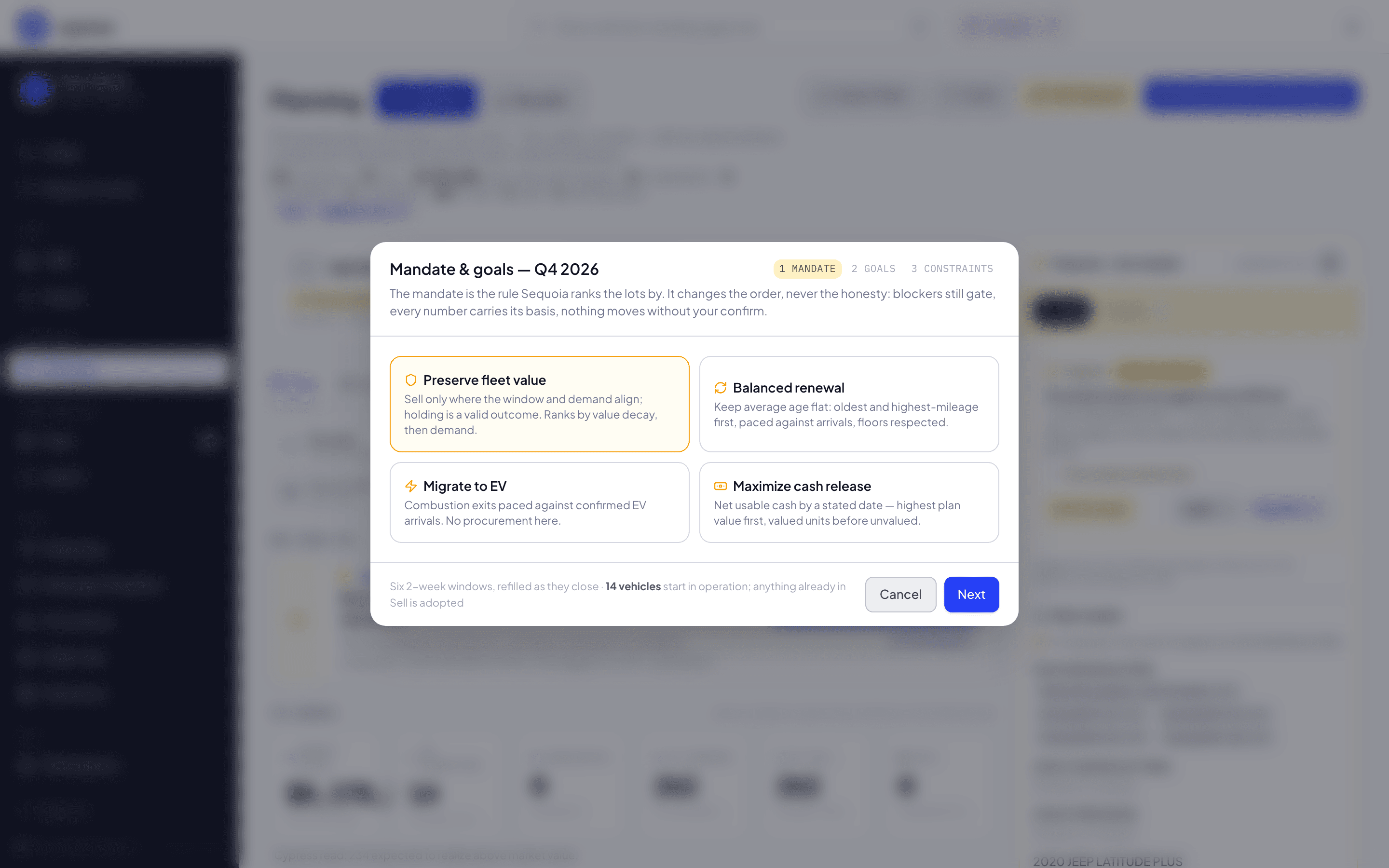
Pick the mandate: Preserve fleet value, Balanced renewal, Migrate to EV, or Maximize cash release. It's a bias, not a label — it decides the order Sequoia ranks a lot's vehicles in; it never skips a blocker or invents a number. Click Next.
You should see the card you picked marked as chosen, then the Goals step.
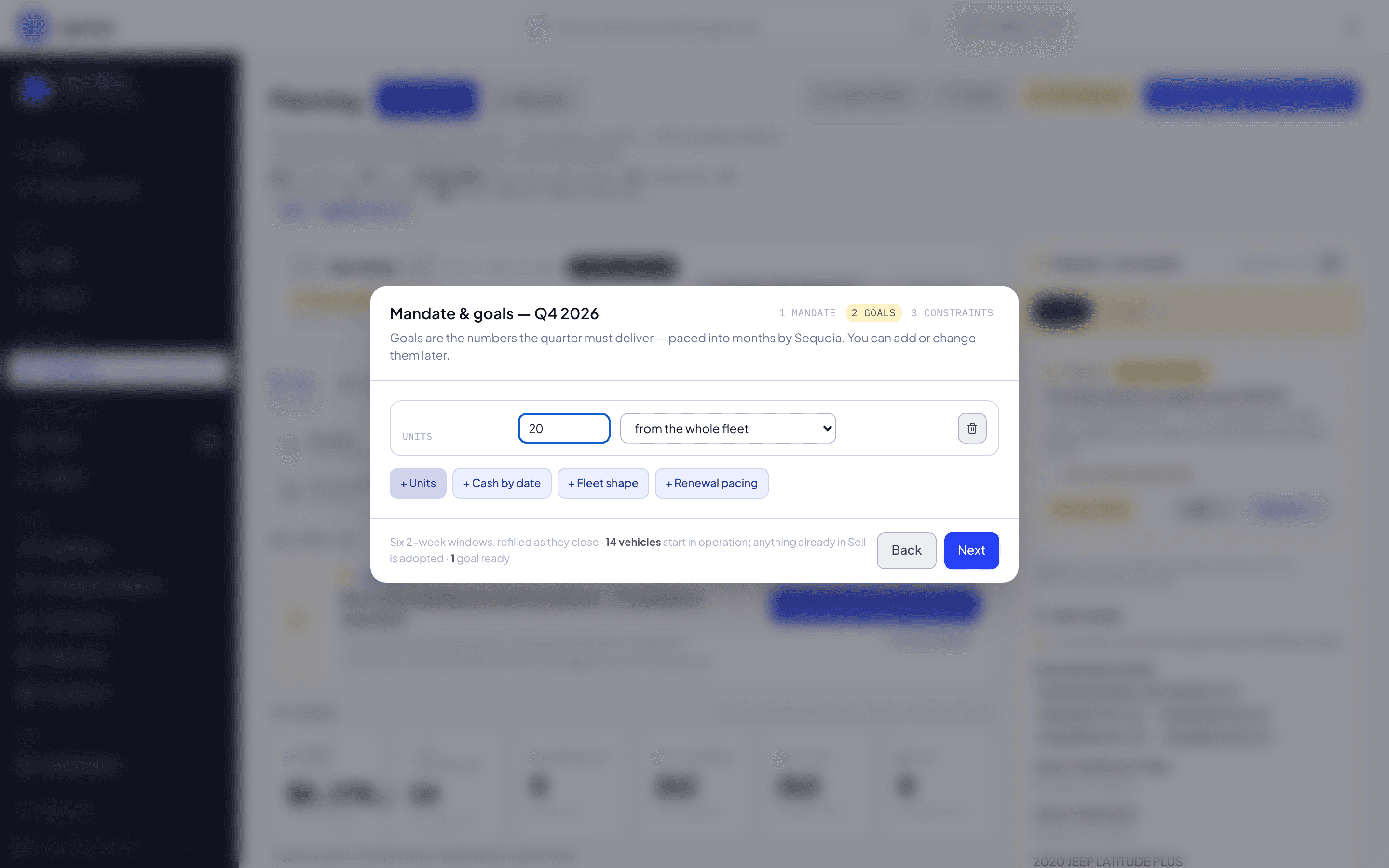
On the Goals step, click + Units, + Cash by date, + Fleet shape or + Renewal pacing to draft a goal — pick a lot for a units goal, or leave it on "the whole fleet". You can add several, skip this step entirely, or set goals later from the Plan tab.
You should see a card for each goal you add, with its number boxes: for example a Units goal for 20 vehicles from the whole fleet.
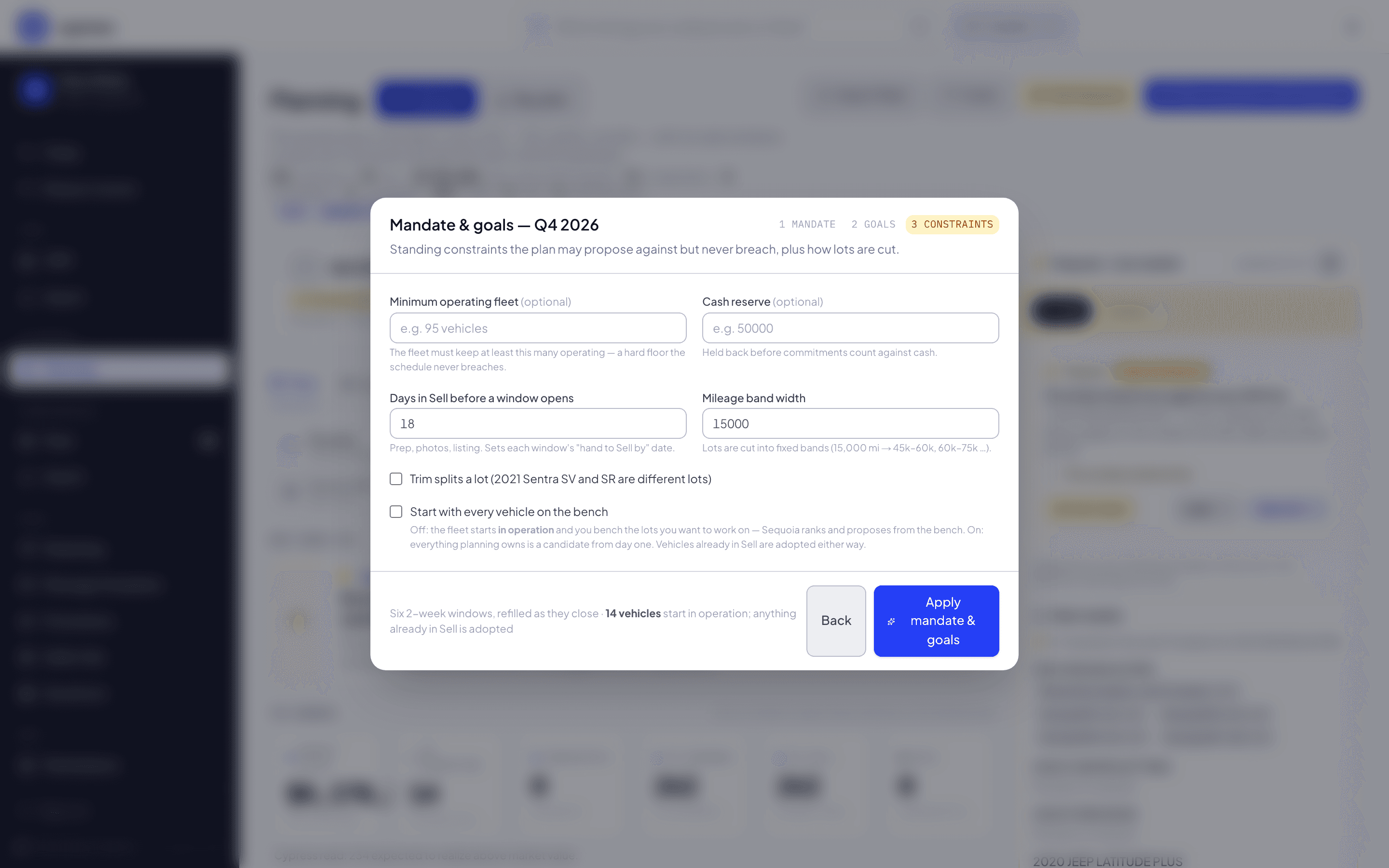
On the Constraints step, set the minimum operating fleet, the cash reserve, how many days in Sell before a window opens, and the mileage band width lots are cut into — all optional, all defaults are sane. Click Apply mandate & goals.
You should see the window close, the mandate you picked in the quarter bar, and your goals on the Plan tab.
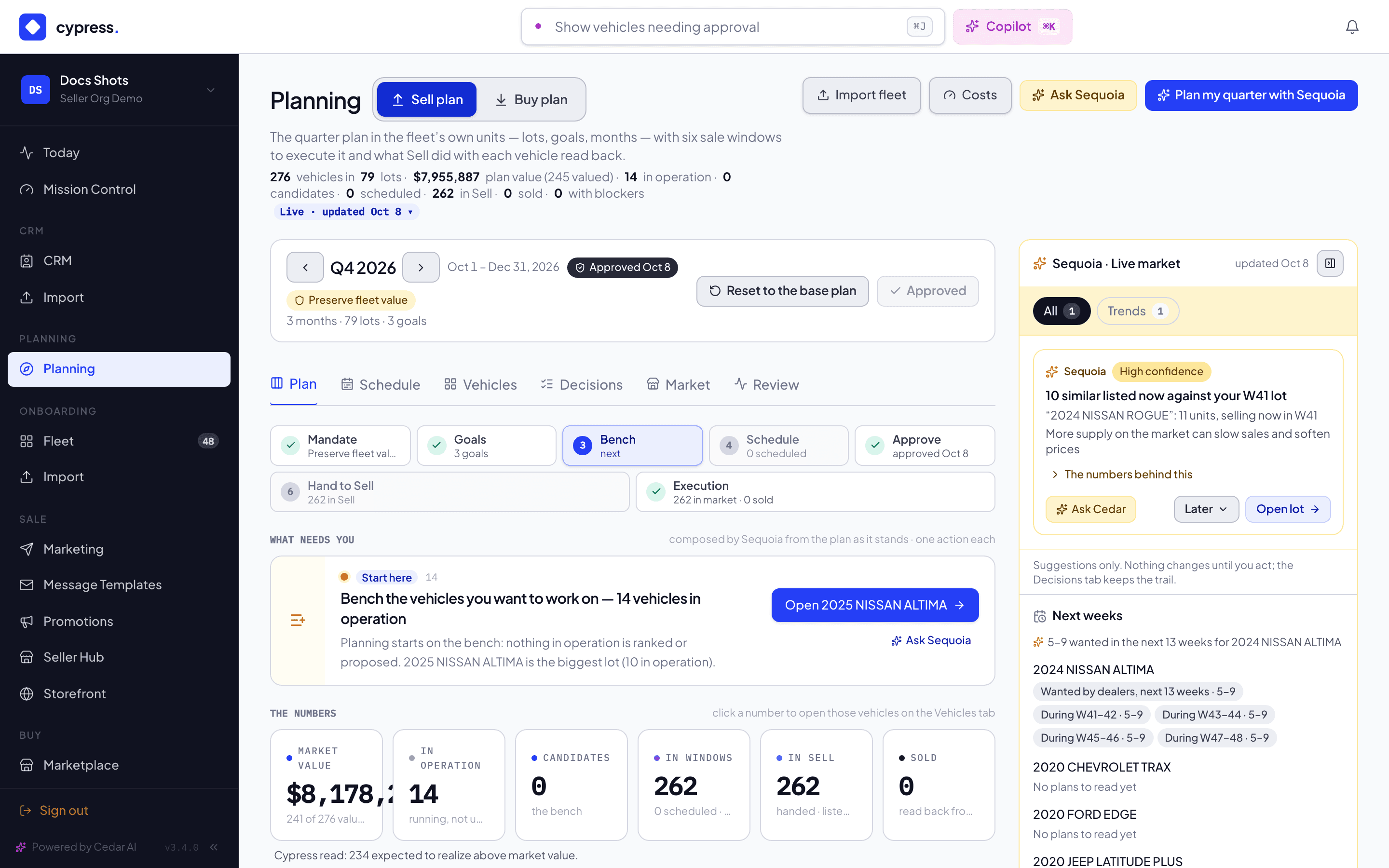
Back on the Plan tab, the quarter bar above the tabs shows the quarter, its status (Draft, or Approved with its date and the changes since, such as Approved Oct 3 · 4 changes since), and the mandate. What needs you composes the next single action — usually Bench the vehicles you want to work on. On a Closed quarter (one whose last day has passed; the quarter bar says Closed and offers Go to Q4 2026) it is not shown: Sequoia's live items belong to today's market, so one line stands in its place, This quarter is closed: see Review for planned vs actual, with an Open Review button beside it. The goals and tracks on that tab are shown but off, with the reason, because a closed quarter's plan no longer changes. Once the goals and the schedule look right, click Approve plan in the quarter bar (or Approve amendments once a plan is already the baseline). Approval binds to exactly what's on screen and has no market effect by itself — it's the schedule and the hand-off that do.
What happens next
Setting the mandate and goals, benching, scheduling and approving each change the live plan at once and are recorded with their reason (click the Live · updated … chip in the page header for the history). Approving sets the plan's baseline; a later edit shows as an amendment against it until you approve again. Goals are paced into monthly targets automatically — edit a goal from its card to type the pacing by hand instead.
If something goes wrong
- "Someone else changed the plan at the same moment — try again." — a second person (or Cedar) changed the plan between your load and your save; reload and repeat the action.
- "The plan changed since this screen loaded — refreshed. Approve again when it looks right." — approval is refused when the goals or the scheduled set on screen don't match what's stored; the page refreshes itself with the current state.
- The Apply mandate & goals button stays disabled until every field you typed is valid — a units goal needs at least 1 unit, a cash goal needs a positive amount and a real date.
Ask Cedar
- Against the targets
- Lots behind their month