Roles, access & navigation
What each role can see and do, and where everything lives in the app.
TL;DRAI summary
This chapter explains the different roles in Cypress, what each role can do, and how your access changes what you see in the navigation. It also covers how Cypress Managers can act on behalf of your organization and how your organization's settings control what you can do.
For: Everyone
Roles say who you are; delegation says what Cypress may do for your organization on top. The three switches — lifecycle on by default, sell and buy opt-in — are the subject of the next chapter.
Never delegable, under any switch: accepting an offer below your floor price — that decision is always your own Fleet Manager’s.
Everything done under delegation is logged with a Cypress · on behalf badge and notifies your Fleet Managers. Manage the switches in Settings → Organization → Permissions — the full story is in Delegation — Cypress on your behalf.
Cypress shows a different app to different people — same chassis, different doors. This chapter is the map: the roles, what each can do, and where everything sits in the sidebar.
The roles
| Role | Lives in | What it owns |
|---|---|---|
| Fleet Manager | a business org | The fleet, the floor prices, and the final consent on every below-floor decision |
| Admin | a business org | Everything the FM can, plus settings, team, document templates, and integrations |
| Billing admin | a business org | The Billing page and payment configuration |
| AI agent | a business org, added by an app the org connected | The work its app was approved for, under the rules for agents: never a person's decisions (Apps, agents and MCP) |
| Cypress Manager | the platform | Pricing, launches, offer screening, closings, governance — every Admin → page |
| Individual | their own account | A private person: buys and sells as a dealer does, on the same pages, within the account rules' caps (by default 10 cars listed and 10 valuations in total, a team of 3); storefront subscriptions too |
Two subtleties worth knowing:
- "Cypress Manager" is a seat, not just a role name — platform powers come from being staff of the platform org. A dealership's own admin has full power over their org and none over the platform.
- An org can hold the seller profile, the buyer profile, or both — the sidebar assembles itself accordingly. A buy-side-only org never sees Fleet; a sell-side-only org still gets the marketplace.
The sidebar follows the lifecycle
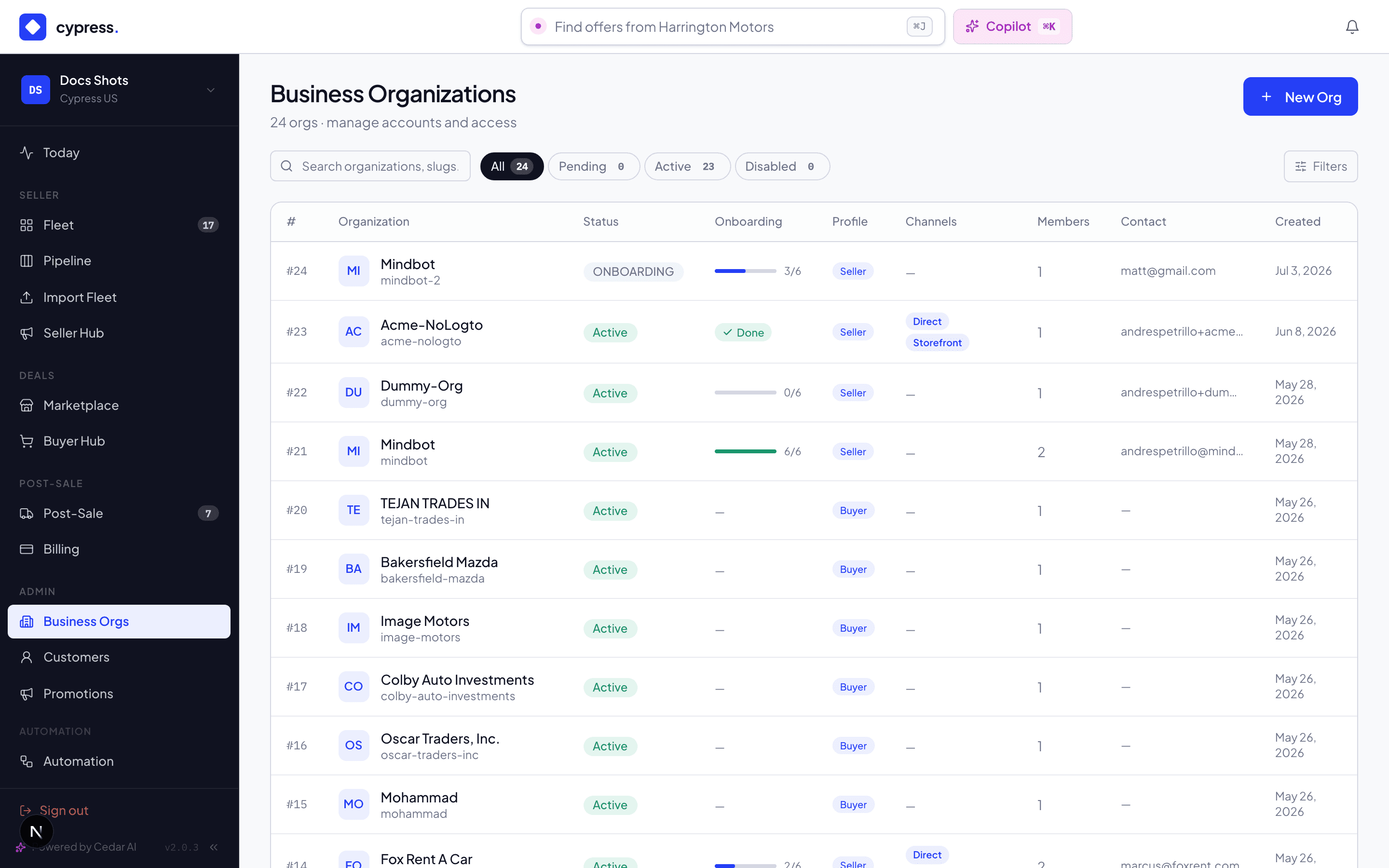
The sidebar is grouped by where work is in its life, not by which team owns the screen — so the order down the rail is the order a vehicle and a relationship actually travel.
| Group | Pages |
|---|---|
| — | Today · Mission Control |
| CRM | Contacts · Businesses · Deals |
| Planning | Planning |
| Onboarding | Fleet · Import |
| Sale | Marketing · Promotions · Seller Hub · Storefront |
| Buy | Marketplace · Buyer Hub · Subscriptions |
| Post-Sale | Post-Sale · Billing |
| Analytics | Performance · Engagement · Platform |
| Organization | Integrations · Settings |
| Admin (Cypress only) | Business Orgs · Customers · Automation · Document Templates · Checklist |
| BackOffice (Cypress only) | Update Requests · Archived Vehicles · Integrations · Audit · Settings |
Two things the grouping is saying out loud:
- Every seller org gets the relationship tools. CRM, Marketing and Promotions are not platform-only features that sellers glimpse — a seller runs their own book, their own campaigns and their own curated lists, scoped to themselves.
- Mission Control sits above the groups because it draws from all of them. It is the answer to "what needs a person" across every queue at once.
Planning sits between CRM and Onboarding because it is the step before a vehicle moves: it decides what enters Sell and when, and what a dealer will buy. It is one entry for both plans, with a Sell and Buy switch at the top of its page, and it shows a lock until your organization has at least one of the two switched on (see Switch Planning on for a customer).
What you see is assembled from what you are: an individual has a dealer's menu plus Subscriptions; a buy-side-only org has no Fleet; the Storefront entry appears only with the grant. Platform analytics and the two Cypress groups are staff-only.
Badges do the prioritizing: Fleet carries the needs-action count and Post-Sale carries Your Turn — the number of closing steps waiting on you specifically.
Acting for an organisation
A Cypress Manager can pick up a lens and work as one seller org. It is not a preview: while it is on, the fleet, the CRM book, the promotions, the campaigns and Mission Control are all that organisation's, and anything you create belongs to them — a promotion made while acting for a seller is theirs, and visible to them.
The lens narrows what you see; what you may do comes from the organisation itself. In Settings → Organization → Permissions each org holds three delegation switches: Cypress operates our account — the lifecycle (onboarding, pricing, listing, due diligence, countering offers), on by default as the platform's managed service and switchable off; decide review-range offers (accept or reject between floor and target — never below the floor, which stays with the org's own Fleet Manager unconditionally), off by default; and make offers as us (the buy side, which also requires the lens), off by default. An org that switched everything off is one a Cypress Manager can see but not decide for. Either way you remain yourself in the record: everything done under delegation is audited with a Cypress · on behalf badge, and the org's Fleet Managers are notified of each decision. Where a choice genuinely spans books — naming the owner of a new promotion or campaign — Cypress may still choose another, and is told when that choice means the new record will not appear in the view they are currently in.
Switching the lens reloads the screen, because half a page from one scope beside half from another is worse than either.
Your organization — onboarding, team & integrations
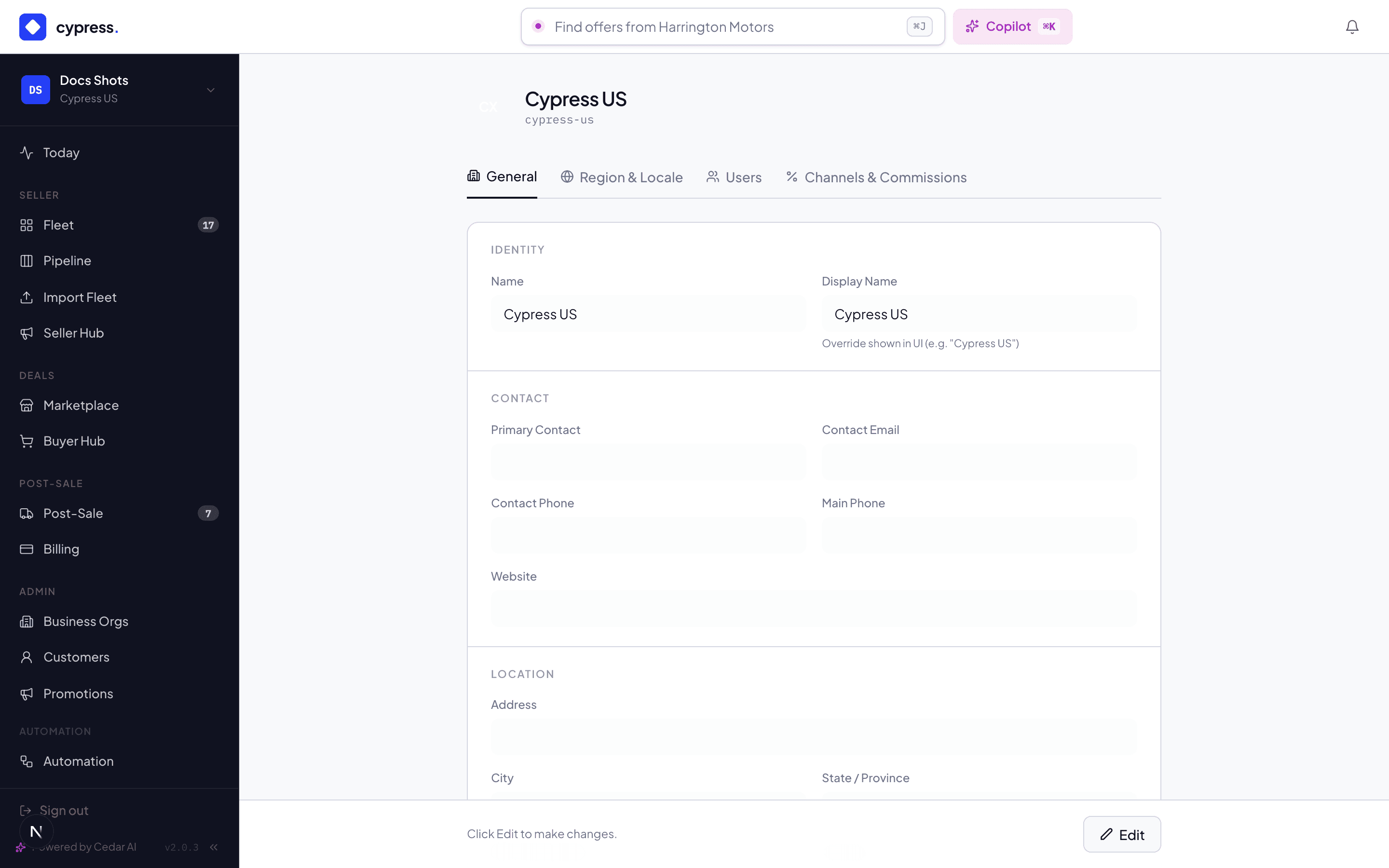
An org has a life of its own alongside its vehicles:
- Onboarding — a new org starts provisional: it can stage inventory, set floors, and get valuations, but cannot list vehicles or make offers until Cypress completes its checks (business documents, dealer credentials, billing setup). The blocks say so explicitly — "finish your organization onboarding" is the platform telling you which step is open, not a bug.
- Today — the landing page is your org's pulse: a 48-hour activity feed (with how much of it was automated) and the metric tiles — fleet value, vehicles sold, average days to sell, offers per listing.
- Team — org admins invite users and set their roles in Settings → Team; every seat acts as itself in the audit trail. Agents appear there too, added by the apps your organization connected.
- Settings is the library — locations, bank accounts, lenders, title addresses, transporters, labels, pricing rules, document templates: the records that Deal Setup and the paperwork copy from. Keep the library right and every deal starts right. A location can also hold the PO number your company issued to Cypress for it, if your accounts payable team works with one.
- Integrations — the org's machine door: mint API keys (shown once), register webhook endpoints, and read the full activity log of what your systems pushed and received. The developer docs cover the API itself; the page is where an admin manages the credentials. See API keys and endpoints below.
- Connected apps — Settings → Connected apps lists the apps your organization approved through Connect Cypress, the agents they added, and the MCP servers' switches; an admin disconnects an app there. See Apps, agents and MCP.
API keys and endpoints
An admin opens Organization → Integrations. The page has three parts: API keys, Notification endpoints and the log of what your systems pushed and received.
- New key asks for a name and the scopes the key may use. A key made without picking any gets Vehicles, Listings and Webhooks. The key is shown once: copy it before you click Done. The pencil on a key changes its scopes without replacing it, and the bin revokes it on the spot.
- The planning scopes read by side. Sell planning (read) and Sell planning (read and write) open the Sell planning API, and are offered only while your organization has Planning. Buy planning (read) and Buy planning (read and write) open the Buy planning API, and are offered only while your organization has Buy planning. Without a product the boxes are greyed out and the page says Sell planning is off for this organization. or Buy planning is off for this organization. The two products are separate switches, so either can be on without the other. The Sell scopes were called "Planning (read)" and "Planning (read and write)" before the Buy side had an API; the keys that hold them did not change.
- Add endpoint registers an address your system listens on, with an
event filter that picks which events it receives. The plan's events
(
PLAN.*) are offered while Planning is on, and the Buy plan's (BUY.*) while Buy planning is on, both with Cypress names only. An endpoint that ticks no event gets every event except those two families, which are opt-in. - For your developers: Planning API (Sell planning) and Planning API (Buy planning) say what each scope opens, and Webhooks lists every event. Cypress switches Planning and Buy planning on for an organization; see Switch Planning on for a customer.
Notifications & finding out what happened
Every meaningful event lands in three places, by design:
- In-app + email notifications — offers, approvals, deal steps, billing, each with a link that takes you to the exact screen. The link checks that you may see the record first; one to another organization's record opens This link isn't available to you (see Links into Cypress).
- The vehicle's Updates feed — the audience-aware timeline (price changes, launches, deal milestones) on every vehicle panel.
- The Activity tab — the full audit trail per vehicle and per closing.
Who-sees-what is scoped: sellers see their vehicles, buyers see deals they're in, CMs see everything. The audit chapter goes deeper.
Worked example
Maria (FM) and Alex (CM) open the same Transit. Maria's panel shows her floor, the Sequoia delta, offers awaiting her consent, and Acme-scoped history. Alex's shows all of that plus the listing-price controls, the launch button, and every-org context — and when he changes the ask, Maria's Updates feed says so within seconds. Same vehicle, two seats, no secrets between them except the ones by design: buyers see neither of their numbers.
Under the hood
Access is enforced server-side per route and per action — the sidebar hides what you can't do, but the API is the gate. Sessions carry org scope so CMs can act "as" a child org where the product allows it, always audited as themselves.
Account rules: what each kind of account may do
For: Cypress Managers
Every customer account is a business (a dealer or fleet) or an individual (a private person). Both use the same pages; the account rules say which features are on and how much each may do.
- Admin › Settings › Account rules sets them for every individual and every business: the team, connecting apps, API keys, pricing rules, marketing campaigns, valuations and listings (on or off), and the caps (cars listed and valuations in total, people in the account, campaign emails a month, Cedar's answers a day in Grove). Each starts at Cypress's default; changes reach everyone within a minute.
- Features and limits, on an organization's overview (Admin › Organizations, or Customers for an individual), changes them for that one organization, and shows what it used of each cap. Follow its kind drops its overrides.
By default a business has every feature and no caps. An individual lists 10 cars and runs 10 valuations in total, has a team of 3 people (owner included), and sends campaigns only once Cypress switches them on (then 500 emails a month). Planning, Buy planning, Automations, the channels, ACH and bank transfer keep the switches they always had.
What the rules refuse is said where it happens, in words; a campaign past its monthly cap pauses until a person resumes
it. The API answers ACCOUNT_RULES and reports the rules on GET /api/v1/organization (account).
Becoming a dealer
An individual asks in Settings › Become a dealer: the business's legal name, EIN and address. It then finishes the business checklist: the W-9 and the dealer license, uploaded in Settings › Documents, and a billing method in Billing. Its email must be confirmed first.
Cypress staff hear it, and the customer shows under Dealer requests in Admin › Customers. On its page, the Dealer request card shows the business and the checklist: review the documents and tick the items as for any business (Review documents, Open checklist), then Approve as a dealer (it stays off until the checklist is done) or Decline, with a reason the person reads.
Approved, the same account becomes the business: named as it, no longer an individual, a business record in the CRM,
the business account rules (no caps by default). Its cars, offers, sales and Grove history stay, and the person is
emailed. Declined, it stays an individual, sees why in Settings, and may ask again. The API and MCP do the same
(request_dealer_account, decide_dealer_request), and its systems hear ORGANIZATION.UPDATED (change
DEALER_REQUEST).
Onboarding your organization
From registration to full access: limited access, the two documents, billing setup, and the optional ACH mandate.
Delegation — Cypress on your behalf
The three switches that decide what your Cypress team may do for you, what can never be delegated, and how every on-behalf action is recorded.