Manage members and roles
Invite teammates, change their role, and remove access — as an org admin or on an organization's behalf.
TL;DRAI summary
This chapter explains how to add new team members to your organization and manage their roles, like Fleet Manager or Billing Admin. You'll learn who can invite members and how to handle common issues, ensuring your team has the right access.
For: Org admins · Cypress Managers
Before you start
- Org admins manage their own team from Settings → Team; only the Admin role sees the invite and management controls — a Fleet Manager or Billing Admin sees the list but not the controls.
- Cypress Managers do the same for any organization from Admin → Business Orgs, without needing the acting-for lens — the Members tab is already scoped by the organization in the URL.
- Only Cypress can grant the Admin role; an org admin inviting from Settings can only offer Fleet Manager or Billing Admin.
Steps
As a Cypress Manager, open Admin → Business Orgs, click into the organization, and open the Members tab.
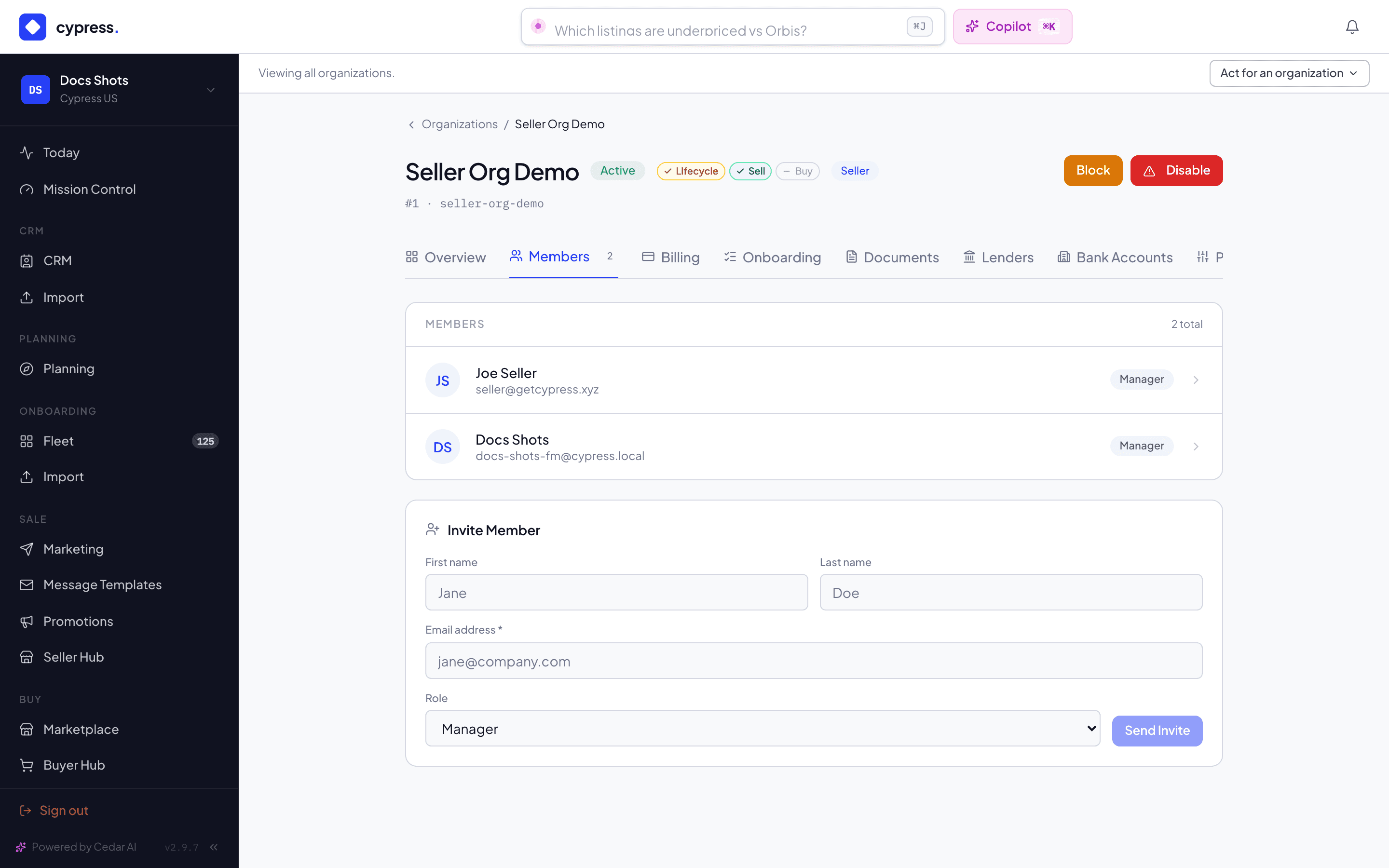
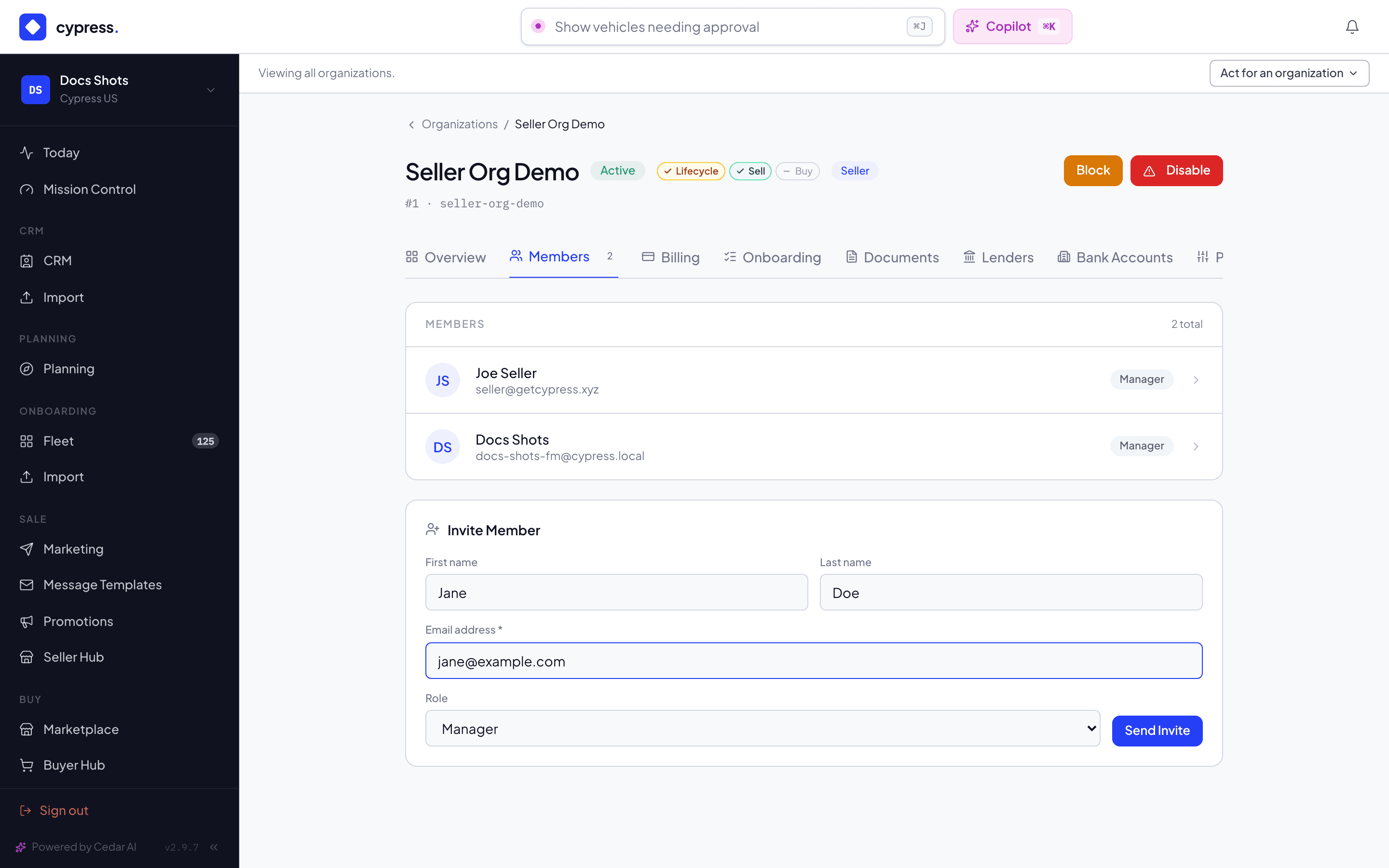
Fill in First name, Last name and Email address, choose a Role — Admin, Manager (the role Settings → Team calls Fleet Manager) or Billing Admin — and click Send Invite. The invitee gets an email to set their password and sign in.
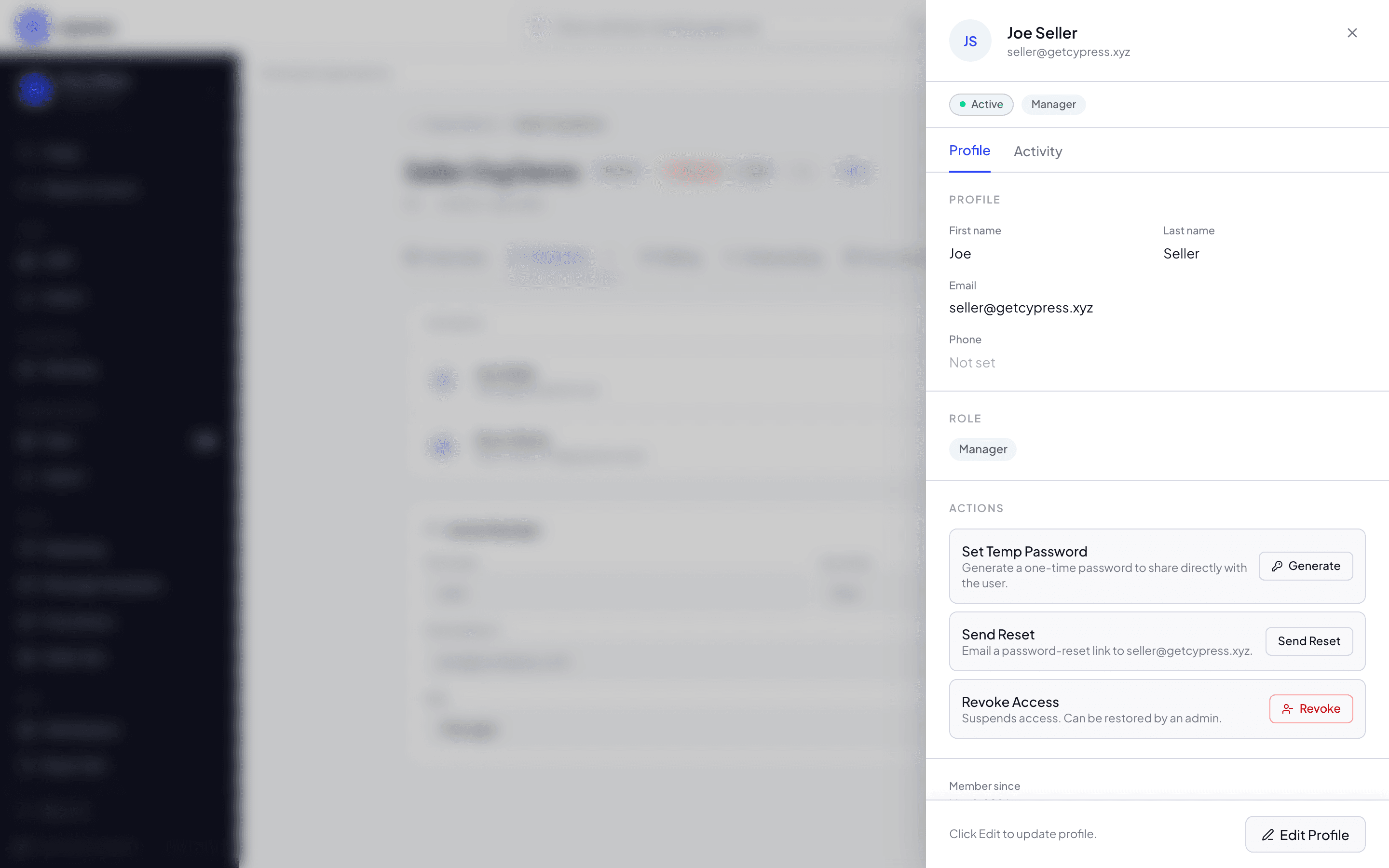
Click a member's row to open their detail panel, where you can change their role or revoke their access.
Org admins follow the same shape from their own side: Settings → Team → Invite member opens a drawer with the same fields (Email is required; Role offers Fleet Manager or Billing Admin only — "Only Cypress can grant the Admin role.") and a member's row there offers Remove, with a confirm prompt: "Remove [email] from your organization? They will lose access immediately."
What happens next
The invitee receives an email with a link to set their password and sign in; until then their membership shows as Invited. Every seat acts as itself in the audit trail regardless of who invited them. A member whose access is revoked loses it at once: their next page says Your access was removed, naming the organization (if they belong to another organization too, they simply open that one).
Agents on the team
Agents show in the same list, with a robot avatar, the AI agent role and Connected agent where a person shows an email. They are not invited and have no password: an app your organization connected added them, and they follow that app. Their role cannot be changed and they cannot be removed here (the app answers "This is an agent user. Its access is managed under Connected apps"); disconnect the app in Settings → Connected apps instead (see Connect an app or an agent).
If something goes wrong
- "User is already a member of this organization" — the email is already on the roster; check the member list instead of re-inviting.
- "Only Cypress Managers can assign the Admin role" — an org admin tried to invite someone as Admin from the organization side; only Cypress can grant it.
- "Cannot remove yourself from an organization" / "Cannot change your own role" — self-service role and removal changes are blocked; ask another admin, or Cypress.
- "Cannot remove the last admin of an organization" — every organization needs at least one active Admin; a revoked admin does not count. Add a second one first.
- "Only org admins can invite new members" — a Fleet Manager or Billing Admin tried to invite from Settings → Team; the Invite button is hidden for them, so this only fires on a forged request.