Upload documents
Upload your W-9 and one or more dealer licenses — plus any other document Cypress requests — each its own reviewable card, yourself or on an organization's behalf.
TL;DRAI summary
This chapter explains how to upload important documents like your W-9 and dealer licenses to Cypress. You need to upload these documents to get your organization fully set up, so vehicles can be assigned and sold.
For: Org admins · Cypress Managers
Before you start
- Files must be PDF, JPEG, PNG or WEBP, and no larger than 20 MB.
- Two things are required before an organization can be fully activated: an approved W-9 and at least one approved Dealer License; an Other Document is optional, for anything Cypress specifically requests. See Onboarding your organization.
- An org has one tax id, so the W-9 is a single card — replaced, never removed. Dealer License and Other Document are each a list of cards: a dealer licensed in more than one state holds a license card per state, and each card is reviewed, replaced and removed on its own.
- A Cypress Manager can upload on an organization's behalf directly from its admin page — no acting-for lens needed.
Steps
As an org admin, open Settings → Documents.
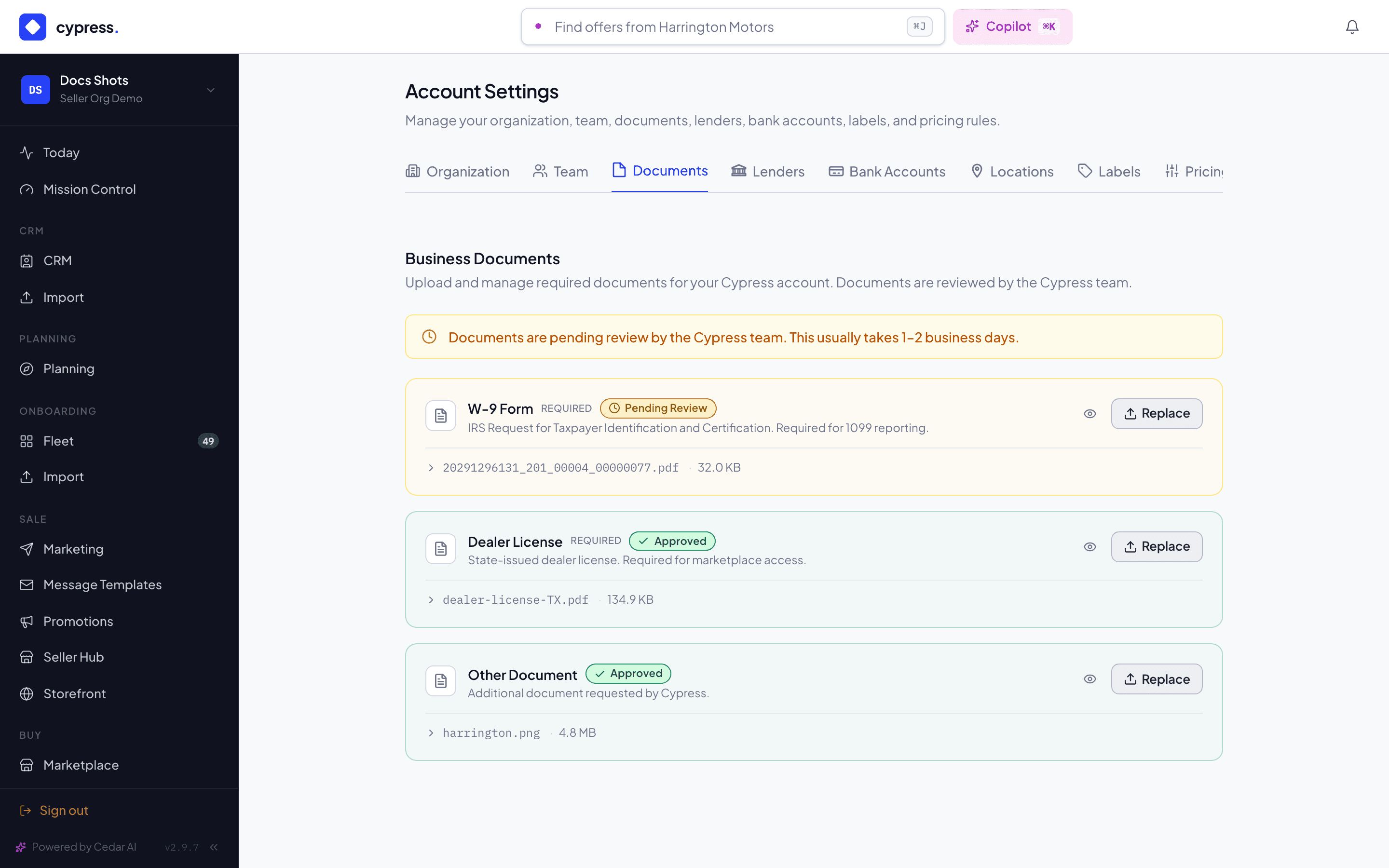
Click Upload on an empty card, or Replace on one that already holds a document, and choose the file. It uploads immediately — no separate save step — and the card shows Pending Review. Replacing a card supersedes only that card's previous document; every other card keeps its own status.
To add another dealer license or other document, click Add another license or Add another document below the list — it opens a new card, so an existing license's status is untouched. The org's only license is replace-only: Add another license appears once a first license exists, but that first card offers no Remove until a second one does.
To retire a license or other document — the license of a state the dealer has left, say — click Remove on its card, then Confirm remove. Org admins remove from Settings; Cypress Managers remove the same way from the admin Documents tab. The W-9 and an org's only dealer license never offer Remove.
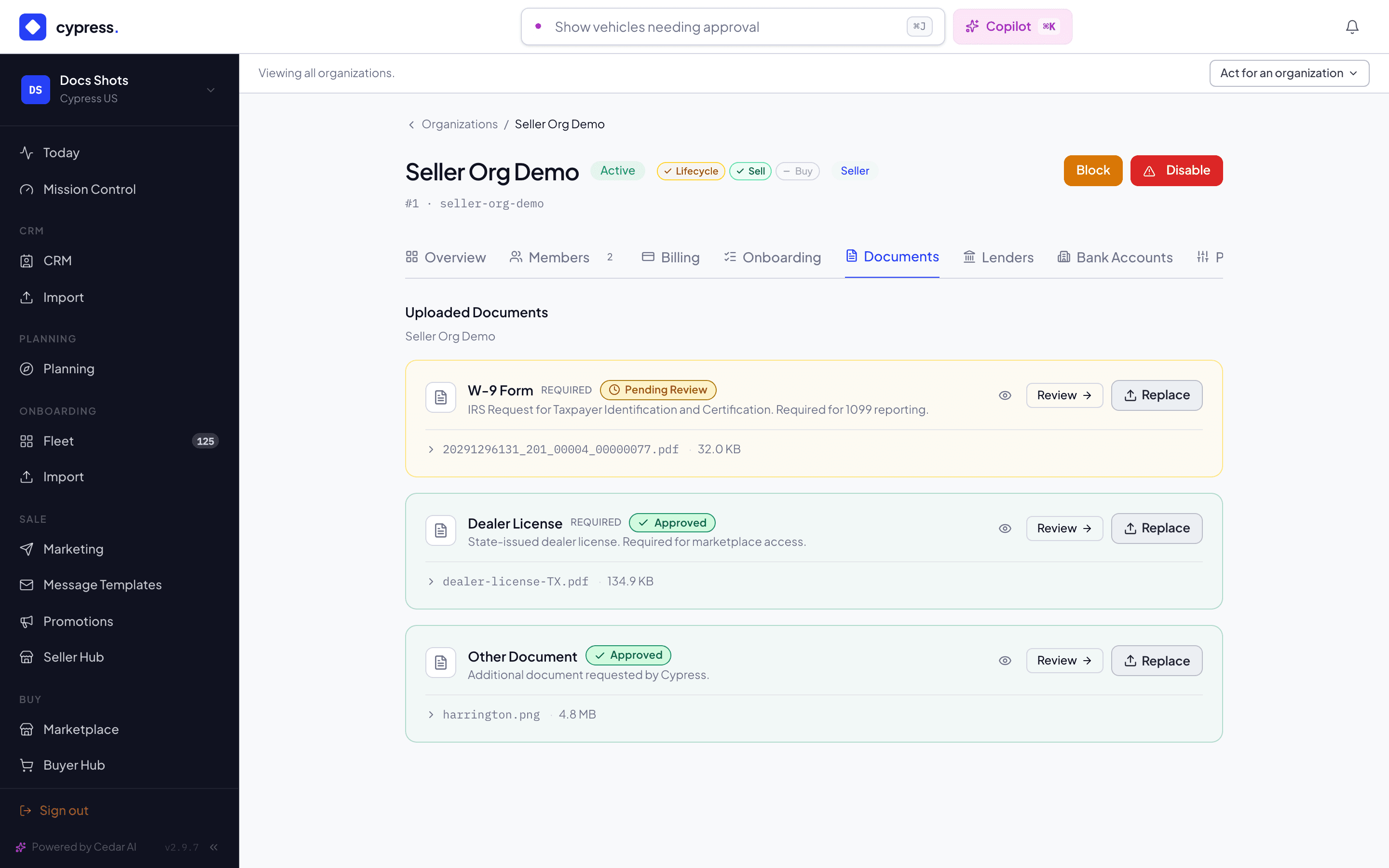
A Cypress Manager uploads, replaces and removes the same way on an organization's behalf, from Admin → Business Orgs → [organization] → Documents, which shows the same cards plus each document's AI-recommendation pill and a Review action once Cypress's own analysis has run.
What happens next
Each document is reviewed by the Cypress team, assisted by an automatic check (name matches the organization, the right fields present, signed and dated) that advises the reviewer — it never auto-approves. "All required documents approved" shows once the W-9 is approved, at least one dealer license is approved, and no license is rejected — a further license still in review shows as pending on its own card without taking an already-approved org back to pending.
If something goes wrong
- "Unsupported file type. Please upload a PDF, JPEG, PNG, or WEBP." — the file's type isn't one of the four accepted kinds.
- "File too large. Maximum size is 20 MB." — split or compress the file and try again.
- "Missing file" / "Invalid documentType" — the upload didn't include a file, or named a document type Cypress doesn't recognize; re-select the file and retry.
- "Document not found" — the card being replaced or removed no longer exists (already removed elsewhere in the meantime); refresh and retry.
- "A W-9 can be replaced but not removed" — Remove isn't offered on the W-9 card; use Replace instead.
- "Only an organization admin can remove documents" — from Settings, removing a card is restricted to org admins; a Fleet Manager can upload and replace but not remove. Cypress Managers remove from the admin tab regardless of role.
- A document marked Rejected shows the reviewer's reason inline — click Replace on that same card with a corrected copy.