Your fleet: grid, pipeline & condition
Get vehicles into Cypress and manage them as a fleet — the grid, the kanban, condition scoring, and photos.
TL;DRAI summary
This chapter explains how to manage your fleet inventory using two main views: the Fleet grid for detailed, editable vehicle information, and the Pipeline kanban for tracking vehicles through their lifecycle stages. It also covers how condition scores and photos influence vehicle value.
For: Fleet Managers
Under the lifecycle switch, your Cypress team can onboard vehicles into your fleet — created in your organization, owned by you from the first record — and carry them through review and pricing.
Everything done under delegation is logged with a Cypress · on behalf badge and notifies your Fleet Managers. Manage the switches in Settings → Organization → Permissions — the full story is in Delegation — Cypress on your behalf.
Everything starts with inventory. This chapter covers the two views you manage it from, and the two inputs that decide what a vehicle is worth before anyone prices it: condition and photos.
Fleet — the grid
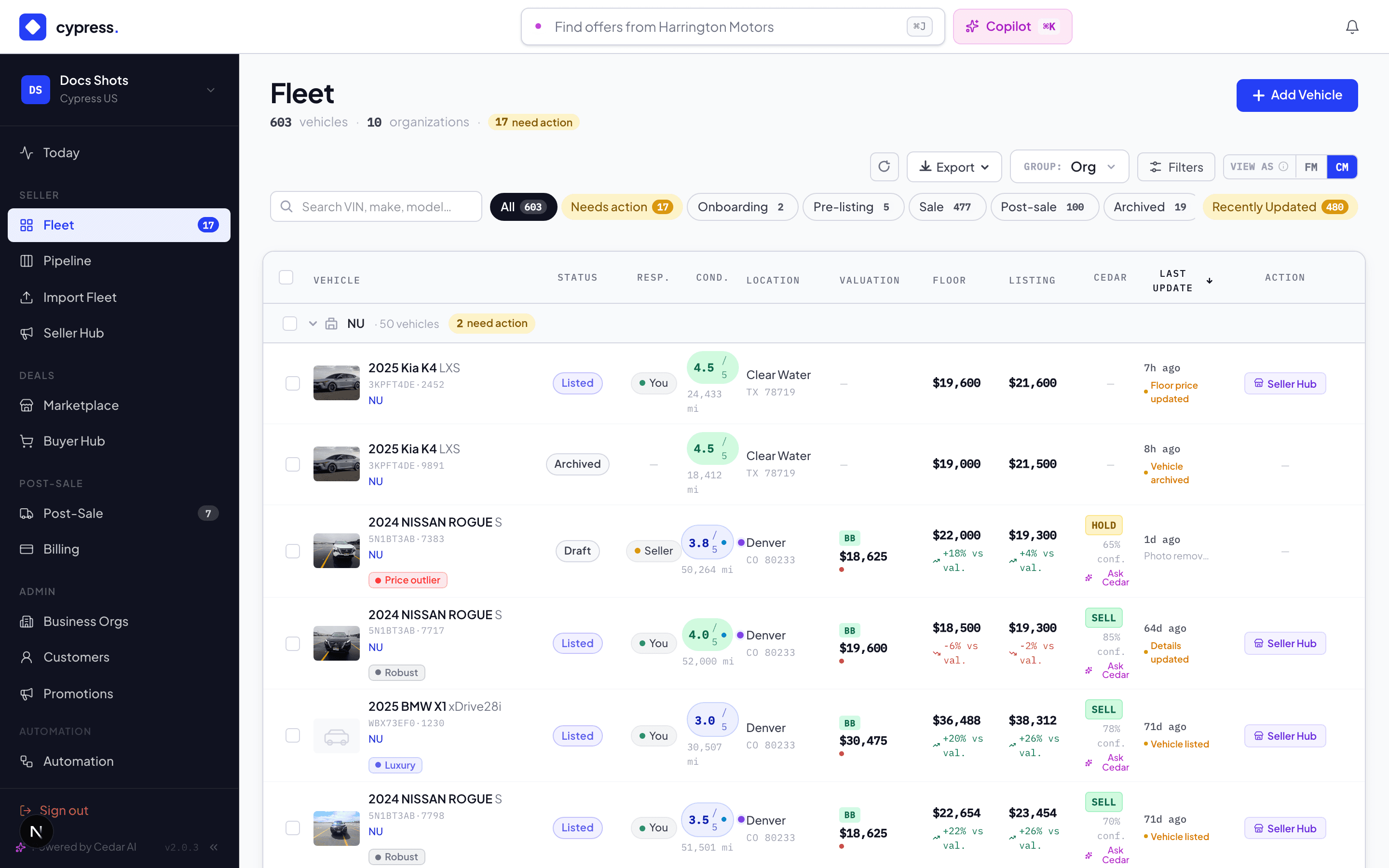
Fleet is the working view: every vehicle, one row each, with the columns that matter (status, condition, mileage, floor, ask, location) — filterable, sortable, and editable in place. Fix a mileage, adjust a condition score, or set a floor without leaving the grid. Bulk-select rows for labels, pricing-rule application, or batch actions, and open any row's side panel for the full picture — photos, valuation, offers, Activity, Updates, and a Leads tab with everyone chasing the vehicle. For a fleet with a live quarter plan the panel gains a Plan tab beside Overview (see The plan in Sell), and on a listed vehicle the Overview tab can carry a violet Planned demand card under the listing numbers: how many dealers plan to buy vehicles like this one, as a count and only when at least two do. See Planning inside remarketing.
The grid adapts to your seat: FMs see their own action set; a CM sees the operator's controls (and can preview exactly what the FM sees — useful when you're on the phone together looking at "the same" screen).
Pipeline — the kanban
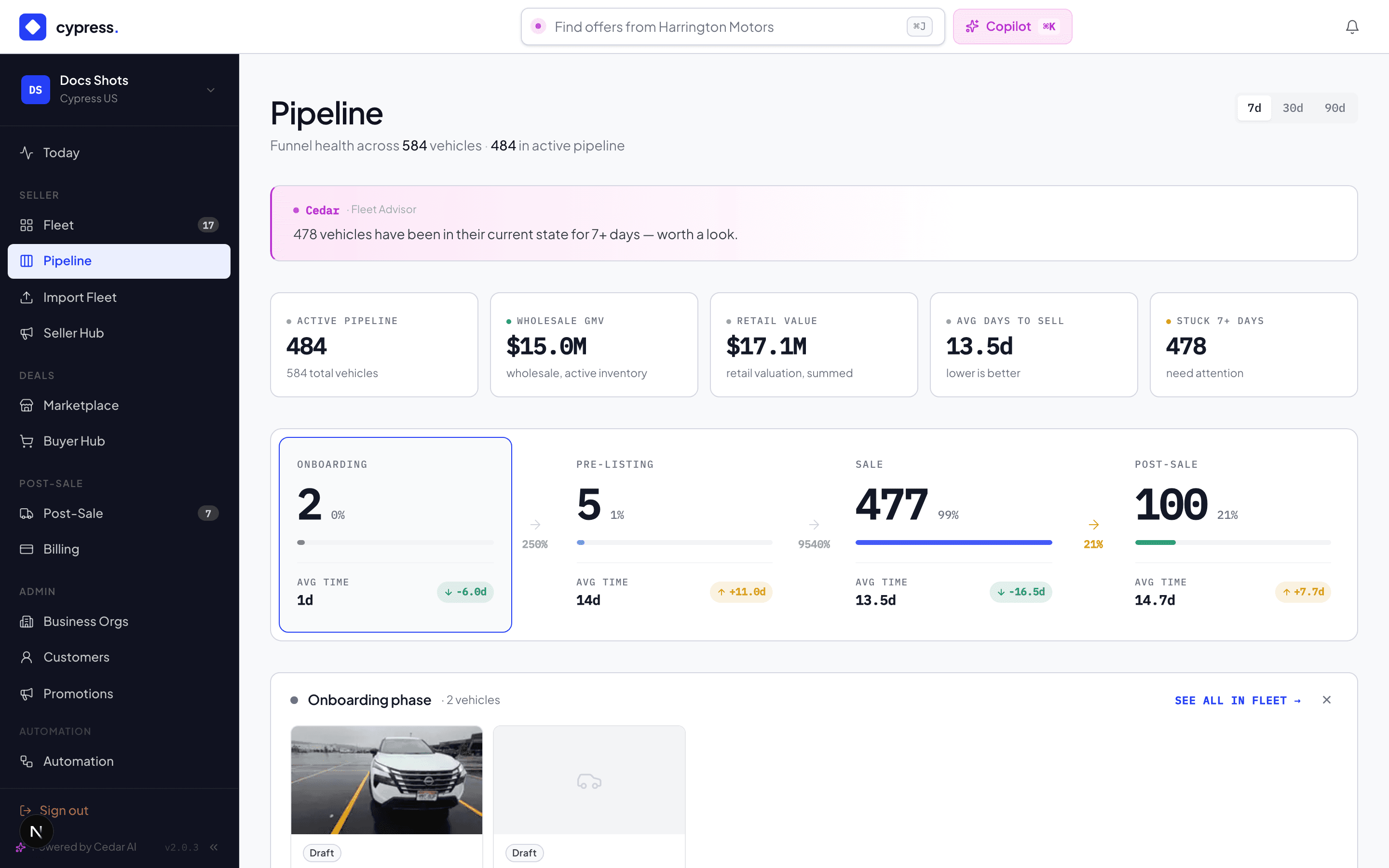
Pipeline is the same fleet arranged by lifecycle stage: Onboarding, Pre-Listing, Sale, Post-Sale as columns you can drag between where a drag is a legal transition. Each phase carries an SLA target, and a vehicle sitting still too long gets flagged as stuck — the kanban's job is to make "where is everything, and what's stalled" a ten-second question.
This is the one place the manual shows the raw status codes — from here on, the seller-facing pills (Live, Paused, Under Offer…) are the vocabulary.
Adding a vehicle
One at a time: VIN first. The decoder fills year, make, model, trim, body, drivetrain, and engine from the VIN; you correct what it got wrong (your data always wins), then add mileage, location, and condition. Fleets arrive in bulk through CSV import — same result, forty at a time.
Condition — the 1-to-5 score
Condition is scored on the industry 1.0–5.0 scale, in decimals:
| Score | Reads as | Means |
|---|---|---|
| 4.5–5.0 | Excellent | Near-retail, no stories to tell |
| 3.5–4.4 | Good | Honest wear, everything works |
| 2.0–3.4 | Fair | Visible wear or known issues, priced accordingly |
| below 2.0 | Poor | Project or parts territory |
The score is a money input, not a vibe: it feeds directly into the valuation tiers, so moving a van from 3.5 to 4.5 is a four-figure difference, and buyers see the score on the listing. Your self-score is the first of three condition signals — ARVIS and third-party reports are the other two.
Photos that sell
Photos do three jobs: they sell the vehicle, they feed ARVIS (the AI damage inspection reads them), and they become evidence at closing time. Cover the basics — four corners, interior, odometer, and every flaw worth disclosing. The first photo is the cover; drag to reorder. A flaw you photograph is a disclosure; a flaw a buyer finds later is an Issue.
Bulk actions — the whole point of a grid
Select rows (or a whole filter's worth) and the bulk bar appears. What it does, up to 500 vehicles at a stroke:
- Prices — set floors or listing prices in bulk: an absolute number, a percent over floor, or a fixed delta ("take $500 off everything selected"). Preview the per-vehicle result before confirming.
- Status — move a set through the lifecycle together; bulk launch takes every eligible APPROVED vehicle live in one action, skipping (and naming) the ones that aren't ready.
- Valuations — request an Orbis run for the selection.
- Labels & rules — apply/remove labels, or run a pricing rule across the set with a preview of what each vehicle would get.
- Fleet assignment and export — organize, or take the selection to CSV/XLSX.
Bulk actions take no shortcuts: each vehicle passes the same checks as a one-at-a-time change — the same launch gate, the same governance staging where it applies — and each writes its own Activity entry. A bulk action is 500 audited changes, not one vague one. (Cedar can drive the same bar: "drop the floor $500 on everything selected" becomes a proposal card over your current selection.)
Worked example
Maria types the Transit's VIN; the decoder fills 2022 Ford Transit 250, cargo, 3.5L V6. She corrects the trim, enters 18,412 miles and the Austin lot, scores condition 4.5 (one bumper scrape, photographed), and uploads 12 photos. The Transit lands in DRAFT at the top of her Onboarding column — valuation picks the story up from here.
Under the hood
Inline edits write the same audited paths as everything else — a grid edit shows up on the vehicle's Activity tab like any other change. The status codes in the kanban are the platform's single state machine; every surface (and the API) speaks it.